Import a PDF form
Metatool, the Windows design tool in Interact, can turn a PDF into a form. A form is a fixed fragment, such as a letterhead, an invoice layout or a pre-printed page, that you place behind the variable text of a document. Metatool reads the text, fields, images and lines in the PDF and builds the form for you, so you do not have to draw it again by hand.
Importing directly from a PDF is available from Interact 11.3. Images and vectors came with 11.7, kerning with 11.9, the PDF/UA structure with 11.12, and forms taking the full page height with 11.15. See Release history for what changed in each version.
Before you start
- Copy the PDF files you want to import into one folder. You can keep XML files from the older PDF conversion in the same folder.
- Make sure the fonts used in the PDF exist in the Metaforce font folder. They must also be installed in Windows while you import, otherwise the text boxes get the wrong size and position.
- Open the logic file you want the form to end up in. The Import form button is greyed out when no logic file is open or when forms cannot be edited in the current project.
📝 Note: PDF is an old and very wide format, so Metatool can misread an unusual file. If a PDF comes out badly, send it to Doxis support so the import can be improved.
Import one or more PDFs
- Click the Home tab, then Import form.
- Click […] under Select template from folder and choose the folder that holds the PDFs. The files are listed under Form files.
- Tick the PDFs you want to import. Click Select all to tick every file in the list, or Deselect all to clear the list.
- Choose the options you need, described in the table below. Import bitmaps and Vectors as Canvas work on one PDF at a time. If more than one file is ticked, Metatool does not start and shows a message at the bottom of the dialog.
- Click Start.
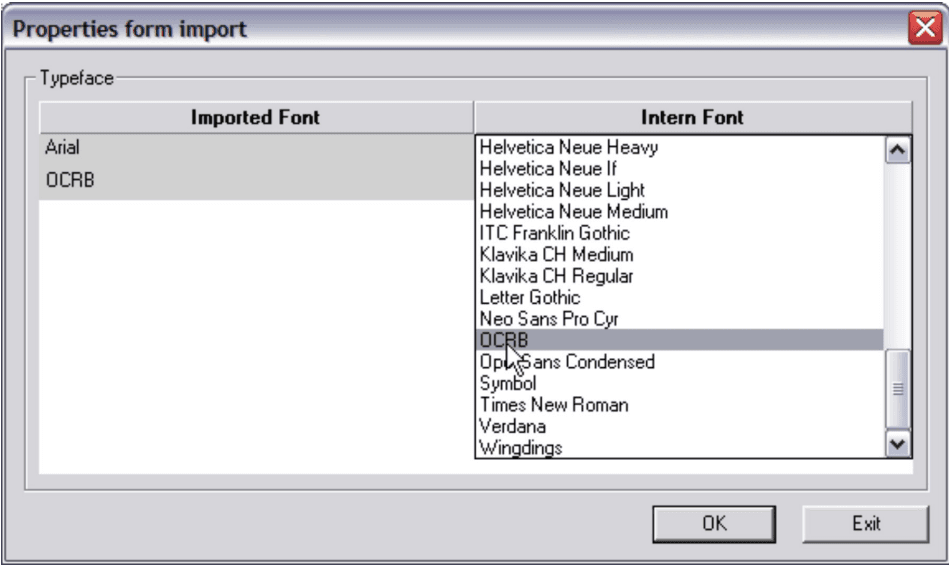
- The Properties form import dialog lists each font in the PDF under Imported Font. Choose the matching Metaforce font under Intern Font for every row, then click OK. Metatool saves your choices in the logic file and fills them in the next time the same font is imported. Click Exit to stop the import.
- The forms editor opens with the first page of the PDF. The form gets the name of the PDF file, followed by the page number when the PDF has more than one page. Check the result, change the ID if you want another name, and click OK to save the form. Metatool then opens the next page, or the next PDF.
- If a form with that name already exists, Metatool says Form ’…’ already exists and asks whether to overwrite it. Click Yes to replace it. Click No to go back to the ID field and type another name.
To skip a page, click Exit in the forms editor. Metatool asks Do you want to break? Click Yes to skip the rest of this PDF, or No to go on with its next page.
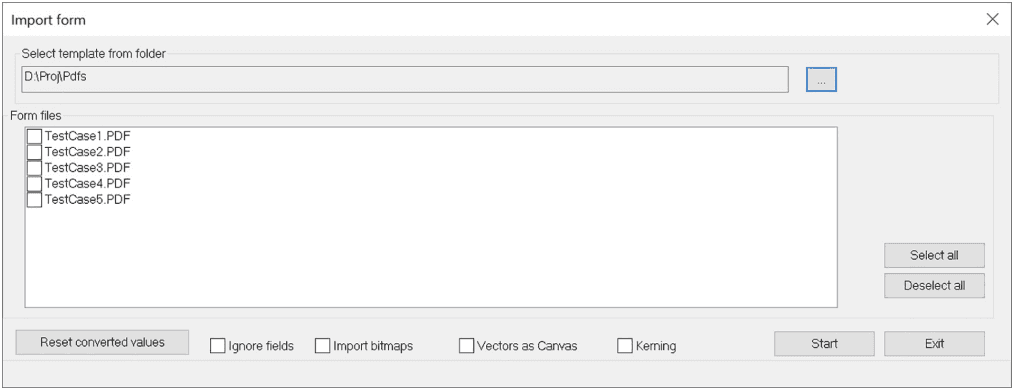
The buttons Select all and Deselect all sit to the right of the Form files list, and the options sit along the bottom of the dialog, next to Start and Exit.
| Option or button | What it does |
|---|---|
| Select template from folder | Choose the folder with the PDF files. |
| Form files | Lists the PDFs in that folder. Tick the ones to import. |
| Select all / Deselect all | Tick or clear every file in the list. |
| Reset converted values | Left over from the older XML conversion. It asks you to confirm, but does not change anything. To change a saved font choice, pick another font in the Properties form import dialog during the next import. |
| Ignore fields | Skips the input fields in the PDF. |
| Import bitmaps | Brings in pictures from the PDF as image objects. One PDF at a time. |
| Vectors as Canvas | Brings in lines and shapes from the PDF as a vector object. One PDF at a time. |
| Kerning | Adds the spacing between letter pairs from the PDF, so text lines up more closely with the original. |
| Start | Imports the ticked files. |
| Exit | Closes the dialog. |
After you save a form, you can open it again from the forms list to move, resize and change the objects. See Forms for how to work with a form.
What the import creates
- Text. Each piece of text becomes a text box with the font you mapped.
- Form fields. If the PDF has form fields, each field name is saved as an Import id. When you import the same PDF again and overwrite the form, Metatool matches the Import id against the field name. A field you have already set up keeps its variable and its other settings. Only its position, size and rotation are taken from the new PDF. A field without an Import id is matched on its position instead.
- Images and vectors. With Import bitmaps and Vectors as Canvas ticked, Metatool creates image and vector resources. Their names are built from the content, so the same picture used in several PDFs is stored once and reused. Bitmaps are imported at 300 dpi.
- Page height. An imported PDF always takes the page height.
- Accessibility structure. If the PDF is tagged for PDF/UA, the import keeps its paragraphs, tables and lists, so the form can be used in an accessible PDF. See PDF/UA.
Forms are useful because AFP and PostScript treat them as static objects placed at the top of the print file, as inline resources. The print file gets smaller, and the document is produced faster because the drawing operations run only once.
Good to know
- All vectors from one PDF end up in one background vector object the size of the form. You cannot pick out a single logo from the other lines. Change the order in the form’s object list if you need the vectors in front, but remember it moves all of them together.
- The name of the PDF becomes the folder name the first time Metatool meets a resource. If a later import reuses that resource, the folder still carries the first PDF’s name. Rename the folder if that is confusing.
- Some pictures in a PDF are built from many tiny bitmaps. They do not look good on the form. Remove them and import the picture separately.
- When you print to AFP, map the RGB colours of every imported vector to CMYK. Do this again each time you import a PDF. See Color definitions.
What the import does not handle
These cases do not fit how the document engine works, and are not likely to change soon:
- Transparent vector graphics. A completely transparent background works.
- Clipping regions, for both bitmaps and vectors.
- Bitmaps or vectors that lie partly outside the form.
- Complex layers. All vectors get the z-order 1, so they sit in the background.
A safe way to work
Create a separate project, for example a “Jump Solution project”, and import your PDFs and their resources there. Check the results carefully, then copy the forms you want to the real project. The unused images and vectors then stay in the Jump Solution project and do not clutter the real one.