Access and sign-in problems
This page explains why you may not see Audit, or why it shows no events, and what to do about each message.
Who can use Audit
| You | What you see |
|---|---|
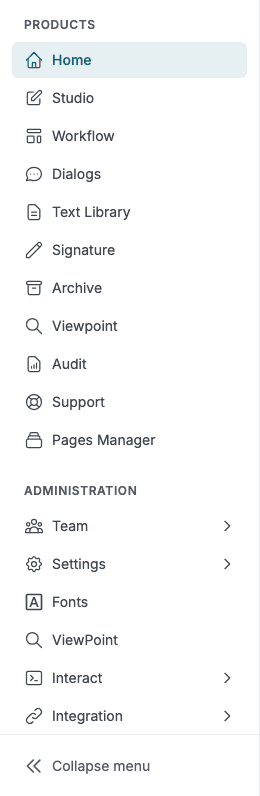
| Your company has the Audit licence | Audit appears in the left menu of the Doc Gen start page, under Products. |
| Your company does not have the licence | There is no Audit item, and the application shows Missing License. |
| You are a company administrator | You see the tiles and the latest events on Home, and you can search in Audit. |
| You are a user without the administrator role | Home shows 0 on every tile and no latest activity. Clicking Search in Audit opens Not Authorized. |
Audit shows the events of the company you selected when you signed in. If your account belongs to more than one company, sign-in asks you to choose one. To look at another company, open the user menu at the top right of the Doc Gen start page, click Change Company, choose the company and open Audit again. Events of other companies are never shown.
Messages you may meet
| Message | What it means | What to do |
|---|---|---|
| Missing License with the text You do not have an active license to access Audit. | Your company does not have an active Audit licence. | Ask your company administrator to request access. Click Sign out to sign in as someone else. |
| Not Authorized with the text You do not have permission to access this resource. | You are not a company administrator, or your session is no longer valid. | Ask a company administrator to check your role, or sign in again. |
| Not Found with the text The page you are looking for does not exist. | Audit could not find what the page asked for. | Open Audit again from the Doc Gen start page. |
| Search Failed | The search did not complete, for example because Audit could not be reached. | Try again a little later. |
Signed in, but nothing is listed
When Audit is open and the table says No audit events found. Try adjusting your filters., check these in order:
- Search. The list stays empty until you click Search.
- From and To. They start one month back and today. Move From further back to see older events.
- Source and Level. Set them to All sources and All levels to see every event.
- The Search text. It must be part of the event name, not of any other field.
- The company. You are looking at the company you chose at sign-in.
Read The Audit application for the screens.