Audit log forwarding
Audit log forwarding sends each new event of your company to a system of your own, such as a logging platform or a SIEM tool, as soon as it is recorded. Use it to keep all your logs in one place, to raise alerts, or to meet compliance rules.
You set it up under Administration in the left menu of the Doc Gen start page, so you need to be a company administrator who can open Administration.
Configuration
-
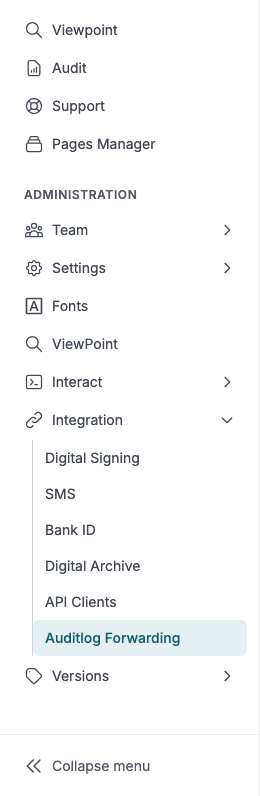
On the Doc Gen start page, find Administration in the left menu.
-
Click Integration, then Auditlog Forwarding.
-
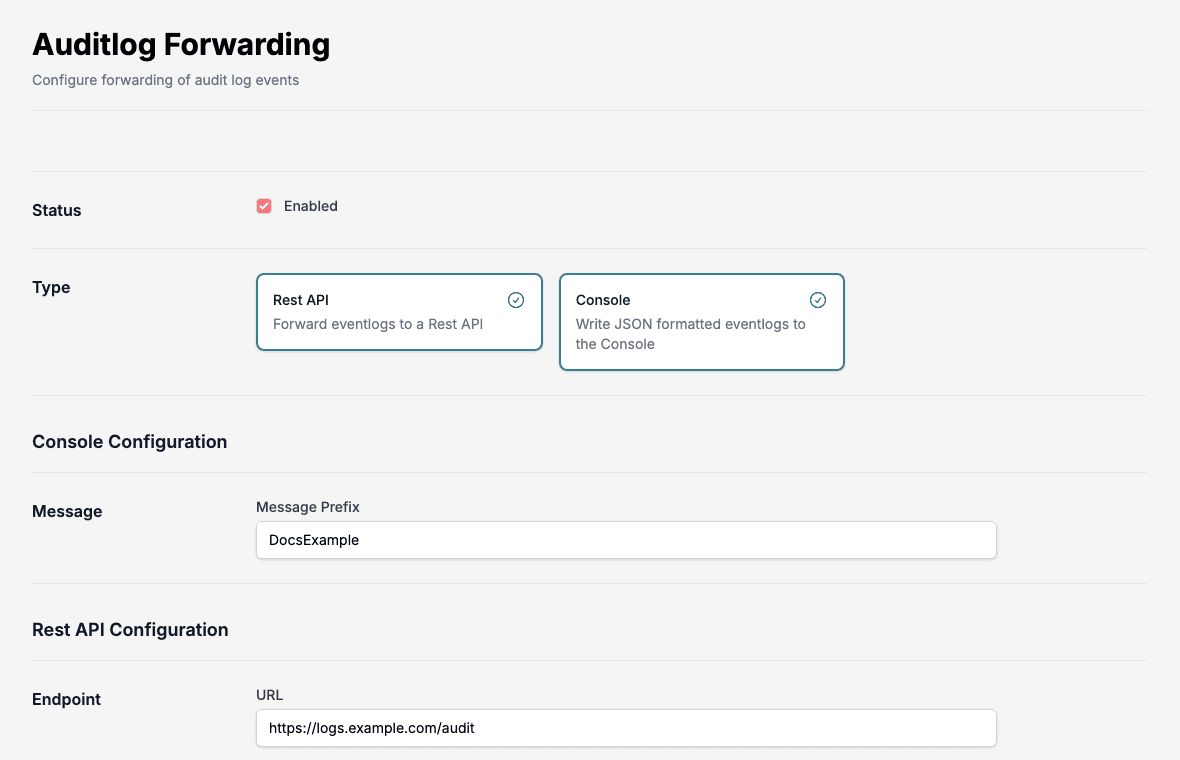
Tick Enabled. The other settings appear.
-
Under Type, click the Rest API card, the Console card, or both.
-
Fill in the settings for the types you chose, as described below. They are grouped under Console Configuration and Rest API Configuration.
-
Click Save. The message Configuration saved appears when the settings are stored. If the save fails, an error message such as Save failed appears instead.
To stop forwarding, clear Enabled and click Save. A saved change can take up to five minutes to apply to new events.
Settings
| Setting | Used by | Description |
|---|---|---|
| Enabled | Both | Turns forwarding on or off for your company. |
| Rest API card | Forward events to a Rest API. | |
| Console card | Write the events as JSON to the console of the Audit service. | |
| Message Prefix | Console | Text put in front of every message. Optional. |
| URL | Rest API | Where the events are posted. Required. |
| Authentication, Type | Rest API | None or OAuth 2.0 Client Credentials. |
| Client ID | Rest API with client credentials | The client id your receiving system gave you. Required. |
| Client Secret | Rest API with client credentials | The client secret for that id. Required. |
| Token Endpoint | Rest API with client credentials | The address that hands out tokens. Required. |
| Scope | Rest API with client credentials | The scope to ask for. Optional. |
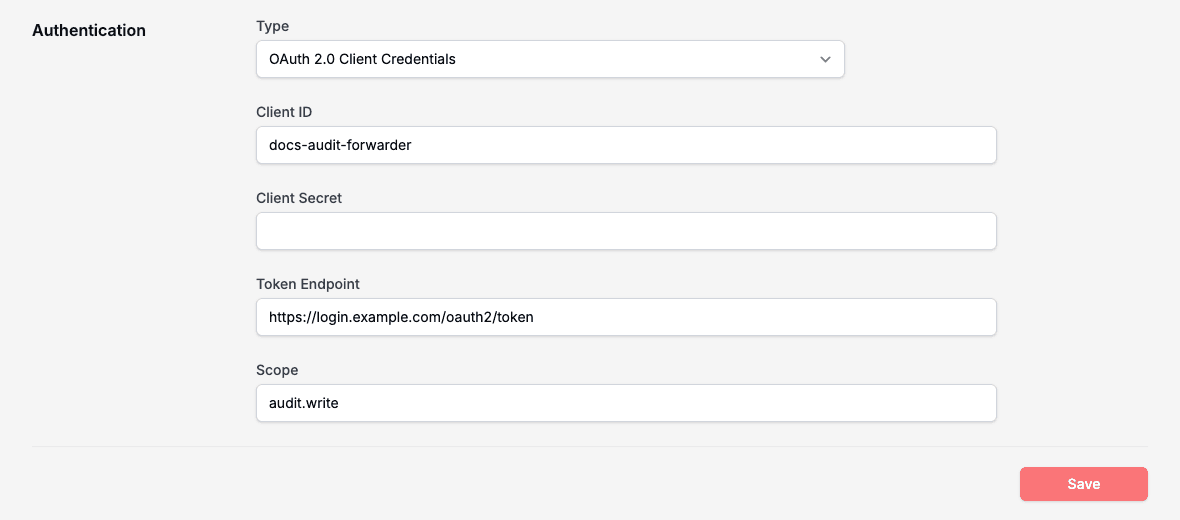
Save does not accept the form while a required field is empty. Keep the client secret in your own secret store. Do not paste it into tickets or chat.
The Console type is for testing and for support staff. The messages go to the log of the service, which you cannot read yourself, so use Rest API to receive events.
What is sent
Each event is sent as one JSON object with the fields of the event: its source, name, level, user, category and the other fields listed in the Audit API, and its description. The field names start with a capital letter, for example LogName, Source, Level, User, Category, GDPR and Description. Source and Level are numbers, as in the Audit API.
With Rest API, Doc Gen sends an HTTP POST with the JSON as the body to your URL. When Authentication is OAuth 2.0 Client Credentials, it first asks your Token Endpoint for a token with the client id, the client secret and the scope, and sends that token as a bearer token with the event.
With Console, the message is the JSON, with your Message Prefix in front when you set one.
Important behavior
Audit log forwarding uses a fire-and-forget mechanism.
Implications
- No retry logic is implemented.
- Failed deliveries are not resent.
- Delivery failures must be handled by the receiving system.
Recommendations
- Make sure the receiving endpoint is highly available.
- Monitor and log on the receiving system.
- Do not rely on forwarding as the only source of audit data. The events stay in Audit, where you can read them in the Audit application or through the Audit API.
Set up and check
Try forwarding against a test endpoint before you point it at your production logging system.
- Set up a test endpoint you control that accepts a
POSTwith a JSON body, for examplehttps://logs.example.com/audit. - Open Auditlog Forwarding, tick Enabled, click Rest API, enter the URL, choose None as the authentication type, and click Save.
- Do something that creates an event, for example open Viewpoint from the Doc Gen start page. Viewpoint records Access the ViewPoint application.
- Look at your test endpoint. The event arrives as a JSON object.
- Open Audit and search for the same event to compare.
If nothing arrives, wait five minutes after saving and try again. Then check that the URL can be reached from the internet, that the token endpoint and client credentials are right, and that Enabled is ticked. Because failed deliveries are not sent again, an event that failed stays missing on your side. Read it from the Audit list instead.