The Audit application
The Audit application shows the events that Doxis Doc Gen has recorded for your company, such as a user opening Viewpoint or a form being published. Use it to see who did what and when, and to look into a problem after it happened.
Only company administrators can see the events. If you cannot open Audit or the lists stay empty, see Access and sign-in problems.
Open Audit
Open Audit from the Doc Gen start page: click Audit in the left menu, under Products. The item is only there when your company has the Audit licence. You can also go straight to https://audit.metaforce.net.
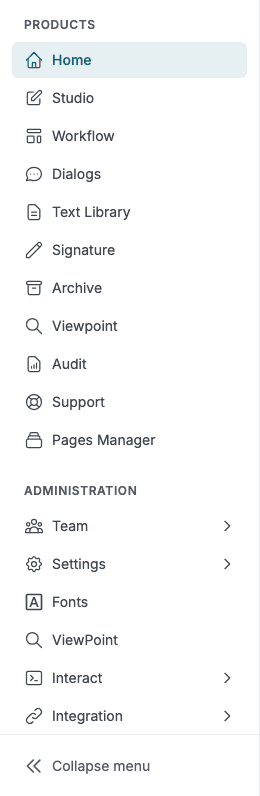
Audit has a left menu with two items, Home and Audit. Collapse menu at the bottom makes the menu narrower. The question mark at the top right opens this documentation.
Home
Home gives you an overview of the last 30 days and the newest events.
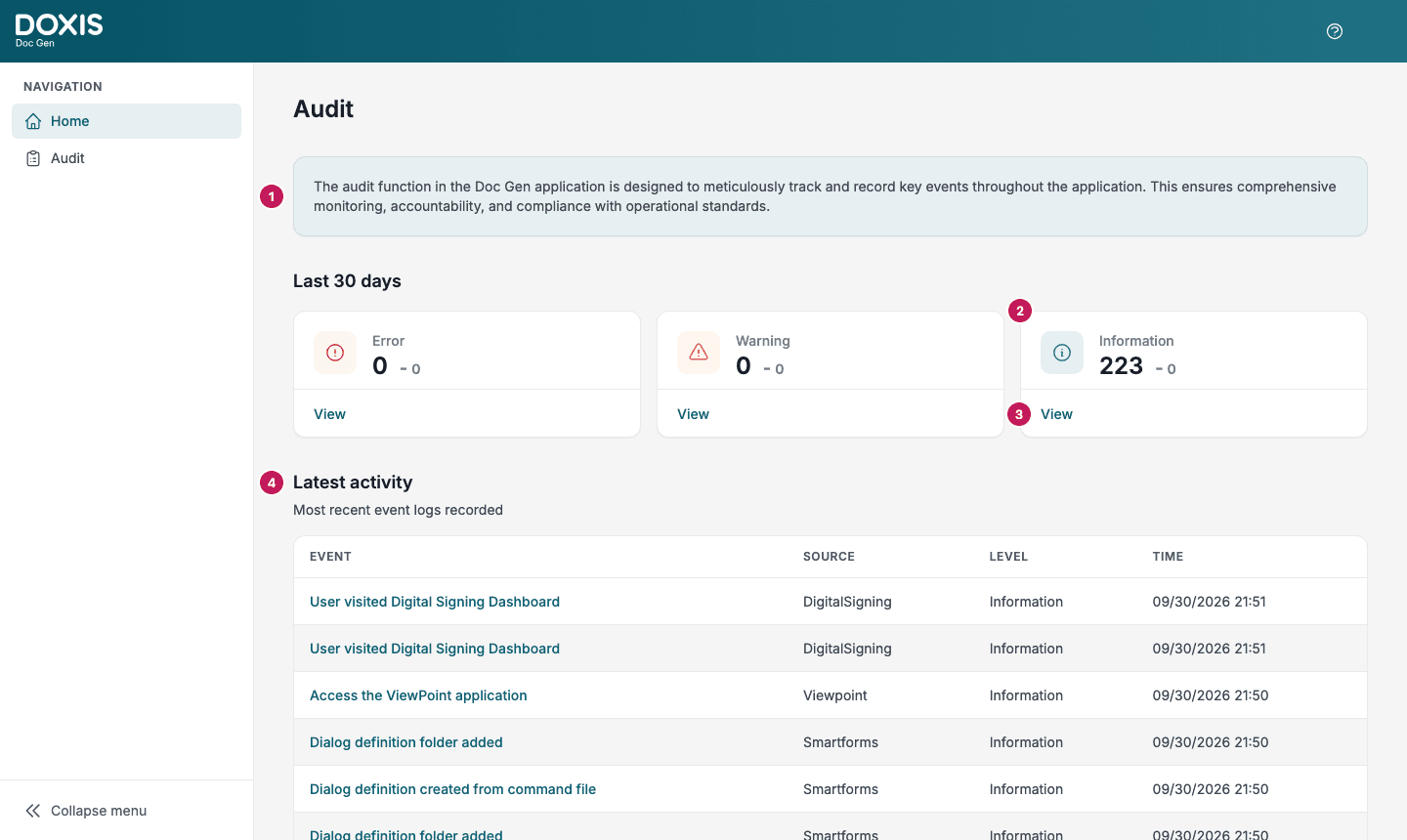
- The banner says what Audit is for.
- Under Last 30 days, one tile each for Error, Warning and Information shows how many events of that level were recorded. The tiles count at most 9,999 events in total.
- View on a tile opens the Audit list with Level already set to that level and the search already run.
- Latest activity lists the 20 newest events with Event, Source, Level and Time. Click a row to open its details.
To see all events of one level, click View on its tile:
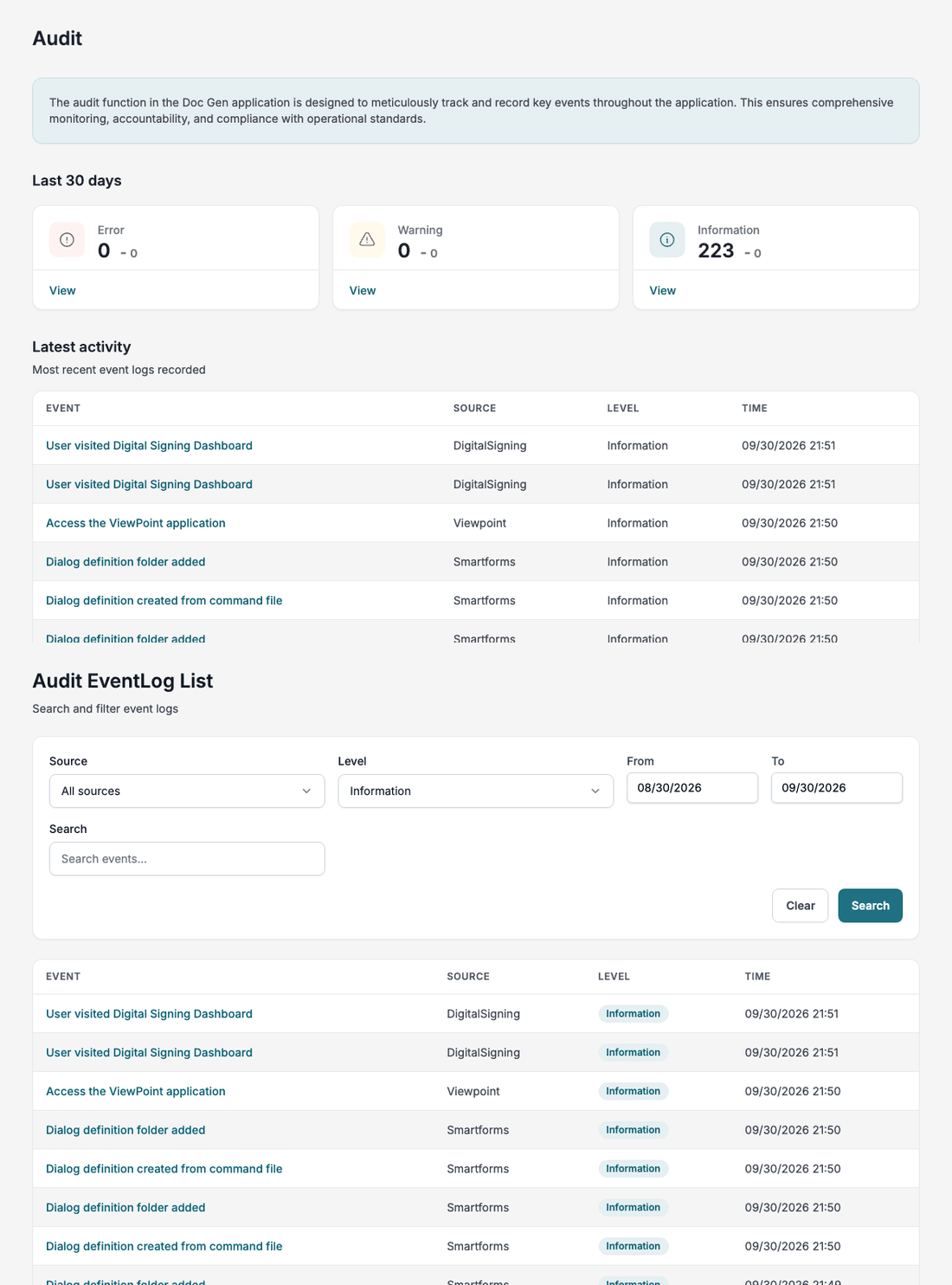
The list that opens uses the default dates, from one month ago to today, and all sources. Change the filters as described below if you need something narrower.
Audit list
Click Audit in the left menu to search the events. The page is titled Audit EventLog List. The list stays empty until you click Search.
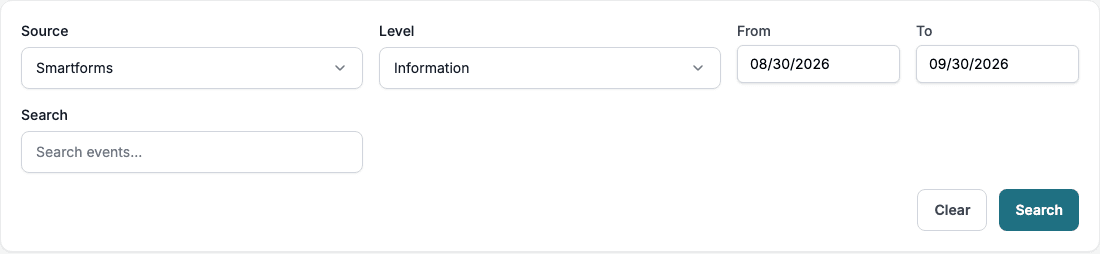
| Filter | What it does |
|---|---|
| Source | Shows events from one product. The default, All sources, shows every source. The names are listed in Events and sources. |
| Level | Shows Information, Warning or Error events. The default, All levels, shows every level. |
| From | First day to include. Starts one month back. |
| To | Last day to include. Starts on today. The whole of this day is included. |
| Search | Text to look for in the event name. It does not search the other fields of an event. |
The dates are whole days. You cannot filter on a time of day.
Find an event
- Click Audit in the left menu.
- Choose a Source and a Level, or leave them on All sources and All levels.
- Set From and To if the event is older than a month.
- Type part of the event name in Search.
- Click Search.
- Click the event in the list to open its details.
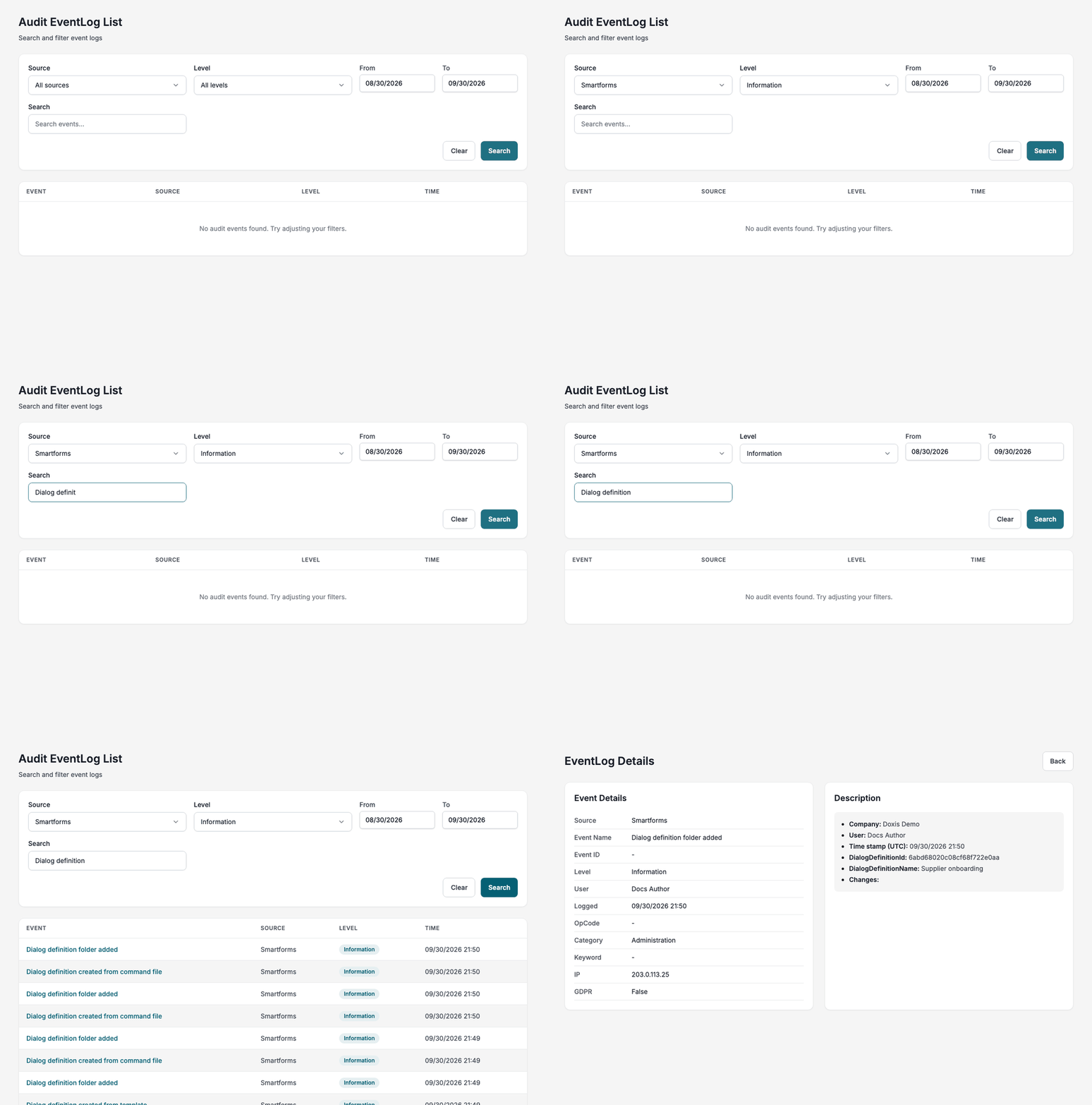
Click Clear to set the filters back to their start values and run the search again.
📝 Note: You can link straight to a filtered list. Open https://audit.metaforce.net/admin/audit?level=Error&searchoninit=true and the list opens with Level set to Error and the search already run.
leveltakes the name of a level (Information, Warning or Error) or its number (1, 2 or 3). Leave outsearchoninit=trueto open the list without running the search.
Results
The newest events come first, 15 to a page.
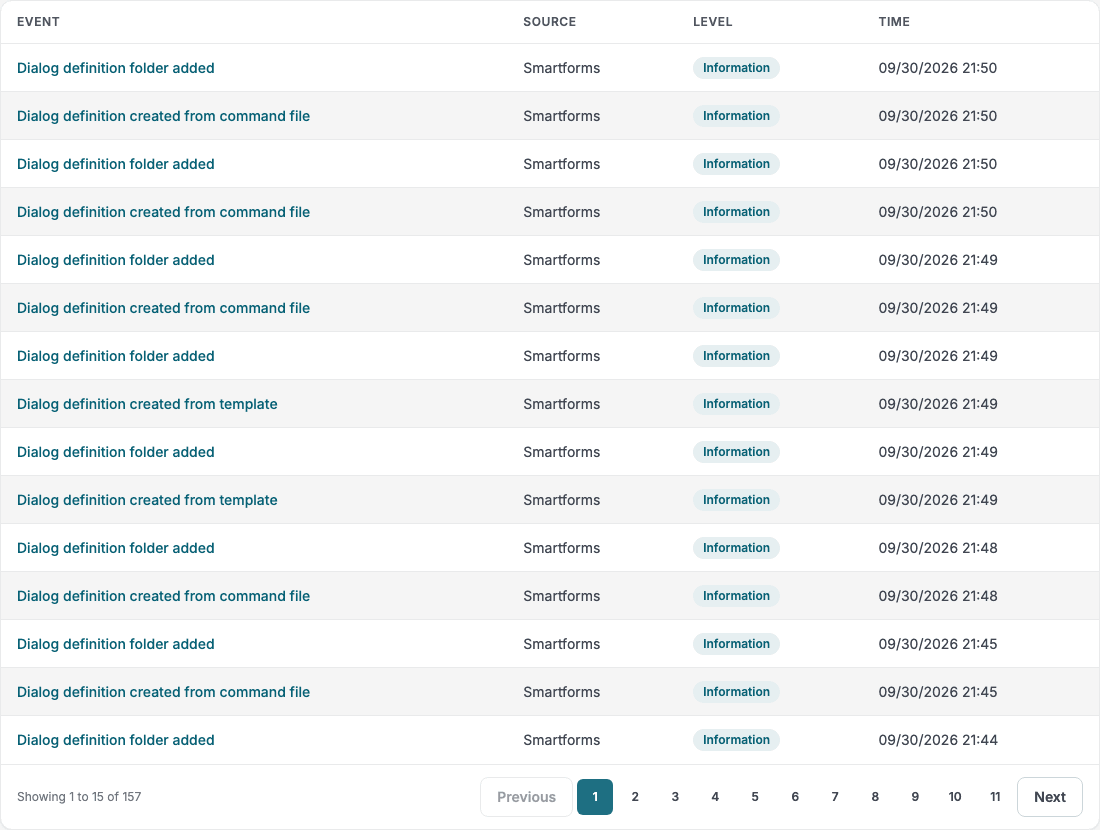
| Column | Shows |
|---|---|
| Event | The name of the event. |
| Source | The product that recorded it. |
| Level | Information, Warning or Error as a coloured badge. |
| Time | When the event was recorded, in your local time. |
Under the table, a line such as Showing 1 to 15 of 157 says how many events match, and the page numbers with Previous and Next move between pages. When nothing matches, the table says No audit events found. Try adjusting your filters.
Audit entry details
Click an event to see everything recorded about it. The page is titled EventLog Details.
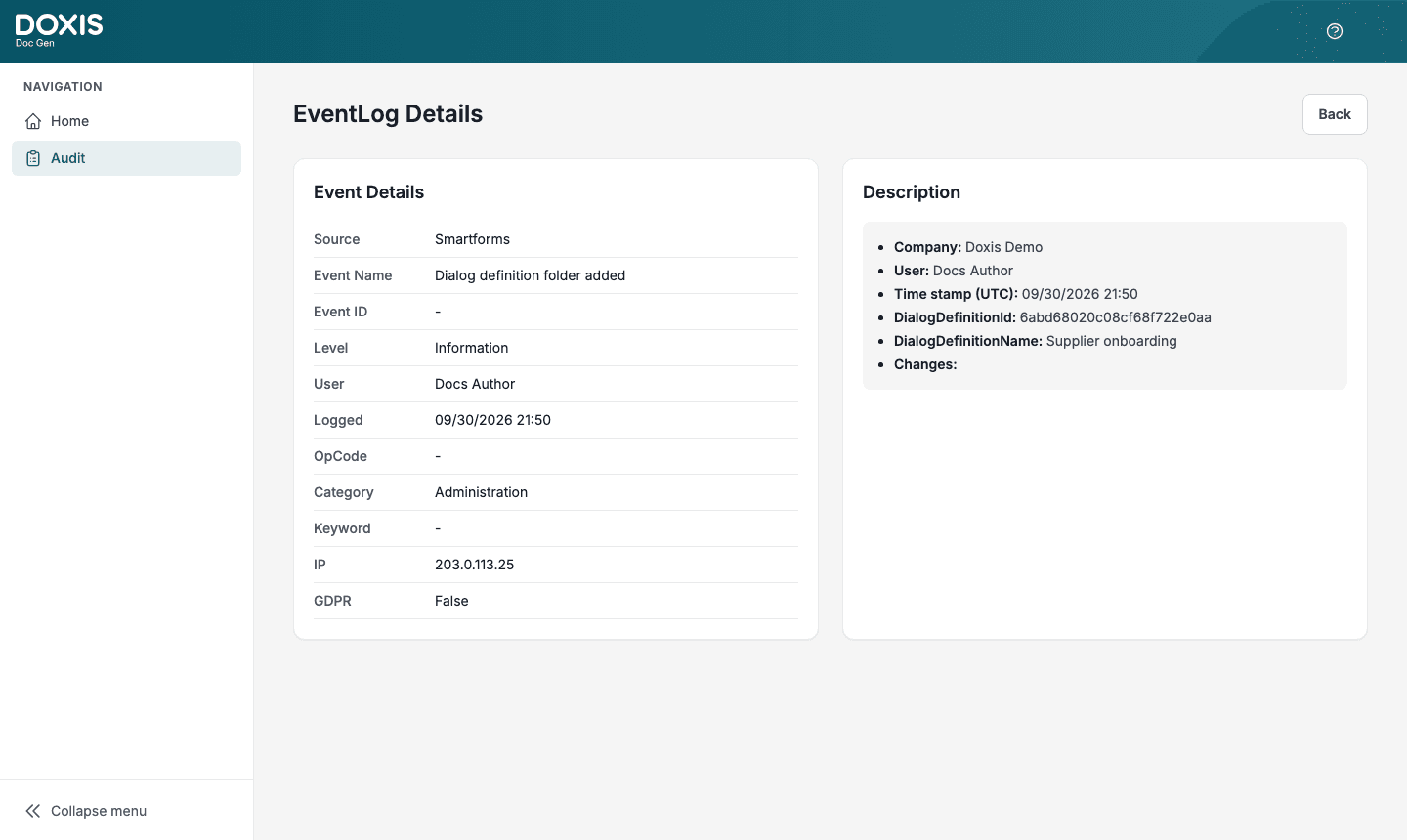
The Event Details card holds the standard fields. A field the product did not fill in shows a dash.
| Field | Description |
|---|---|
| Source | The product that recorded the event. |
| Event Name | The name of the event, as in the list. |
| Event ID | A number the product may give the event. |
| Level | Information, Warning or Error. |
| User | The user the event belongs to. |
| Logged | When the event was recorded, in your local time. |
| OpCode | An operation code for integrations or your own tracking. |
| Category | A group for the event, for example Administration. |
| Keyword | Keywords the product added. |
| IP | The address the event came from, when the product supplies one. |
| GDPR | True when the product marked the event as holding personal data, otherwise False. |
The Description card lists the facts that belong to this event as names and values. Most events list the Company, the User and a Time stamp (UTC), and add their own values, for example the name of the dialog definition that was changed. A value that holds several parts is shown as an indented list.
Click Back to leave the event. When you opened the event from Home, Back returns to Home. When you opened it from the Audit list, Back returns to an empty list with the filters back at their start values, so set them again and click Search to get your results back.