Follow your tickets in Overview
The page headed List of Ticket registered lists every Support request and Error registration for your company, with the most recently updated ticket first. Open it from the Overview tile or the navigation on the left of Home.
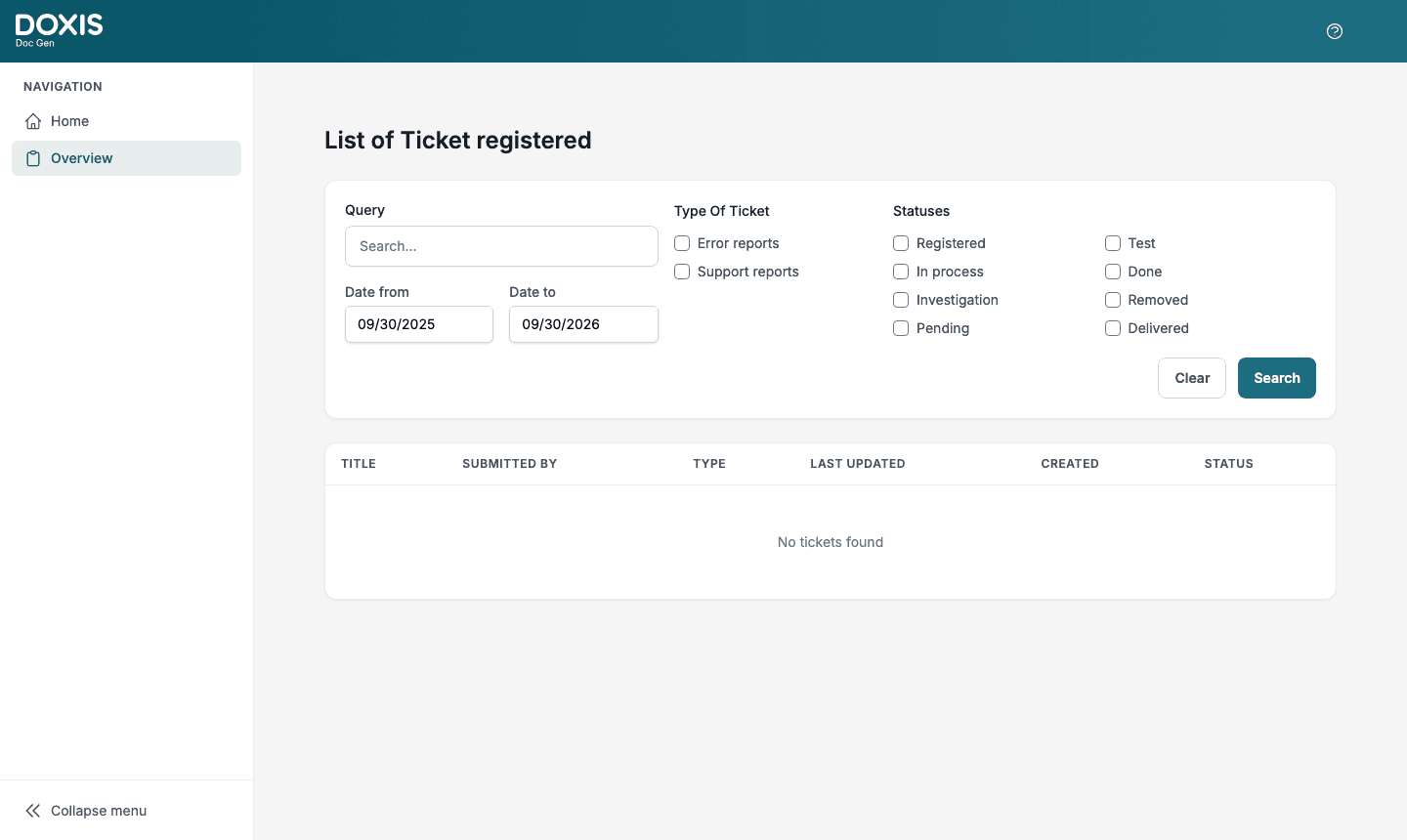
Find a ticket
- Enter part of the ticket title under Query.
- Set Date from and Date to.
- Under Type Of Ticket, tick Error reports, Support reports or both.
- Under Statuses, tick the statuses you want.
- Click Search.
Leave a group empty to include everything in it. Click Clear to remove your choices and show the last 12 months again. If you opened Overview from a chart on Home, Clear keeps the chart’s type and status ticked.
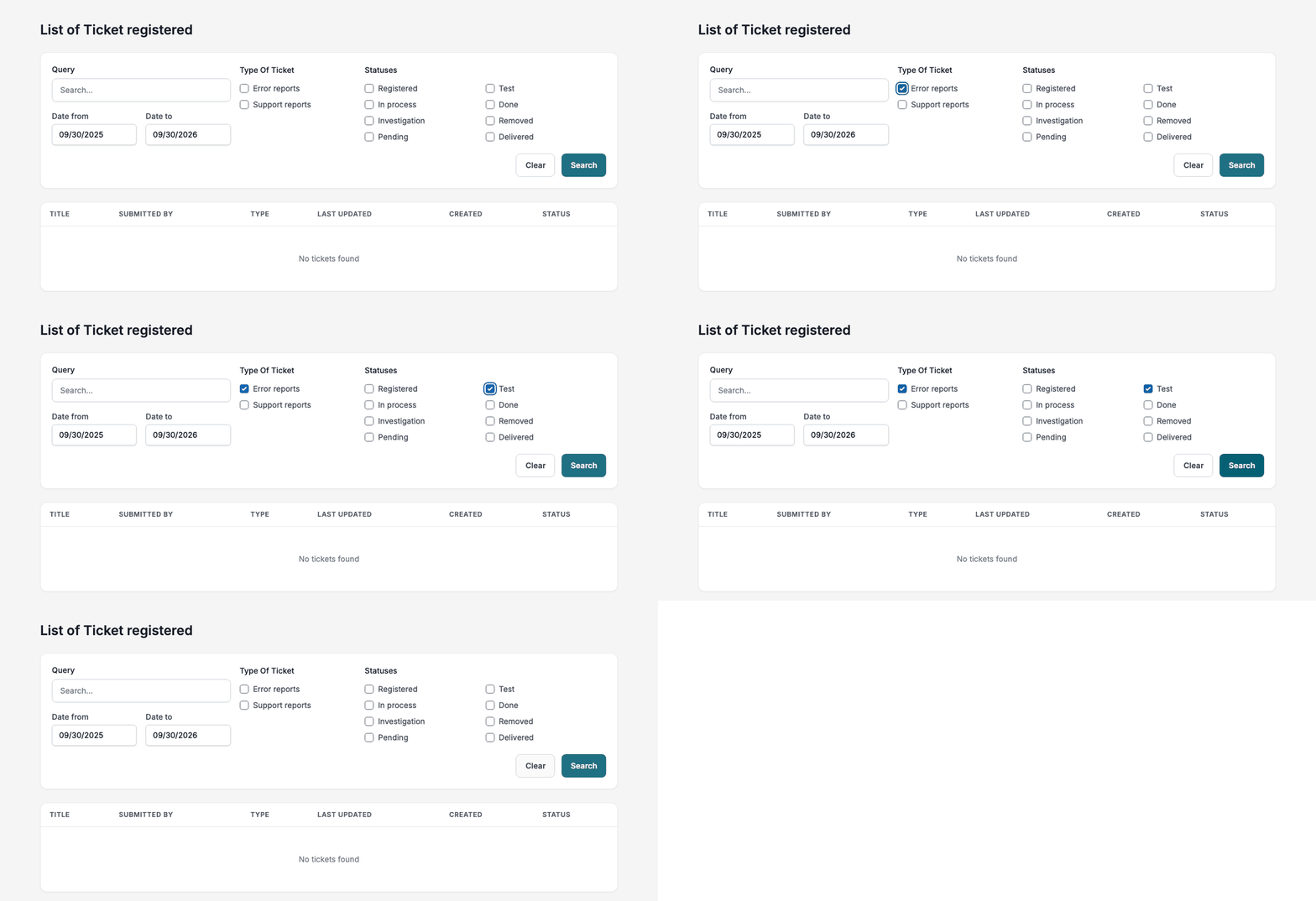
The parts of the page
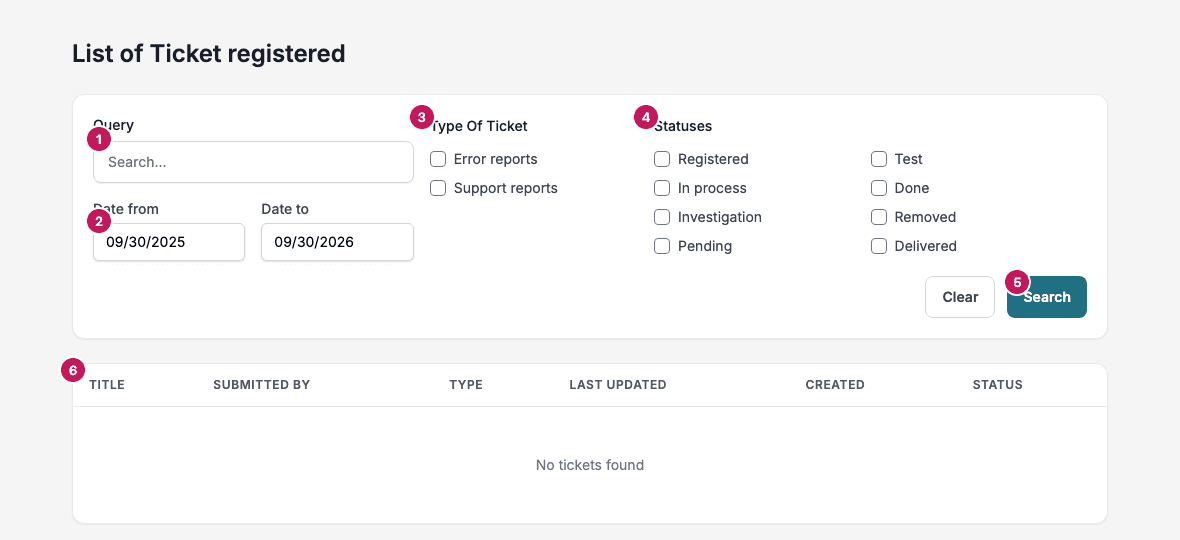
- Query searches the ticket title only. Capital letters count, so type the title as it was written.
- Date from and Date to filter on the date a ticket was created and default to the last 12 months. Date from cannot be later than Date to.
- Type Of Ticket limits the list to errors or support requests.
- Statuses limits the list to the statuses you tick.
- Clear and Search.
- The table has the columns Title, Submitted by, Type, Last updated, Created and Status. Click a title to open the ticket form in a new tab. The Status badge is coloured for Done and Delivered and grey for every other status.
When nothing matches, the table shows No tickets found. Widen the dates or remove a filter.

Statuses
The support team works on your ticket in their own ticket system. Support shows the status as one of these labels.
| Status in Support | Stands for in the ticket system |
|---|---|
| Registered | New, and any status Support does not know |
| Investigation | Waiting for Response, Failed Test |
| In progress | Approved, Committed, In Progress |
| Pending | On Hold |
| Test | Test |
| Done | Done |
| Delivered | Delivered |
| Removed | Removed |
Note: In the filter the In progress status is called In process. It is the same status.
A status changes when the ticket system reports the change, so it can take a moment before Overview shows it. Reload the page to see the latest.