Follow up on Smartforms
View in Dialogs shows the Smartforms that have been sent and what state they are in. Use it to see what is waiting for a receiver, to remind receivers who have not answered, and to clean up.
Open View
- On the Dialogs home page, click View.
- The Processes page opens on the Digital Signing tab. Click Smartform.
The Smartform tab has one row for each Smartform.
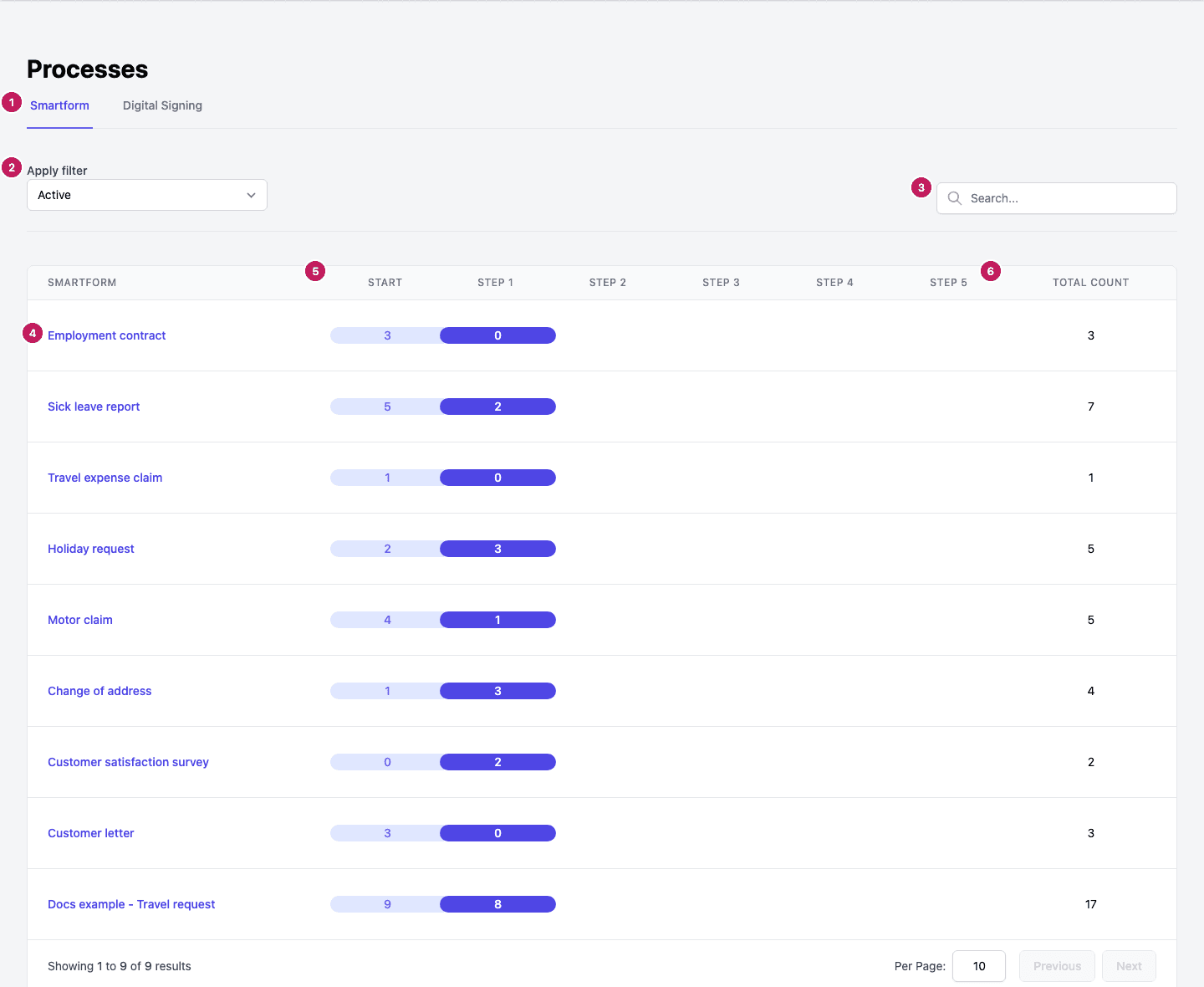
- Smartform and Digital Signing are the two tabs. See Follow up on signing orders for the second one.
- Apply filter switches between Active and Inactive Smartforms.
- Search… filters the list by Smartform name.
- The name of the Smartform. Click it to see its submissions.
- Start and Step 1 to Step 5 show how many submissions are at each step. A Smartform with one step uses Start and Step 1. Click a number to open the submissions of that Smartform.
- Total count is the sum of the counts on the row.
The table shows ten Smartforms per page. Change Per Page or use Previous and Next to move between pages.
See the submissions of a Smartform
Click a Smartform name, or one of its numbers, to open its submissions. A submission is one sent copy of the Smartform.
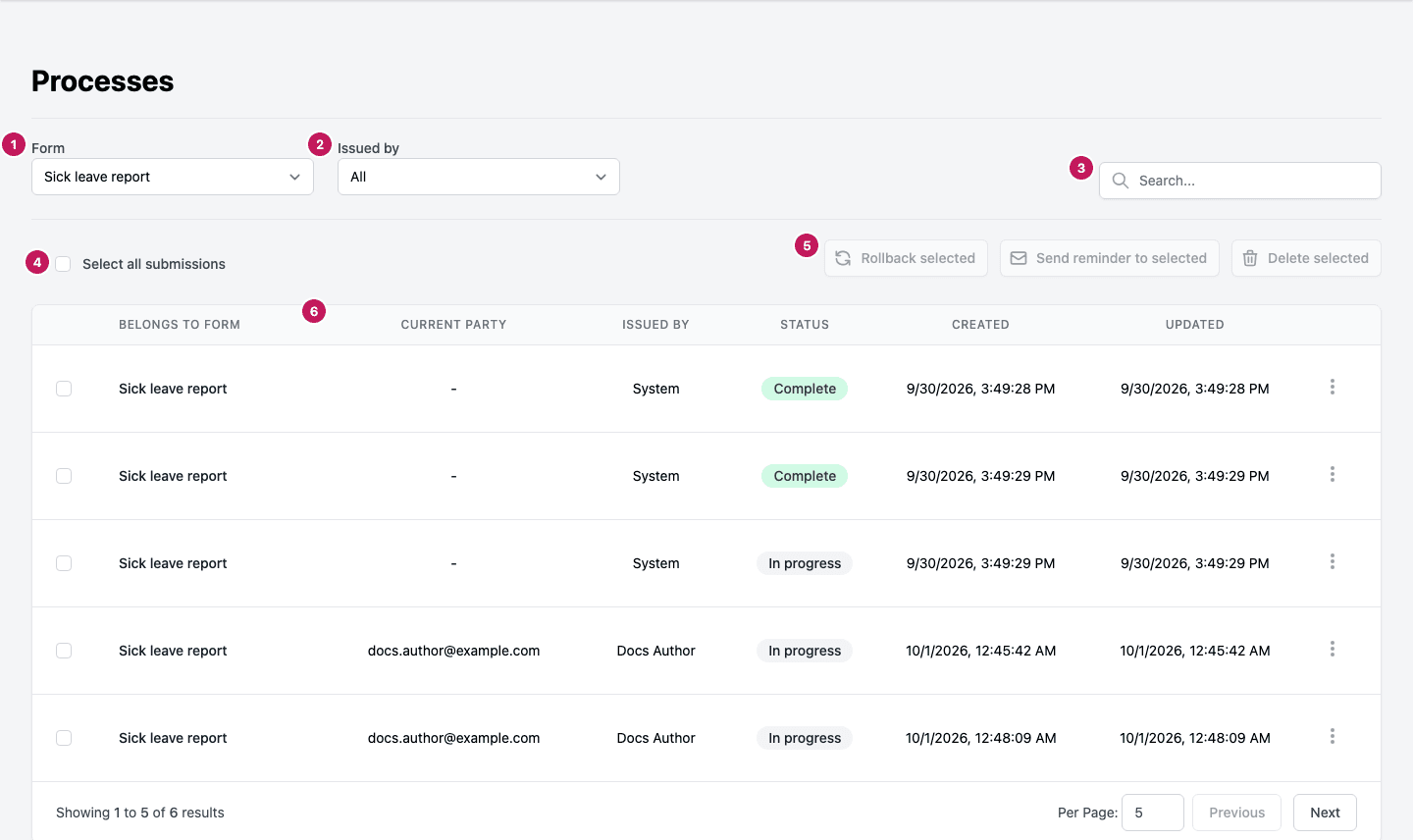
- Form changes to another Smartform.
- Issued by shows the submissions sent by one person. It lists All and the names of the senders.
- Search… finds submissions by Current party. A multi-step Smartform also has a Steps filter next to Issued by.
- Select all submissions ticks every submission of the Smartform, also the ones on other pages and the ones that Issued by or Search… hide. You can also tick rows one by one.
- Rollback selected, Send reminder to selected and Delete selected work on the ticked submissions. They stay disabled until you tick at least one.
- The table columns are Belongs to form, Current party, Issued by, Status, Created and Updated. A multi-step Smartform shows Step instead of Status. Most column headings sort the list when you click them.
Current party is the person the submission is waiting for, for example the e-mail address you entered as the receiver. It shows - when there is none.
Status
| Status | Meaning |
|---|---|
| In progress | The receiver has not finished the form |
| Complete | The form is finished and needs no signature |
| Complete and signed | The form is finished and the signature is done |
| Awaiting Signing | The form is finished and still needs a signature |
On a multi-step Smartform, a submission that is not finished shows the name of its current step instead of In progress.
Act on a submission
Open the menu Open options at the end of a row to work on one submission, or tick rows and use the buttons above the table to work on several at once.

| Action | What it does |
|---|---|
| View | Opens the submission in the form, at its current step |
| Rollback | Moves a multi-step submission back one step, so the previous party can fill in their step again. It has no effect on a Smartform with one step |
| Send reminder | Sends the notification to the current party again |
| Delete | Removes the submission |
Send a reminder
Use a reminder when a receiver has not answered. The Updated time of the submission changes when the reminder is sent.
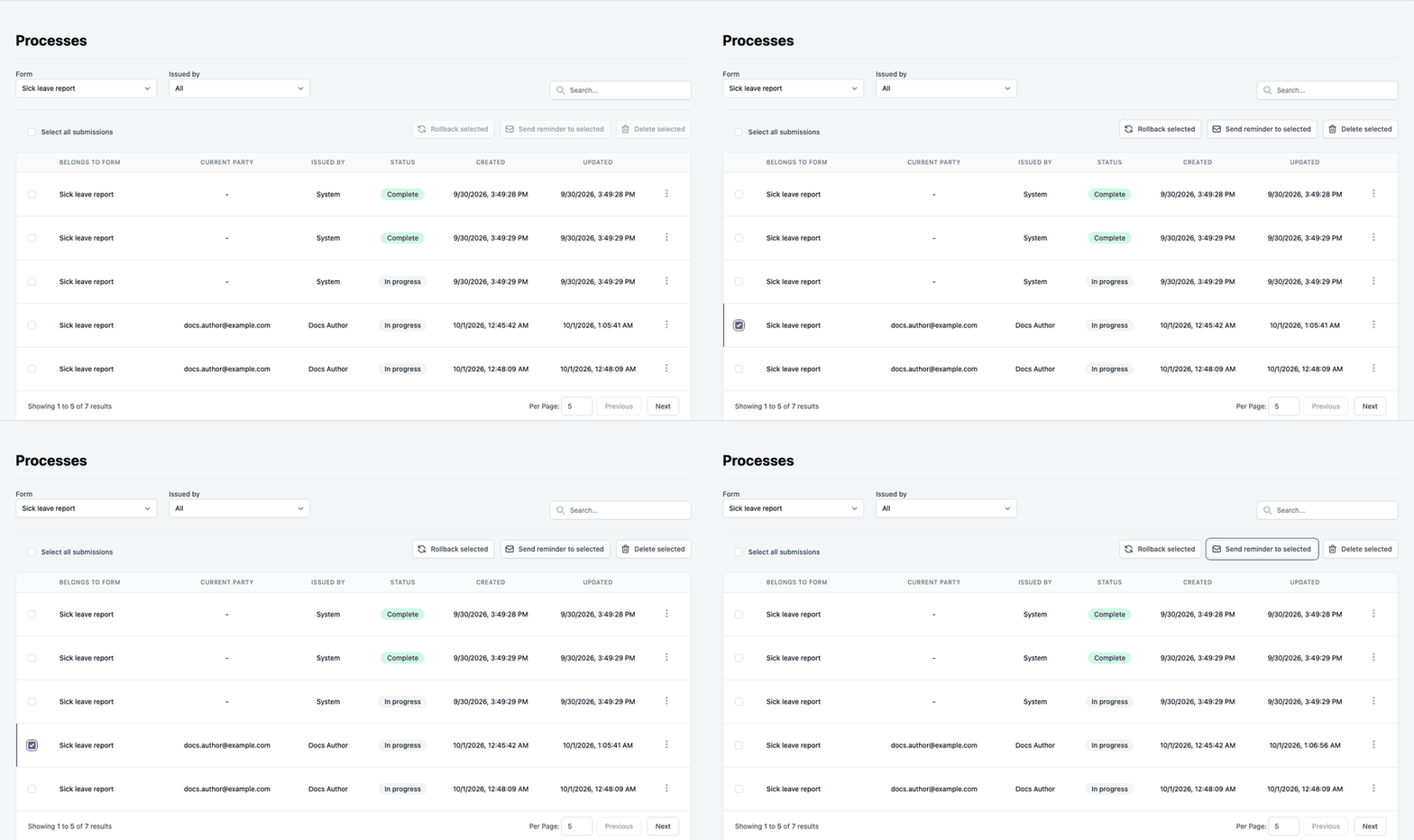
- Tick the submissions that should get a reminder.
- Click Send reminder to selected. To remind one submission, you can also choose Send reminder in its Open options menu.
Dialogs sends the first message again, to the Current party of each ticked submission. It uses the default language set in Studio, which can differ from the language you chose when you sent it. A submission that is already complete gets no reminder. Doc Gen can also send reminders by itself, see Send a Smartform.
Delete submissions
Delete in the Open options menu asks Do you want to delete the Dialog Values?. Click Delete to remove the submission, or Cancel to keep it.
Note: Delete selected removes all ticked submissions at once and does not ask again. After Select all submissions that is every submission of the Smartform, also the ones you cannot see on the page. Check what is ticked before you click it.