Send a Smartform
Use Smartforms in Dialogs to send a Smartform to the person who should fill it in. For a multi-step Smartform you fill in every party at once, and each party is told when it is their turn. The receiver gets an e-mail, and an SMS if you choose, with a link to the form.
You can only send Smartforms that are active and that you have access to. Building and activating Smartforms is done in Studio.
Send a Smartform to one person
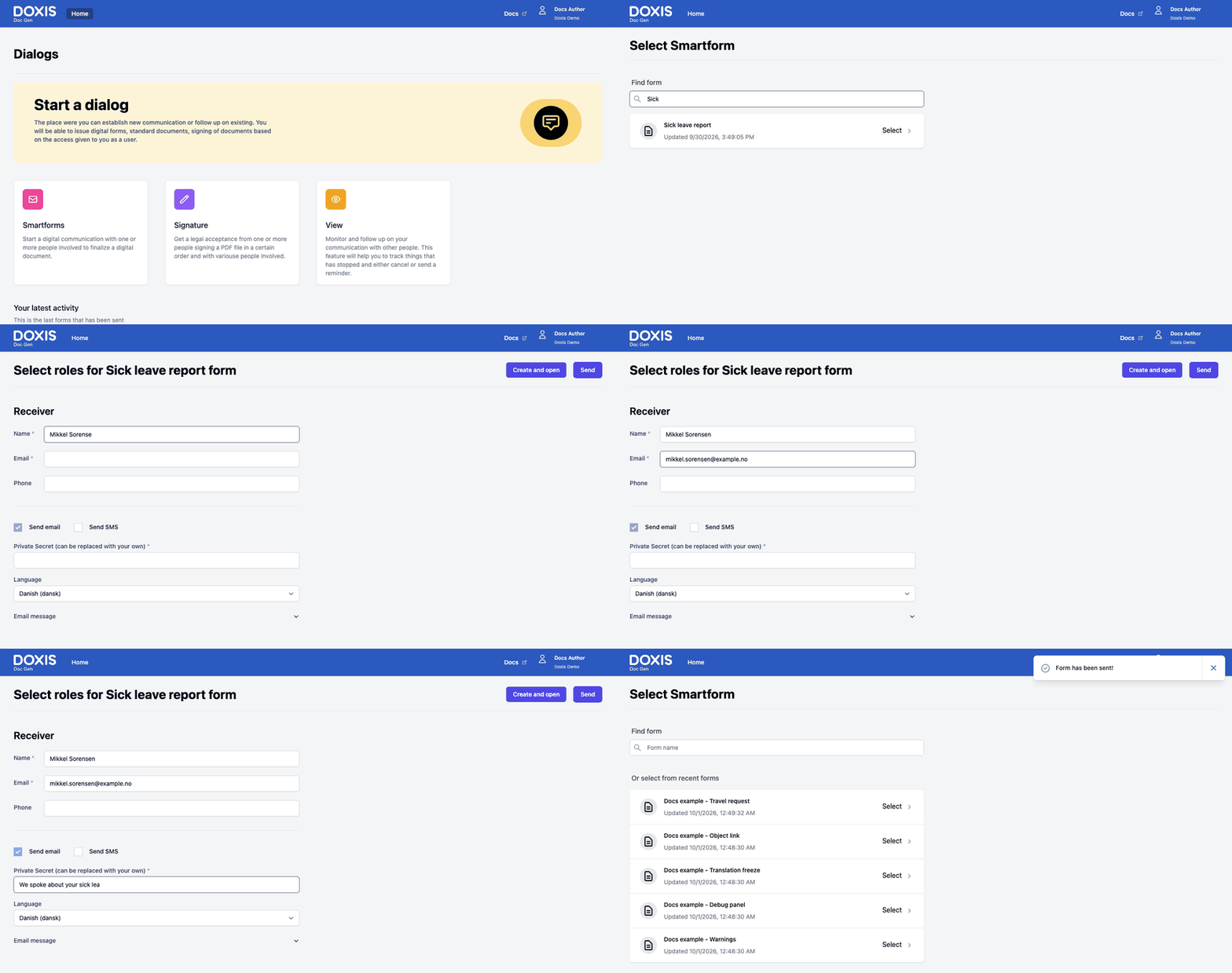
- On the Dialogs home page, click Smartforms.
- Type a name in Find form, or pick a form under Or select from recent forms. The recent list shows the five active Smartforms that were changed most recently. Click Select on the form you want.
- Under Receiver, fill in Name and Email. Both are required. Phone is optional unless you send an SMS.
- Send email is ticked. Tick Send SMS as well if the receiver should also get a text message. Then Phone is required, and Send stays disabled until you enter a valid number with the country code, for example
+46 70 174 06 55. - Check Private Secret (can be replaced with your own). It is required. See Private secret.
- Choose the Language of the message.
- Optional: open Email message, or SMS message, to read what the receiver will get.
- Click Send. Dialogs shows Form has been sent! and takes you back to the Select Smartform list.
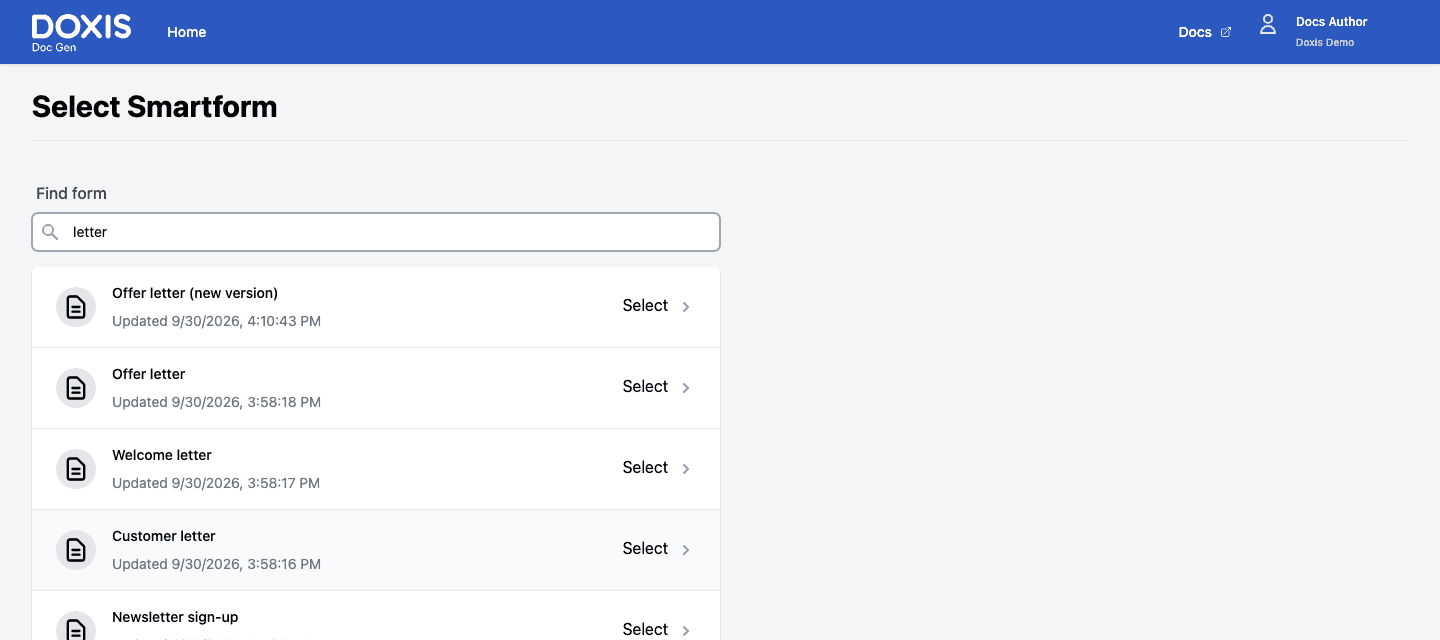
If sending fails, Dialogs shows Failed to send form.
The send form
The heading is Select roles for, the name of the Smartform and form. The numbers below match the picture.
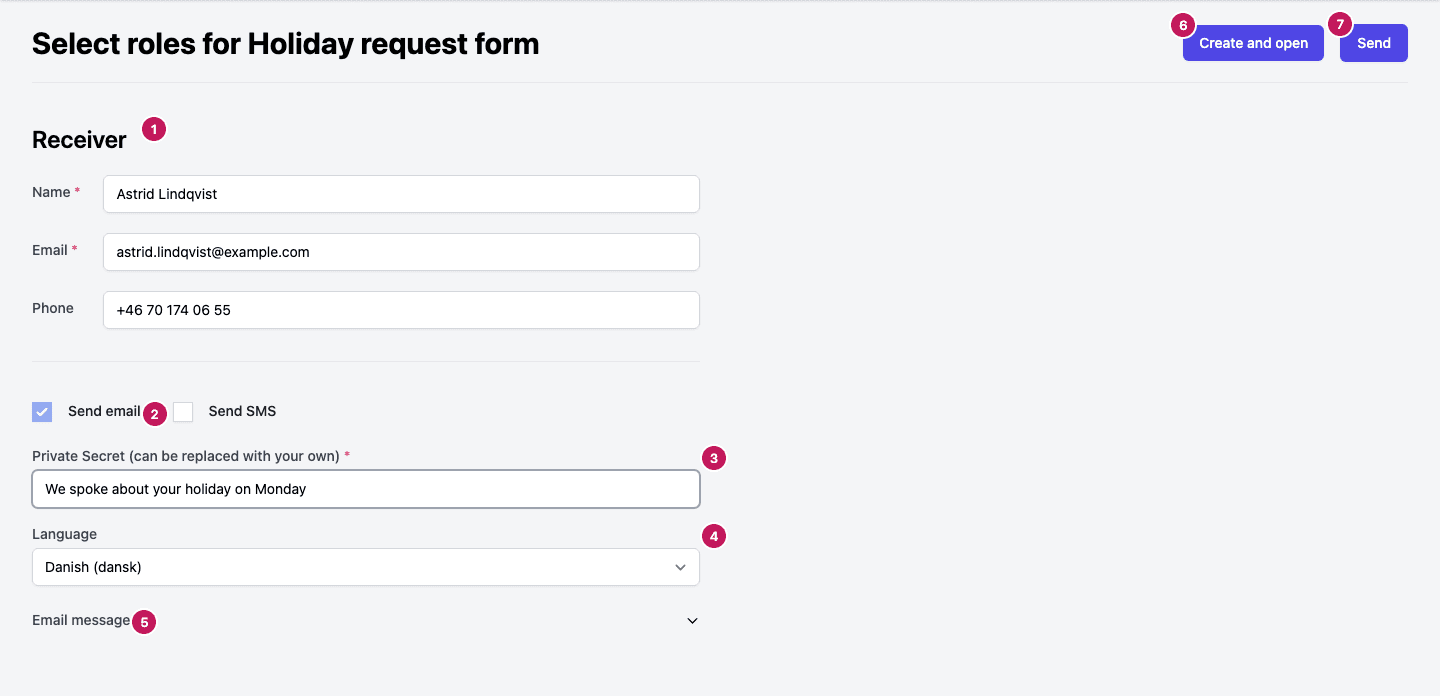
- Receiver holds Name, Email and Phone. A Smartform with several parties shows one block per party instead, see Multi-step Smartforms.
- Send email and Send SMS choose how the receiver is told.
- Private Secret is a short line the receiver sees in the message.
- Language is the language of the message.
- Email message and SMS message show the message that will be sent.
- Create and open creates the submission and opens the form in a new tab, without sending a message. See Create and open.
- Send sends the message.
Private secret
The private secret lets the receiver trust the link. The standard e-mail and SMS templates show it in the message, so the receiver knows the message really comes from you. Write something the receiver will recognise, for example We spoke about your holiday on Monday. It starts with your name when your profile has one, and you can replace it. It is required: if it is empty, sending fails with Failed to send form.
Note: The private secret is not a password. It does not protect the form. Do not put confidential information in it, because it is shown in the message.
Language and message preview
Language lists the languages that the message template has text for, in alphabetical order, for example Danish (dansk), English (English), Norwegian (Norsk) and Swedish (svenska). When Send SMS is ticked, the list only has the languages that both the e-mail and the SMS template have. The page opens with the first language in the list selected, so check it before you send.
Email message and SMS message open a panel with the Subject and Message of the template that will be used, in the language you chose. You can read them but not change them here. Words in square brackets, such as [smartform-name], [url], [smartform-secret] and [company-name], are replaced with real values when the message is sent.
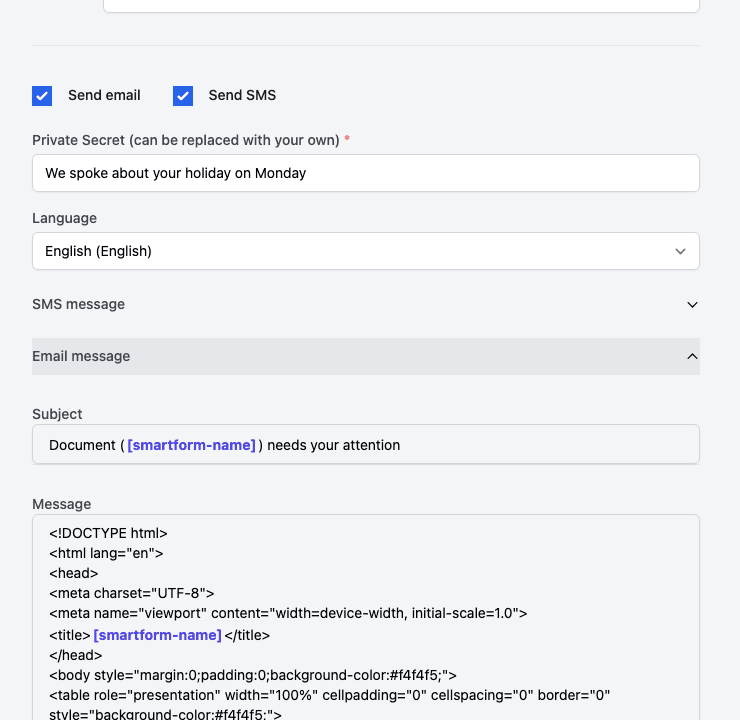
The message uses the New Smartform notification that is set for the Smartform in Studio. If none is set, the default template is used. See Notification and Email and SMS templates.
Multi-step Smartforms
A multi-step Smartform has more than one party, and each party fills in its own step. The send form then shows one block for each party, with the name of the party as its heading, instead of Receiver. Each block has:
- Name, required
- Email, required
- Phone
- Birth date, which is not passed on to the form, so you can leave it empty
Every party must be filled in. A phone number is required for a party when you tick Send SMS, or when the Smartform asks for phone security on that party’s step. Phone number must be valid. shows when the number is not valid.
When you click Send, only the party of the first step gets a message. The next party gets a message when the step before theirs is finished.
The Language field on this page is not used for a multi-step Smartform. Each party gets the message in the default language set for that party, or for the Smartform, in Studio. Send email, Send SMS and Private Secret work as for a single receiver.
Create and open
Create and open is for filling in a form yourself or on behalf of someone else. It creates a new submission and opens the form in a new browser tab. No e-mail or SMS is sent. The submission appears under View like any other, see Follow up on Smartforms.
What the receiver gets
The receiver gets an e-mail, and an SMS if you ticked Send SMS, with a link to the form and your private secret. If Reminders are set up on the Smartform’s Configuration page in Studio, Doc Gen sends reminders by itself to a receiver who has not finished. See Configuration. You can also send a reminder yourself, see Follow up on Smartforms.
Reference
| Field | Required | Notes |
|---|---|---|
| Name | Yes | One per receiver or party |
| Yes | Must be an e-mail address. A party block shows Must be an email otherwise; for a single receiver, sending fails | |
| Phone | Only with Send SMS | Enter the country code. Receiver phone number must be valid. shows when the number is not valid |
| Birth date | No | Multi-step Smartforms only. Not passed on to the form |
| Private Secret | Yes | Shown to the receiver in the message |
| Language | Yes | The languages the message template has text for. Not used for multi-step Smartforms |
Only active Smartforms that you have access to are listed under Find form and Or select from recent forms. A Smartform that is not active in Studio does not appear.