Configuration
The Configuration page lets you manage advanced settings for your Smartform, including general options, PDF generation, archiving, reminders, and schema.
Changes on this page are saved automatically.
📝 Note: The Smartform name and the retention policy are set on the Page tab of the Design view. See Page.
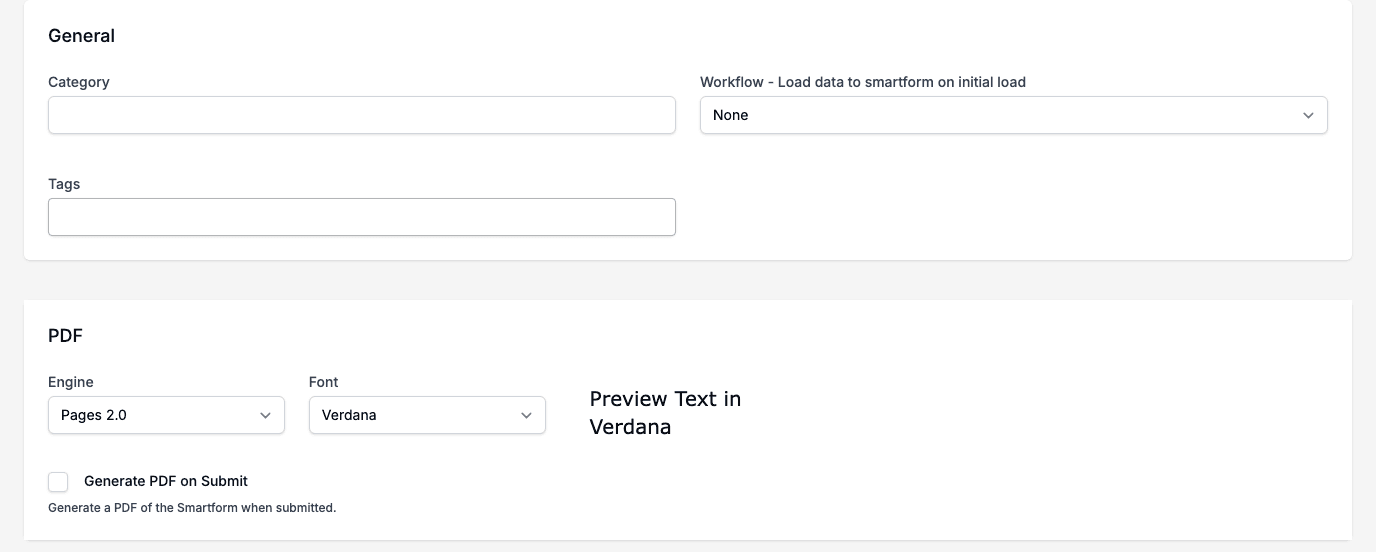
General
- Category: Organize your Smartform by category.
- Workflow - Load data to smartform on initial load: Choose a workflow that loads data into the Smartform when it is first opened. The field needs a Workflow license. Without one, the field is locked and the page shows Workflow license required.
- Tags: Add or remove tags on the Smartform.
- Engine: Select the PDF engine for document generation: Pages 2.0 or Interact.
- Font: With Pages 2.0, choose the standard font for the PDF. The text next to the list shows a preview of the font.
- Environment, Metafile and Template: With Interact, choose the Interact environment, metafile and template to use.
- Generate PDF on Submit: Generate a PDF of the Smartform when it is submitted.
Archive
- Archive: Send Smartform to archive.
- Archive when created: Automatically archive Smartform upon creation.
When you select one of the archive options, you will get the option to add values to fields SEARCH7–SEARCH10.
Click the + icon in a box to choose a dataset or a Smartform field.
When the form is submitted and archived, the search boxes will be populated with the values from the form.
💡 This makes it easy to find and filter archived Smartforms using the values you entered.
Other
- Has Power of Attorney: Mark if the Smartform includes power of attorney.
Reminders
- First/Second: Set up reminder notifications for users.
Schema
- View: Click to view the data schema for the dialog.
💡 Use the configuration page to control how your Smartform behaves, integrates, and is managed