Formula Editor
The Formula Editor is where you enter the value of a rule action. It has two modes:
- Basic: pick a recipe and fill in the fields. No typing of formulas.
- Advanced: write the formula yourself, including multi-step programs.
The editor opens in Basic when the formula fits one recipe, or when the field is empty. It opens in Advanced when the formula is more complex.
Open the editor
In a rule, the Value (or Formula) field is read-only. Click the field, or the expand icon next to it, to open the editor.
- The title line shows where you are, for example Rule “Total salary” · THEN · sets TotalSalary.
- The editor sits inside the working area. The Full screen button makes it fill the window.
- Save puts the formula into the rule action and closes the editor. Cancel and Close leave without changing the action. The rule itself is saved with Save on the rule page.
Basic mode
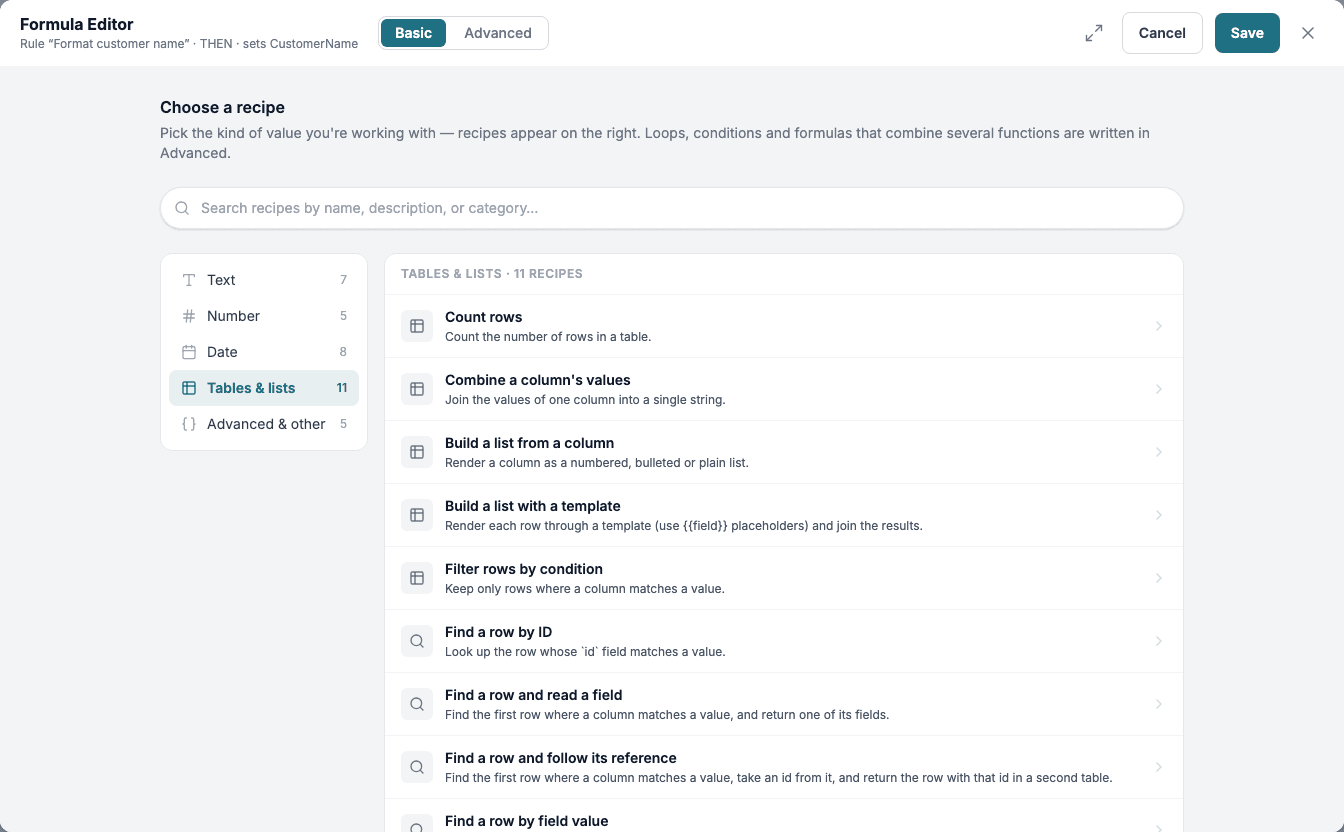
- Under Choose a recipe, search for a recipe or pick a category.
- Fill in the numbered fields. A variable field has a list of variables and New, which creates a variable on the spot.
- Read GENERATED FORMULA and the Live preview. Click Run to try the recipe on sample values.
- Click Save.
If a field that is marked in red is empty, Save does not close the editor and shows Fill in the fields marked in red to save.
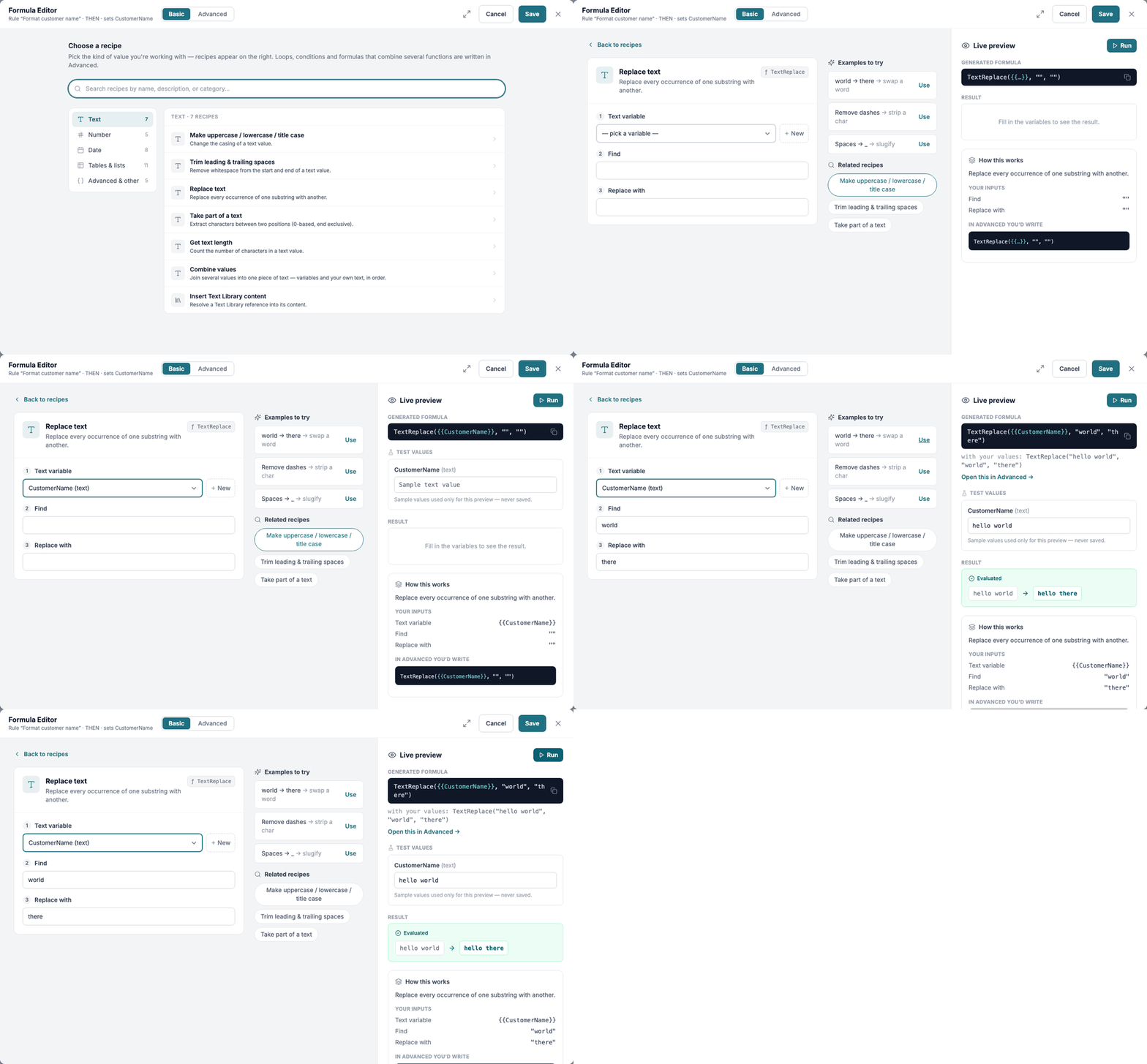
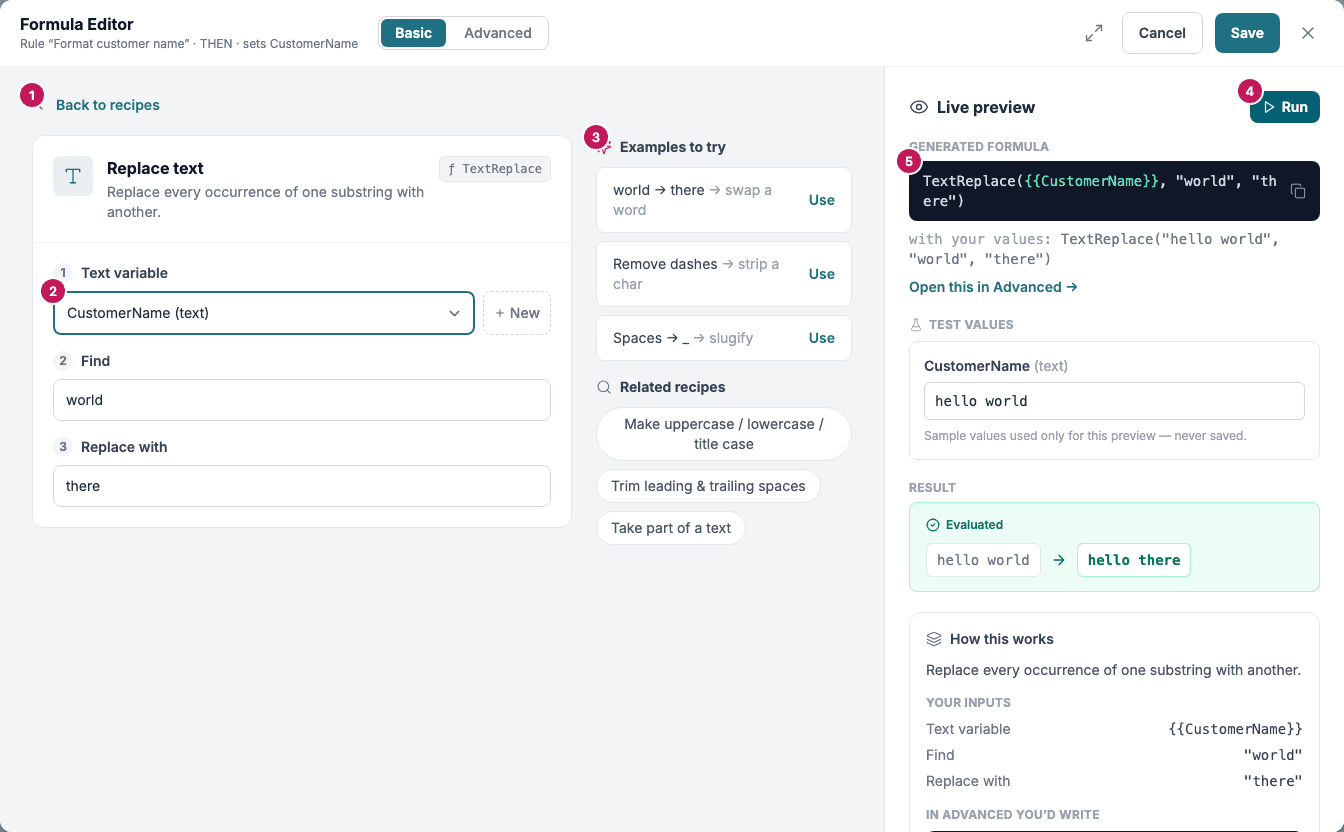
- Back to recipes: return to the list. The formula the editor opened with is kept.
- The fields of the recipe.
- Examples to try: click Use to fill in the fields with an example. Related recipes switches to a similar recipe.
- Run runs the preview. The test values are only used for the preview and are never saved.
- GENERATED FORMULA: the formula the recipe makes. How this works shows the inputs and the same formula as you would write it in Advanced. Open this in Advanced moves the formula to Advanced.
Recipes
| Category | Recipes |
|---|---|
| Text | Make uppercase / lowercase / title case, Trim leading & trailing spaces, Replace text, Take part of a text, Get text length, Combine values, Insert Text Library content |
| Number | Format a number, Add up a column, Average a column, Smallest value in a column, Largest value in a column |
| Date | Today’s date, Add days to a date, Add months to a date, Add years to a date, Difference between two dates, Format a date, Start of month, End of month |
| Tables & lists | Count rows, Combine a column’s values, Build a list from a column, Build a list with a template, Filter rows by condition, Find a row by ID, Find a row and read a field, Find a row and follow its reference, Find a row by field value, Get all rows from a list, Find rows matching conditions |
| Advanced & other | Build a JSON object, Build a data table, Flatten nested arrays, Just a variable, A literal value |
Use Just a variable to copy a variable, and A literal value for a fixed text or number. Text that is not meant to be evaluated is stored in quotes.
Advanced mode
Advanced shows the formula as text. Use it for formulas that combine several functions and for multi-step formulas.
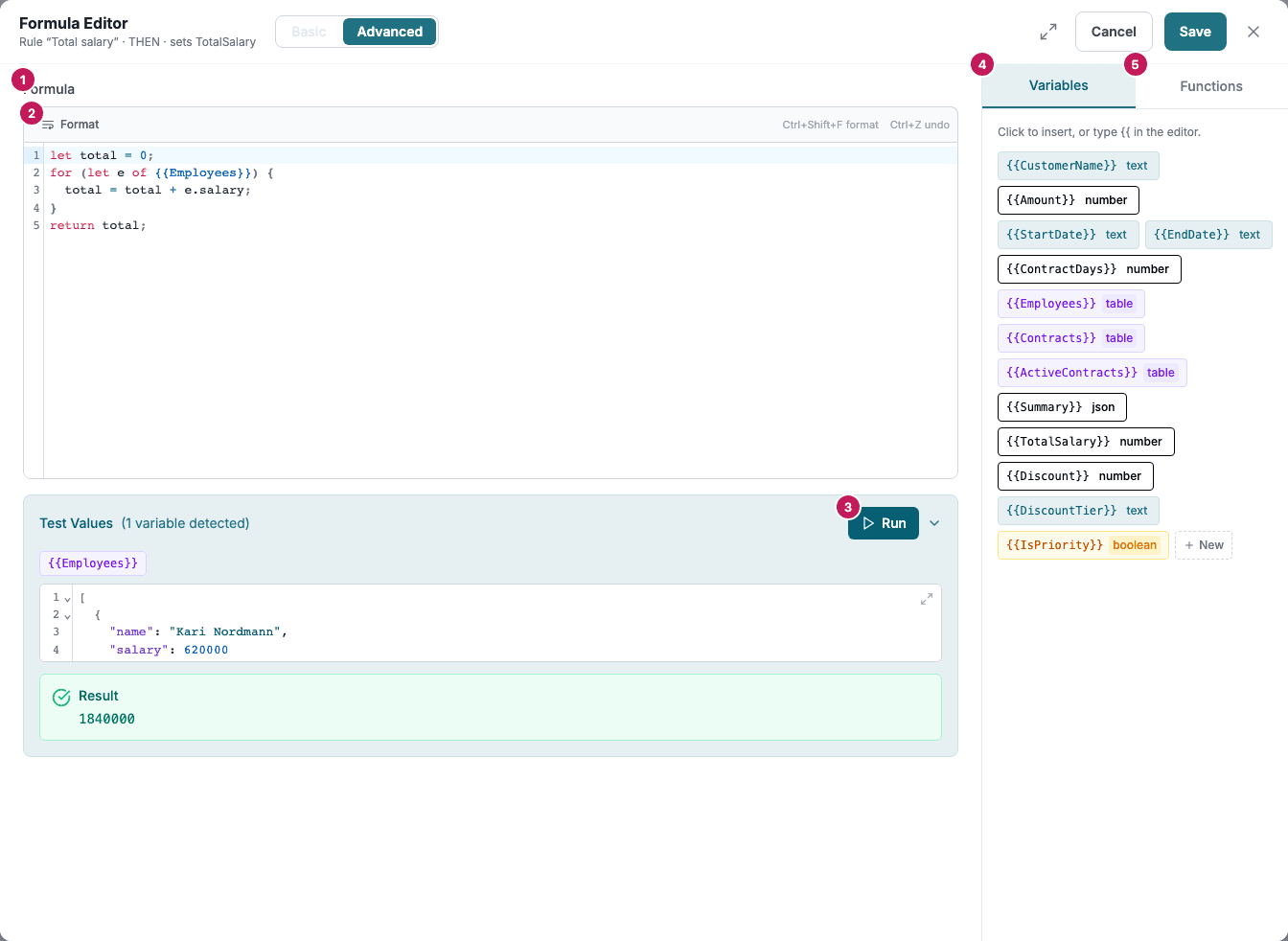
- Formula: the editor. Functions, variables and text have different colours.
- Format tidies the formula. The shortcut is Ctrl+Shift+F.
- Test Values and Run: enter a sample value for each variable in the formula and run it. Result shows the value. Error shows what went wrong.
- Variables: click a variable to insert it, or type
{{in the editor. New creates a variable. - Functions: click a function to insert it. The filters All, Text, Number, Date and Table narrow the list.
Type the name of a function to open its reference. The reference shows the syntax, the arguments and examples. Load example puts an example in the editor and fills in its test values. Sample data shows the data an example uses, and Insert as variables creates those variables in your form when they do not exist yet.
Problems in the formula
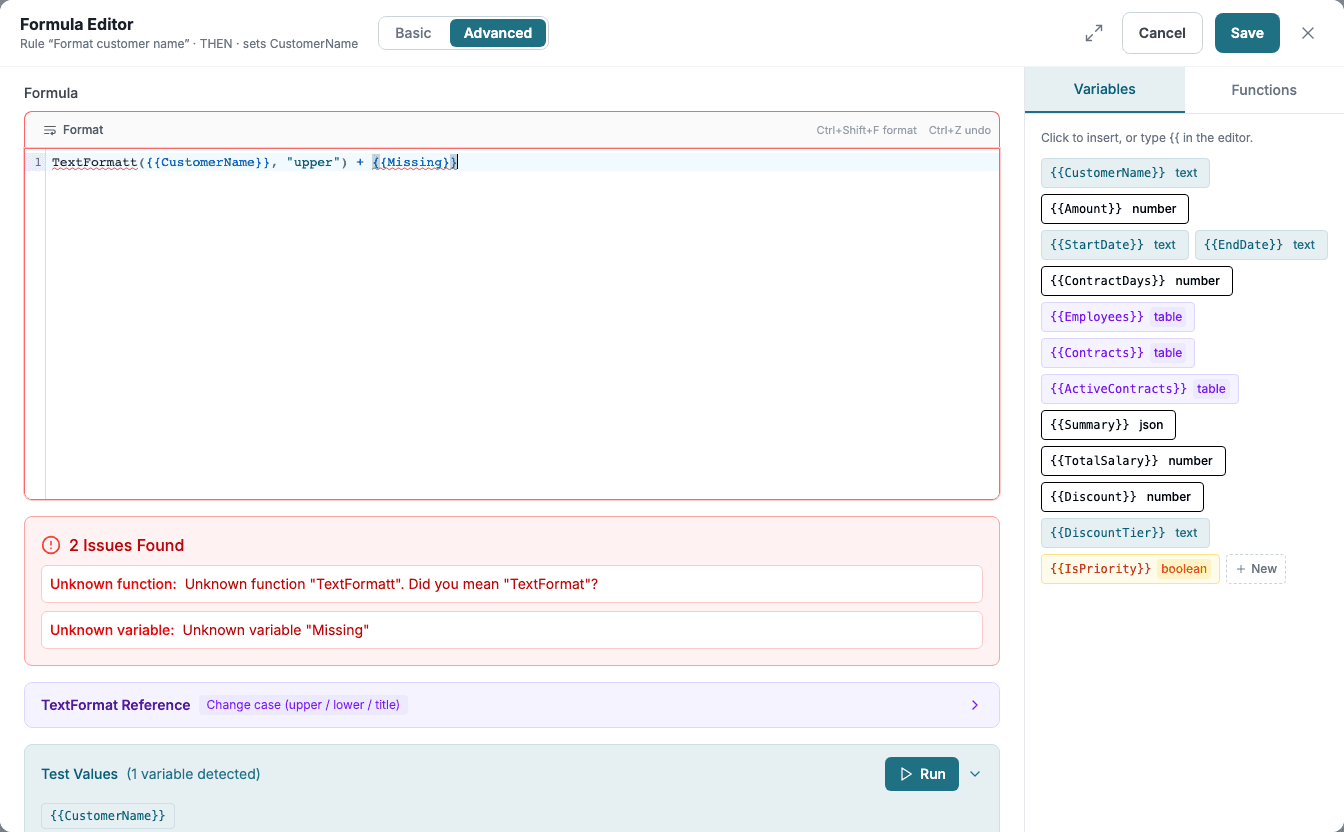
The editor checks the formula as you type. A box such as 2 Issues Found lists each problem with its kind: Unknown function, Unknown variable or Syntax error.
Switch between the modes
- From Basic to Advanced always works. The formula moves with you.
- From Advanced to Basic works only when the formula fits one recipe. Otherwise Basic is greyed out.

Multi-step formulas
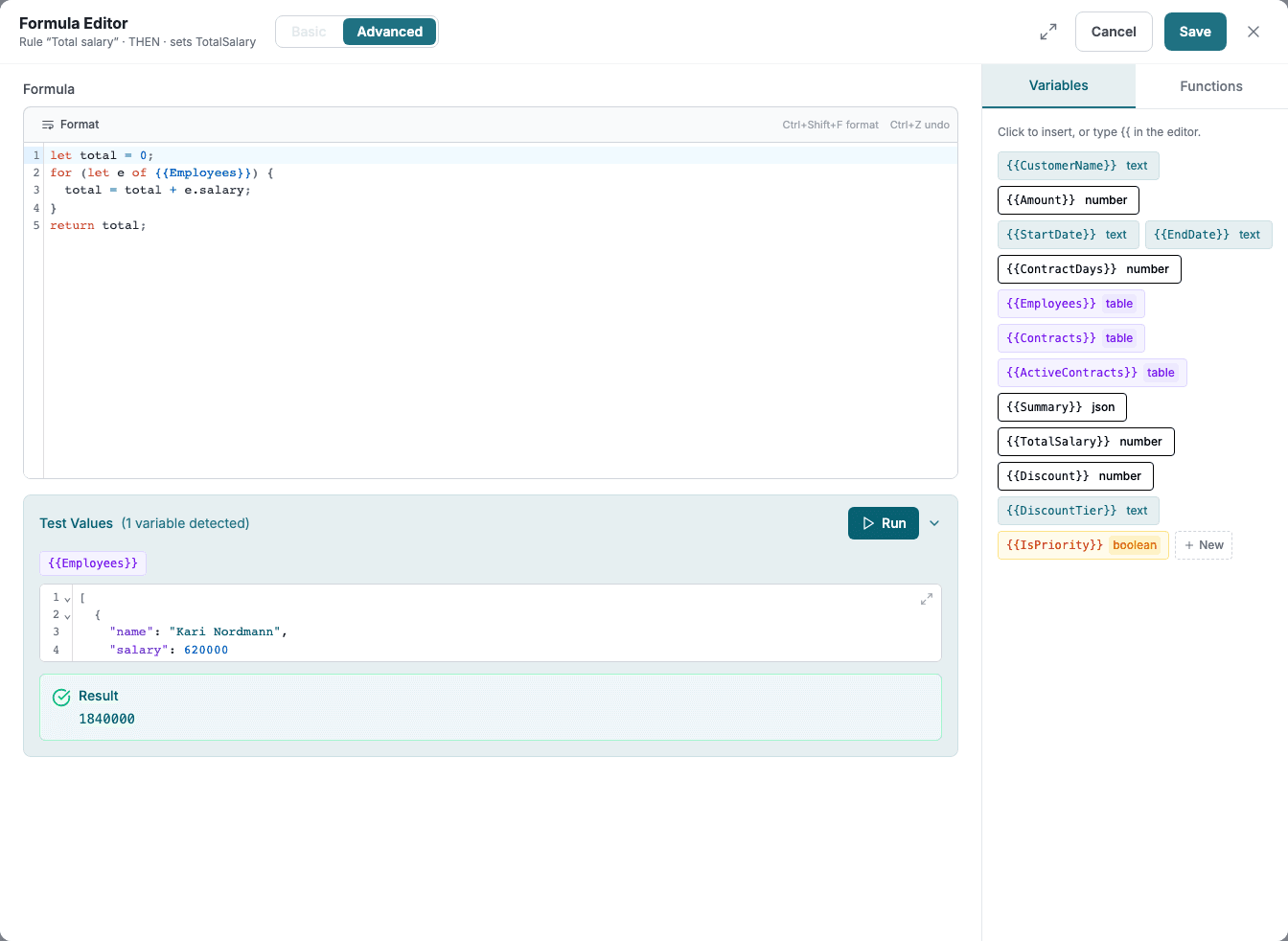
In Advanced, a formula can have several steps: declare values, make decisions and loop over a table. Basic cannot show these.
| Part | Example |
|---|---|
| Declare a value | let total = 0; |
| Decide | if (total > 100) { ... } else { ... } |
| Loop over a list | for (let row of {{Employees}}) { ... } |
| Loop with a counter | for (...) { ... } and while (...) { ... } |
| Return a result | return total; |
| Read a part | row.salary and list[0] |
| Comments | // a line and /* a block */ |
Operators: +, -, *, /, %, ==, !=, <, <=, >, >=, &&, || and !.
The functions from Data Transformation functions work inside a program, and a {{variable}} reads a variable.
Join a name
let first = TextFormat({{firstName}}, "title");
let last = TextFormat({{lastName}}, "title");
return first + " " + last;
With firstName = "ada" and lastName = "lovelace" the result is Ada Lovelace.
Add up a column
let sum = 0;
for (let r of {{items}}) { sum = sum + r.amount; }
return sum;
With amounts 10, 5 and 7 the result is 22.
Choose a result
let n = TextLen({{firstName}});
if (n > 2) { return "long"; } else { return "short"; }
If the last statement is an expression without return, its value is the result, for example let x = 2; x * 21 gives 42.
Limits
A program is stopped when it goes beyond these limits, so a mistake cannot stall the form:
| Limit | Value |
|---|---|
| Loop iterations | 10,000 |
| Steps | 1,000,000 |
| Nested calls | 64 |
| Run time | 1 second |
| Length of a text | 1,000,000 characters |
| Items in a list | 100,000 |
Variables in formulas
{{name}}reads a variable. A dotted path such as{{customer.address.city}}reads a value in the incoming data. Such a path is listed as a shadow variable. See the Test Runner.- Create variables on the Variables tab, or with New in the editor.