Test Runner
The Test Runner lets you check your rules with test values before the Smartform is used. It runs the rules on the values you enter and shows the result. Nothing is saved: your rules, variables and forms stay as they are. The Test Runner runs Data Transformation and Show/Hide rules. Validation and Page Template rules are not run here.
Run a test
- Open the Smartform and go to the Rules tab.
- Click Test Runner.
- Under Test Mode, choose which rules to run: Both, Data Transformation Only or Show/Hide Only. The numbers show how many rules of each kind the form has.
- Under Test Variables, enter an Input Value for the variables you want to test.
- Click Run Test.
The input depends on the variable type:
- boolean: choose
trueorfalse. - number: enter a number.
- table and json: enter JSON, for example
[{"col1": "value1"}]for a table. - Other types: enter text.
Run Test is available when there is at least one value to test and at least one rule. If the form has no variables yet, add them on the Variables tab first.
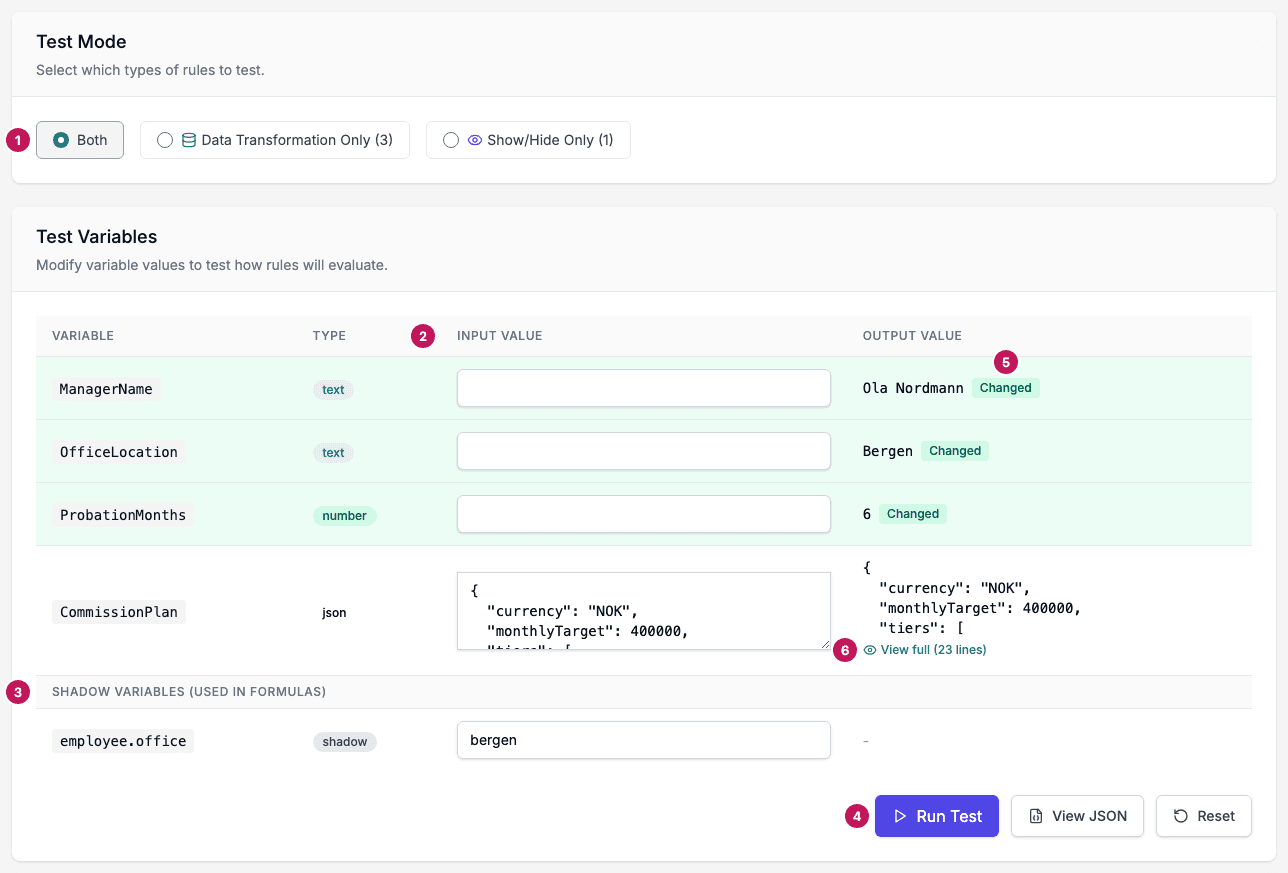
- Test Mode: which rules to run.
- Input Value: the test value for each variable.
- Shadow Variables (used in formulas): paths from the incoming data that a formula reads.
- Run Test runs the rules on the values.
- Changed marks an output value that differs from the input value.
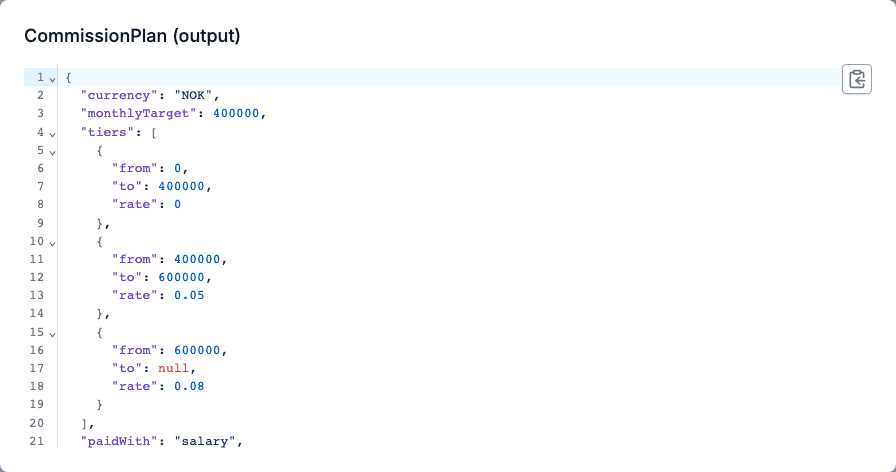
- View full opens a long output value in full.
Shadow variables
A formula can read a value straight from the form’s incoming data, for example {{ customer.address.city }}, without a variable for it. When a rule’s formula uses such a path, it is listed under Shadow Variables (used in formulas).
- The test value is filled in from the form’s sample data when there is one.
- You can change the value for the test. This does not change the dataset.
- If a variable has the same name as the path, the variable is used and the path is not listed.
Read the result
- Output Value shows each variable’s value after the rules ran. A row whose value changed is highlighted and marked Changed.
- A long output value is shortened to four lines. Click View full to see the whole value.
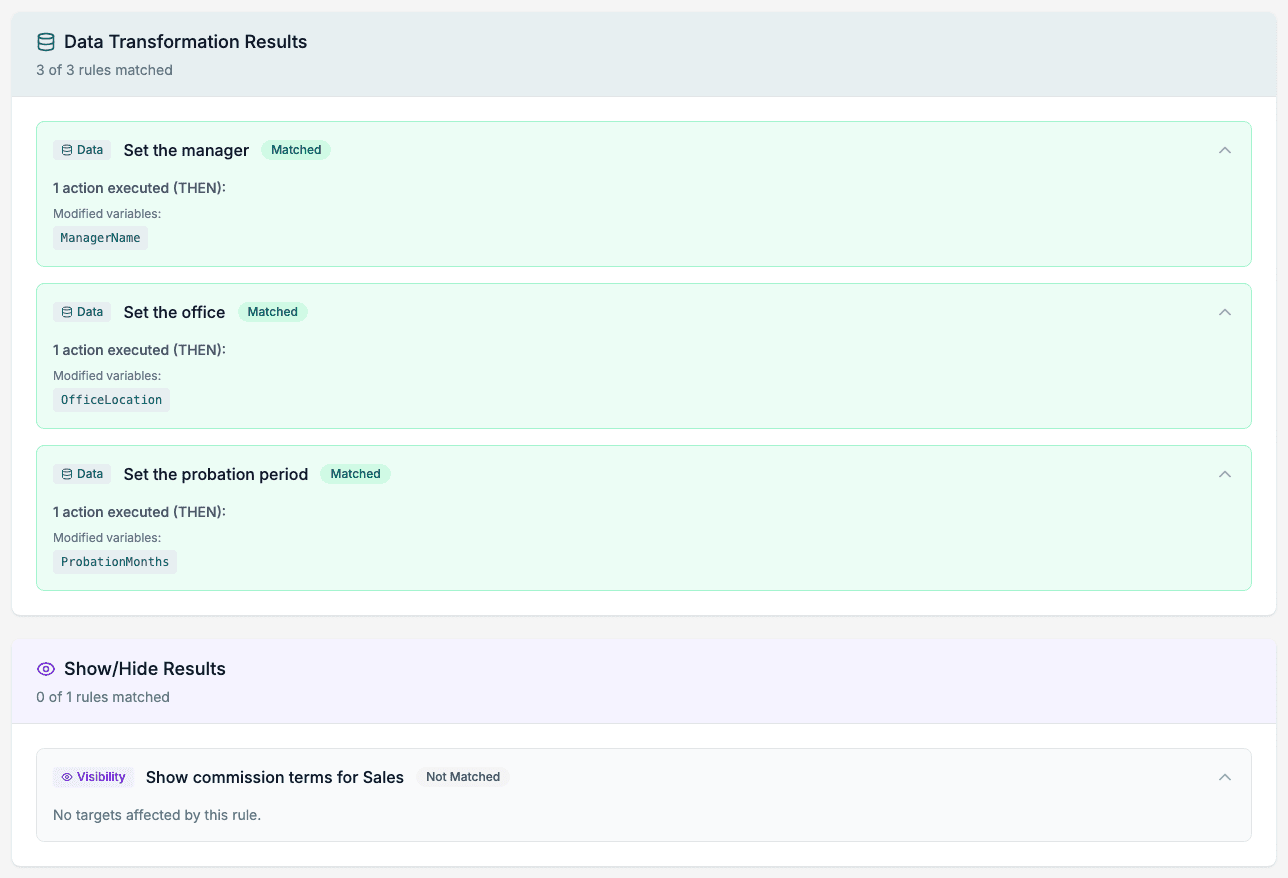
- Data Transformation Results shows how many rules matched. Each rule is marked Matched or Not Matched, with the number of actions it ran (THEN or ELSE) and the variables it changed.
- Show/Hide Results shows each rule’s targets and, under Visibility State, whether each target ends up Visible or Hidden.
- View JSON shows the test values as JSON. Choose Input JSON or Output JSON, and click Copy JSON to copy it.
- Reset puts the test values back to the variables’ own values and clears the results.
Problems found during the test are listed under Errors: below the buttons.