Review and approve drafts
Studio builds each PDF into a draft Smartform, but it can misread a field or a layout. Check every draft against its PDF before it joins your normal Smartforms. This page is part of Import Smartforms.
The Imports folder
Drafts that were built from PDFs wait in the Imports / Pending review folder of the Smartforms page, under the Imports heading in the folder list. Each row shows Ready for review in the Publish State column. The names are made by Studio from the content of the PDF, so they can differ from the file names. When the folder is empty it says Imported drafts land here for review before you file them.
Drafts from imports with Skip review and Smartforms from JSON files are not put here.
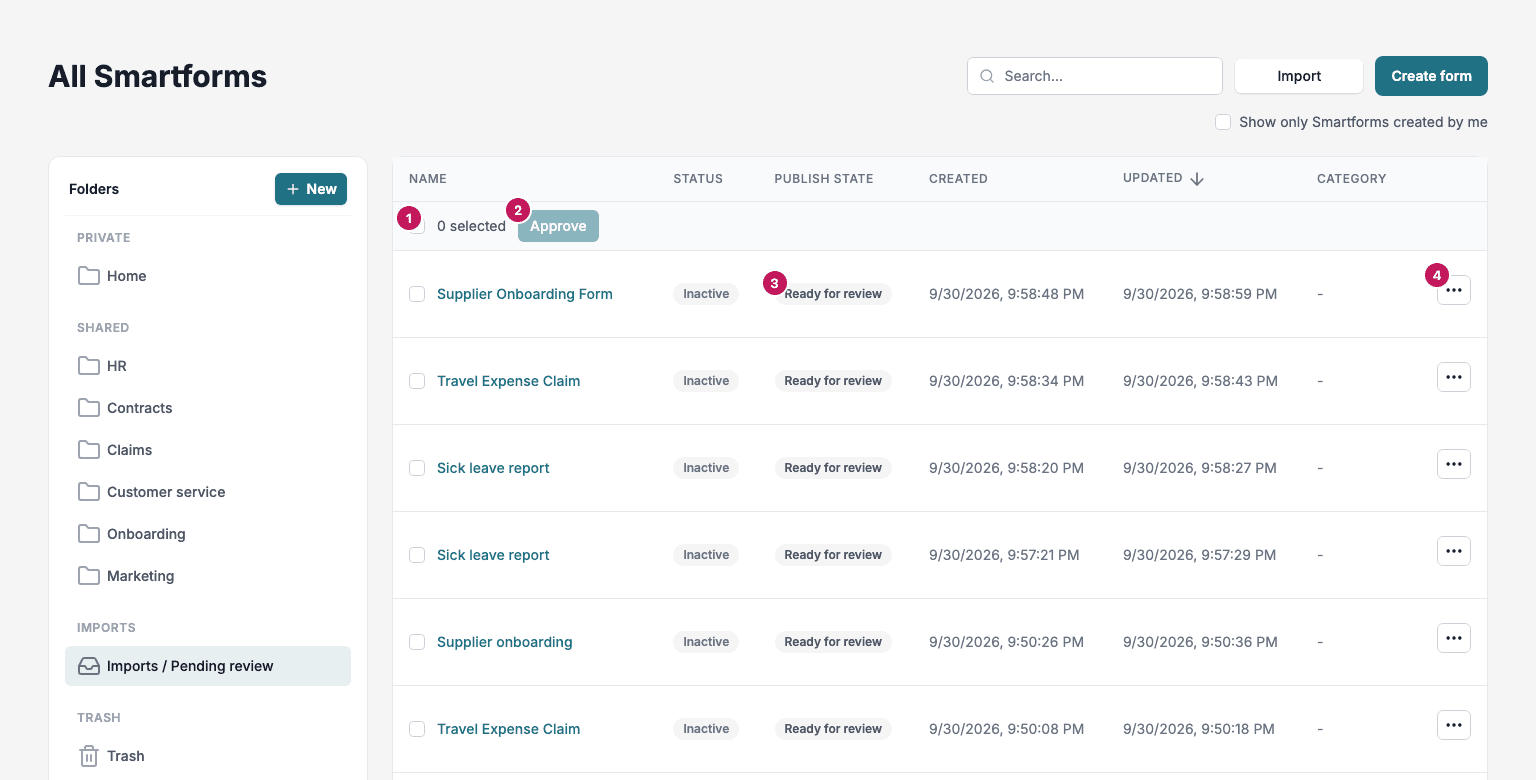
- Select all imports on this page ticks every draft on the page.
- Approve files the ticked drafts into a folder. It shows how many are ticked, for example Approve (3).
- Ready for review shows that the draft has not been filed yet.
- The row menu has Open, Move to Folder and Delete.
Review a draft
Click the name of a draft, or Open in its row menu. The Human review studio opens.
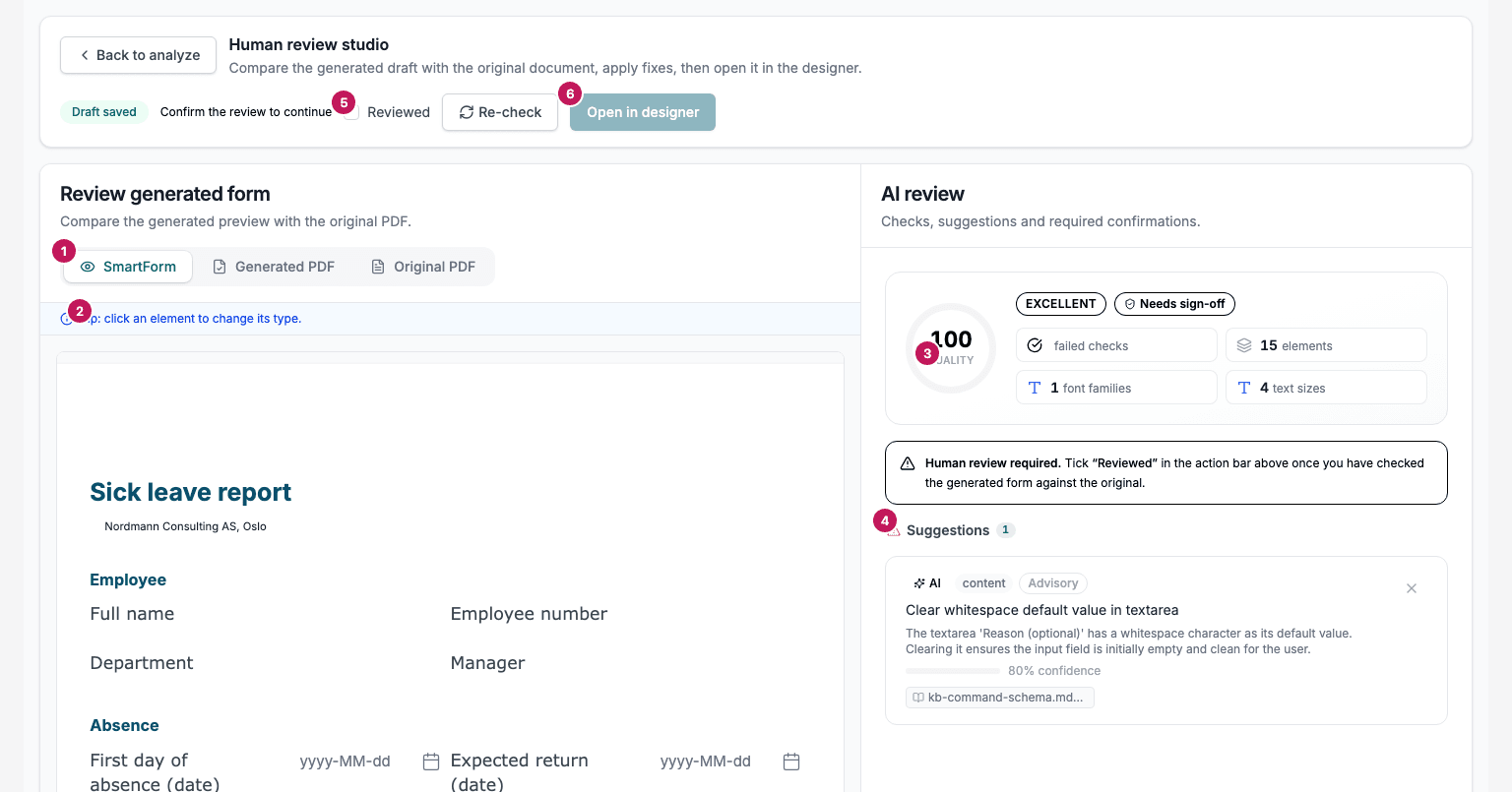
- The tabs. SmartForm shows the form that Studio built. Generated PDF shows it as a PDF. Original PDF shows the PDF you uploaded, so you can compare.
- Change an element. On the SmartForm tab, click an element to change its type, for example from a text to an input field.
- AI review. A quality score with a verdict, the number of failed checks, and the number of elements, font families and text sizes. Needs sign-off means a person must confirm the draft, and the page says Human review required.
- Suggestions. A suggestion explains a possible fix. When it has a ready fix, Apply makes the change and Revert undoes it. A suggestion marked Advisory has no ready fix: make the change yourself in the designer. The X hides the suggestion.
- Reviewed. When the draft needs sign-off, tick Reviewed after you have compared it with the original. While the page says Confirm the review to continue, the button at the right stays disabled. After each change the tick is cleared, so tick it again.
- The button at the right. Open in designer opens the draft in the designer. The draft stays in Imports / Pending review until you approve it. Re-check checks the draft again after your changes.
When you change the draft on this page, with Apply or by changing an element, Draft saved goes away and the button reads Create draft & open. Clicking it saves the changed form as a new Smartform in Home, deletes the earlier draft, and opens the new one in the designer. The new Smartform is no longer in Imports / Pending review, so you file it with Move to Folder instead of Approve.
Note: If Open shows Nothing to review for this import, the Smartform has no AI import to review. It is a JSON import, it has already been reviewed, or it skipped review. Click Open in editor to open it in the designer.
Approve drafts
An approved draft is a normal Smartform in the folder you choose. It is still a Draft and Inactive. Click Activate in its row menu, then continue with Publish Smartforms when it is ready.
- In Imports / Pending review, tick the drafts you want to file, or tick Select all imports on this page. Your ticks stay when you go to another page of the list, and the counter says selected, including other pages.
- Click Approve (3).
- In Move 3 Smartforms to Folder, choose a folder.
- Click Move form. Studio shows Moved 3 Smartforms.
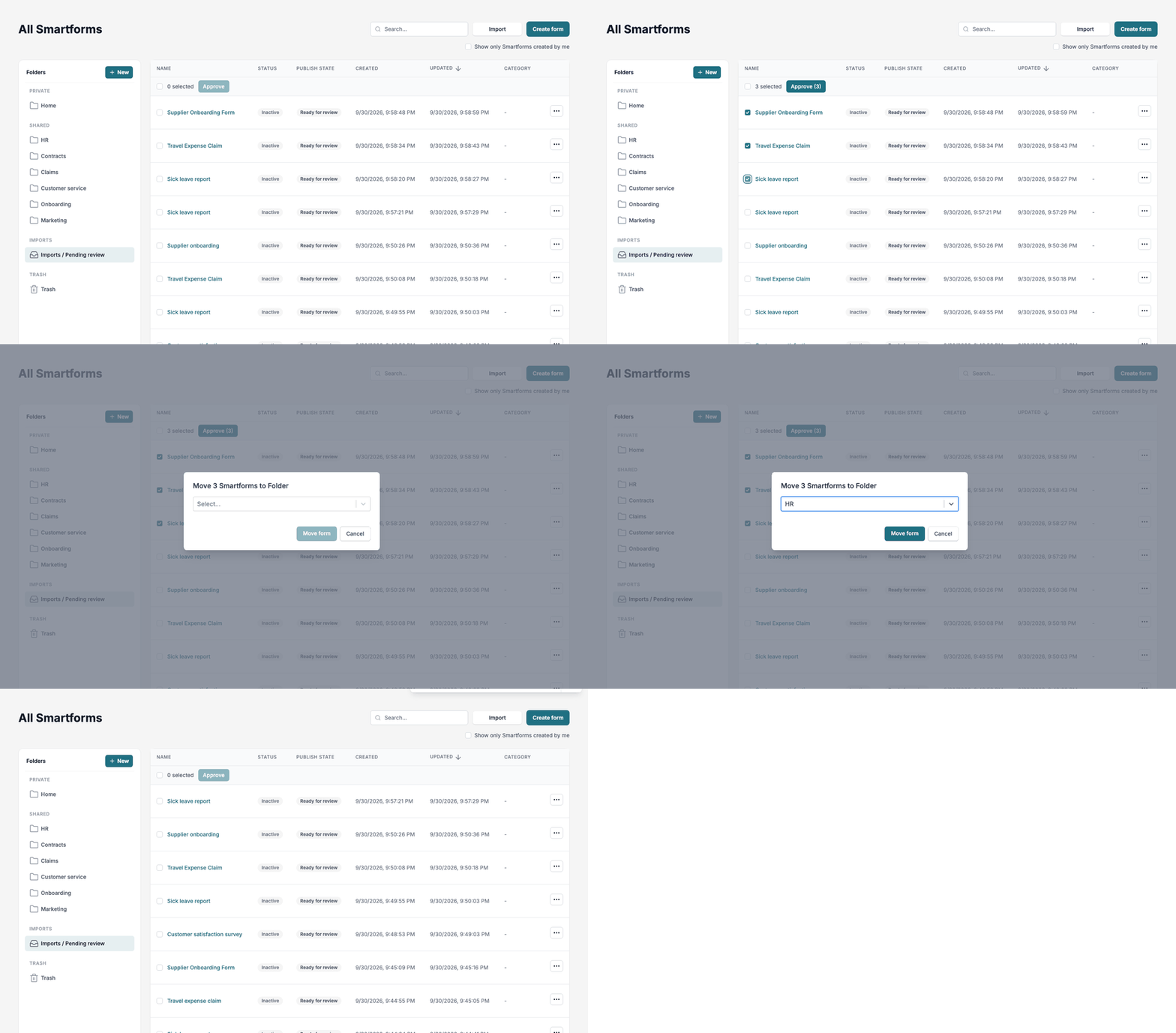
To file one draft, use Move to Folder in its row menu. If some drafts cannot be moved, Studio says how many were moved, for example Moved 2 of 3, and keeps the others ticked so you can try again.
To throw away a bad draft, use Delete in its row menu.