Headers, footers and page numbers
Headers and footers repeat a logo, a title or a page number on the pages of a PDF. Each one is a reusable object that you pick on the PDF tab of a Smartform. They are printed by the Pages 2.0 engine.
The four positions
The Headers and footers section of the PDF tab has four dropdowns:
| Dropdown | Prints |
|---|---|
| First page header | At the top of the first page |
| First page footer | At the bottom of the first page |
| Running header | At the top of the other pages |
| Running footer | At the bottom of the other pages |
Each dropdown lists the objects of the matching type and - None -. If you set no First page header, the Running header is also printed on the first page.
Create a header or footer
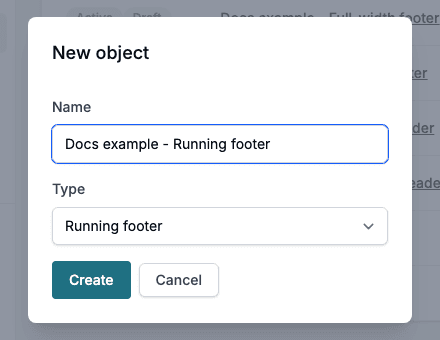
- In Studio, go to Templates → Objects and click Create Object.
- Enter a Name.
- Choose the Type: First page header, First page footer, Running header or Running footer. The list also has Standard and Distribution, which are not used for headers and footers.
- Click Create and design the section in the editor that opens, the same way as in a Smartform.
📝 Note: A Headline in a header or footer is listed in the table of contents, like the headings of the form. For a company name or a title in a header, use a Text element.
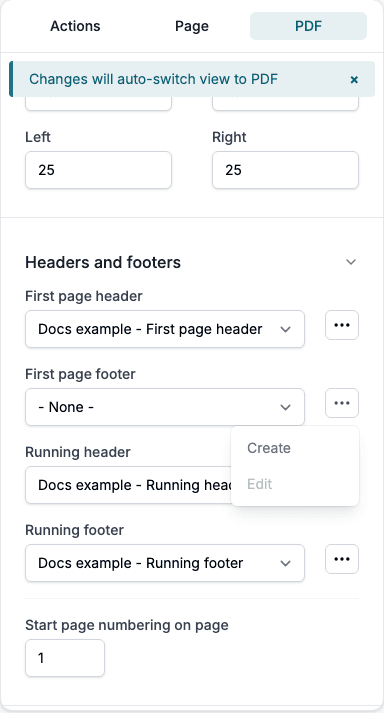
You can also start from the PDF tab. Click the … button beside a dropdown and choose Create. Studio goes to Objects and opens the same dialog with the type already chosen.
Add a page number
Add a Page number element from Items in the object’s editor. The element is only offered in header and footer objects. Its value starts as:
Page [[PAGENUMBER]] of [[PAGECOUNT]][[PAGENUMBER]] is replaced by the number of the page and [[PAGECOUNT]] by the number of pages. You can change the words around them. In the editor the element shows a question mark, and the real numbers appear in the PDF. See Items.
Use it in a Smartform
- Open the Smartform, go to Design and select PDF in the left panel.
- Open Headers and footers.
- In each dropdown, choose the object to use, or - None -.
The … menu beside a dropdown has Create, and Edit for the object you chose. Edit is grey while the dropdown is on - None -.
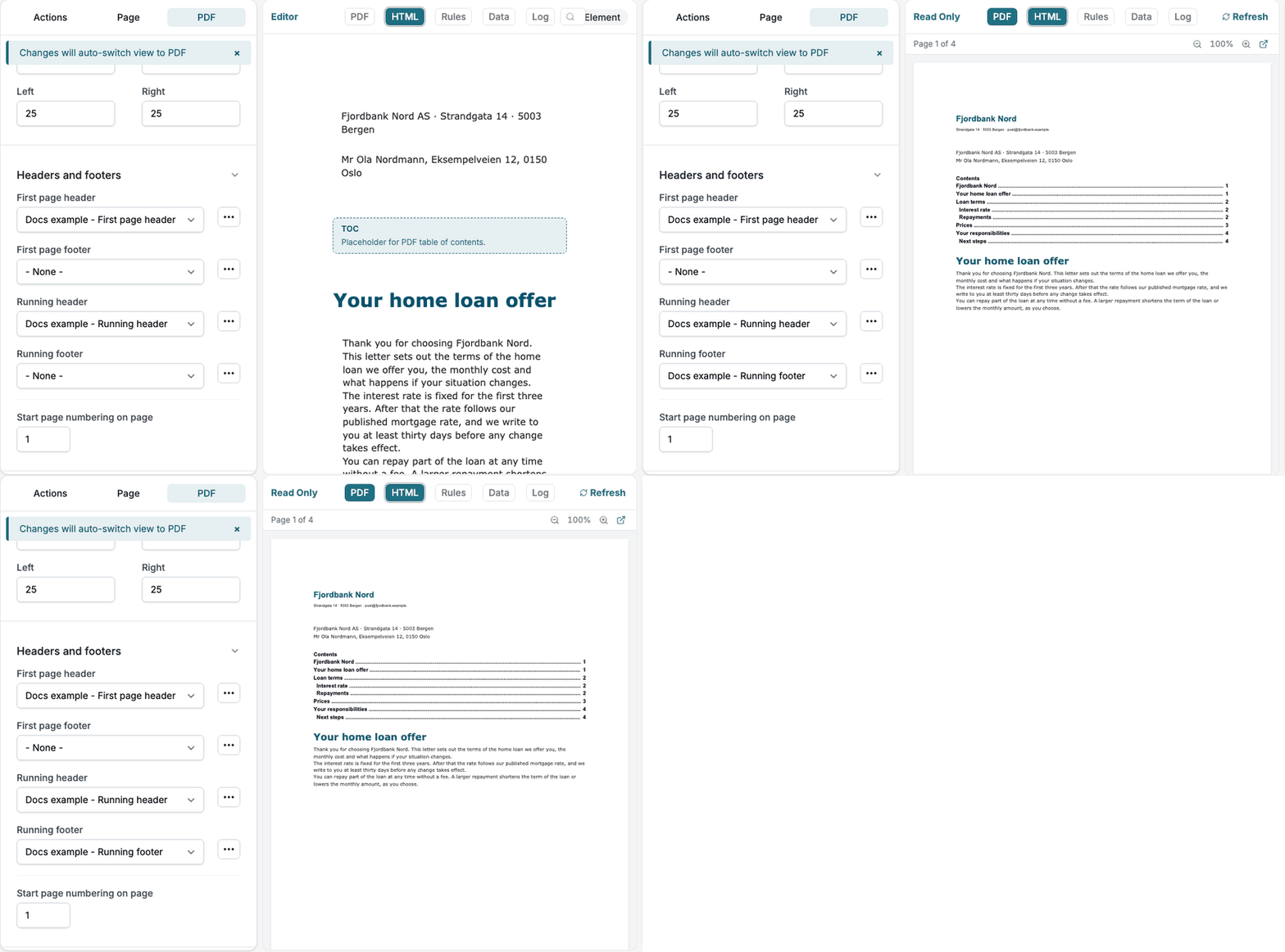
When you choose an object, the middle area switches to the PDF view and shows the result.
Start page numbering on page
Start page numbering on page takes a number from 1 to 10. It is the physical page that prints as page 1. Pages before it print no number, and they are not counted in [[PAGECOUNT]].
Example: a document has 4 pages and Start page numbering on page is 3. Pages 1 and 2 print no number. Page 3 prints Page 1 of 2 and page 4 prints Page 2 of 2.
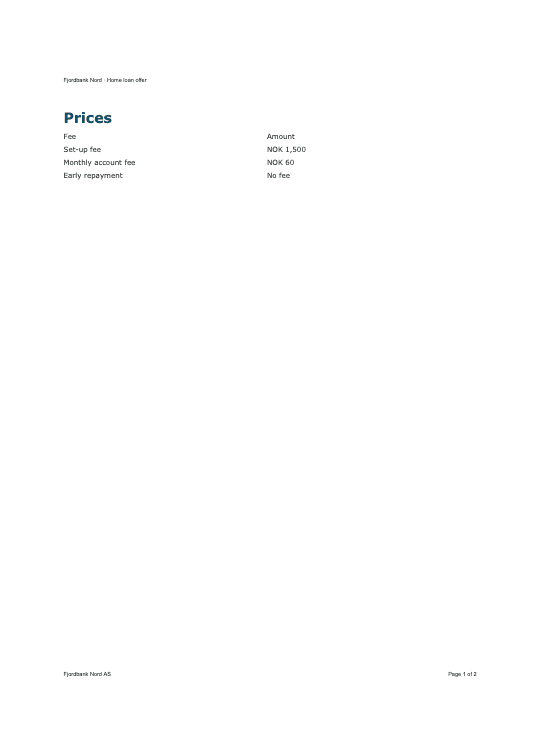
The default is 1, so every page is numbered.
Break safety margin
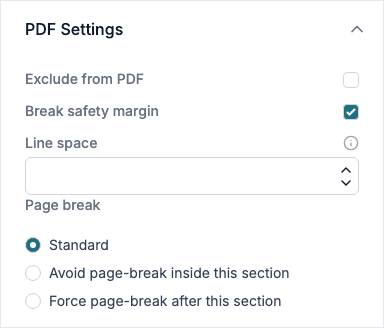
A header or footer stays inside the page margins by default. To let a section reach the edge of the paper, for example a coloured band, select the section in the object’s editor and tick Break safety margin under PDF Settings. The section then ignores the page margins.
The option only shows for sections in header and footer objects. It is grey while Exclude from PDF is ticked.
Check the edge in the PDF view. Many printers cannot print right to the edge of the paper, so a band there can be cut off on paper.
Changes to an object reach the Smartform
A Smartform uses a header or footer by reference, so you do not copy changes by hand:
- When you open the designer, or refresh it, the Smartform picks up the latest version of each chosen object.
- When you click Publish, the PDF view reloads with the latest objects.
- PDFs of real forms always use the latest version of the object.
When an object is not available
If an object was deleted, is inactive, or the Smartform was imported from another environment that does not have it, the PDF is made without that header or footer. Nothing stops the PDF.
The Warnings tab then shows the group Headers and footers that are not available. It lists the position, for example Running footer, and says the PDF is created without it. The dropdown is set back to - None -. Choose another object, or leave it empty.
Headers and footers for one part of a document
A Page Layout break can have its own header and footer. They replace the document’s header and footer from that page on.