Versions, Rollback and Audit
Every time a Smartform is published, Studio keeps the version it published. On the Deployment pages you can look at the versions in each environment, roll an environment back to the version before, copy an older version into the designer, and see who did what in the audit log. See the Deployment overview for how the environments fit together.
Actions on a version
On a folder page, the actions button at the end of a row opens these actions:
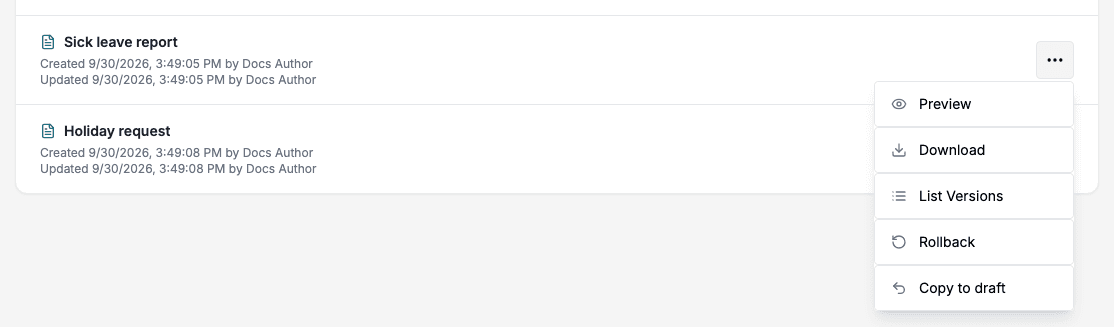
- Preview shows the version. Clicking the Smartform’s name does the same.
- Download saves the version as a JSON file. The file name has the Smartform’s name, the environment and the time.
- List Versions shows the versions of the Smartform in this environment.
- Rollback takes this environment back to the version before. See Roll back.
- Copy to draft copies the version into the designer. See Copy a version to draft.
See the versions in an environment
- Open the folder on the environment page.
- Click the actions button on the Smartform’s row.
- Click List Versions.
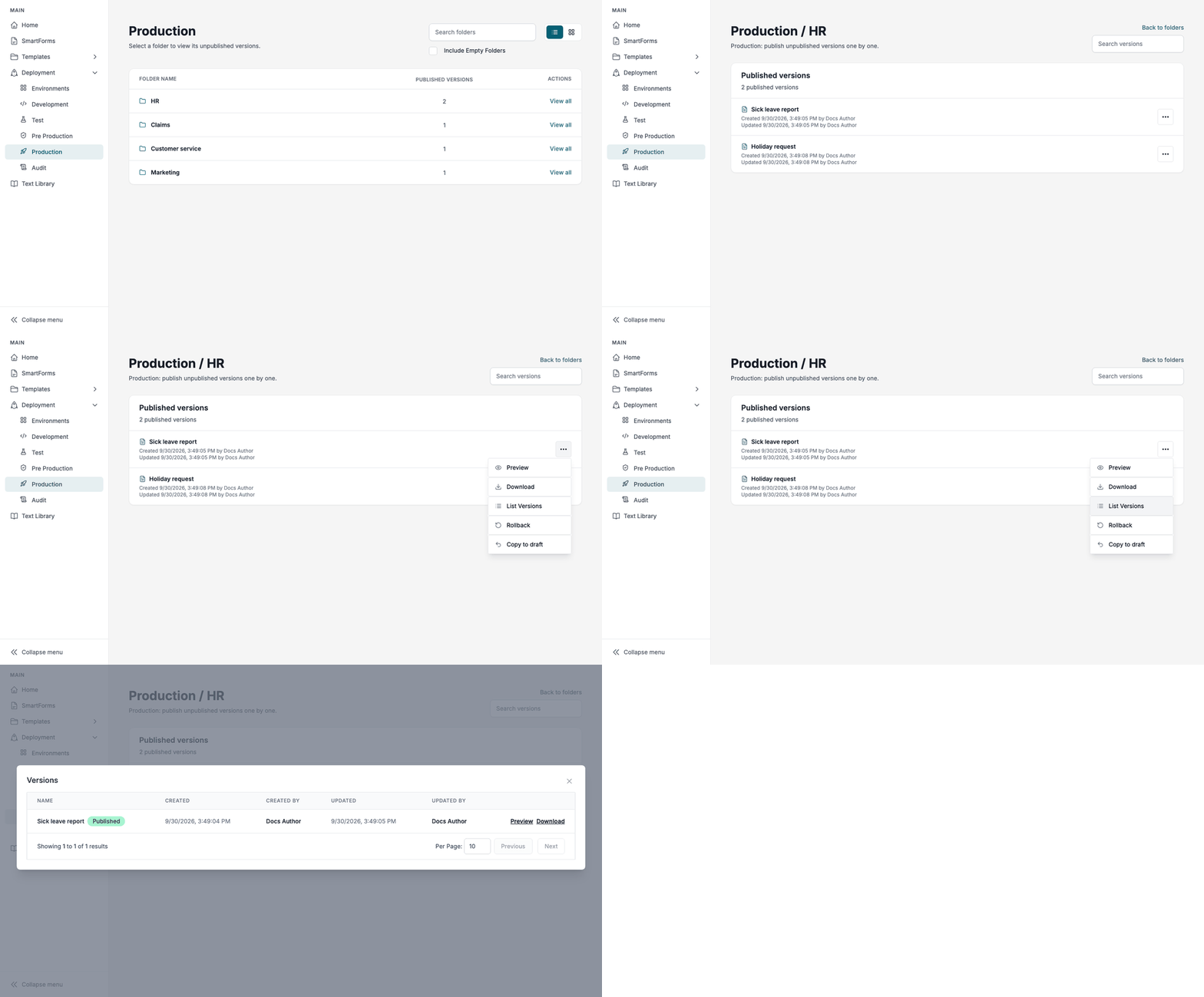
The Versions dialog lists the versions of the Smartform in this environment, with the dates and the users who created and updated them. Published marks the version the environment uses. Preview and Download work as in the actions menu.

Roll back
Rollback undoes the newest version in an environment. Only the newest version of an environment can be rolled back. If a newer version has arrived in the meantime, Studio says Only the latest … version can be rolled back. Reload the version list and try again.
What happens depends on the environment:
- In Development, the version before becomes live again. Your current design stays in the designer as a draft, so the next time you click Publish in the designer, it is published again. If there is no earlier Development version, Studio says There is no earlier Development version to roll back to.
- In Test, Pre Production or Production, the newest version in that environment is removed. The environment then uses the version that was published there before. If there is none, the Smartform is no longer in that environment: integrations that start it there get a not found answer, and the Smartform shows as unpublished on the page of the environment before.
Each rollback removes one version. Rolling back again goes one more version back.
To roll back:
- Open the folder on the environment page.
- Click the actions button on the Smartform’s row and choose Rollback.
- In Rollback Version, click Rollback.
📝 Note: The text in the Rollback Version dialog is the same in every environment and describes a rollback in Development. The list above describes what happens in Test, Pre Production and Production.
You can also roll back from the Smartform’s Versions tab. See Versions.
Copy a version to draft
Copy to draft loads a version from any environment into the designer, so you can continue from it.
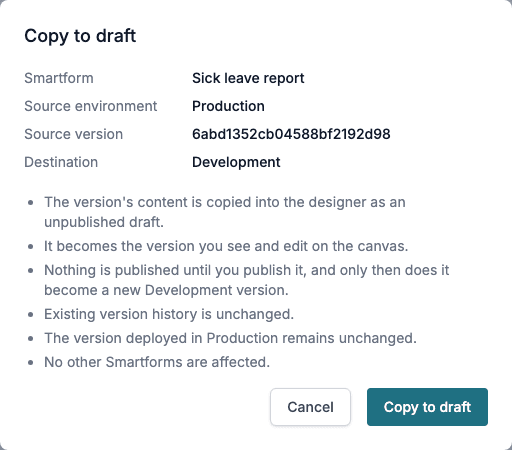
- The version is copied into the designer as an unpublished draft.
- Nothing is published, and the version in the source environment does not change.
- If the Smartform already has unpublished work in the designer, the copy replaces it and it can’t be recovered. Studio warns you before you copy.
- To use the copy, click Publish in the designer. It then becomes a new Development version that you can publish further.
Click Copy to draft to copy, or Cancel to close the dialog.
The audit log
Deployment → Audit lists who published, promoted, rolled back or copied a version to draft, and when. The Environments page shows the ten newest entries under Latest activities.
- Go to Deployment → Audit.
- Type a Smartform name or a user in Search by form or author.
- Choose an environment, a state or a period in the filters.
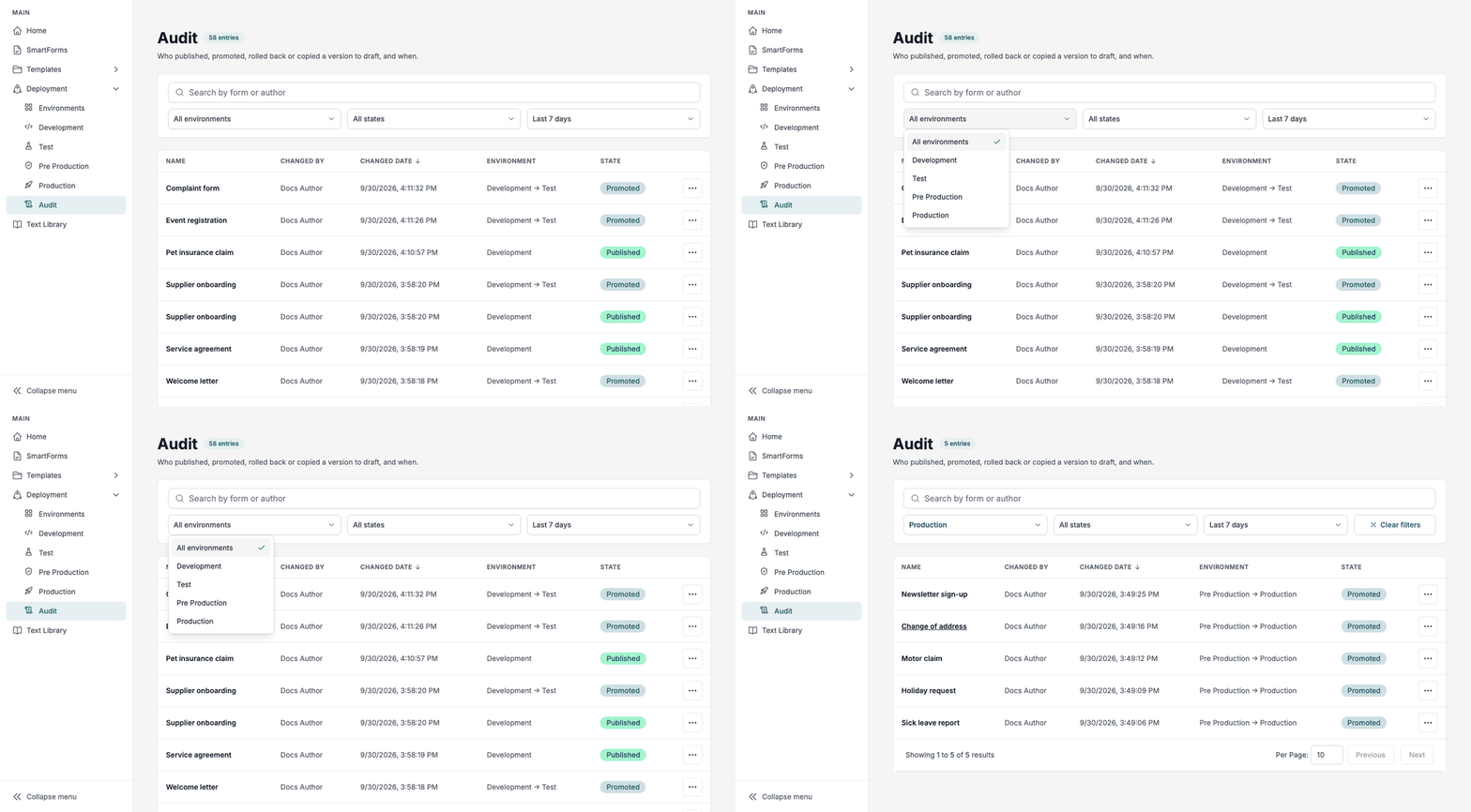
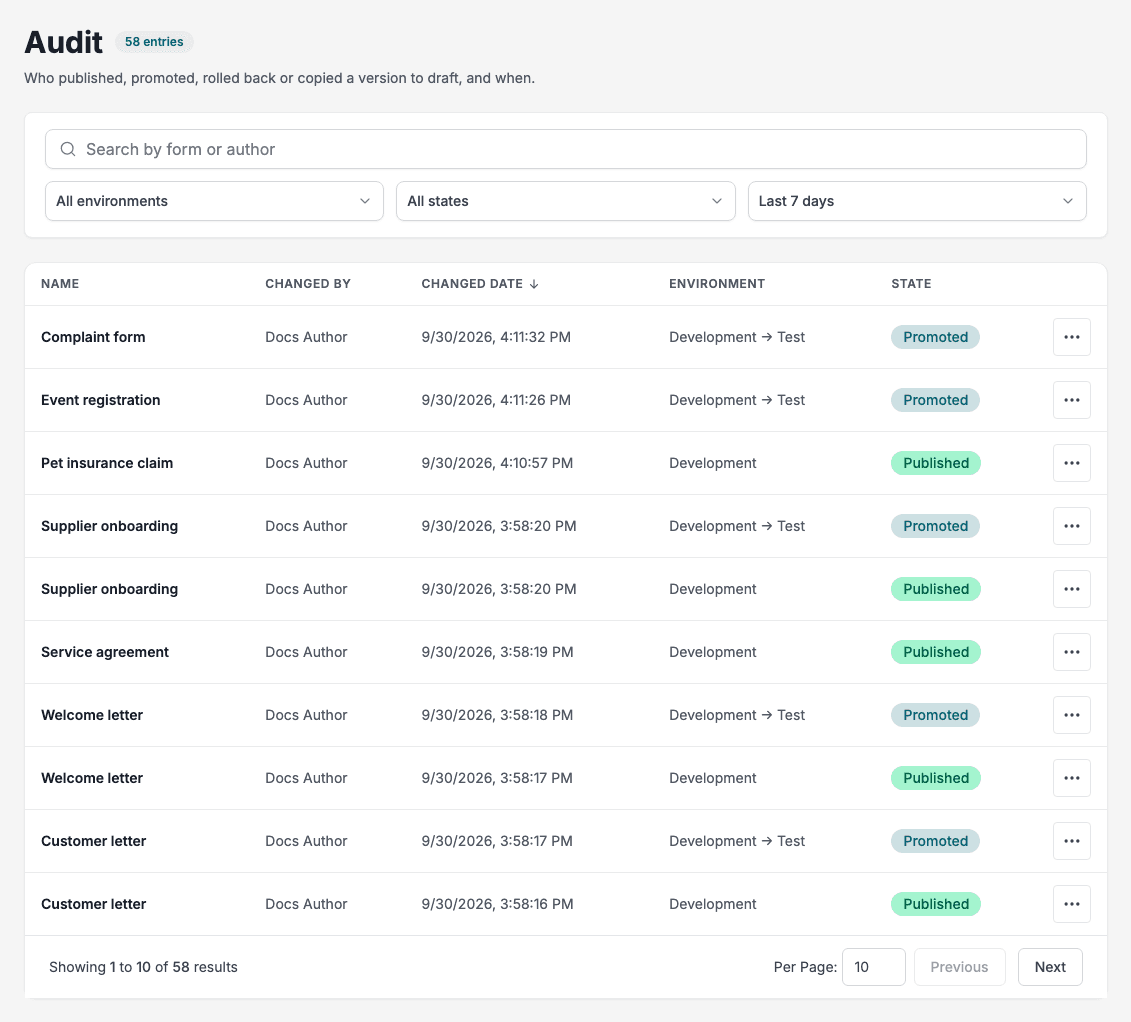
- Environment shows one environment, or both ends of a promotion, for example Development → Test. The environment filter finds an entry by either end.
- State is Published, Promoted, Rolled back or Copied to draft.
- The period filter offers Last 24 hours, Last 7 days, Last 30 days and All time. The page opens with Last 7 days.
- The actions button on an entry offers Preview, Download, Copy to draft and Go to smartform, where they apply.
The audit log covers Smartforms. Publishing Text Library folders is not listed there.