Import Smartforms
Import turns files you already have into Smartforms in Studio. There are two kinds of file:
- A PDF. Studio reads the layout, tables and text of the PDF and builds a Smartform from it with AI. The result is a draft that you review before it joins your normal Smartforms.
- A JSON file. A JSON file is a Smartform that was exported from Studio. It is imported as it was, with no AI and no review step.
You can mix both kinds in one import, up to 20 files at a time. Imports run in the background, so you can close the page and do other work while Studio builds the drafts.
Availability. Batch import, the Imports / Pending review folder and the Recent imports bell are turned on per environment. If you see Imports / Pending review in the folder list on the Smartforms page, you have them. If you don’t, Import in your environment opens the single-file import described at the end of this page.
How it works
The import starts on the Smartforms page. The numbers in the picture show where to look.
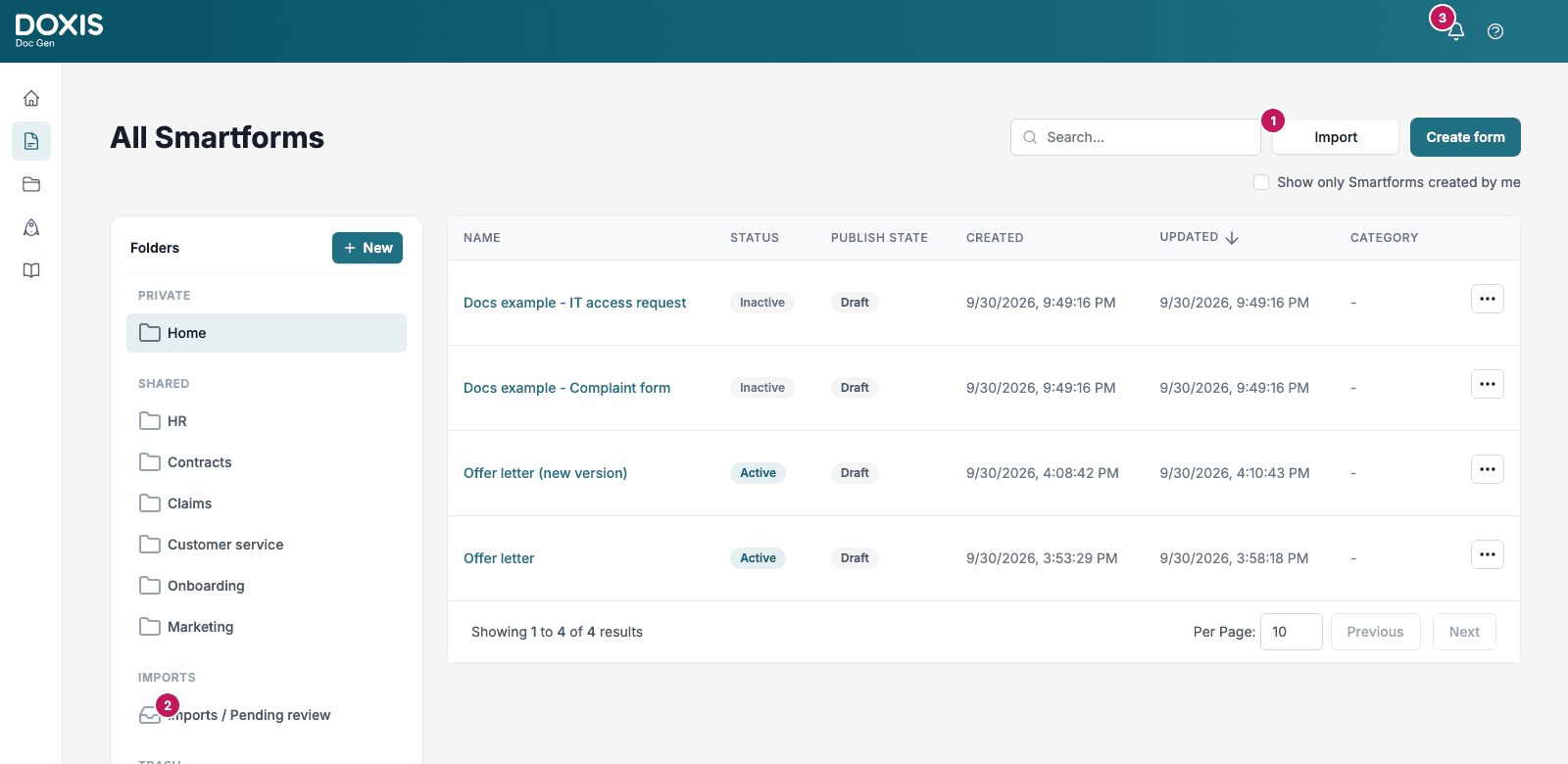
- Import opens the Import Smartform page, where you add your files. If you had a folder selected in the list, imported JSON files and skip-review drafts are filed in that folder.
- Imports / Pending review is the folder where the drafts built from PDFs wait for your review.
- The bell, Recent imports, lists your latest imports and tells you when one has finished.
The steps
- Upload PDFs and JSON files. Choose the files, pick a Style and start the import.
- Follow and cancel an import. Watch each file, cancel if you need to, and get a message when it finishes.
- Review and approve drafts. Check each draft against its PDF, then move approved drafts into a folder.
- Import a JSON Smartform. Copy a Smartform between companies or environments, or restore one, from a file.
When a Smartform is ready, use Deployment to publish it. Imported Smartforms start as Draft and Inactive. Click Activate in the row menu of the Smartform before you publish it. The Style Template you choose at import decides fonts and look of the new forms, and the Text Library is where you keep texts that the forms share.
Good to know
- Digital PDFs import best. A PDF with real text gives the most accurate draft. Scanned pages are read with text recognition, and the result depends on the scan quality.
- Tables, columns and pages. Tables, columns and multi-page layouts are supported.
- Large PDFs. A long PDF can be processed in sections of a few pages, which Studio joins in page order. If one section fails, the whole file fails. A very large or complex PDF can fail with a message that it is too large. Split such a PDF into smaller files and import them again.
- Always review. The AI builds a good first version, but it can misread a field or a layout. Open each draft in the review step before you file it.
- Limits. PDF and JSON files only, no empty files, and up to 20 files in one import. The limit for your environment is shown on the Import Smartform page, and it can differ between environments.
Single-file import
If your environment has no Imports / Pending review folder, Import on the Smartforms page opens a step-by-step import for one file at a time.
- Upload. Click Upload a file, or drag a PDF onto the page, and click Upload & Continue. A JSON file chosen here opens the Import JSON SmartForm screen instead.
- Analyze. Click Analyze & Generate. Studio shows its progress while it reads the PDF and generates the Smartform, saves the result as a draft so it is not lost, and then opens the review. Keep the page open until the review opens.
- Review. The review page works like the one described in Review and approve drafts. Click Open in designer to go on with the draft in the designer. Back to analyze returns to the previous step, where Continue to human review brings you back.
The step list at the top also shows Edit and Create. You don’t need them: Open in designer on the review page takes you straight to the designer.
Note: This section describes the single-file import from how the product works. It is not shown with pictures, because the environment the pictures were taken in has batch import turned on.