Studio workspace
This page shows the parts of the Studio screen and how they change when you open a Smartform. Read it first if you are new to Studio, or if the screen looks different from what you remember.
In this section:
- Find and organise Smartforms: the All Smartforms list, search and folders
- Create a Smartform: start a new Smartform and get a warning about a name that is already in use
The layout
When you sign in to Studio you land on Home.
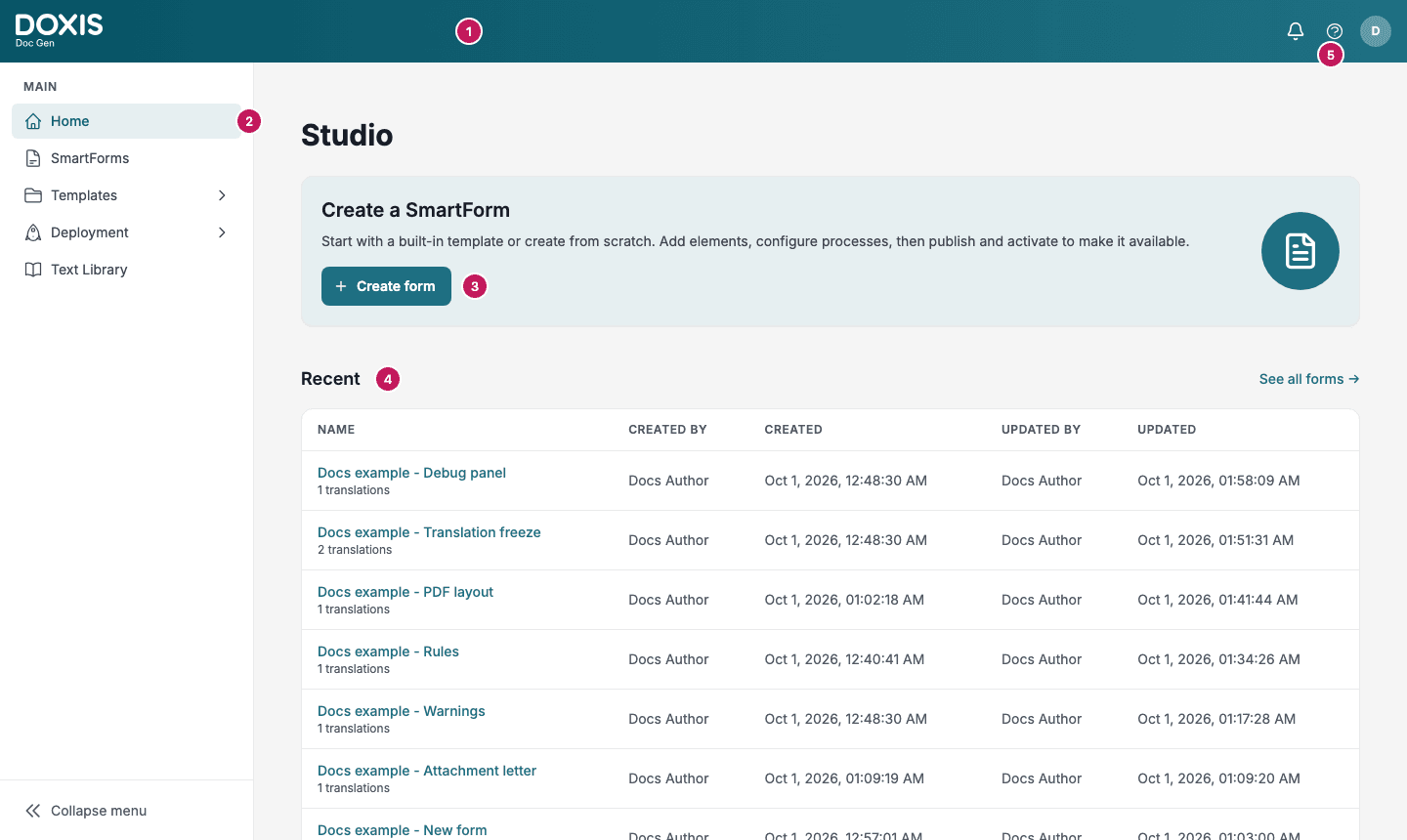
- Top bar. The DOXIS Doc Gen logo on the left. Inside a Smartform, the top bar also shows a badge with the state of the Smartform: Draft while it has changes that are not published, Published after you publish it, and Saving…, Saved or Save failed while Studio saves your work.
- Left menu. Your way to every part of Studio. See The left menu.
- Create a SmartForm. Click Create form to start a new Smartform. See Create a Smartform.
- Recent. The Smartforms that were changed last, with who created and updated each one. Click a name, or anywhere on its row, to open it in the Design tab. Click See all forms to open the full list.
- Help. The help icon in the top bar opens this documentation.
The left menu
The left menu has five entries.
| Entry | What it opens |
|---|---|
| Home | The start page described above |
| SmartForms | The All Smartforms list. See Find and organise Smartforms |
| Templates | Reusable parts that your Smartforms use. Click it to show the items below it |
| Deployment | Publishing and moving Smartforms between environments. Click it to show the items below it |
| Text Library | The texts you reuse in Smartforms and documents. See the Text Library |
Templates and Deployment open a short list under their name. Only one of them is open at a time.
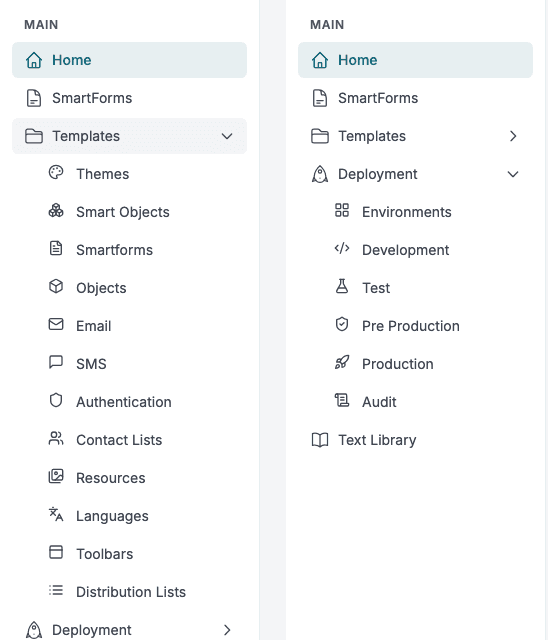
- Templates holds Themes, Smart Objects, Smartforms, Objects, Email, SMS, Authentication, Contact Lists, Resources, Languages, Toolbars and Distribution Lists. See Templates for what each of them is for.
- Deployment holds Environments, Development, Test, Pre Production, Production and Audit. See Deployment.
📝 Note: Which entries you see depends on your licence and on the access you have been given. For example, Templates, Deployment and Text Library are only listed when you have access to them. If an entry is missing, ask your administrator.
Quick start templates
Home can also show a Quick start templates row with three ready-made Smartforms: Customer verification form, Two-party signing process and Multi-section starter. The row is shown while your company has three Smartforms or fewer, so it is mostly there for new companies. Click a card to start a new Smartform from that template.
When there are no Smartforms to show, Recent shows No forms created and a New form button to create the first one.
Working inside a Smartform
When you open a Smartform, the workspace changes so that the editor gets the full width.
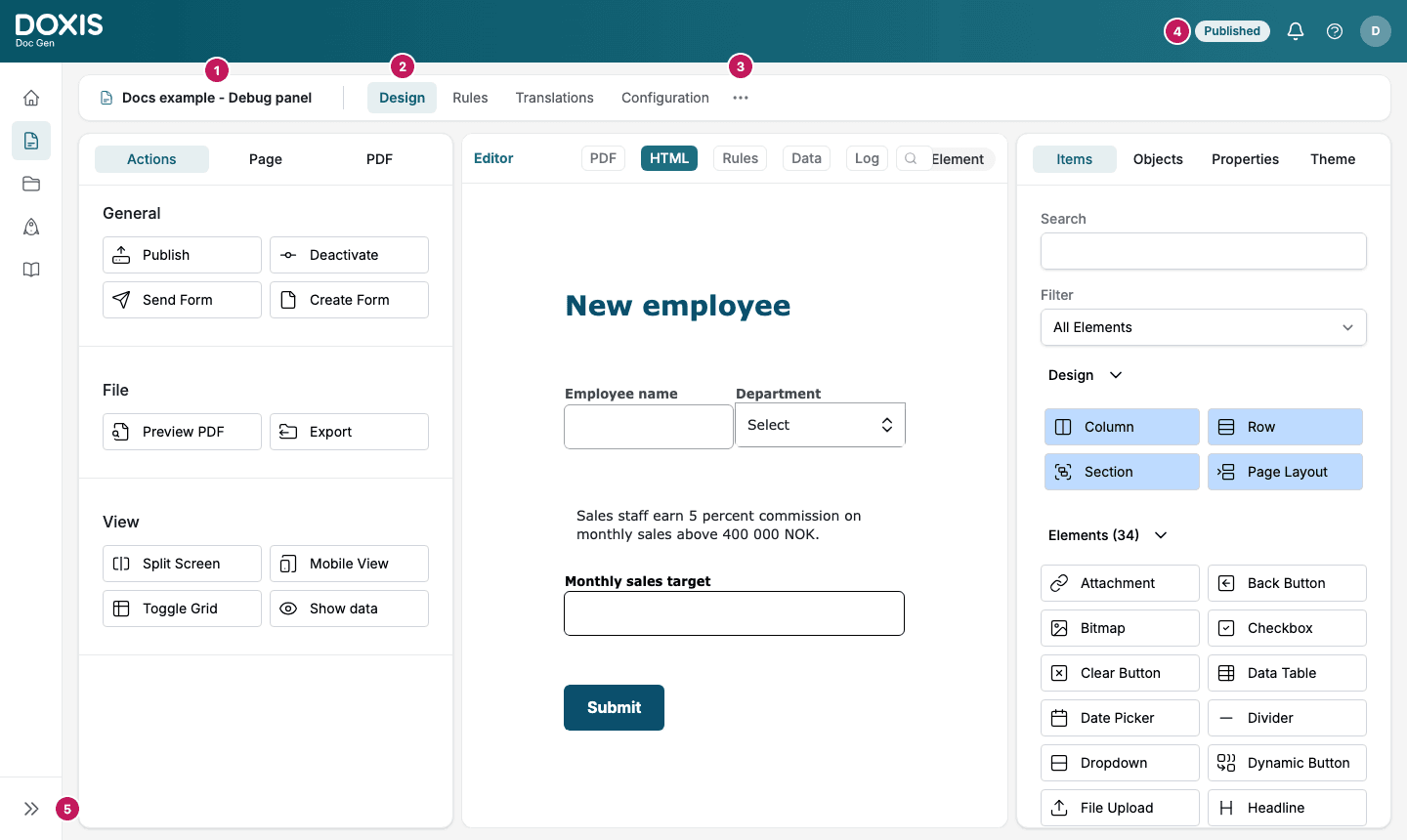
- Form name. The name of the Smartform you are working on.
- Form tabs. Design, Rules, Translations and Configuration. Older Smartforms that still use the earlier rule engine show Construction in place of Rules.
- More options. The three dots open the other tabs of the Smartform. See below.
- State badge. Draft or Published, and the save status.
- Expand button. The left menu collapses to a column of icons. Click the arrow at the bottom to bring the full menu back.
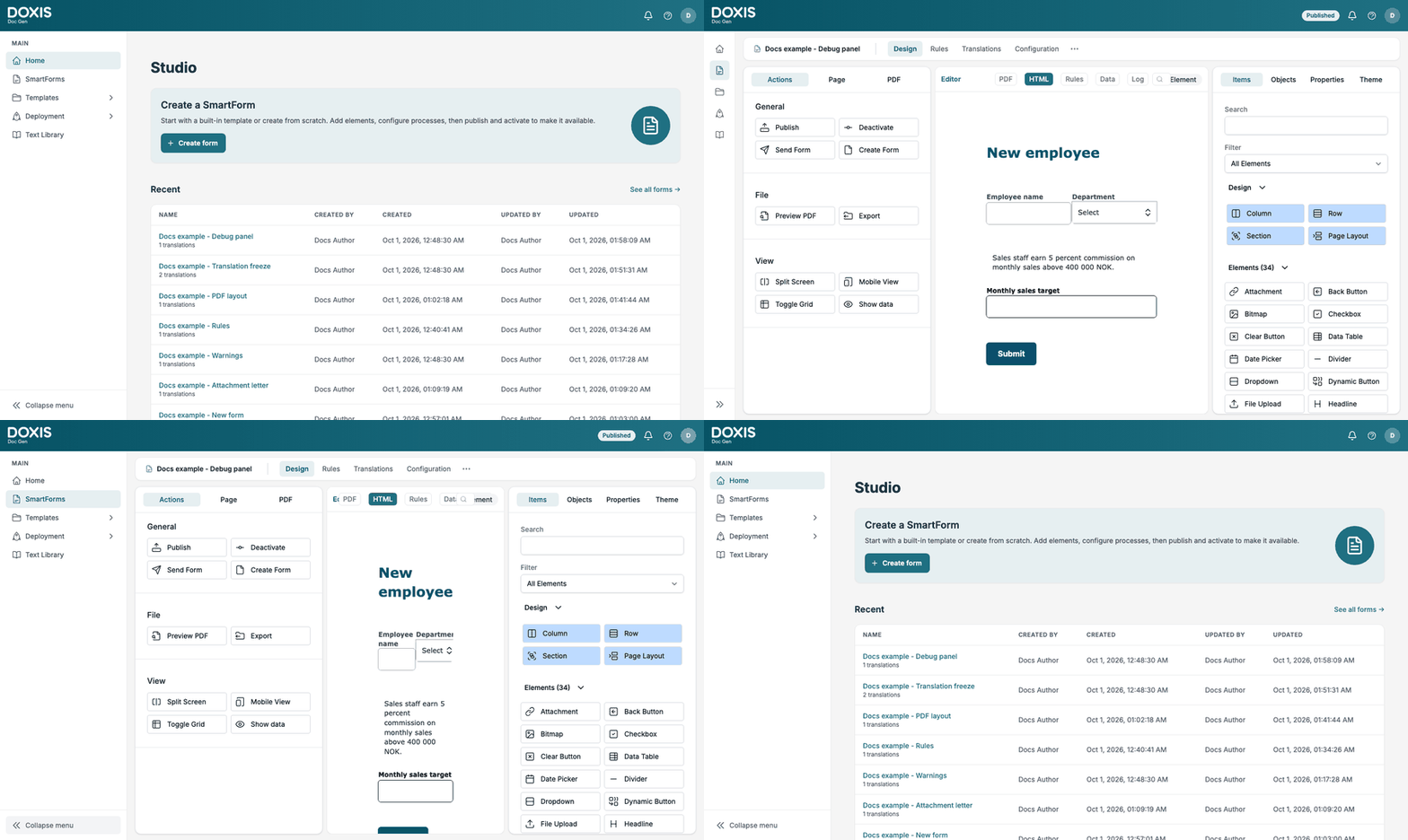
The menu collapses by itself
The left menu collapses on its own when you open a Smartform, on every tab of the Smartform, and on the review screen when you import a Smartform. When you leave, the menu goes back to how it was before you entered.
- If you expand the menu while you are inside a Smartform, it stays open until you leave.
- If you had collapsed the menu yourself before you entered, it stays collapsed when you leave.
- On other screens, the button at the bottom of the menu reads Collapse menu. Click it to collapse the menu yourself.
More options
Design, Rules, Translations and Configuration are always in the bar. Click More options to open the other tabs:
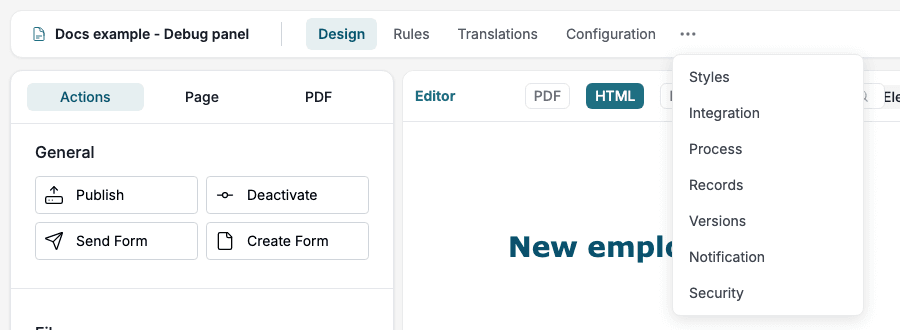
| Tab | What it is for |
|---|---|
| Styles | The look of the Smartform |
| Integration | Connections to other systems. See Integration |
| Process | Steps and parties. See Process |
| Records | The filled-in Smartforms. See Records |
| Versions | The published versions. See Smartform versions |
| Notification | E-mail and SMS notifications. See Notification |
| Security | Who can open the Smartform. See Security |
When you open one of these tabs, it is shown in the bar next to Configuration while you are on it, so you can see which tab is open. For example, after you open Records, Records is in the bar until you go to another tab. Then it goes back under More options.
What to read next
- Getting Started walks through a first Smartform from start to finish.
- Designing Smartforms explains the Design tab.
- The designer also tells you when a form has problems (Warnings), keeps a Log of changes, and warns you when someone else has the same form open (Editing together).