Warnings
Studio checks the design of your Smartform for mistakes and lists them for you. You can fix them before anyone fills in the Smartform, instead of finding out from a rule that does not work or a field that shares its answer with another field.
Where you see the warnings
There are two places, and both appear only when Studio has found something:
- A banner above the editor. It counts the problems and has a Show details button.
- The Warnings tab in the editor header, next to Data and Log. Show details opens it.
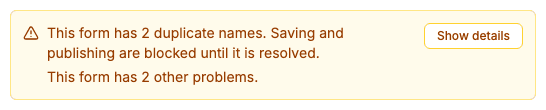
A Smartform with nothing to report has no Warnings tab. The banner cannot be closed while a problem is still there. It goes away by itself when you have fixed the problem.
If you work on the problems while the Warnings tab is open, the tab stays open after the last problem is fixed and then shows No problems found, so you can see that you are done.
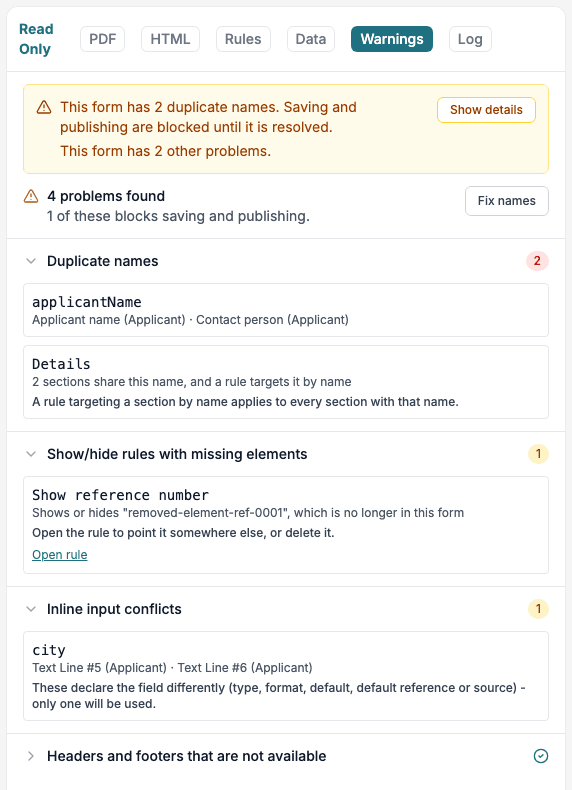
At the top of the tab Studio counts the problems, for example 4 problems found, and says how many of them block saving and publishing. Below that, each check has its own group with the number of problems in it. A green check mark means that the check found nothing.
What Studio checks
| Check | What it finds | Blocks saving? |
|---|---|---|
| Duplicate names | Two or more elements with the same Property name. Also two or more sections with the same name, when a rule points at the section by name | Duplicate element names block saving and publishing. Duplicate section names do not |
| Show/hide rules with missing elements | A Show/Hide rule that checks, shows or hides an element, row or section that has been deleted or renamed | No |
| Inline input conflicts | The same inline input, written as [[ INPUT : name ]], is set up in different ways in different places. Or an inline input has the same name as a rule variable or as a form field | No |
| Headers and footers that are not available | A header or footer uses a Smart Object that does not exist in this environment, or that is not active. The PDF is created without it | No |
Duplicate names
The Property name of an element is the key that Studio uses to store the answer. It is also the column heading in exports and the name in the data that is sent to other systems. When two elements have the same name, their answers end up in one value, and rules cannot tell the two elements apart. Studio does not save or publish a Smartform in that state.
Each row shows the name and the elements that share it, with their labels and sections.
Click Fix names at the top of the tab. Studio saves the Smartform and gives each duplicate a new name. The first element keeps its name and the others get a number, for example applicantName-1. Rules keep pointing at the element that kept the original name.
If you would rather choose the names yourself, select the element, open the Properties tab and change Property.
A row that says Saving cannot fix this; change it at its source is a name that Studio cannot change for you, for example a name that comes from a placeholder in a text or from an element in a section that is locked to an object. Change it where it comes from.
Two sections with the same name are a problem only when a rule points at the section by its name. The rule then applies to every section with that name, which is usually not what you want. Fix names also renames these sections, except sections that come from an object. For those, rename the section on the object, or point the rule at the section itself instead of its name.
After you click Fix names
The banner changes to a short report. It lists every name that was changed, for example applicantName → applicantName-1, and whether it was a field or a section.
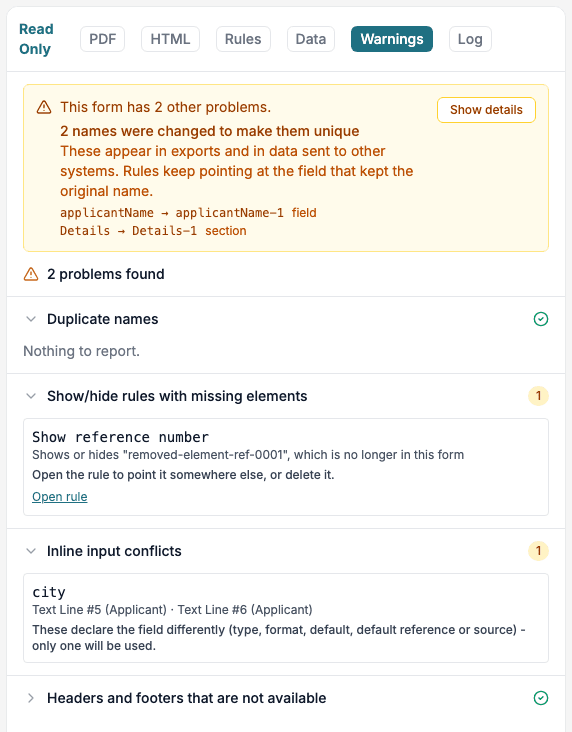
Read this list. The old names may already be used in exports, in integrations that read the data, or in a system that receives it. You must update those places so that they use the new names. The list of changed names has a close button when no problem is left. Close it when you have read it.
Show/hide rules with missing elements
A rule that points at something that is no longer in the Smartform does not fail in an obvious way. It stays in the list of rules and looks fine, but it does nothing. The check shows the name of the rule and the name that can no longer be found, and whether the rule checks it or shows or hides it.
Click Open rule to go to the rule. Choose another target, or delete the rule. Smartforms that still use the older Construction rules show Open rules instead, which opens the Construction tab.
Inline input conflicts
An inline input is a field you type into the text itself, written as [[ INPUT : name ]]. See Editable text. You may write the same inline input in several places on purpose, so that one answer shows up twice. Studio only reports it when the places disagree about what the field is, for example one says type=text and the other says type=date. Only one of them is used, and you cannot tell which.
Studio also reports an inline input that has the same name as a rule variable, or the same name as a form field. A form field and an inline input with the same name share one stored answer. Change one of the names.
Headers and footers that are not available
A header or footer of the PDF can use a Smart Object. When that Smart Object has been deleted, is not active, or was imported from another environment, the PDF is created without the header or footer. The row says which header or footer it is. Choose another Smart Object under Headers and footers on the PDF tab, or in the settings of the page layout break that uses it. You can also leave it empty.
Tips
- Look at the banner each time you open a Smartform that someone else has been working on.
- Run Fix names before you publish. A publish is refused while two elements still share a name.
- When a rule does not do what you expect, open Warnings first. A rule that points at a removed element shows up there.