Texts and Folders
Folders
The folder list on the left has two parts:
- Private Folders are only visible to you. Home is where texts end up when no folder is chosen.
- Shared Folders are visible to everyone in your company, unless you limit a folder to some groups with Manage Access.
Create a folder
- Click + next to Private Folders or Shared Folders.
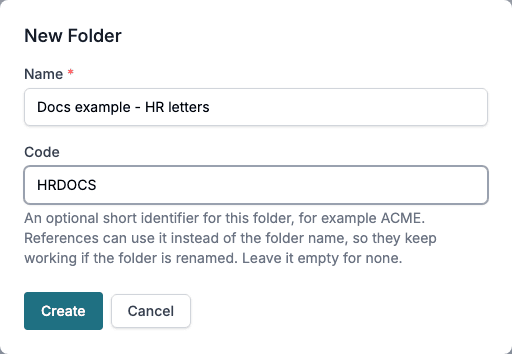
- Enter a Name, for example HR letters.
- Optionally enter a Code, for example HRDOCS. References can use the code instead of the folder name, so they keep working if the folder is renamed.
- Click Create.
The menu (⋮) next to a folder has Rename, Create subfolder, Manage Access, Set as default, Duplicate and Delete. Subfolders go one level deep and follow the access of their parent folder. Manage Access and Set as default are only offered on shared folders.
The default folder is marked with a star. Short references without a folder, such as [[ LIB : sick-leave ]], look there when a Smartform has no Text Library folder of its own.
Create a text
- Select the folder in the folder list.
- Click New Text.
- Fill in the properties and the content, then click Save.
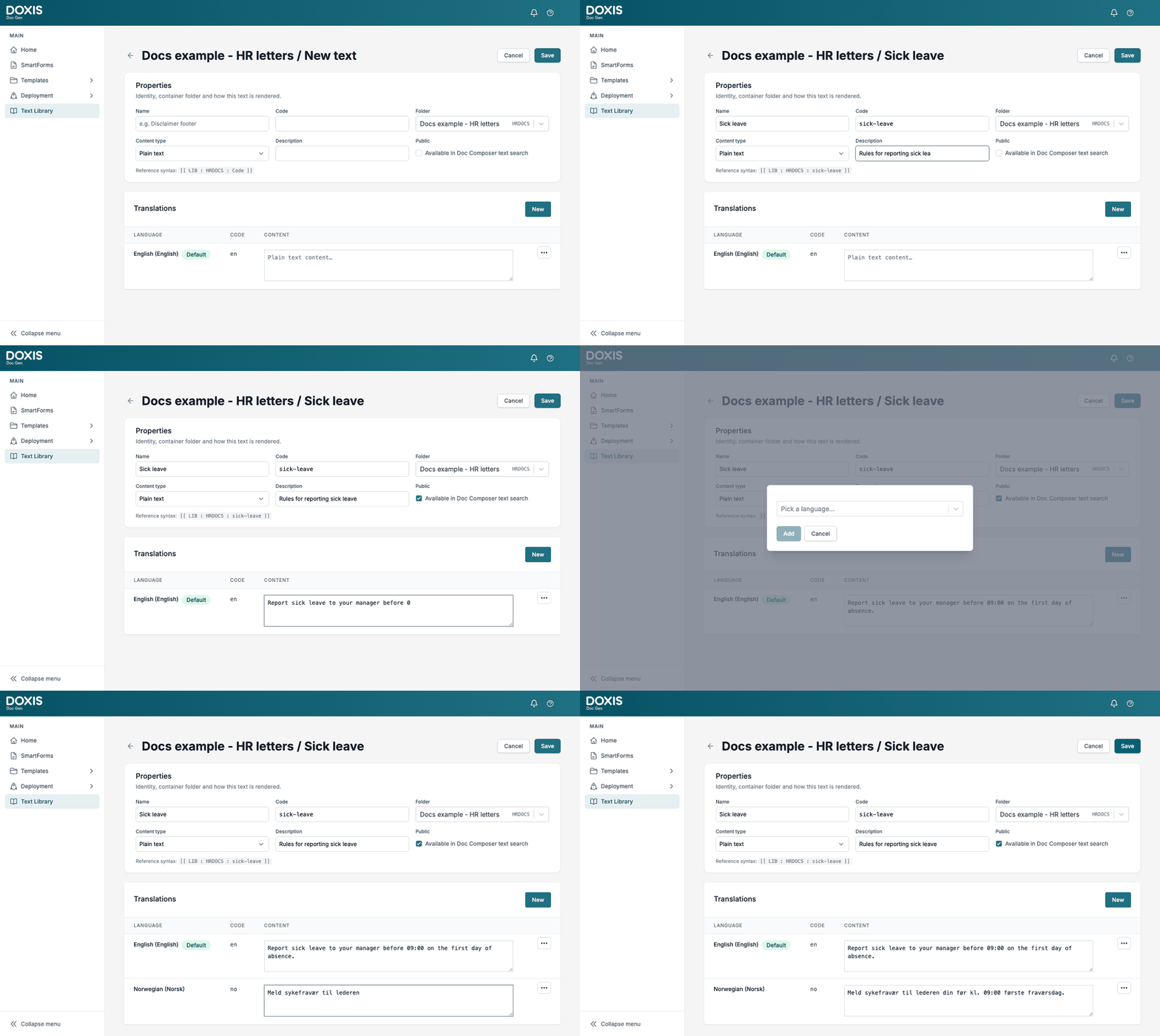
| Field | What it is for |
|---|---|
| Name | The name people see in lists, for example Sick leave. |
| Code | The identifier that references use, for example sick-leave. It must be unique within the folder. |
| Folder | The folder the text belongs to. |
| Content type | Plain text, Rich text or HTML. |
| Description | A short note about when to use the text. |
| Public | When ticked, the text is available in Doc Composer text search. See Using Texts. |
Below the properties, the editor shows the Reference syntax for the text, for example [[ LIB : HRDOCS : sick-leave ]].
Languages
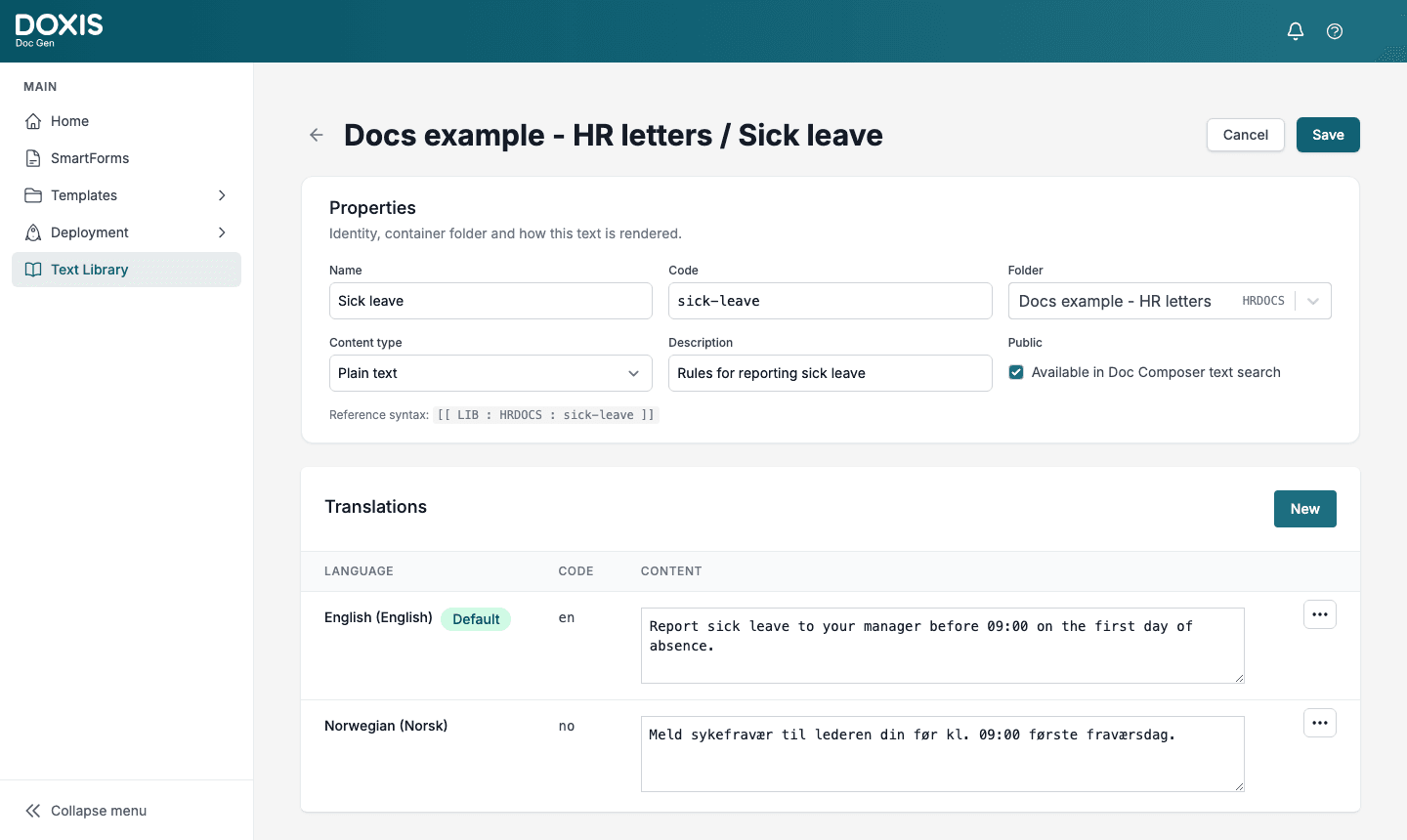
Each text starts with one language, marked Default. To add another language:
- In Translations, click New.
- Pick the language and click Add.
- Write the content for that language and click Save.
If the text is already saved and the default language has content, the new language is filled in automatically with a machine translation of the default language. Check it before you publish.
The menu (⋯) on each language row has:
- Set as default: makes this language the default. When a text has no content in the form’s language, the default language is used instead.
- Translate from (default language): replaces the row with a new machine translation of the default language.
- Delete: removes the translation.
Find texts
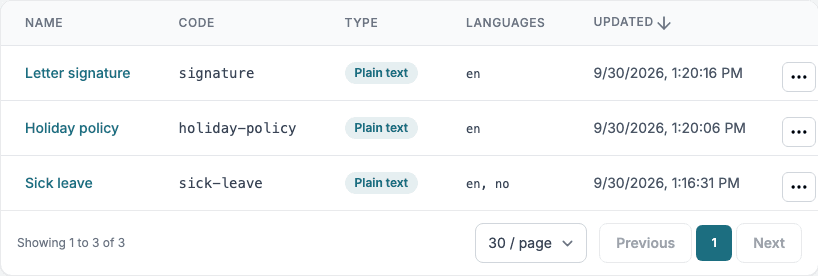
- Search looks in names, codes and descriptions.
- Texts only shows only texts. Switch to Texts & folders to also see matching folders.
- The filters narrow the list by folder, type, language, when a text was updated, and visibility (public or private).
- Clear filters resets them.
The menu (⋯) on each row lets you Edit, Duplicate or Delete a text. Duplicate asks for a new code, because two texts in the same folder cannot share one.