Objects
Objects in Studio are pre-made sections containing one or more elements. They work like templates to speed up Smartform creation.
Overview
An Object is a reusable building block for your Smartforms. Each object contains one or more elements, grouped into a ready-to-use section.
Using objects:
- Saves time when designing Smartforms.
- Ensures consistency across forms.
- Allows you to reuse common layouts or content blocks.
You can use built-in objects provided by Studio or custom objects that you create and save yourself.
Adding an Object to a Smartform
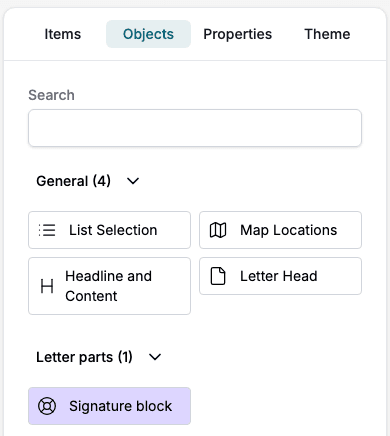
- Open the Objects tab in Studio, located in the right menu.
- Find the object. General holds the objects that come with Studio. Each shared object folder has its own group, named after the folder. Type in Search to filter the objects by name.
- Drag and drop the object into your Smartform layout. You can also click it: it is added below the section that holds the item you have selected, or at the end of the form when nothing is selected.
📝 Note: The Objects tab only lists active objects that are filed in a shared folder. Objects in Home or in a private folder under Templates → Objects are not listed.
Creating a Custom Object
You can save any section you’ve built in a Smartform for later reuse.
- Hover over the section you want to save.
- Click the three-dot menu to the right of the section.
- Select Export section.
- Choose one of:
- To object library – Saves the section as an object under Templates → Objects.
- To file – Downloads the section as a file for backup or sharing.
- Enter a Name and click Save.
- If you saved to the object library, the object is placed in Home, which is private. To use it in the Objects tab, go to Templates → Objects, open the object’s menu, select Move to folder and choose a shared folder. The object then appears under that folder’s name in the Objects tab.
Best Practices
- Group related elements into one section before saving as an object.
- Use clear, descriptive names when saving to the Object Library.
- Keep commonly used branding, contact details, or disclaimers as objects for quick insertion.