Page Templates
Page Templates rules choose the header and footer of the PDF from the data in the form. Each header and footer is a Smart Object that you have made under Templates. When no rule applies, Studio uses the default headers and footers from the Document tab.
For each position, the first rule that matches is used.
Create a rule
- Open the Smartform in Studio, click Rules and then the Page Templates tab.
- Click New Rule.
- Enter a Rule Name, for example
Norwegian header for Norway. - Under Conditions (IF), leave Always Run on, or turn it off and add conditions. They work as in Show/Hide.
- Under Template Selection (THEN), choose the Target (Header/Footer Position): First Page Header, First Page Footer, Running Header or Running Footer.
- Choose the Selection Method. With Direct Selection you pick one Smart Object. With Case/Switch you enter values after WHEN and pick a Smart Object for each after THEN USE, and one for Default (when no case matches).
- Click Add THEN Action for another position. For a rule with conditions, Template Selection (ELSE) - Optional chooses the Smart Objects to use when the conditions are not met.
- Click Add Rule. When you edit a rule the button is Update Rule. Cancel leaves without saving.
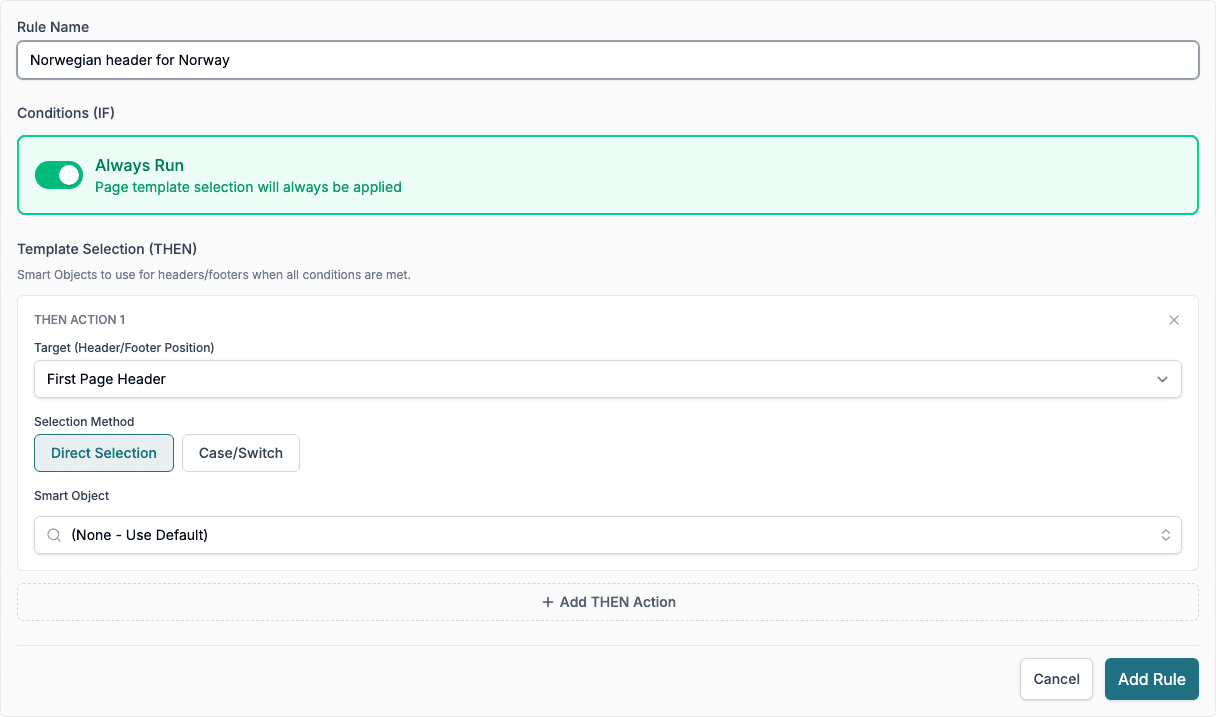
(None - Use Default) and (None - No Override) keep the default header or footer.
Manage rules
The list has the same toggle, pencil and bin as the other rule tabs. Before a rule is deleted, Studio asks Delete this rule? and says No other rule depends on this one.