Variables
Variables on the Rules page name the data your rules work with. Each variable matches a data table value that is passed in when the Smartform is created, typically through the REST API or Workflow, and has a type and an optional default value. Rules read and change the variables, and the result is available in the form as a data table placeholder such as [[ ManagerName ]].
For the placeholders themselves, and the other kinds of values a Smartform can show, see Variables and placeholders.
The Variables tab
Open the Smartform in Studio, click Rules and then the Variables tab.
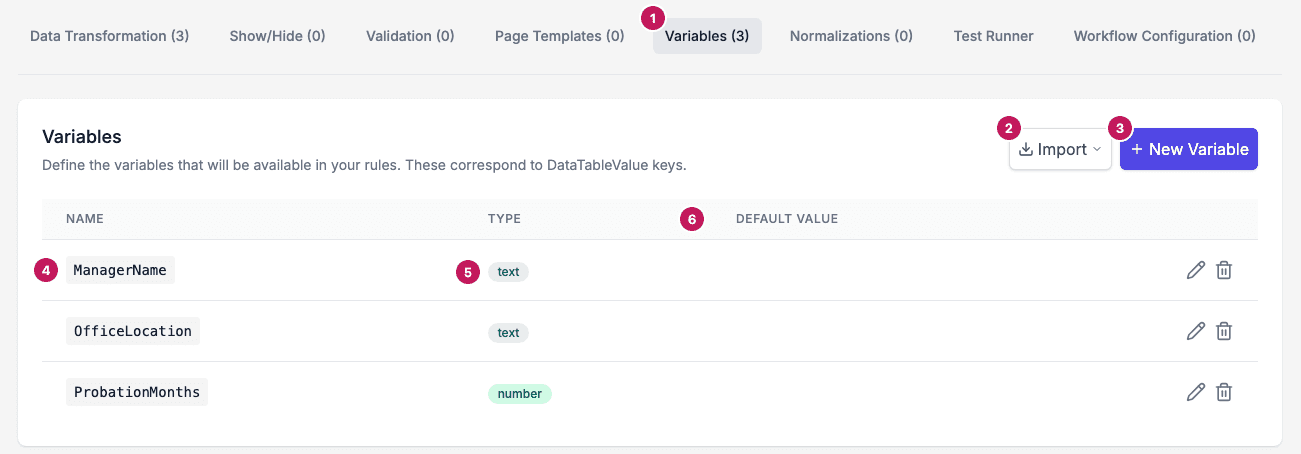
- Variables (3): the tab, with the number of variables.
- Import: add variables From Dataset or From File (JSON).
- New Variable: add one variable.
- NAME: the variable name. It must match the data table key that is passed in, for example
ManagerName. - TYPE: text, number, boolean, table or json.
- DEFAULT VALUE: the value used when no data is passed in for this variable. In this example the column is empty, because Data Transformation rules set all three variables: the manager, the office and the probation period.
Use the pencil icon on a row to change a variable and the bin icon to delete it. Before a variable is deleted, Studio asks Delete this variable? and shows which rules use it.
Variable types
Each variable has a type:
- Text: string values such as names, addresses or identifiers.
- Number: numeric values such as age, amounts or counters.
- Boolean:
trueorfalse. - Table (Array): a list of objects or rows, for example a list of people or items. The default value is a JSON array, for example
[{"name": "John", "age": 30}]. The list shows it as the number of items. - JSON: an object, for example an address with several fields. The default value is a JSON object.
The type decides how the variable can be used in rules and transformations.
Creating a variable
- Open the Smartform in Studio and click Rules.
- Click the Variables tab.
- Click New Variable.
- Enter a Variable Name. It must match the data table key passed in by the API or Workflow, for example
ManagerName. A name with dots, such ascustomer.address.city, reads a value inside an object. - Select a Type.
- Optionally enter a Default Value.
- Click Add Variable.
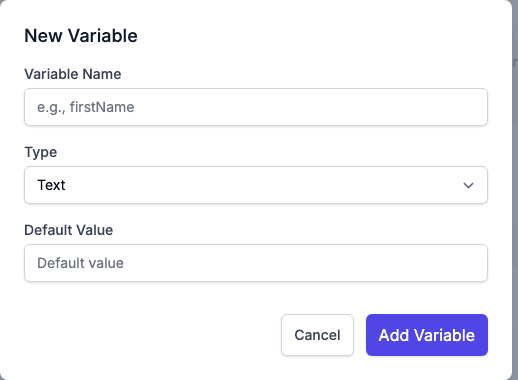
The variable is now available in all rule types.
Importing variables
Click Import to add several variables at once:
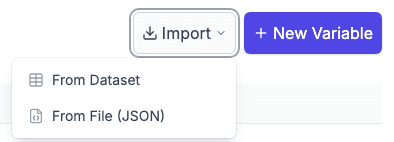
- From Dataset takes the variables from one of the Smartform’s datasets.
- From File (JSON) takes them from a JSON file.
Default values and when rules run
- A variable takes its value from the data table value with the same name. When no value is passed in, the default value is used.
- The rules, and with them the default values, run when the Smartform has at least one Data Transformation rule. If you rely on default values, add a rule, or send the values from your system or Workflow.
- The rules run when the form is created and again each time the form is shown.
- The result is kept with the form: every variable becomes a data table value with its name, so
[[ ManagerName ]]shows it on the form and in the PDF.
This lets you design and test a Smartform before a live API or Workflow sends real data.
Using variables in rules
Once created, variables can be used across the Rules system:
- Data Transformation: transform or map incoming values before they are used in the form.
- Show/Hide: show or hide fields or sections based on a variable.
- Page Templates: control page layout or content.
Variables let a Smartform adapt to different contexts and data without separate form versions.
Shadow Variables
When the Smartform has registered data paths, the tab also lists them under Shadow Variables. The copy button next to a path copies it as a [[ path ]] placeholder you can paste into the form.
Typical use case example
A Smartform is created for contract signing through the API:
- The API sends
firstName,ageandaddress. - Variables are defined with the same names.
- Rules are added:
- Show an additional consent if
age < 25. - Hide the address section if the address is empty.
- Transform incoming lists into table components.
- Show an additional consent if
Limitations and notes
- Variable names must match the data table keys exactly.
- Table (Array) variables need the same object structure in every row to work reliably in rules.
- A Rules variable and an editable text with the same name are saved separately. The designer’s Warnings tab reports this; rename one of them.