Doxis packages
A Doxis package is ready-made content from Doxis: Smartform templates and objects, and sometimes toolbars, distribution lists and resources. When you import a package, its content is added to Studio as ordinary templates that you can open, change and use.
You start the import in CenterPoint, not in Studio. You need company administrator access, and Doxis must have made the package available to your organisation.
Import a package
- In CenterPoint, go to Settings → Packages under Administration.
- Find the package. Each card shows the package name, its version and a short description.
- Click Import.
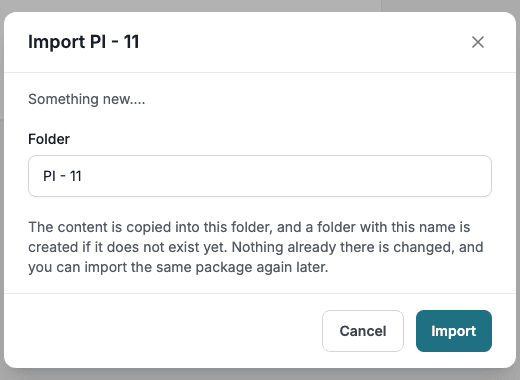
- In the Folder field, keep the suggested folder name, which is the package name, or type another. A folder with that name is created if it does not exist yet.
- Click Import. Click Cancel to close the window without importing.
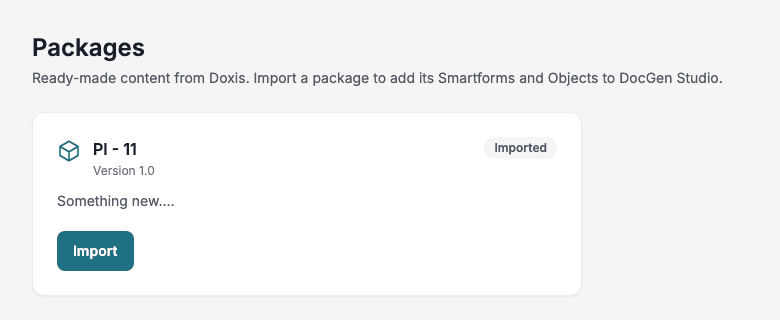
A card shows Imported once you have imported the package. It shows Updated when Doxis has released a newer version than the one you imported. A card without a released version shows No released version instead of Import.
When the import is done, a message at the top says which package went into which folder and how many items of each kind were added, for example 2 Smartforms, 1 Toolbar and 3 Resources added.
Where the content goes in Studio
The content is copied into a shared folder with the name you chose:
- Smartform templates under Templates → Smartforms, with the status Active.
- Objects under Templates → Objects.
- When the package carries them, toolbars, distribution lists and resources under Templates → Toolbars, Distribution Lists and Resources.
The links between them are kept. A Smartform that used a toolbar, a distribution list or a resource in the package still uses the copy you got.
Some settings belong to the company that made the package, so they are cleared on arrival: the theme, the authentication template, the retention policy, the contact list, the archive folder and the access groups. A Smartform from a package therefore starts with your company default theme. Set the others on the Smartform when you need them.
Import again
An import never changes or renames anything that is already in the folder. Items whose name is already taken are left as they were, and the message lists them under Already in that folder, so left as they were. Items that cannot be read are listed under Could not be read, so nothing was created for them.
If nothing could be added, the message says Nothing was added to and the folder name, and the package keeps showing Updated. To take a newer version as a whole, import it into a folder that does not hold the package yet. That folder gets all of it, not only the parts that changed.
Export your own content
Resources, Distribution Lists and toolbars have an Export action in their row menu. It downloads a JSON file with the item’s id and name, and for a resource the image itself. The files are made for use in a Doxis package. Objects have their own Export action in Templates → Objects. See Resources and Distribution Lists.