Themes
The Themes page allows you to create and manage reusable visual styles for your Smartforms. Instead of only adding custom CSS, you can configure themes using multiple structured tabs that control layout, styling, and behavior across forms.
Themes ensure a consistent look and feel across your Smartforms.
How it works. A theme is the look a Smartform starts from. One theme is the company default theme. Every new Smartform starts from it unless you choose another theme.
Accessing Themes
- Go to Templates → Themes
- Click New Theme, make a copy of a system theme, or open one of your themes
- Configure the theme using the available tabs
The Themes list
The list shows each theme with its Name, Created and Updated dates.
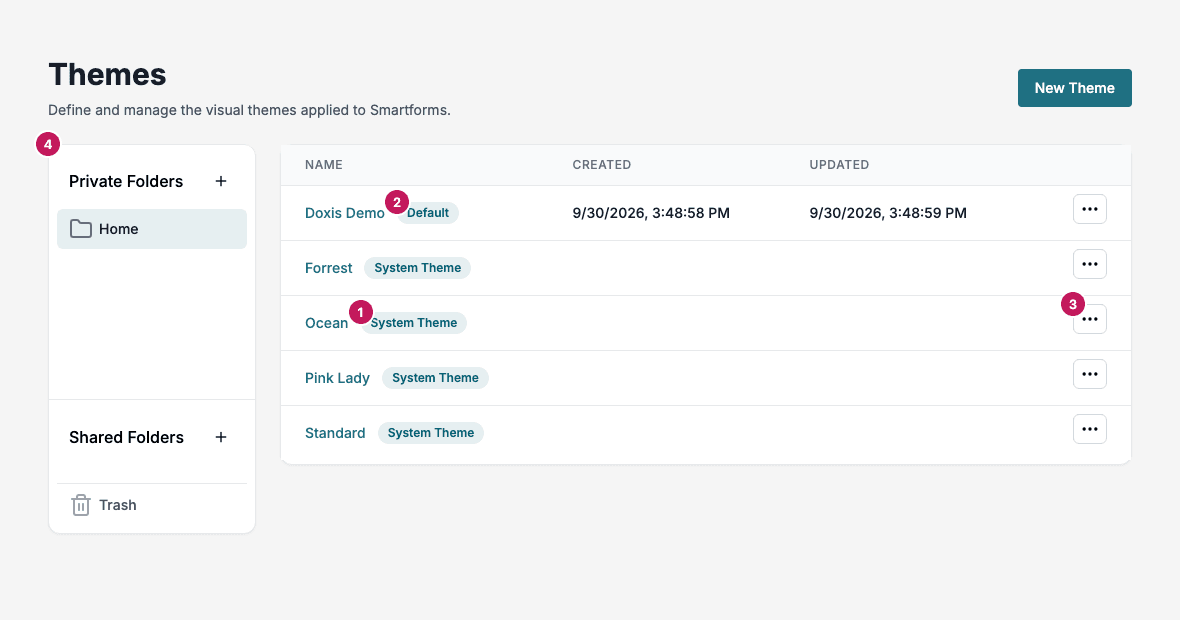
- System Theme: a ready-made theme. Doc Gen has four: Standard, Pink Lady, Ocean and Forrest. You cannot change or delete a system theme, but you can make a copy and change the copy.
- Default: the company default theme. It is Standard until you choose another theme.
- The row menu.
- The folder panel. Your own themes are kept in folders like other templates. See Folders.
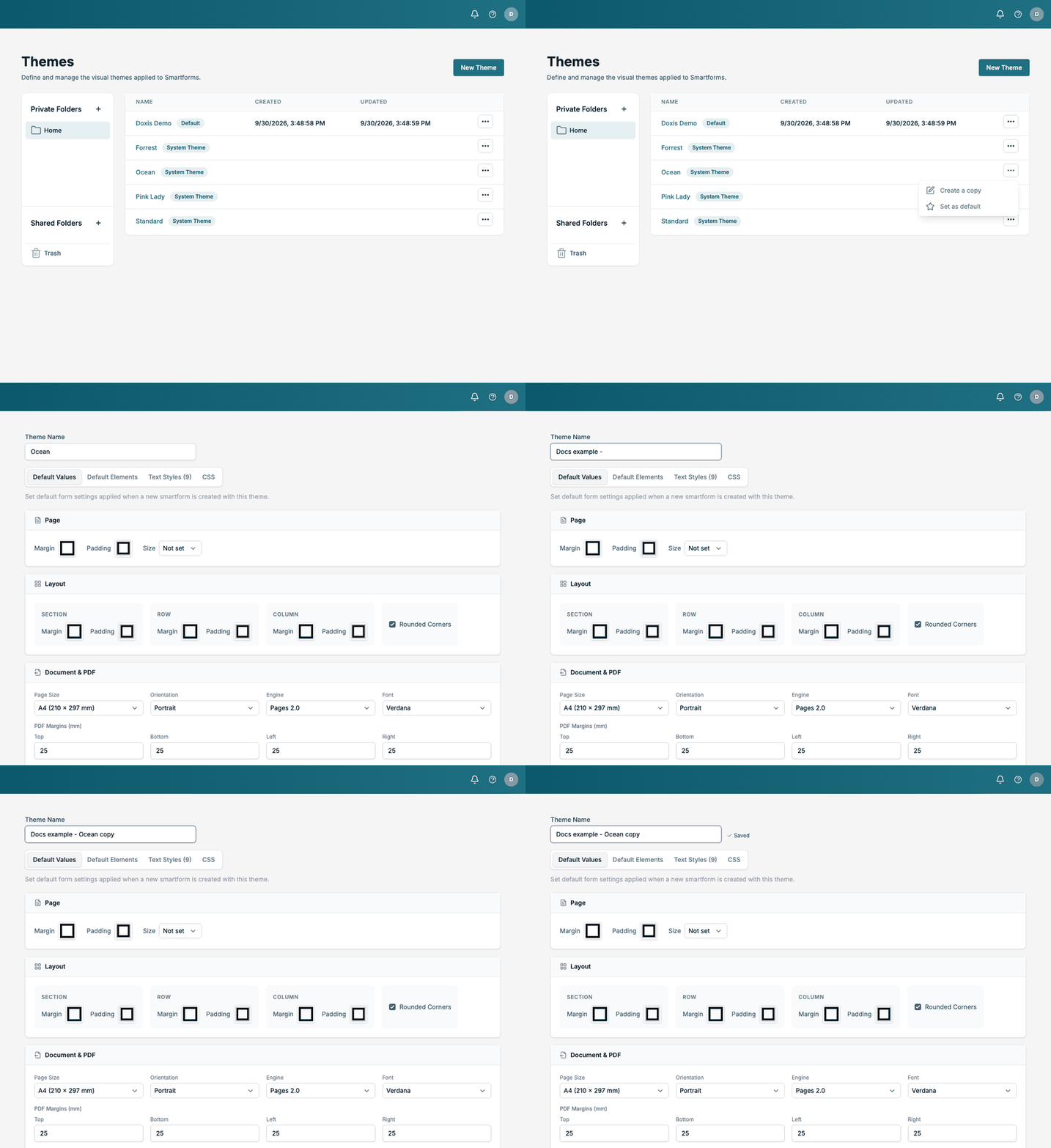
The row menu of a system theme has Create a copy and Set as default. The row menu of your own theme has Edit, Set as default, Move to folder and Delete. Set as default is not shown on the theme that already is the default.

Make a copy of a system theme
- In the row menu of the system theme, click Create a copy. The theme opens in the editor.
- Change the Theme Name, for example to
Company Ocean, or change any setting. Studio saves as you type and shows Saved. The copy is created with the first change and the page moves to it. - Go back to Themes. The copy is in your list. A copy is never the default theme, even when the theme it was copied from is.
The company default theme
Click Set as default in a theme’s row menu. The Default badge moves to that theme. There is always one default: Standard until you choose another.
The company default theme is used:
- when someone creates a new Smartform without choosing a theme, and
- as the preselected theme in the Create Form gallery.
Changing the default does not change Smartforms that already exist.
Delete a theme
Click Delete in the row menu of your own theme. While Smartforms use the theme, Studio refuses with Cannot delete theme style and lists the Smartforms with an Edit link. Open each one, change its theme to another or to None, then delete the theme.
Theme Configuration Tabs
A theme consists of four main configuration areas:
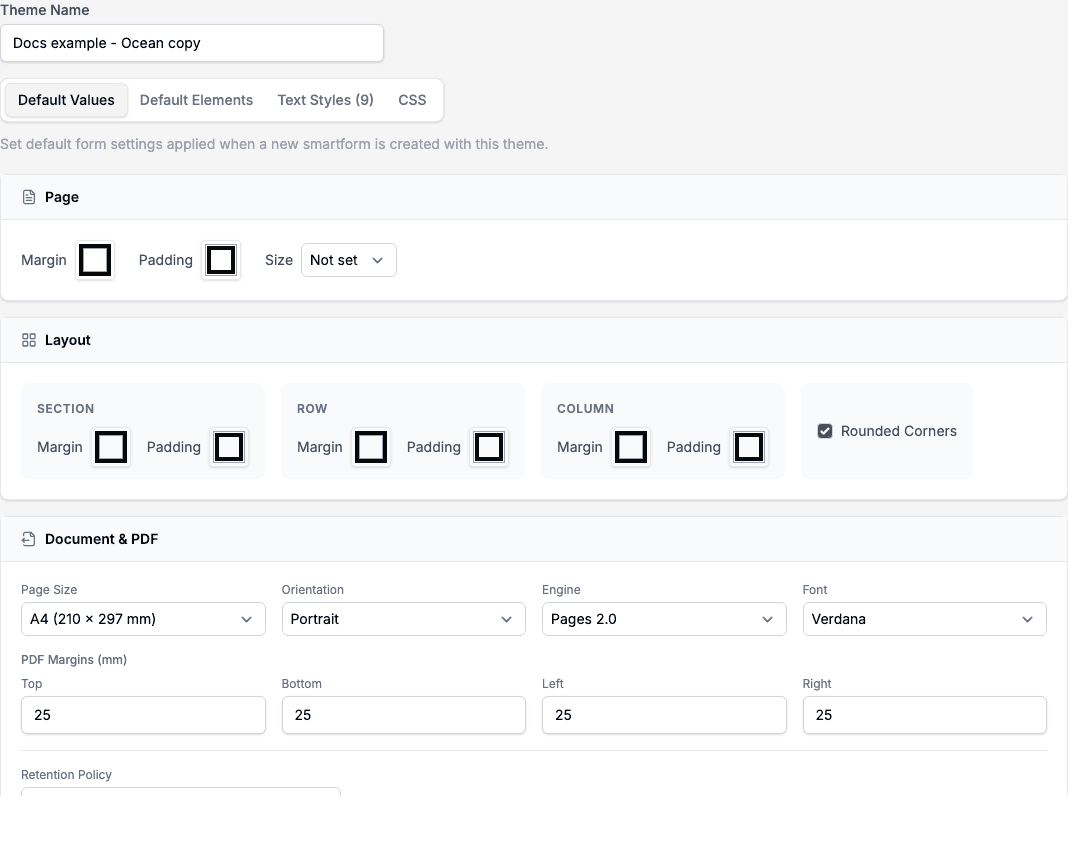
1. Default Values
Define default layout and document settings applied when a new Smartform is created using this theme.
Sections include:
-
Page
- Margin
- Padding
- Size
-
Layout
- Section (margin, padding)
- Row (margin, padding)
- Column (margin, padding)
- Rounded corners option
-
Document & PDF
- Page size (e.g., A4)
- Orientation (Portrait / Landscape)
- Engine
- Font
- PDF margins (Top, Bottom, Left, Right)
- Retention policy
2. Default Elements
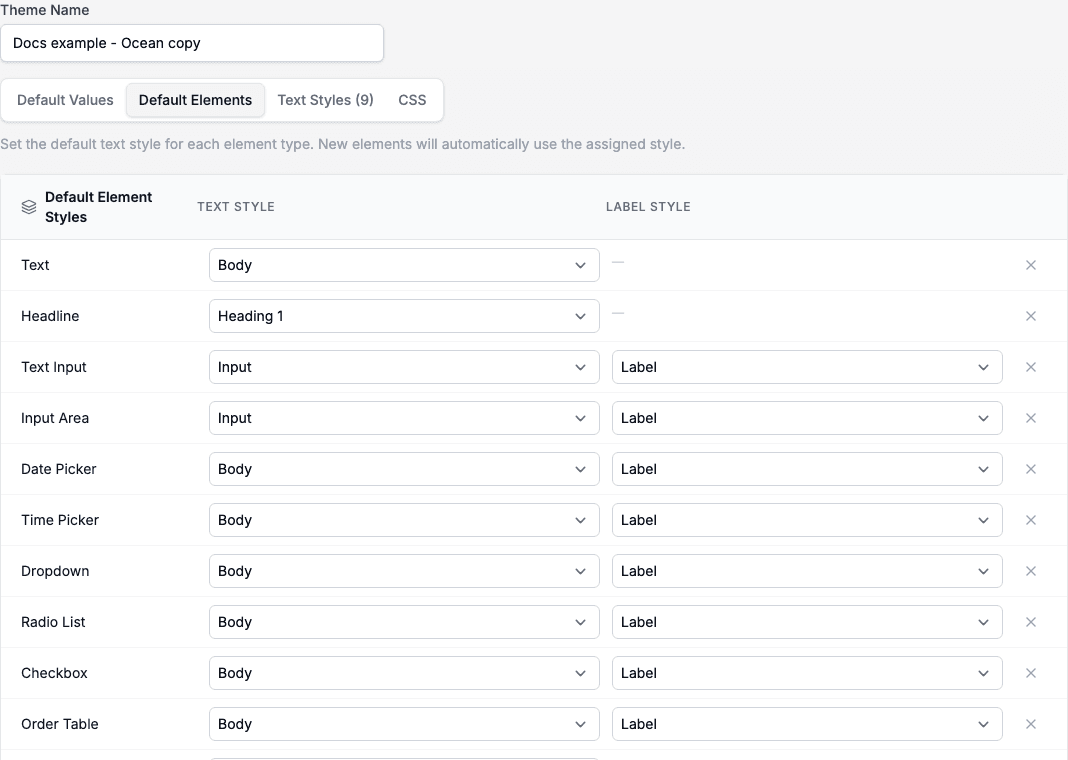
Define which text styles are automatically applied to different Smartform elements.
Each element type can have:
- A Text style
- A Label style (if applicable)
Examples:
- Text → Body
- Headline → Heading 1
- Input fields → Input + Label
- Dropdown, Checkbox, Radio → Body + Label
New elements added to a Smartform will automatically inherit these styles.
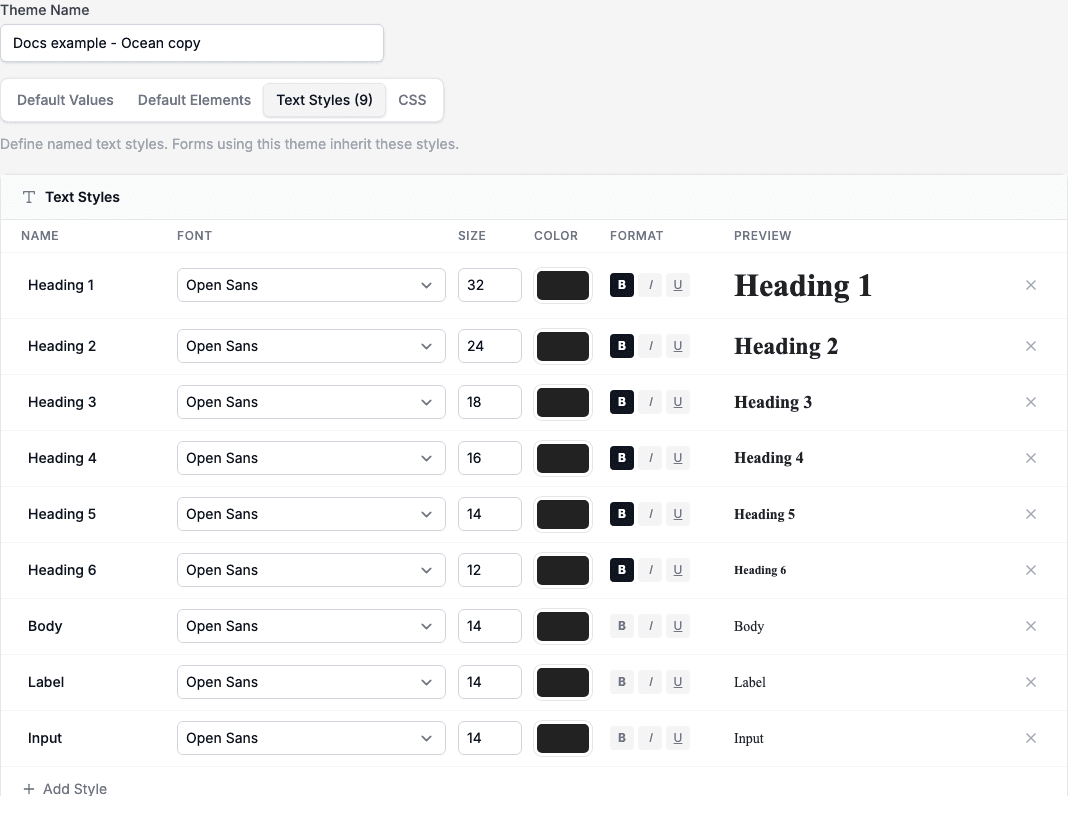
3. Text Styles
Create and manage reusable text styles used across your Smartforms. The tab name shows how many styles the theme has, for example Text Styles (9).
Each style includes:
- Name
- Font
- Size
- Color
- Format (bold, italic, underline)
- Preview
Click x at the end of a row to remove a style, and Add Style to add a new one.
Default styles
A new theme starts with nine styles:
| Style | Size | Bold |
|---|---|---|
| Heading 1 | 32 | Yes |
| Heading 2 | 24 | Yes |
| Heading 3 | 18 | Yes |
| Heading 4 | 16 | Yes |
| Heading 5 | 14 | Yes |
| Heading 6 | 12 | Yes |
| Body | 14 | No |
| Label | 14 | No |
| Input | 14 | No |
An older theme that lacks some of these styles, for example Heading 4 to Heading 6, shows them when you open it.
These styles are referenced in Default Elements.
4. CSS
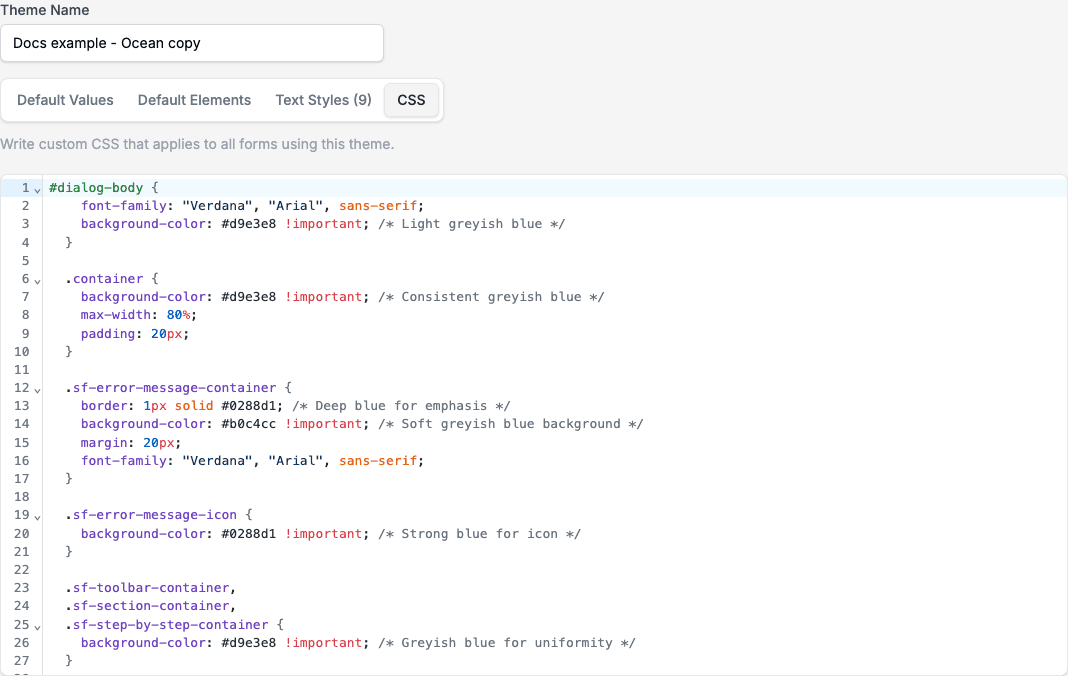
Add custom CSS for advanced styling.
Use this tab when:
- You need styling beyond standard configuration
- You want to override specific UI components
- You require precise control over layout or colors
Styles and imported PDFs
When you import PDFs, the forms that Studio builds use a Style Template. With batch import, the Style list on the Import Smartform page has the company default selected, and you can choose another Style there. See Upload PDFs and JSON files.