Upload PDFs and JSON files
Start an import by adding one to 20 files on the Import Smartform page. This page is part of Import Smartforms.
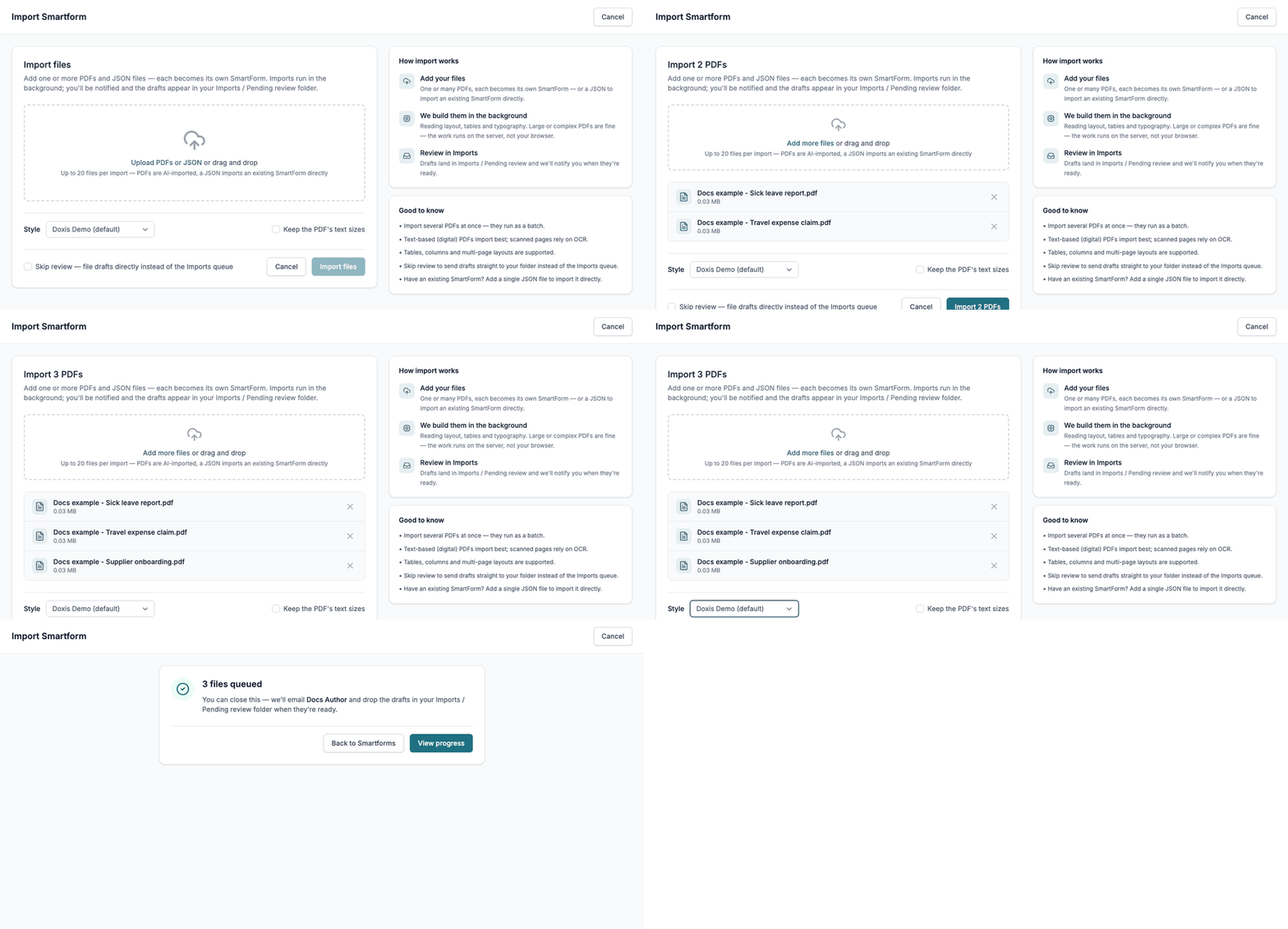
Start an import
- Go to SmartForms. If you want imported JSON files, or drafts that skip review, to be filed in a folder, select that folder in the list first.
- Click Import.
- Click Upload PDFs or JSON, or drag files onto the page. You can choose several files at once.
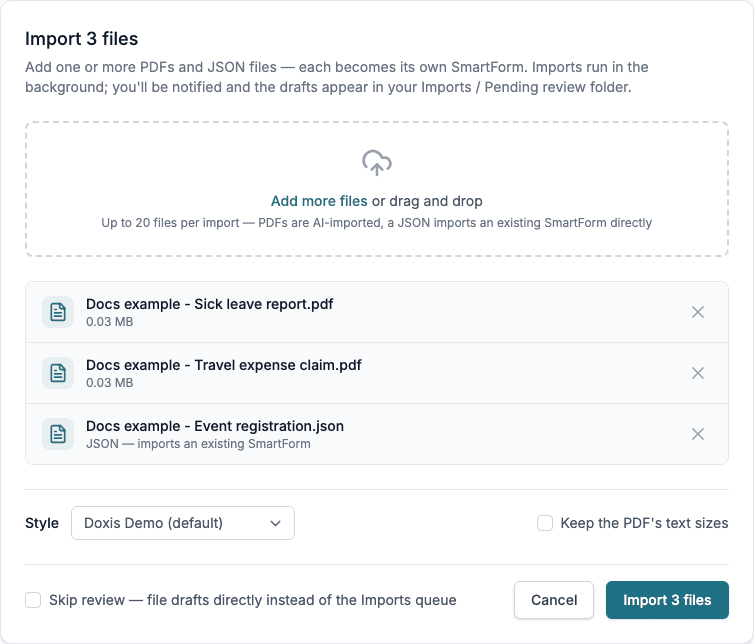
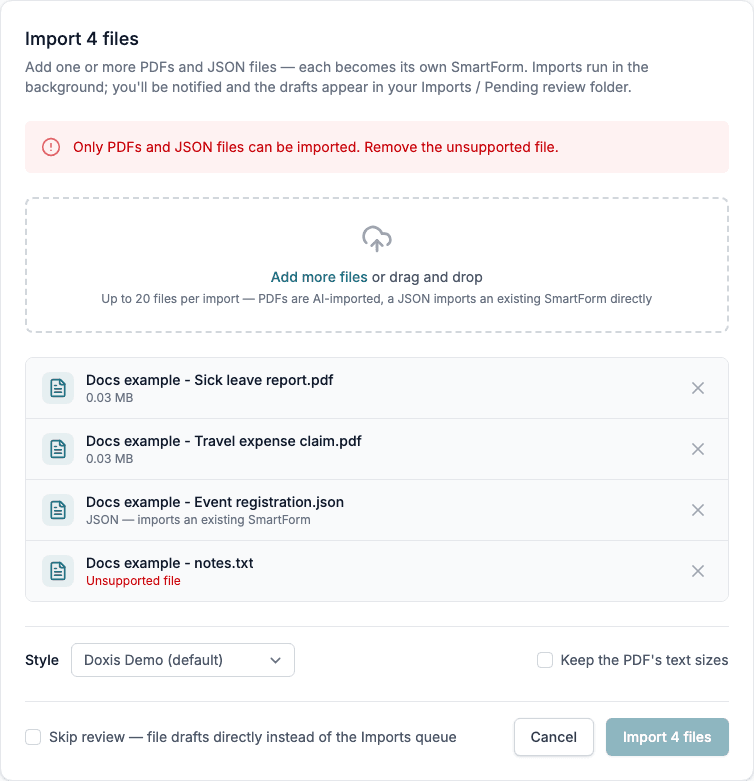
- Check the list. Each PDF shows its size, and each JSON file is marked as a JSON file that imports an existing SmartForm. Click the X at the end of a row to remove a file. Click Add more files to add others.
- Choose a Style. The company default is selected for you and is marked (default). Tick Keep the PDF’s text sizes if the new form should use the font sizes of the PDF instead of the sizes in the Style.
- Decide on Skip review. Leave it unticked to get the drafts in the Imports / Pending review folder. Tick it to file the drafts directly in the folder you started from, or in Home when you started from no folder.
- Click the import button. Its text follows your files, for example Import 3 PDFs, Import 2 JSON files or Import 5 files.
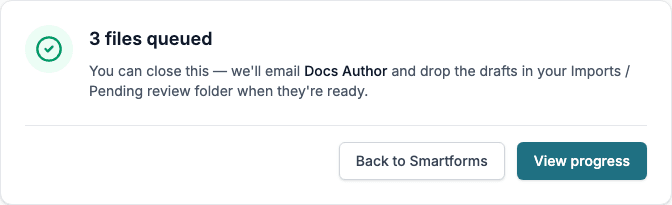
- Read the confirmation, for example 3 files queued. You can close the page: Studio sends an e-mail to your address when the import is done. The drafts from PDFs are put in Imports / Pending review, unless you ticked Skip review. Click View progress to watch the import, or Back to Smartforms.
Note: If the first file you choose is a single JSON file, Studio opens the separate Import JSON SmartForm screen instead. See Import a JSON Smartform. A JSON file that you add after other files stays in the list.
Options
| Option | What it does | Default |
|---|---|---|
| Style | The Style Template that the new forms from PDFs use. See Theme settings. | The company default |
| Keep the PDF’s text sizes | Uses the text sizes found in the PDF instead of the sizes in the Style. | Not ticked |
| Skip review | Files the drafts directly in your folder, with no review step. | Not ticked |
The Style list is shown when your company has at least one Style Template.
Messages you can see
The import button stays disabled until the list is valid.
| Message | What to do |
|---|---|
| Only PDFs and JSON files can be imported. Remove the unsupported file. | Remove the file marked Unsupported file. |
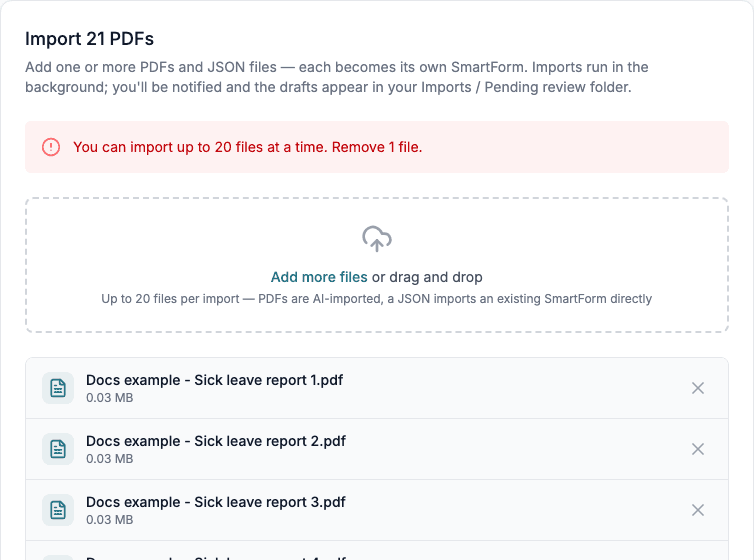
| You can import up to 20 files at a time. Remove 1 file. | Remove the number of files it names, and import them in a second batch. The number 20 is the limit of your environment and can differ. |
| The server rejected the upload. Make sure every file is a PDF or JSON… | Check that none of the files is empty or damaged, and that there are not too many files. |