Validation
Validation rules check several values together and show a message when the combination is not allowed. A field’s own settings cannot do this, because each field can be correct on its own. For example, a contract that runs for more than one year is wrong even when both dates are valid.
How Validation works
- The conditions describe when the form is wrong, not when it is correct. The message shows when the conditions are met.
- The message is shown on the field you choose, in the summary of errors at the top of the form and as an error message on the screen.
- While the message applies, the person cannot submit or distribute the form.
- A rule is skipped while the field it shows the message on is hidden, and a rule that is turned off does nothing.
- Validation runs in the Smartform screen. It does not change a generated PDF, and the Test Runner does not run it.
Create a rule
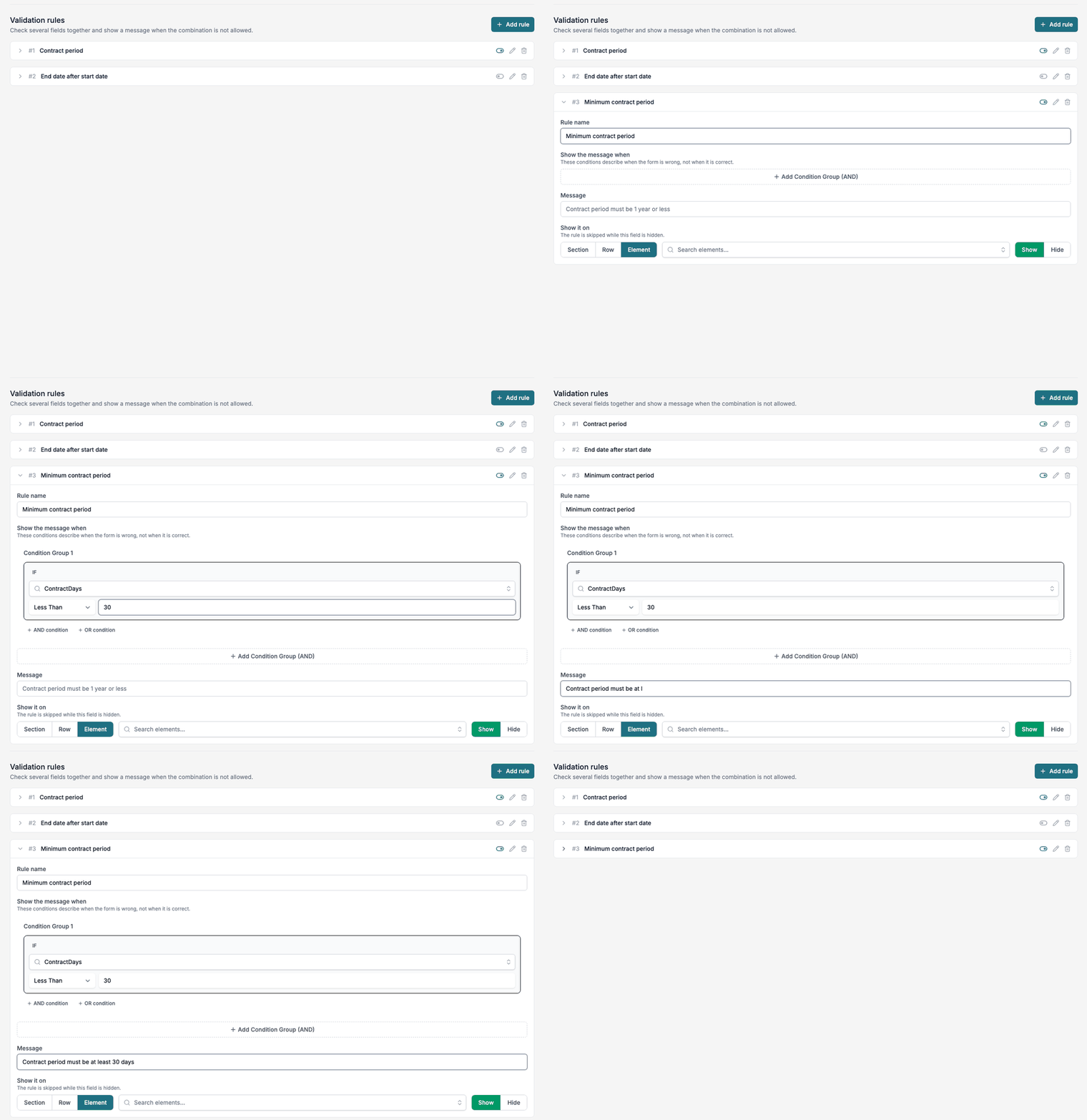
- Open the Smartform in Studio, click Rules and then the Validation tab.
- Click Add rule.
- Enter a Rule name.
- Under Show the message when, click Add Condition Group (AND). Choose a variable, an operator and a value. Use AND condition or OR condition for more conditions.
- Enter the Message.
- Under Show it on, choose Element and pick the field that shows the message.
- Click the arrow at the start of the rule to close it. Studio saves the rule when you close it.
The finished rule looks like this:
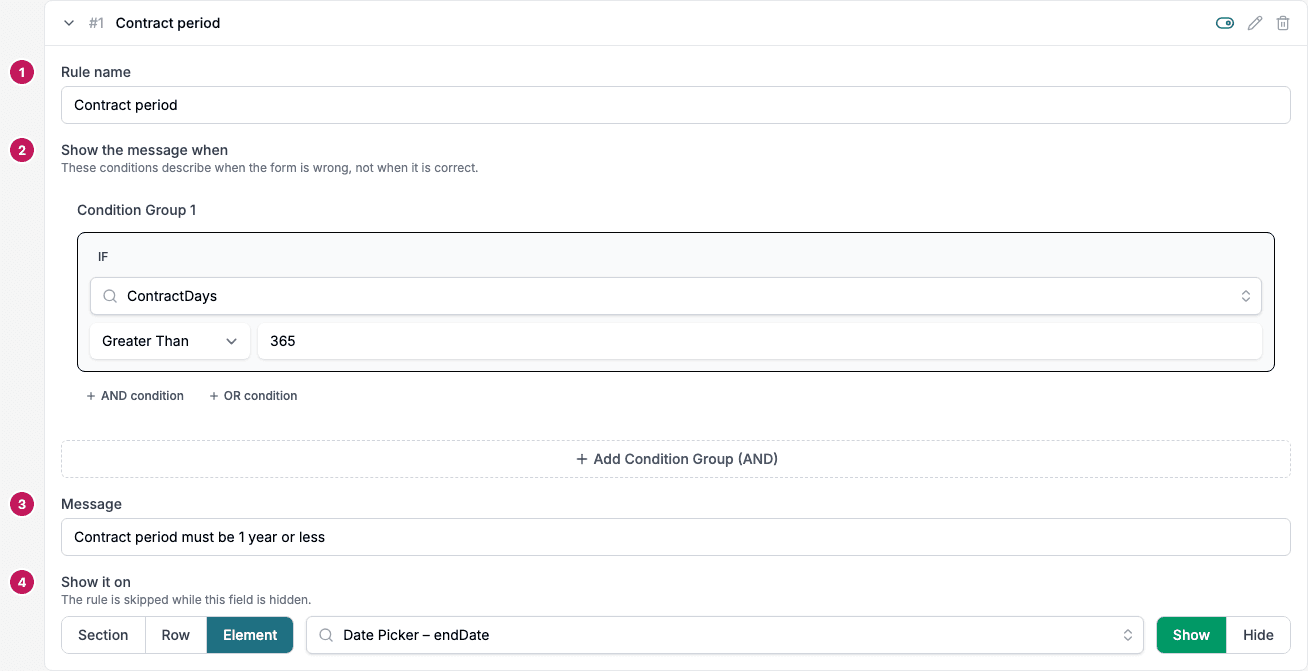
- Rule name: a name for the list.
- Show the message when: the conditions that mean the form is wrong.
- Message: the text the person sees.
- Show it on: the field that shows the message.
Example: contract period
A contract must not run for more than one year.
- Create a Data Transformation rule that sets the variable
ContractDaystoDateDiff({{StartDate}}, {{EndDate}}, "days"). See Data Transformation functions. - Create a Validation rule with the condition
ContractDaysGreater Than365. - Enter the message
Contract period must be 1 year or lessand show it on the end date field.
A Validation rule sees the values as they were when the form was last loaded, plus what the person has typed into fields. A variable that a Data Transformation rule calculates from data passed in when the form is created, such as ContractDays here, keeps the value it had at load. It does not change while the person types.
Manage rules
- The toggle turns a rule on or off.
- The pencil opens the rule, and the arrow opens and closes it.
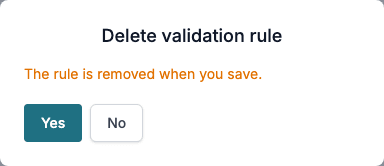
- The bin opens Delete validation rule. Click Yes to delete the rule or No to keep it.
Limits
- A message is shown on a field. You cannot show one at the top of the form alone.
- Conditions use variables. Create the variable first on the Variables tab.
Related pages
- Show/Hide uses the same condition editor.
- Data Transformation sets the variables that a rule reads.