Records
The Records tab lists every record of one Smartform. A record is one copy of the form that someone has filled in, or is filling in. From the list you can open a record, see its data as a payload, get a PDF, or delete the record. While you are on it, Records shows as a tab next to Configuration.
Open the Records tab
- In Studio, open the list of Smartforms and select the Smartform.
- In the toolbar at the top, click the three dots (…).
- Select Records.
The table
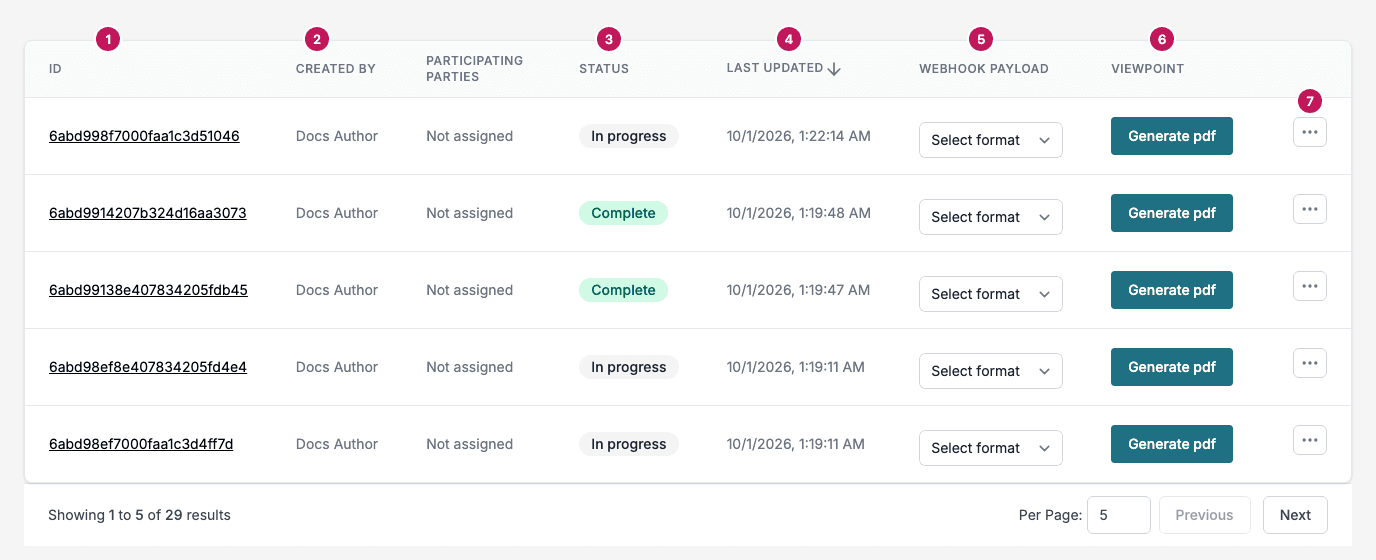
Each row is one record. The numbers in the picture are:
- Id: the identifier of the record. Click it to open the record and see its values.
- Created by: the user who created the record.
- Status: where the record is, see the list below.
- Last updated: the date and time of the last change.
- Webhook payload: shows the record’s data in a chosen format.
- ViewPoint: gets a PDF of the record.
- The menu at the end of the row, with Delete and Download signed files.
The column Participating Parties, between Created by and Status, lists the people assigned to the record. Not assigned means there are none.
Status
| Status | Meaning |
|---|---|
| In progress | The form has been created but not completed. |
| Complete | The form has been submitted and needs no signing. |
| Awaiting Signing | The form has been submitted and still needs signatures. |
| Complete and signed | The form has been submitted and signed. |
| Aborted | The process was stopped before it was completed. |
| Deleted | The record was removed by the retention policy. Get it from the archive instead. |
Paging and sorting
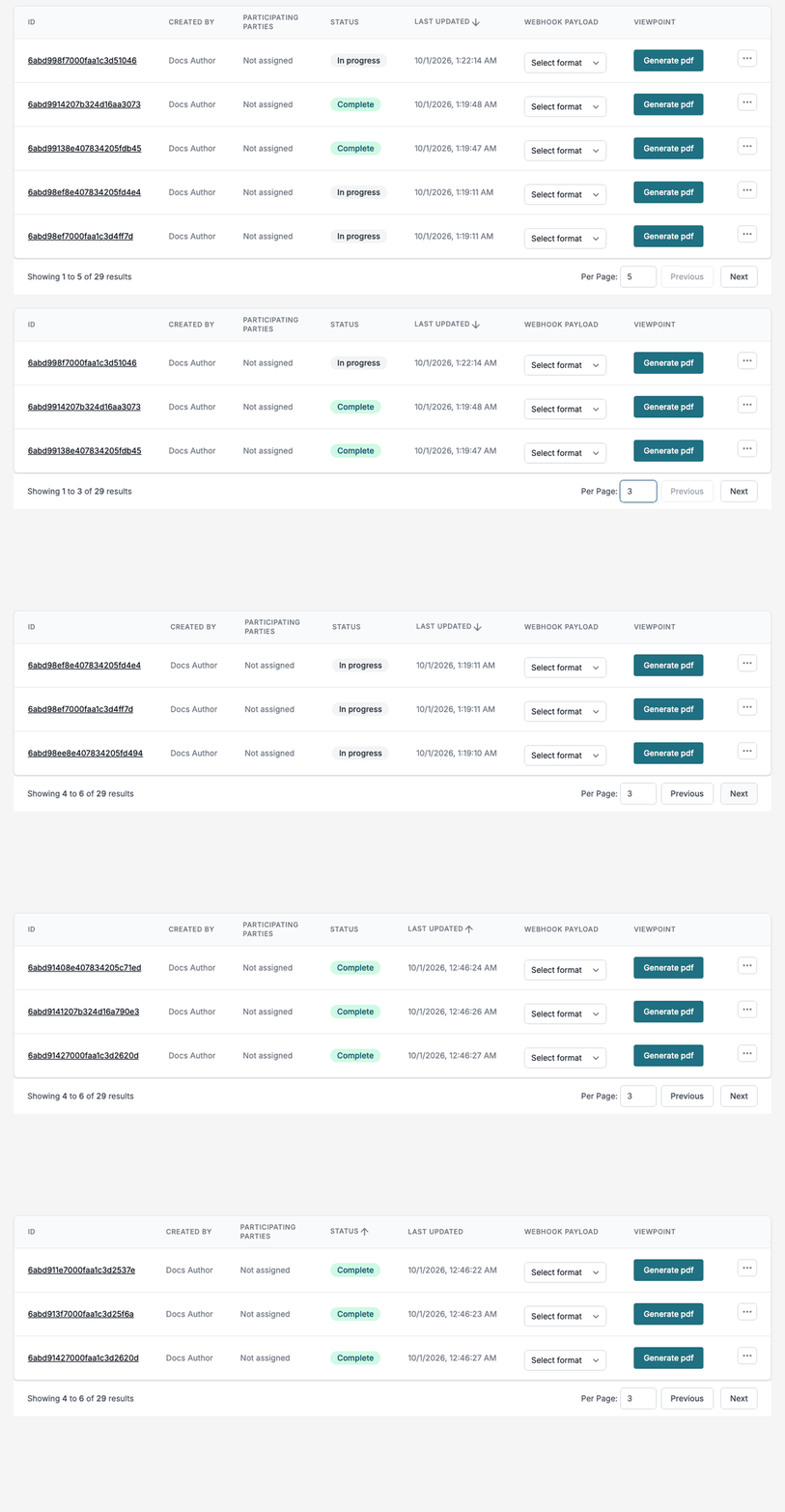
The list shows 5 records at a time.
- The text under the table, for example Showing 1 to 5 of 29 results, tells which records you see.
- Previous and Next move between pages.
- Type a number in Per Page to change how many records a page shows. The number can be between 1 and 500.
- Click Last updated or Status in the header to sort by that column. Click it again to reverse the order. The arrow next to the name shows the direction.
The list starts with the most recently updated record first.
Webhook payload
The Webhook payload column shows the data of a record as it would be sent to another system. It does not create a file.
- In the Webhook payload column of the record, open Select format.
- Choose Json or Interact.
- A window opens with the Header that the webhook sends and a Sample payload: the record’s data in the chosen format.
- Click Close when you are done.
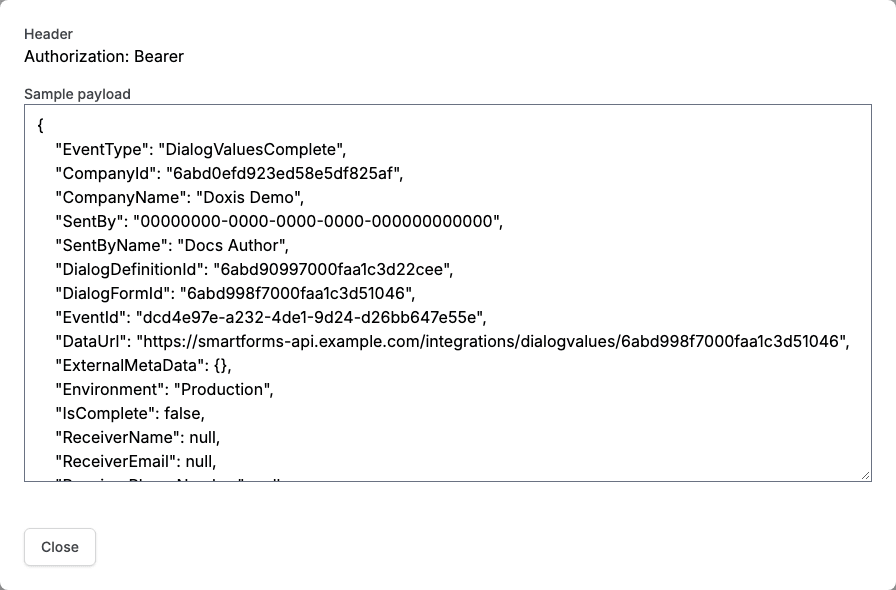
Json is the raw data of the record. It shows the fields of the webhook payload, see Webhooks: the element values in values, a list from property name to value, and the data table values in datatablevalues. The webhook itself sends them as Values, integrationValues and DataTableValues.
Json is useful to see exactly what a completed form holds, and to find out why an integration does not get the values it expects. Interact is a format for systems that work with Interact.
If the Smartform has a webhook, the window also has a Trigger webhook button. It sends the payload to the most recently created webhook and shows the answer under Response. Clear hides the answer and shows the payload again.
ViewPoint
The ViewPoint column gets a PDF of the record. The button reads Download pdf and saves the PDF to your computer.
In environments where the PDF is made in the background, the button reads Generate pdf instead, see Generate PDFs in the background. A card then shows, for example, 1 document queued. Click View progress to follow the job and to download the PDF when it is ready, or Close to leave the card.
The row menu
Click the three dots at the end of a row to open the menu.
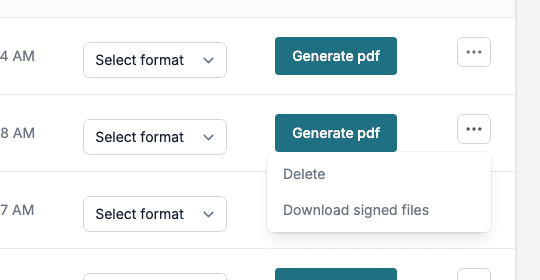
- Delete deletes the record.
- Download signed files downloads the signed files of the record. It is hidden for a record that needs signing and has not been submitted yet.
Use cases
- Auditing: check which forms are in progress and which are complete.
- Data export: copy the data of a record from the Sample payload, for analysis or integration.
- Archiving: save completed forms as PDFs for compliance or record keeping.
- Data preview: click the Id of a record to see its values without downloading anything.
- Troubleshooting: inspect the Json of a record to check that the values arrive as expected.