Create a Smartform
You start a new Smartform from a template in the Create Form window. This page shows the window, what happens to the new Smartform and what the warning about a name that is already in use means.
Open the Create Form window
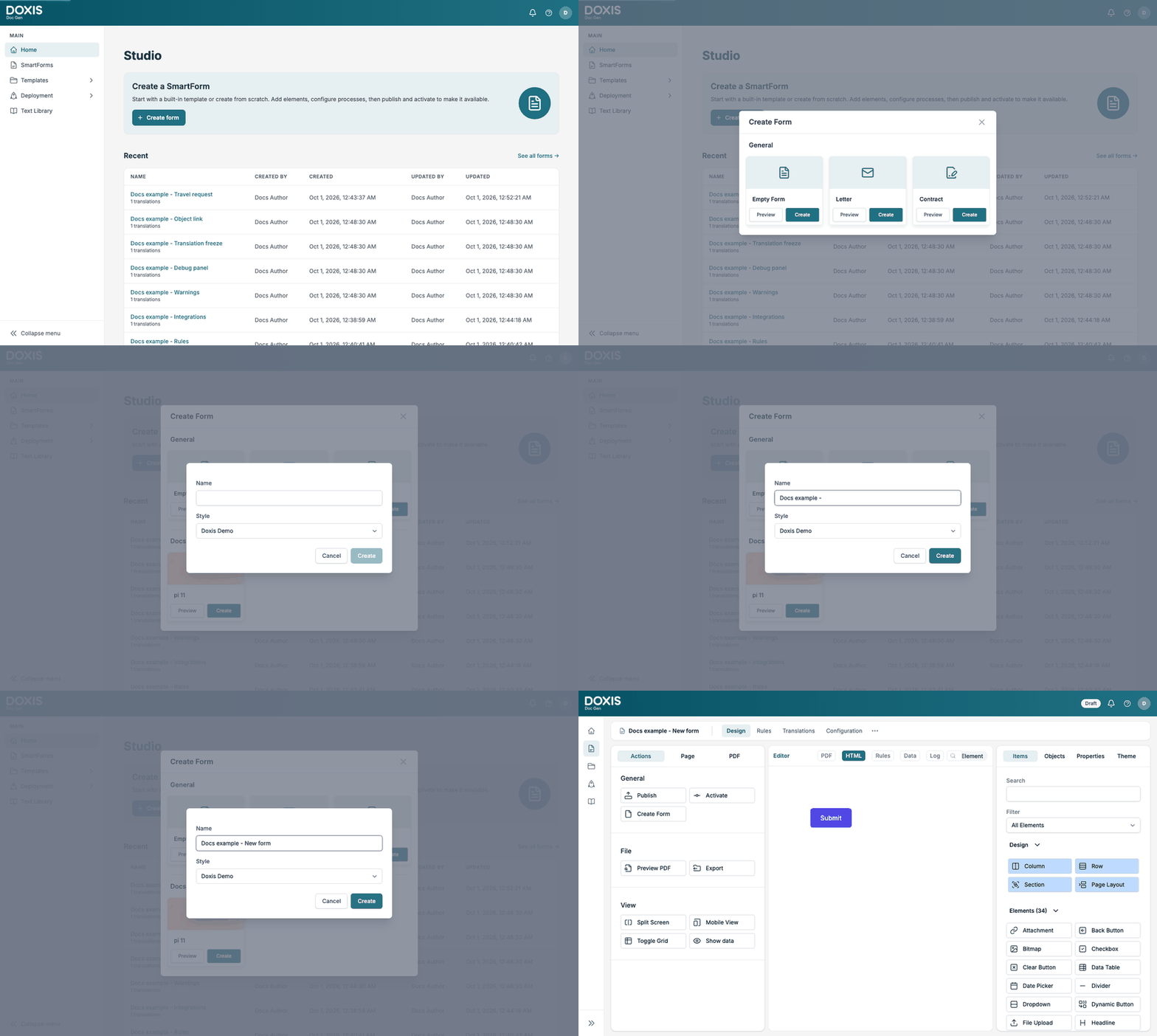
Click Create form on Home or at the top right of All Smartforms. Both open the same window.
📝 Note: Create form is only shown when your licence includes the design of Smartforms.
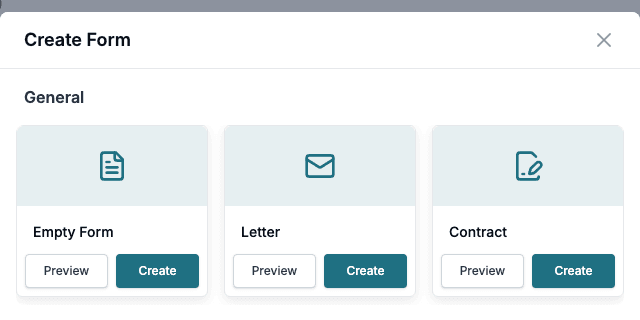
The window lists the templates you can start from:
- General holds the templates that come with Studio: Empty Form, Letter and Contract.
- Below General, the Smartform templates of your own company are listed in groups. They are the templates that have been set to Active. See Smartform Templates.
Every template has two buttons:
- Preview shows the template full screen, so you can see what you get. Click Dismiss Preview to come back.
- Create starts a new Smartform from the template.
Name the Smartform
After you click Create, Studio asks for a name and a style.
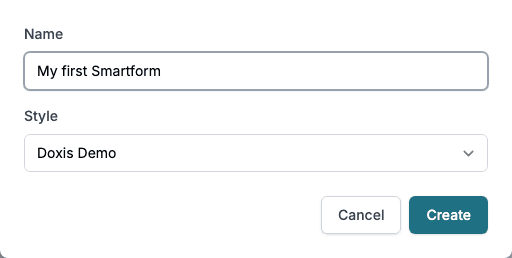
- Type a Name. You cannot click Create until you have typed a name.
- Choose a Style. A style is one of the themes of your company and it sets the look of the Smartform. The window starts with the default theme of your company. Choose None to start without one. You can change it later. See Themes and Theme settings.
- Click Create.
The new Smartform opens in the Design tab. Click Cancel to go back without creating anything.
Where the new Smartform is kept
A new Smartform is kept in the folder that you were viewing. If you click Create form on Home, or on All Smartforms while Home is selected, the Smartform is in Home. If you click it while a shared folder is selected, the Smartform is in that folder. See Find and organise Smartforms. You can move it later with Move to Folder.
Warning about a name that is already in use
Studio warns you when another Smartform already has the name you chose. The warning is a reminder, not a block: two Smartforms can have the same name, but they are hard to tell apart in lists.
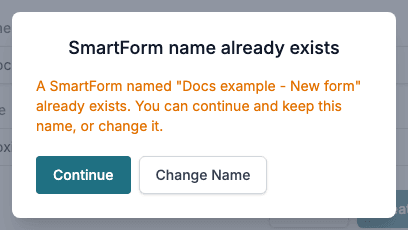
- Click Continue to keep the name.
- Click Change Name to go back and type another name. Nothing has been created yet.
Studio compares the names without looking at upper and lower case letters or at spaces before and after the name. Employment Contract and employment contract with a space at the end count as the same name. The Smartform you are renaming never counts as a duplicate of itself.
The warning appears in three places:
- When you create a Smartform, as shown above.
- When you choose Rename in the row menu of the list.
- When you change the name of a Smartform on the Page tab of the designer and click outside the field. If you click Change Name, the old name comes back.
If Studio cannot check the name, for example because the connection fails, it does not stop you. The Smartform is created or renamed without a warning.
Next steps
Build the layout of the Smartform. See Designing Smartforms. For a full walk through of a first Smartform, see Getting Started.