Templates
Templates are the reusable parts every Smartform draws on: themes, Smart Objects, objects, resources, toolbars, distribution lists and more. You find them under Templates in the Studio menu. This page lists them and explains the things they have in common: folders, and what happens when a template is already in use.
The templates
- Themes: the look a Smartform starts from, and the company default theme.
- Smart Object: the columns of a table you can reuse in a SmartTable.
- SmartForm: Smartform templates.
- Object templates: reusable building blocks, headers and footers, and Distribution objects.
- Email and SMS: message templates.
- Authentication: how people prove who they are before they fill in a form.
- Contact Lists: lists of people.
- Resources: images you upload once and reuse.
- Languages: translations.
- Toolbars: the buttons people get in a Doc Composer form. See Set Up the Doc Composer.
- Distribution Lists: the ways a finished document can be sent on.
- Doxis packages: ready-made templates and objects from Doxis.
Folders
Themes, Smart Objects, objects, resources, toolbars and distribution lists are kept in folders. The folder panel on the left of each screen has three parts.
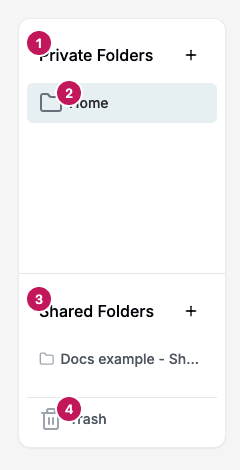
- Private Folders: folders only you can see.
- Home: the place for items that are not in a folder. Home shows only what you created yourself.
- Shared Folders: folders everyone in the company can see. A shared folder shows everything in it, whoever created it.
- Trash: items you moved to the trash.
Click + next to Private Folders or Shared Folders, type a name and confirm with the check mark to make a folder. Folders for each kind of template are separate, so a folder made under Resources does not appear under Distribution Lists.
On Resources and Distribution Lists, a new item is put in the folder you are viewing. A resource made while you view Home or Trash goes to Home. On the other screens a new item starts in Home, and you use Move to folder to put it in a folder. A resource made inside the Smartform designer also goes to Home.
Folder menu
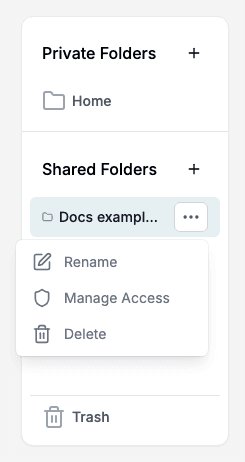
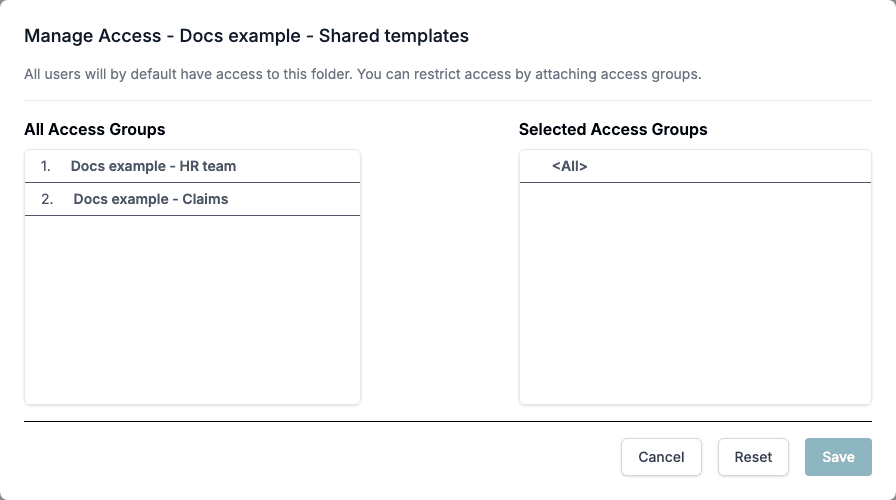
Select a folder. A menu button appears on its row with Rename, Manage Access and Delete. Manage Access is only there for shared folders. By default everyone has access to a shared folder. Choose access groups to limit it to them.
Move to folder
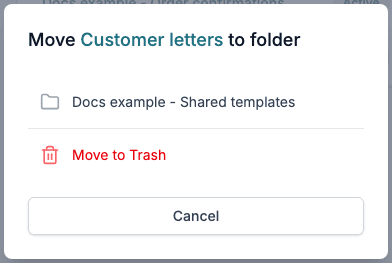
The row menu of an item has Move to folder. The window lists the folders you can move the item to and Move to Trash.
Changing a template that is in use
Smartforms point at templates, so a change to a template reaches every Smartform that uses it. Studio tells you before it happens.
| Template | Edit an item that is in use | Delete, Deactivate or Move to Trash an item that is in use |
|---|---|---|
| Resource | This resource is in use lists the Smartforms. Continue opens the editor and your change applies to all of them. | Delete is refused with Cannot delete resource. |
| Smart Object | This smart object is in use lists the Smartforms. Continue keeps editing and Cancel returns to the list. | Delete is refused with Cannot delete smart object. |
| Theme | No warning. | Delete is refused with Cannot delete theme style. |
| Distribution List | No warning. | Deactivate, Move to Trash and Delete are refused. |
Each refusal names the Smartforms that use the item, with an Edit link to each one. Change those Smartforms first, then come back and repeat the action.
Who can use it
You need access to Templates in your license. On some screens, for example Resources and Smart Object, the row menu is only shown to people with design access.