Doxis Packages in Studio
A Doxis Package is ready-made content from Doxis: Smartforms and the Objects, Toolbars, Distribution Lists and Resources they use. When an administrator installs a Doxis Package, the content is copied into your company’s Studio as your own copy. This page shows where it appears, how to use and adapt it, and what to check before you use it. Installing is described on Doxis Packages in Administration.
- 1Find itA folder under Templates, named at install
- 2CreateA Smartform from the installed template
- 3AdaptChange anything; it is your copy
- 4CheckGo through After installing
- 5DeployThrough the environments to Production
Where installed content appears
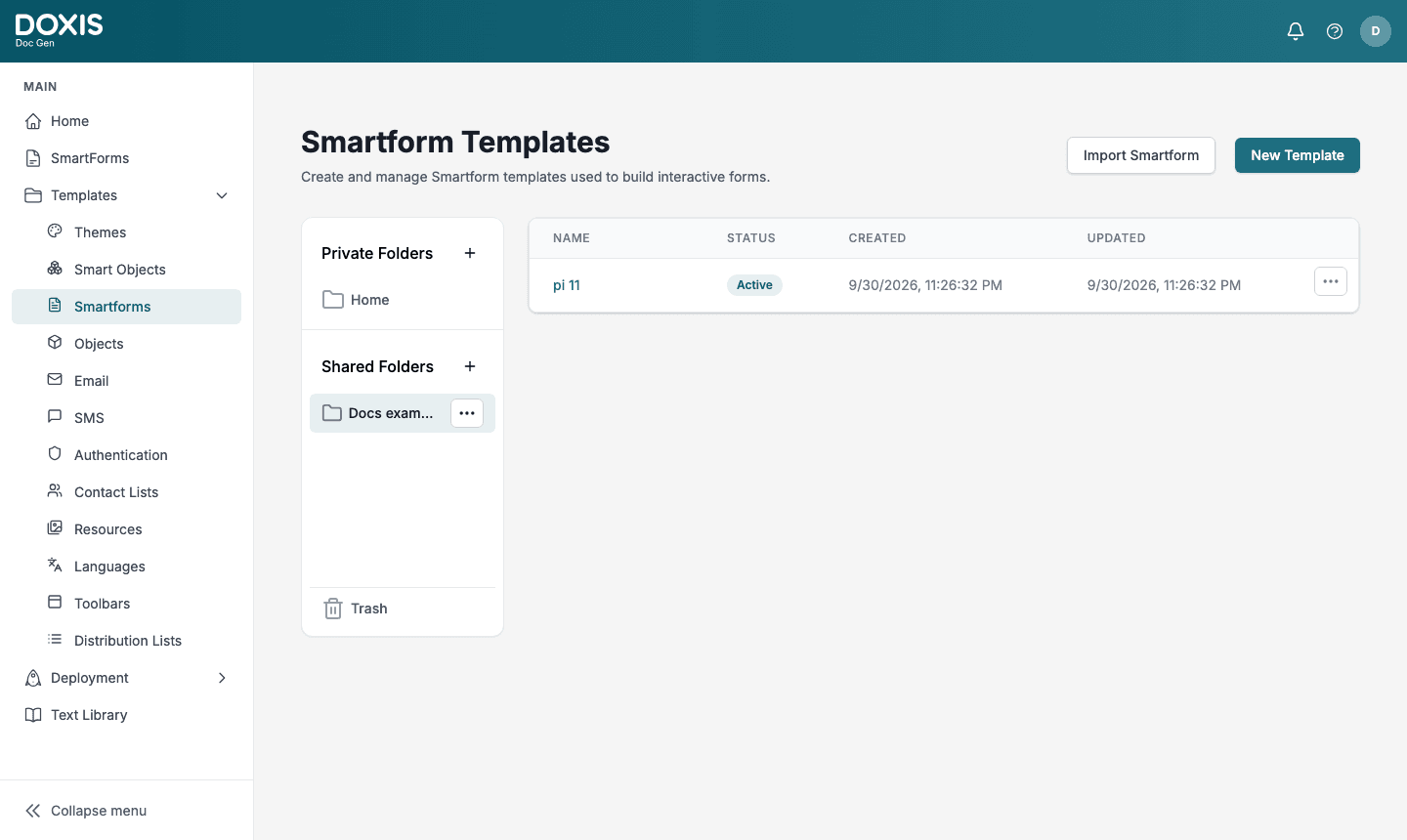
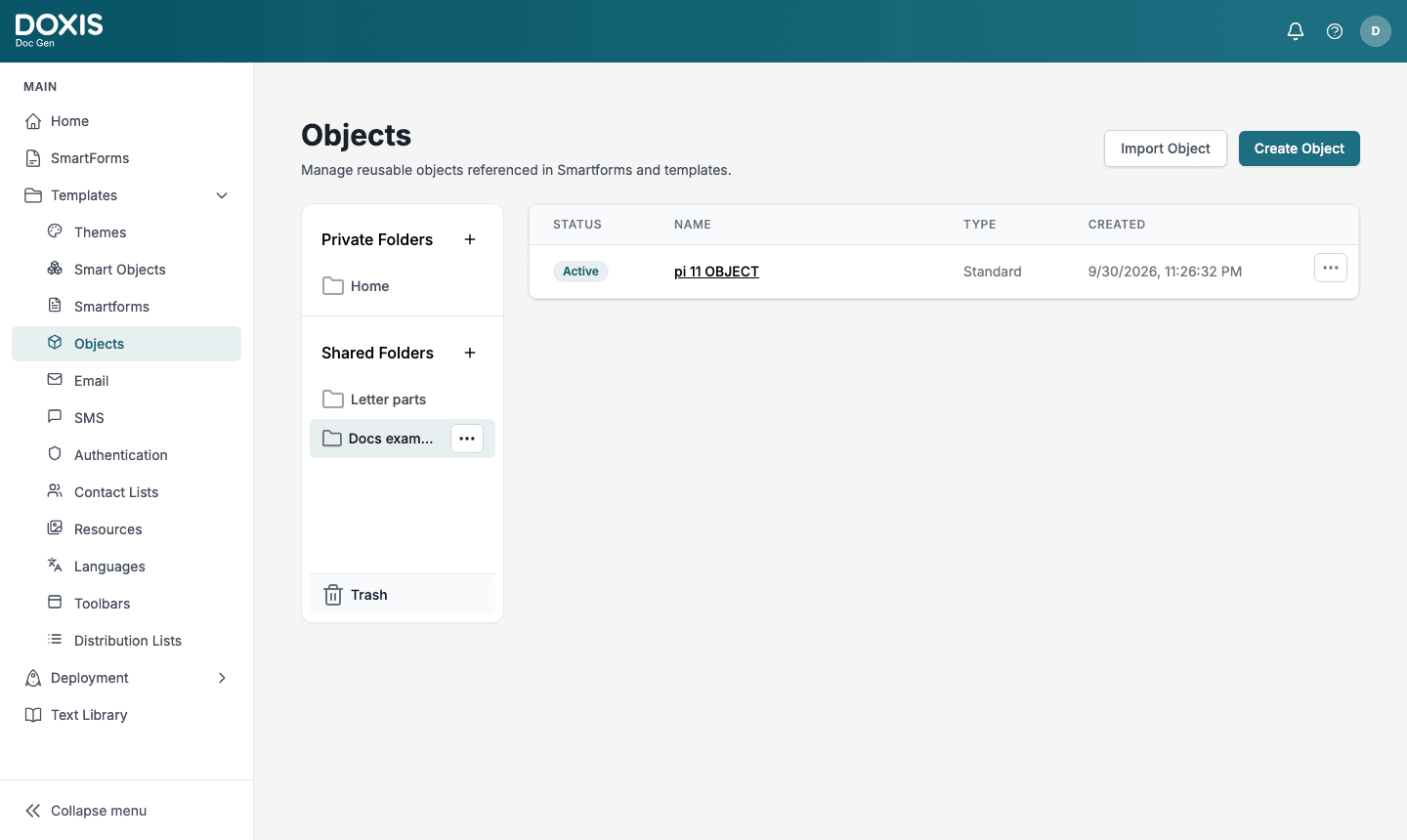
Each kind of content goes to its own list under Templates, into a folder with the name the administrator chose when installing. The suggested name is the Doxis Package’s name, so ask your administrator if you can’t find it.
| Content | Where in Studio | Heading on the screen |
|---|---|---|
| Smartforms | Templates → Smartforms | Smartform Templates |
| Objects | Templates → Objects | Objects |
| Resources | Templates → Resources | Resources |
| Toolbars | Templates → Toolbars | Toolbars for Smartform |
| Distribution Lists | Templates → Distribution Lists | Distribution lists |
The folder is under Shared Folders, and only the lists the Doxis Package has content for get one. The items keep the names Doxis gave them. Smartform templates, Toolbars and Distribution Lists arrive Active.
Create a Smartform from an installed template
- Go to SmartForms and open the folder where the new Smartform should go.
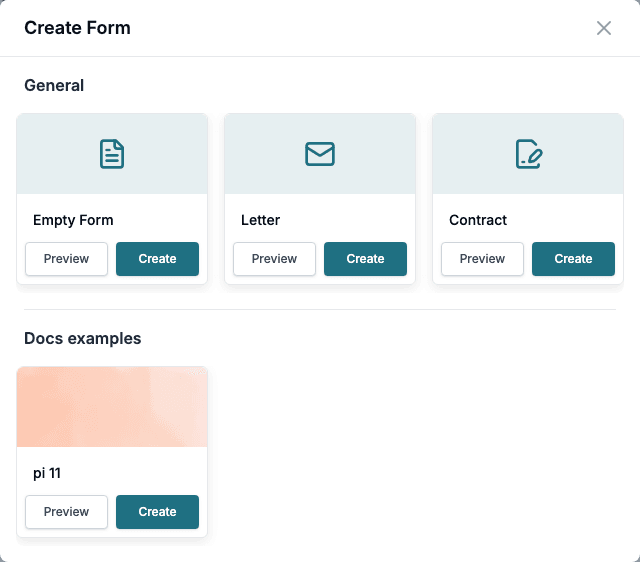
- Click Create form.
- In Create Form, find the heading with the folder’s name. Click Preview to look at a template first.
- Click Create on the template.
- Enter a Name. In Style, choose a theme. Your company’s default theme is already selected.
- Click Create. The new Smartform opens in Design.
The new Smartform is a copy of the template. Later changes to the template don’t reach it. Before you use it, go through After installing.
Adapt the content
Everything a Doxis Package installed is yours to change, rename, move or delete, like content you built yourself.
| To change | Go to |
|---|---|
| A Smartform template | Templates → Smartforms, open the folder and click the template’s name. It opens in the designer. Smartforms you create from it afterwards get your changes |
| A Smartform you created | SmartForms, like any other Smartform |
| An Object | Templates → Objects, click the Object’s name |
| A Toolbar | Templates → Toolbars, open the Toolbar’s menu and choose Edit |
| A Distribution List | Templates → Distribution Lists, click the list’s name. Add or remove Objects under Distribution objects, then click Save |
| A Resource | Templates → Resources. See Resources |
References inside the Doxis Package point at your copies. When a Smartform in the Doxis Package uses an Object or an image from the same Doxis Package, it uses the copy in your Studio.
Doc Composer Smartforms from a Doxis Package
A Smartform template whose Type is Doc Composer stays a Doc Composer, and so does every Smartform you create from it. See Doc Composer for how it works.
- Toolbar. When the Doxis Package brought the Toolbar, the Smartform uses your copy, with the buttons Doxis chose. Otherwise Toolbar on the Page tab is None, and people get every toolbar button.
- Distribution List. When the Doxis Package brought the Distribution List, the Smartform uses your copy. It offers only the choices whose Objects came in the Doxis Package. Otherwise Distribution List on the Page tab is Submit, and people finish the document with Submit.
- Text Library. A Doxis Package doesn’t bring Text Library texts. The texts people can insert come from your own Text Library. If the Text Library folder on the Page tab names a folder code, make sure your Text Library has a folder with that code.
To change the Toolbar or the Distribution List, see Set Up the Doc Composer.
Deploy it
A Smartform you create from an installed template is an ordinary Smartform, and it starts as a draft. Publish it to Development, then move it through Test, Pre Production and Production like any other Smartform. See Deployment. Publish the Text Library folders it uses to the same environments.
When Doxis releases a new version
- Nothing in Studio changes by itself. Your copy and your changes stay as they are.
- Smartforms you have already created don’t change either.
- Your administrator decides whether to install the new version, and into which folder:
- A new folder: the whole new version arrives next to your copy. Compare the two and carry over what you want.
- The folder that holds your copy: only items with new names are added. Items whose names are already in the folder stay as you left them, so Doxis’s changes to those items don’t arrive.
- If you renamed an item, or moved it out of the folder, installing into that folder again adds Doxis’s item to it again under its original name.
After installing
Doxis can’t set your company’s own setup, so check these on each Smartform you create from an installed template. The details follow the overview.
- Theme. A Doxis Package doesn’t bring themes. Choose one in Style when you create the Smartform. Your company’s default theme is already selected.
- Archive and retention. Archive Smartforms and Retention Policy on the Page tab in Design are empty. Set them if your company archives these Smartforms or uses a retention policy.
- Doc Composer. Check Toolbar and Distribution List on the Page tab. None and Submit mean the Doxis Package didn’t bring them; choose your own if you need them.
- Configuration. Workflow - Load data to smartform on initial load under General and Template under PDF keep the values Doxis set. Change them to your own setup, or clear them.
- Process. Each step keeps the contact list Doxis chose. Choose Standard or one of your own contact lists.
- Images and Objects. If a Smartform uses an image or Object that isn’t in the Doxis Package, replace it with one of your own.
- Text Library. If the Smartform uses Text Library texts, add them to your own Text Library.
- Access. The Smartform isn’t limited to any access group. Set access groups on Security if needed. The folder is open to everyone who works with templates in Studio; to limit it, open the folder’s menu and choose Manage Access.