Styles tab
The Styles tab holds the text styles of one Smartform, and the numbering of its headings in the table of contents. The Smartform starts with a copy of the styles of the company theme, so you can change them for this form without touching the theme. Company-wide themes are described in Theme settings and Themes.
Open the tab
- Open the Smartform.
- Click the More options button (…) next to Configuration and choose Styles.
Styles then shows as a tab next to Configuration.
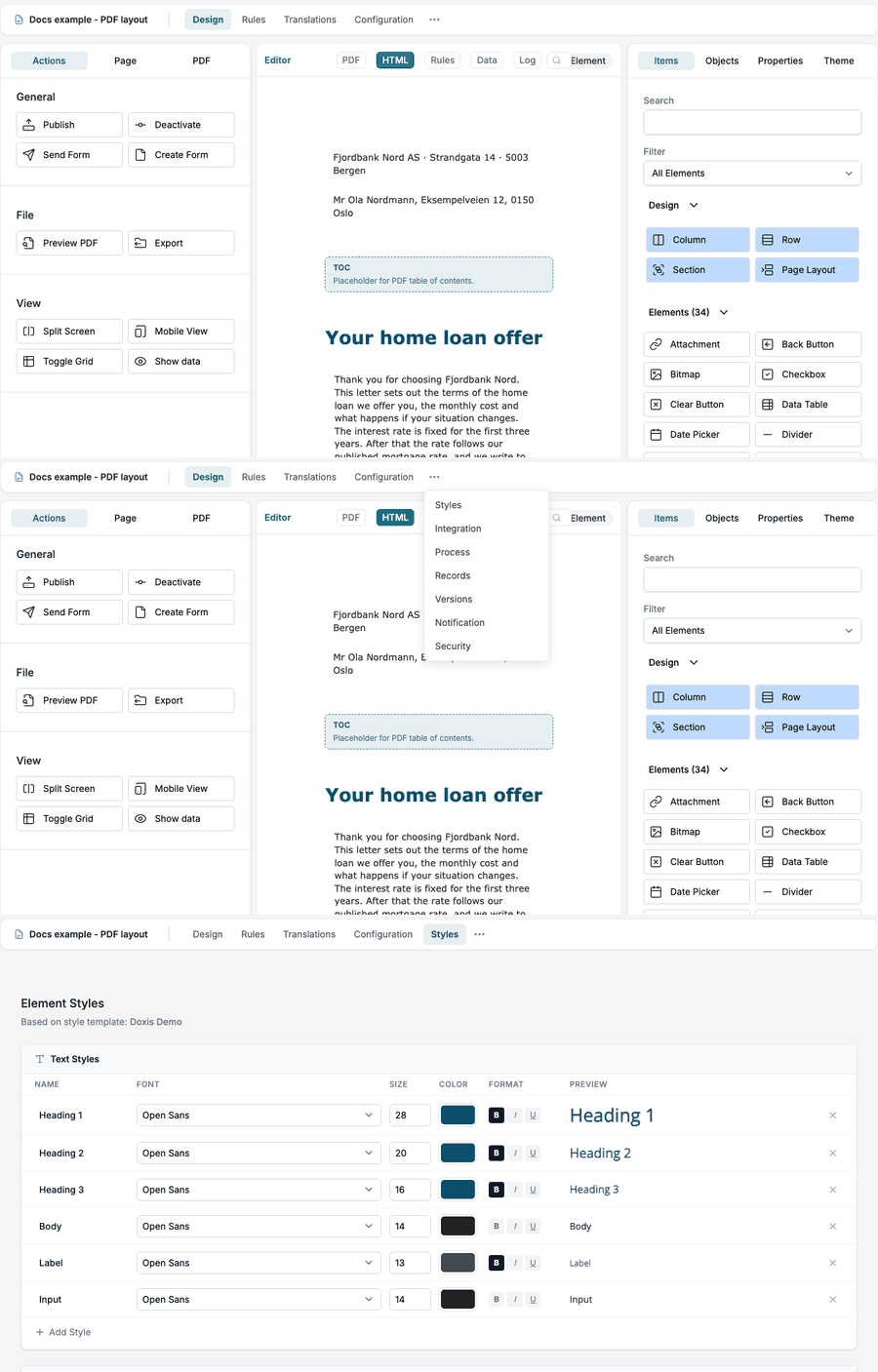
Changes are saved as you make them.
Element Styles
The page starts with Element Styles and the line Based on style template: followed by the name of the theme the styles were copied from.
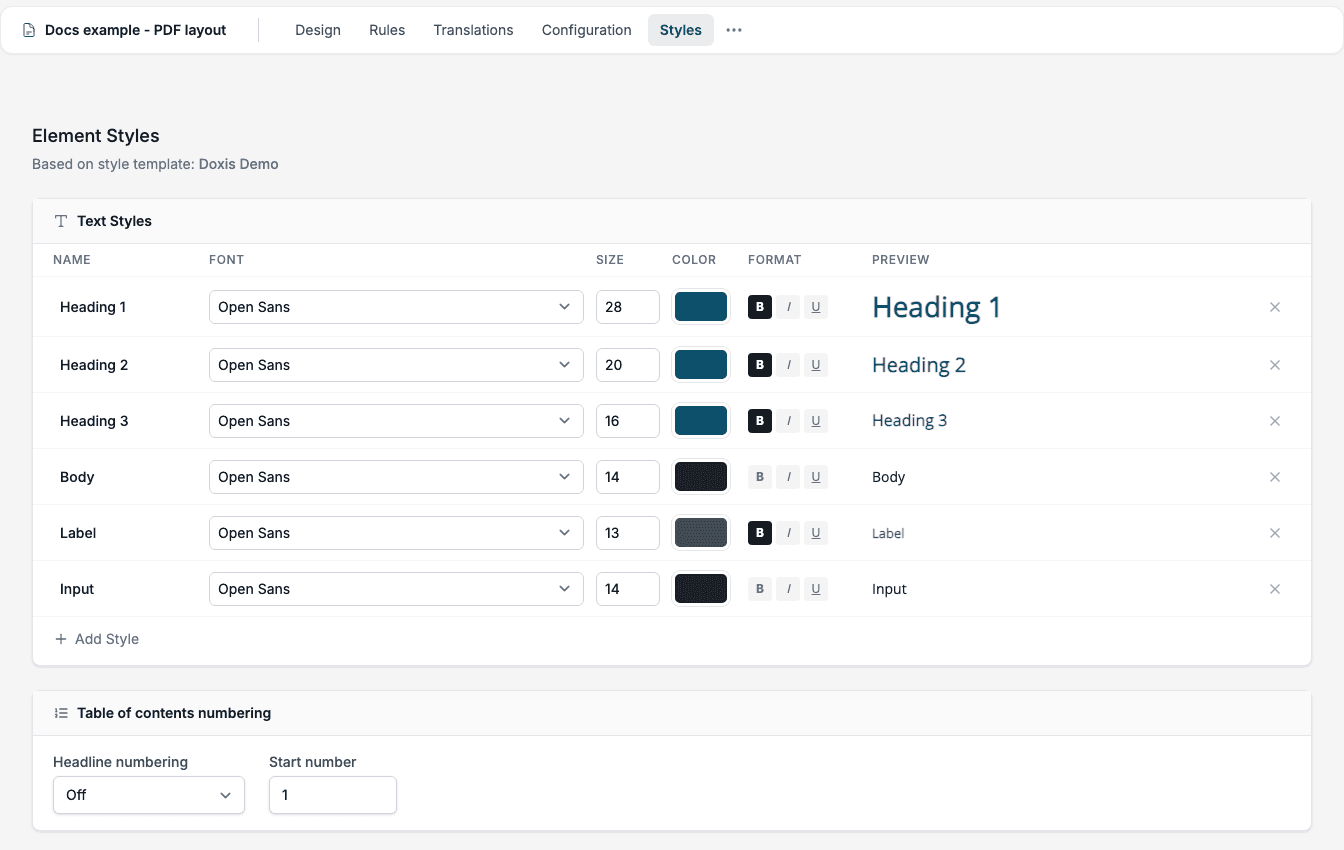
The Text Styles table has one row per style:
| Column | What it sets |
|---|---|
| Name | The name of the style, for example Heading 1 |
| Font | The font family. See Fonts. |
| Size | The text size |
| Color | The text colour |
| Format | B, I and U for bold, italic and underline |
| Preview | How the style looks |
Click Add Style to add a row, and the × at the end of a row to remove a style. If a company font has no bold or italic face, a warning triangle shows on the row. See Fonts.
When the company theme has been changed after the Smartform copied it, a yellow box says Style template has been updated. Click Sync to replace the styles of the Smartform with the styles of the theme.
Table of contents numbering
Below the text styles, Table of contents numbering puts numbers in front of the headings.
| Setting | Values |
|---|---|
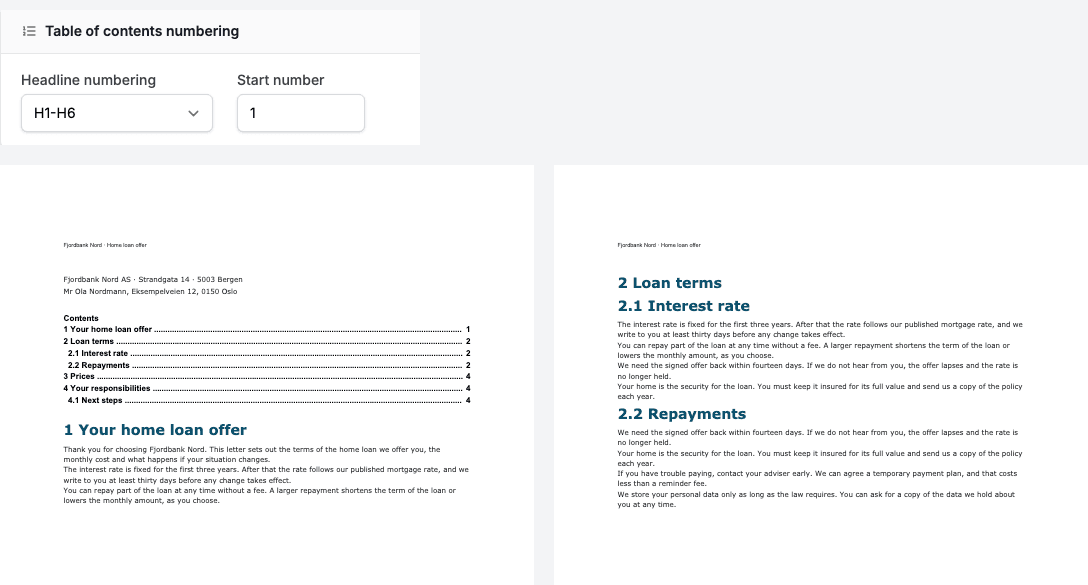
| Headline numbering | Off, H1-H6, H2-H6 |
| Start number | The number of the first top-level heading, from 0 to 99. The default is 1 |
With H1-H6, every headline is numbered: 1, 1.1, 1.1.1 and so on. With H2-H6, the H1 headlines stay without a number and the numbering starts at H2. The numbers are printed before the headings in the PDF and in the list of the table of contents. Outside the designer, the form on screen shows the same numbers before its headings. Numbering works with the Pages 2.0 PDF engine (Configuration → PDF → Engine).
To list the headings, the Smartform needs a TOC element (Items → TOC) with Include levels set to the levels you want. See Items.
📝 Note: Table of contents numbering used to be on the PDF tab. It is now on the Styles tab.