Find and organise Smartforms
The All Smartforms screen lists the Smartforms of your company. You find a Smartform with search, keep them in folders and open, rename, copy or move them from the list.
Open the list
Click SmartForms in the left menu. The list opens in the Home folder. Home and the other folders are in the sidebar on the left of the list.
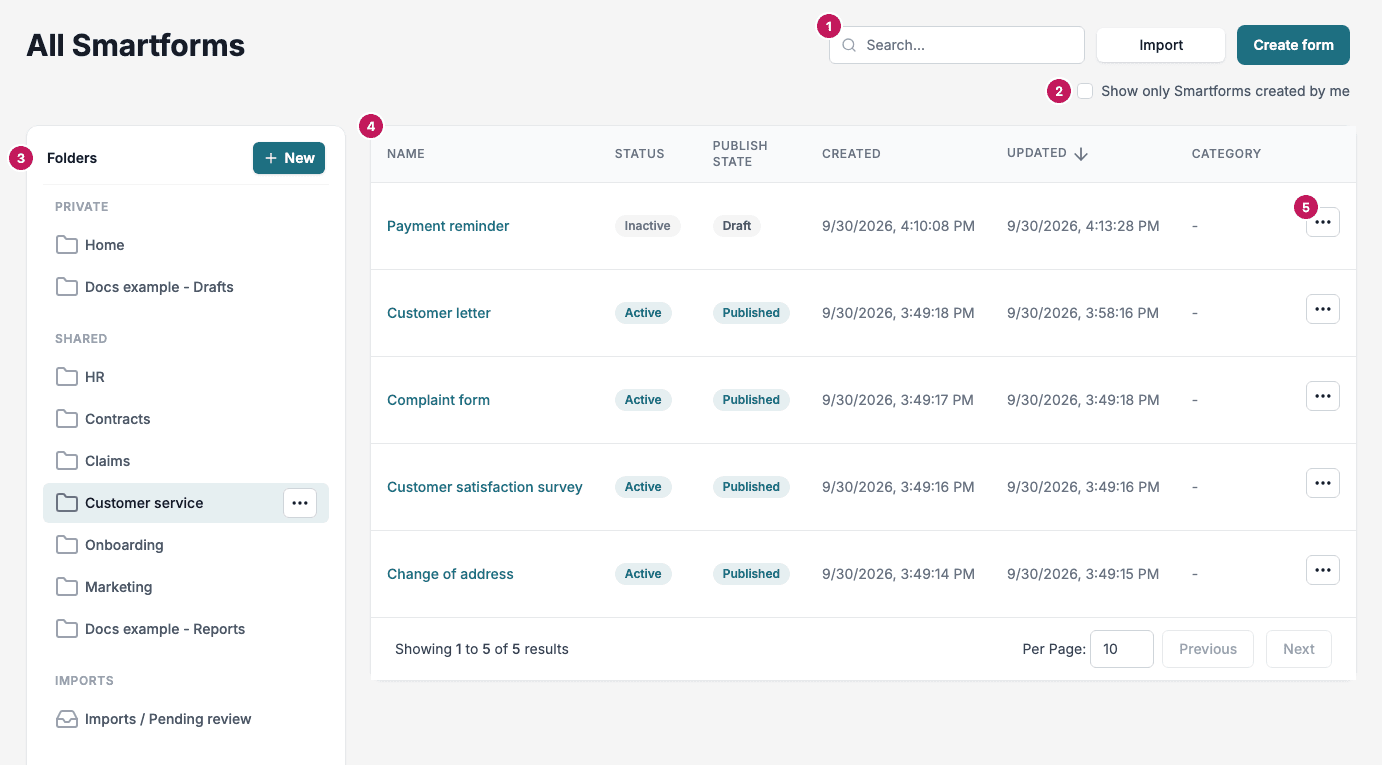
- Search. Finds Smartforms by name, category or ID. See Search.
- Show only Smartforms created by me. Limits the list to your own Smartforms.
- Folders. The folders you can open. See Folders.
- The list. One row per Smartform. Click a name to open the Smartform in the Design tab. Click a column heading to sort by that column.
- Row menu. The three dots at the end of a row open the actions for that Smartform. See Row menu.
Each row shows:
| Column | What it shows |
|---|---|
| Name | The name of the Smartform |
| Status | Active when the Smartform can be used, Inactive when it cannot |
| Publish State | Draft when the Smartform has changes that are not published, Published when it has been published |
| Created | When the Smartform was created |
| Updated | When it was last changed. The list is sorted by this column, newest first |
| Category | The category you set on the Configuration tab |
The list shows 10 Smartforms at a time. Use Per Page, Previous and Next at the bottom to see more.
At the top right, Import opens the import screen, where you add a Smartform from a JSON file, for example one you exported earlier. Create form starts a new Smartform. See Create a Smartform.
Search
Type in the search field, which says Search…, to narrow the list. Studio waits until you stop typing and then updates the list. The search matches:
- Part of the name of the Smartform
- Part of its category
- The exact ID of the Smartform. Copy the ID from Smartform ID on the Page tab of the designer and paste it in.
Upper and lower case letters do not matter.
Search only looks in the folder you have selected. If a Smartform that you know exists does not show up, check that you are in the right folder.
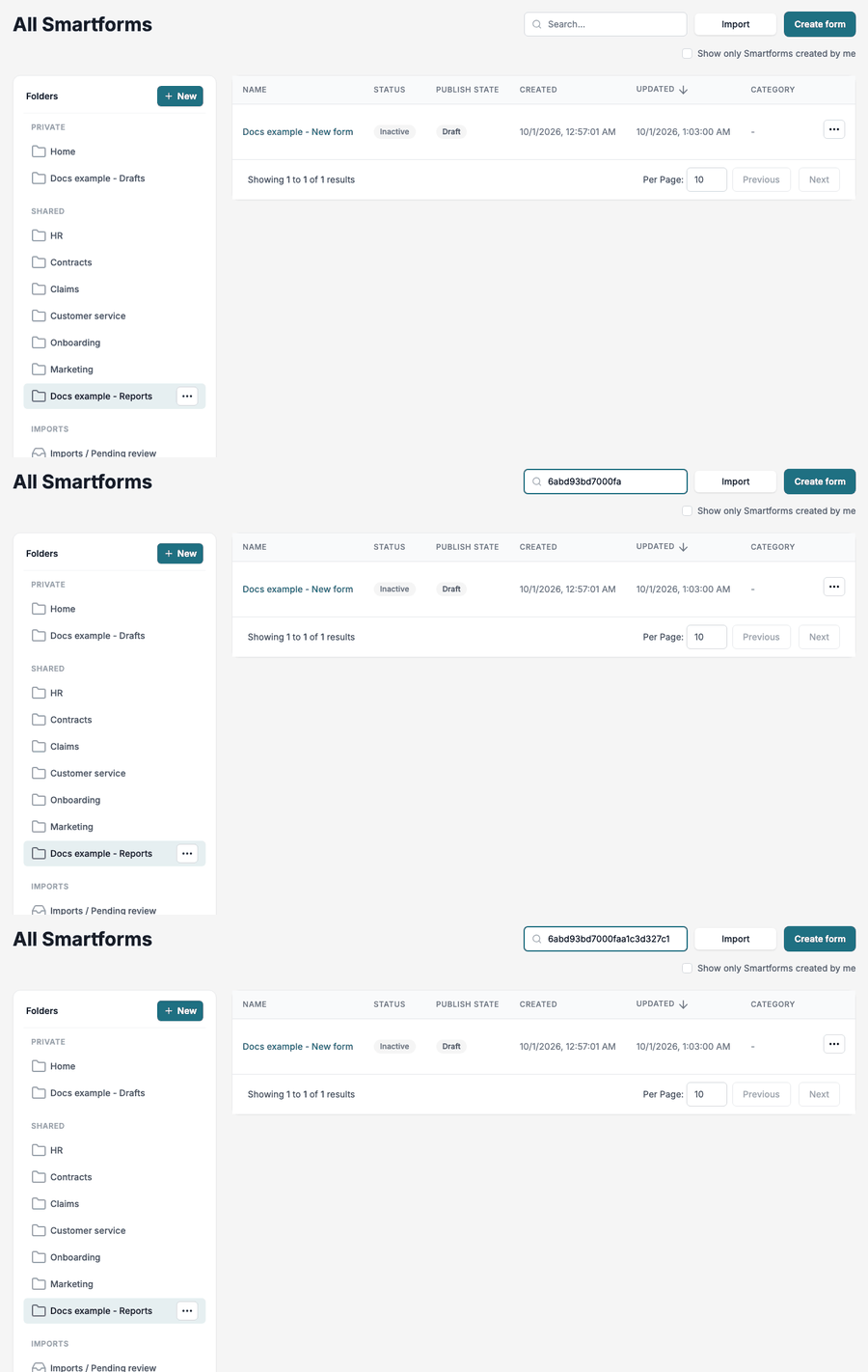
The same ID in Home finds nothing, because that Smartform is in another folder:
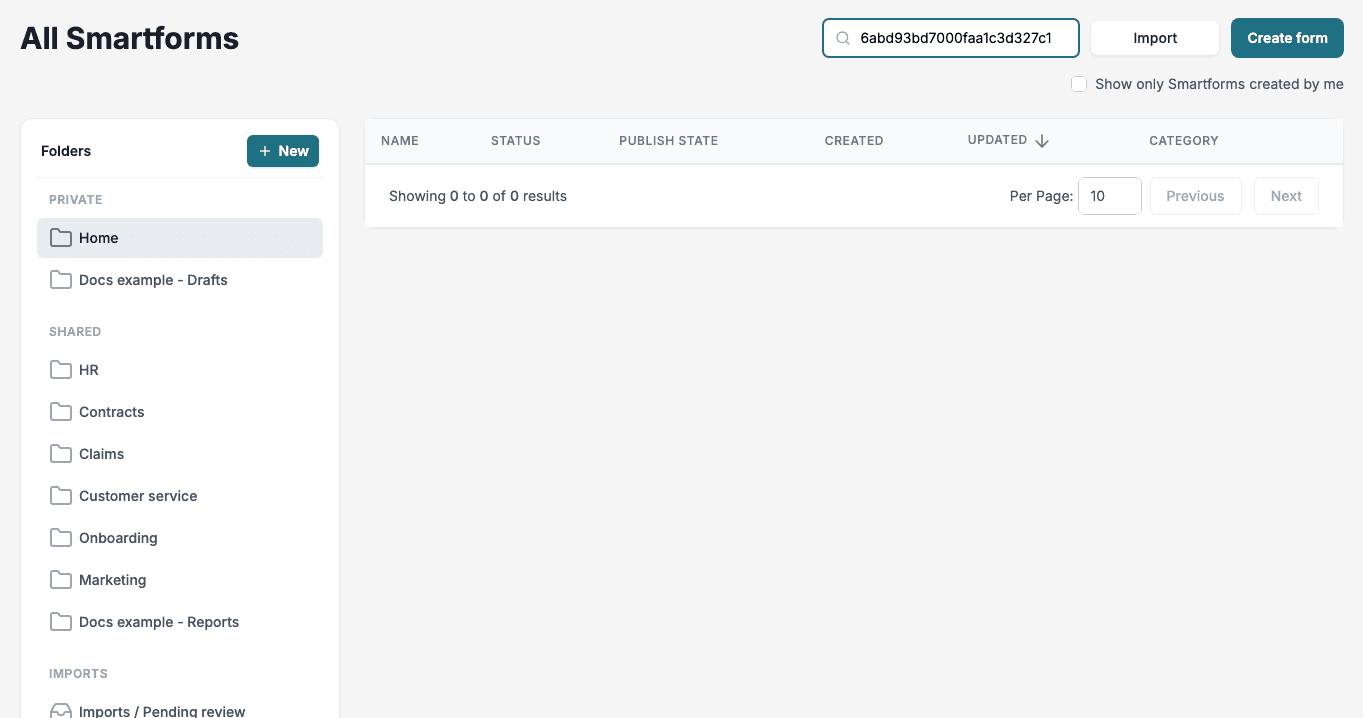
Studio remembers your search and your folder. When you open a Smartform and go back to the list, the search text and the results are still there. To see everything again, clear the search field.
Show only Smartforms created by me
Tick Show only Smartforms created by me to hide the Smartforms of your colleagues. The filter keeps the Smartforms that you created and the Smartforms that you have changed.
Row menu
Click the three dots at the end of a row to open the menu for that Smartform.
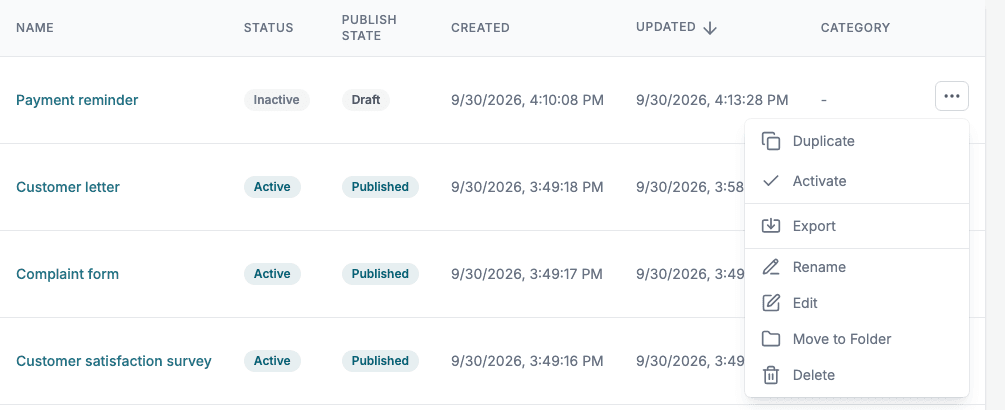
| Action | What it does |
|---|---|
| Duplicate | Makes a copy of the Smartform |
| Activate or Deactivate | Makes the Smartform available for use, or stops it from being available. The menu shows Deactivate for an active Smartform and Activate for an inactive one |
| Export | Downloads the Smartform as a file you can import in Studio |
| Rename | Changes the name. Studio warns you if another Smartform already has that name. See Create a Smartform |
| Edit | Opens the Smartform in the Design tab |
| Move to Folder | Moves the Smartform to another folder. Choose the folder, then click Move form |
| Delete | Asks you to confirm, then moves the Smartform to Trash |
Folders
Folders keep the list tidy. The sidebar has three kinds of entries:
- Private holds Home and your private folders. Only you can open a private folder.
- Shared holds the shared folders. Your team can see them.
- Trash lists the Smartforms that were deleted.
Create a folder
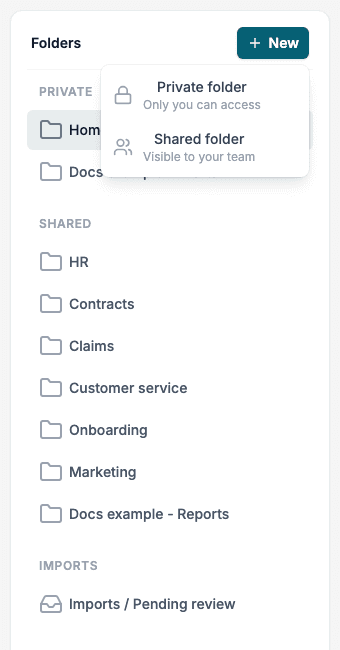
- Click New at the top of the Folders sidebar.
- Choose Private folder (Only you can access) or Shared folder (Visible to your team).
- Type a name and click the check mark, or press Enter. Click the cross to cancel.
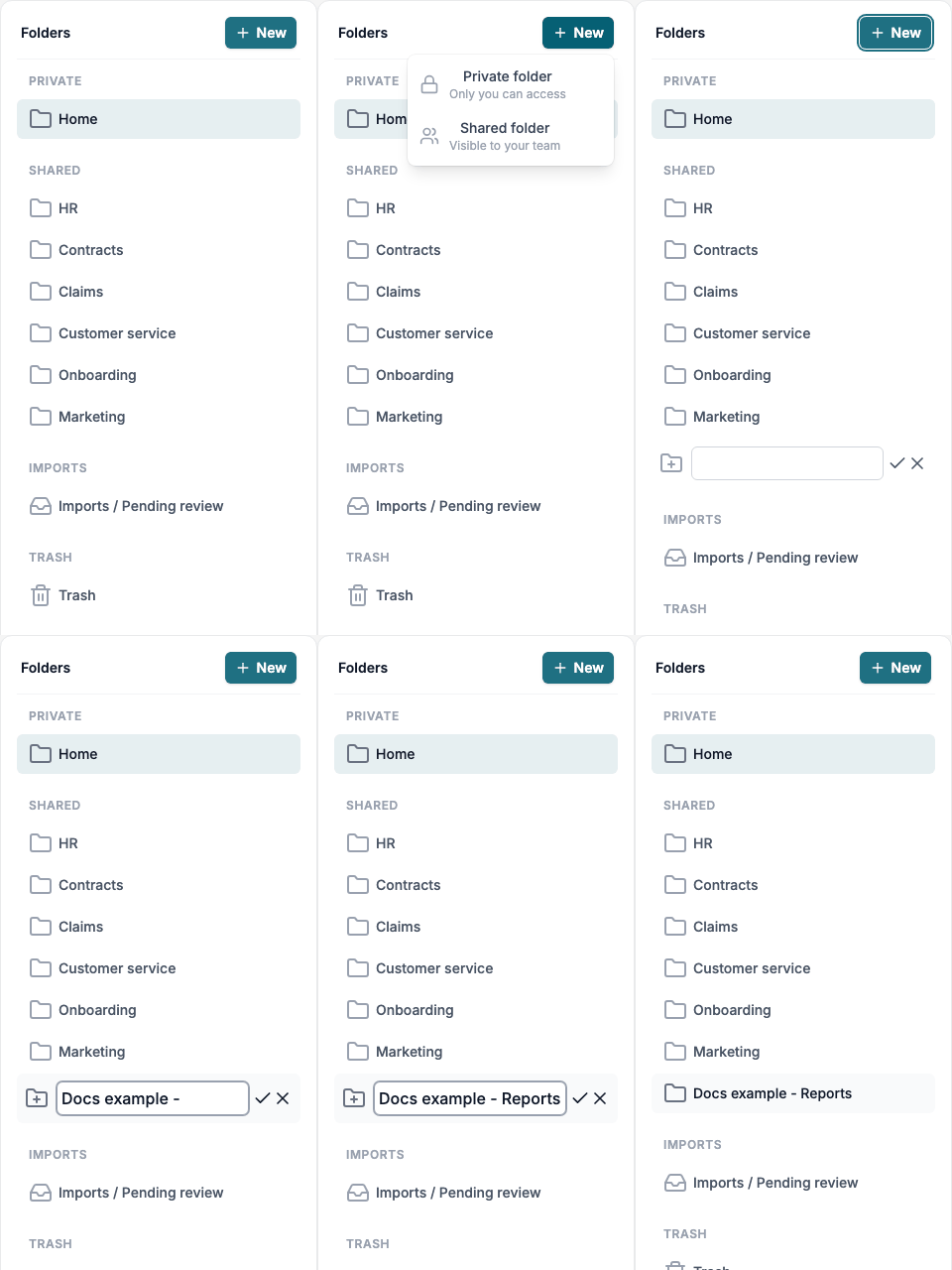
Studio refuses a folder without a name (Folder name cannot be empty) and a name that is already in use (Folder name already exists). A name counts as taken when it is the same as the name of any folder you can see, whether you type it in upper or lower case. A private folder that belongs to someone else does not block the name, because you cannot see it.
Change or delete a folder
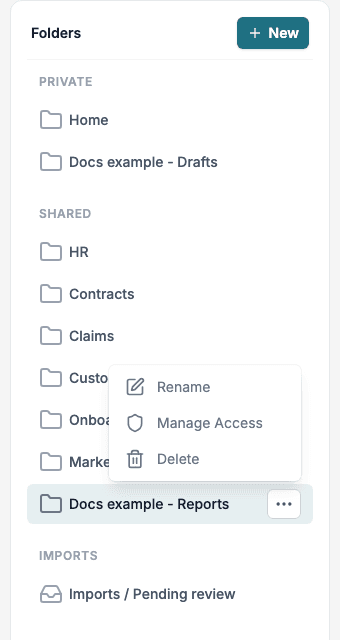
Select a folder. Three dots appear next to its name. Click them to open the folder menu.
| Action | What it does |
|---|---|
| Rename | Changes the name of the folder |
| Manage Access | Sets who can open the folder. Only shared folders have this action |
| Delete | Asks you to confirm, then deletes the folder. The Smartforms in it are not deleted. Each of them moves to the Home of the person who created it |
Where a Smartform is kept
- Home lists the Smartforms that are not in any folder and that you created. Smartforms that colleagues created without a folder do not show in your Home.
- A new Smartform is kept in the folder you were viewing when you clicked Create form. See Create a Smartform.
- Move to Folder in the row menu moves a Smartform to another folder, or back to Home.
📝 Note: The sidebar can also show an Imports group with the folder Imports / Pending review. It is used when Smartforms are created by importing PDF files, a feature that is not switched on everywhere. If you do not see the folder, you can ignore it.