Environments
Texts follow the same four environments as your Smartforms: Development, Test, Pre Production and Production. You write and change texts in Development. Once a folder has been published, forms in the other environments only see the texts that were published to them. See Deployment for how Smartforms move between the same environments.
How it works
- Development is live. Every change you save in the Text Library shows up at once in forms that run in Development.
- Folders move, not single texts. Publishing takes a snapshot of the whole folder, including its subfolders, and moves it one environment up.
- One step at a time. A folder goes from Development to Test, then to Pre Production, then to Production.
- Before the first publish, forms in every environment read the live texts of the folder, so existing forms keep working. After the first publish, each environment only shows what has been published to it.
Publish a folder to Test
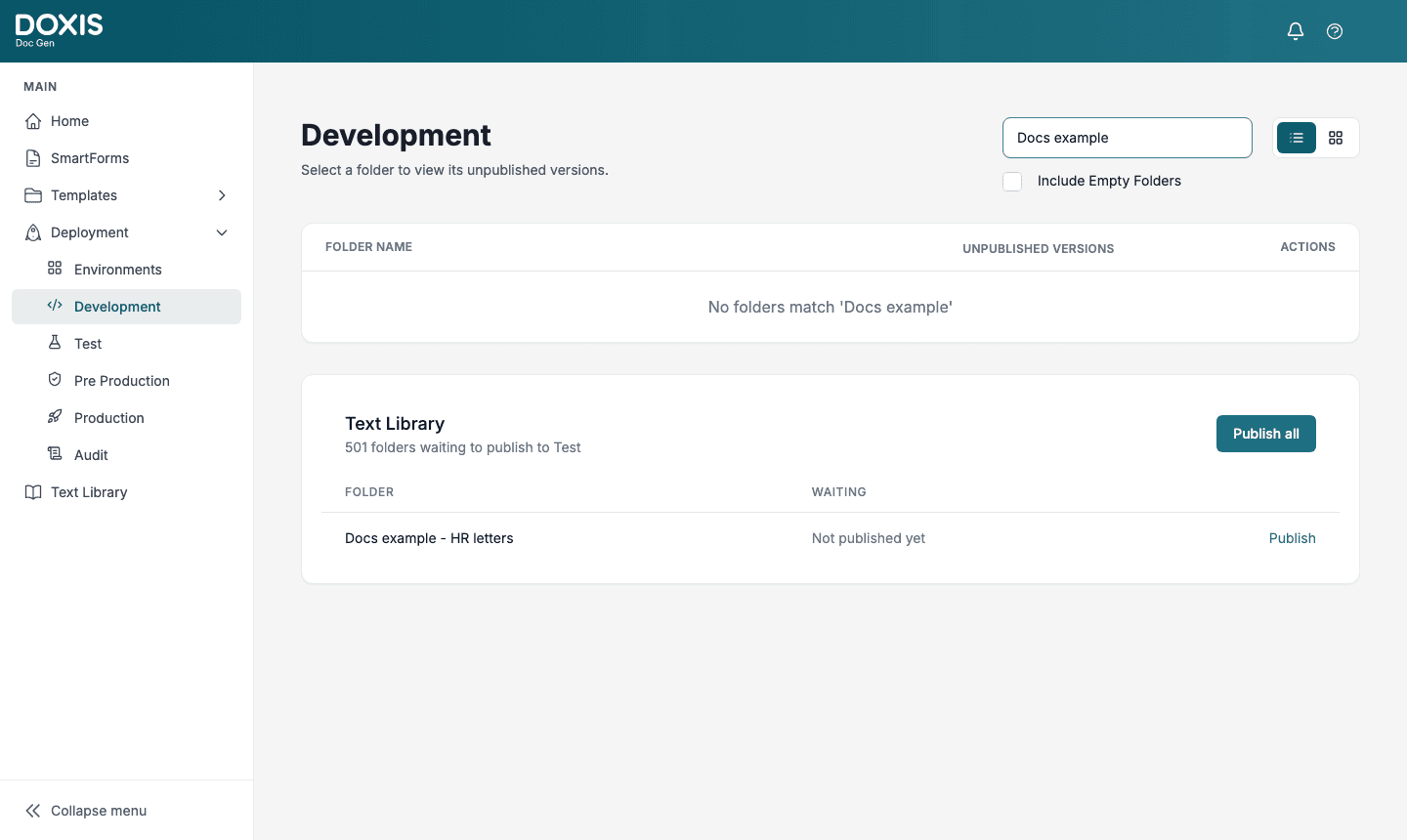
- Go to Deployment → Development.
- Find your folder in the Text Library card. Type part of the folder name in Search folders to find it quickly.
- Click Publish on the folder’s row.
The Waiting column tells you why the folder is listed: Not published yet, or the number of changes since the last publish. A changed, added or deleted text each count as a change.
When it is done, Studio shows Published 1 folder to Test.
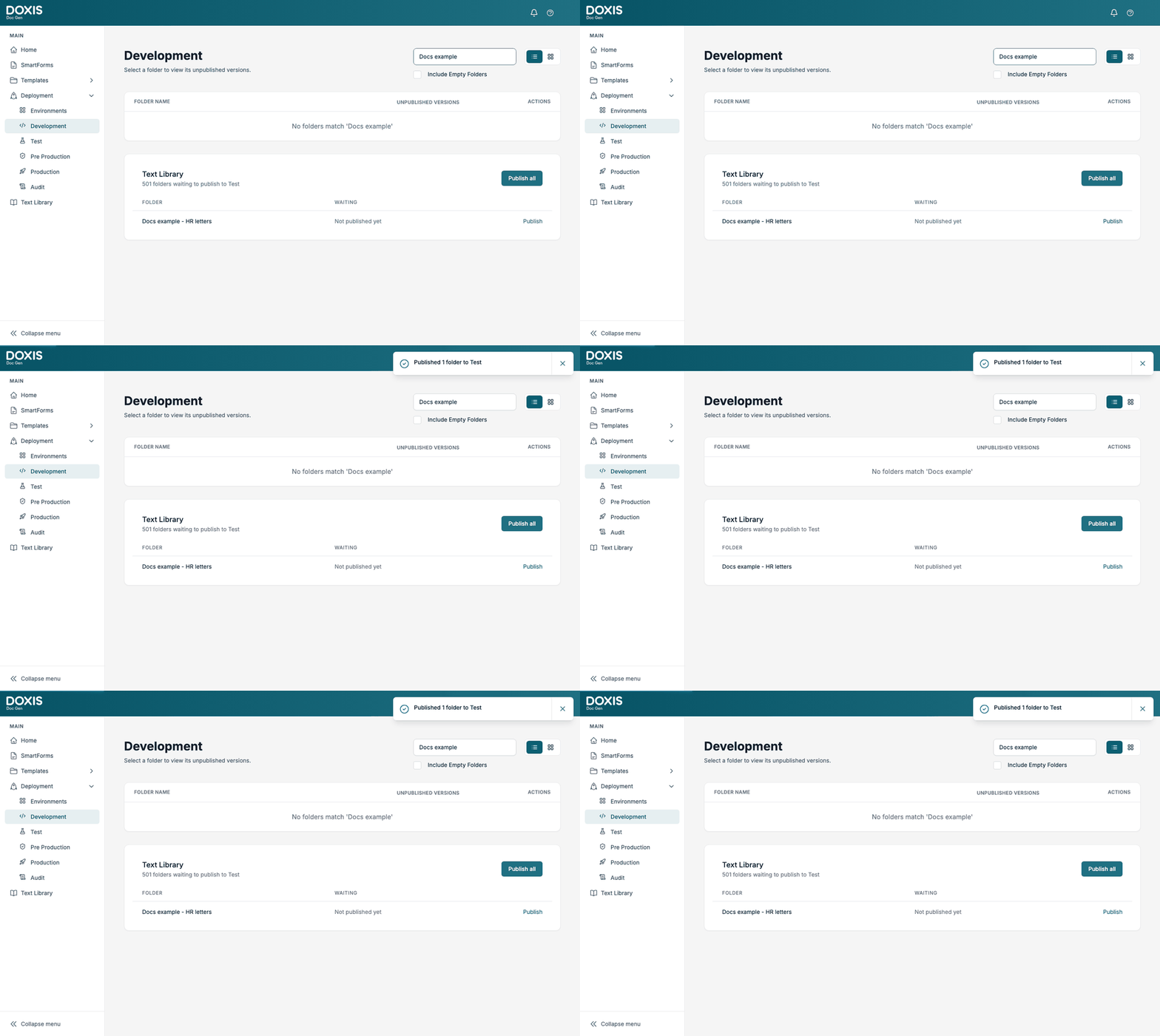
📝 Note: In a company with many folders the list can take a few seconds to load. Wait for the number of waiting folders to appear before you decide there is nothing to publish.
Publish further
- Go to Deployment → Test. The folder is now waiting to publish to Pre Production.
- Click Publish on its row.
- Repeat from Deployment → Pre Production to publish it to Production.
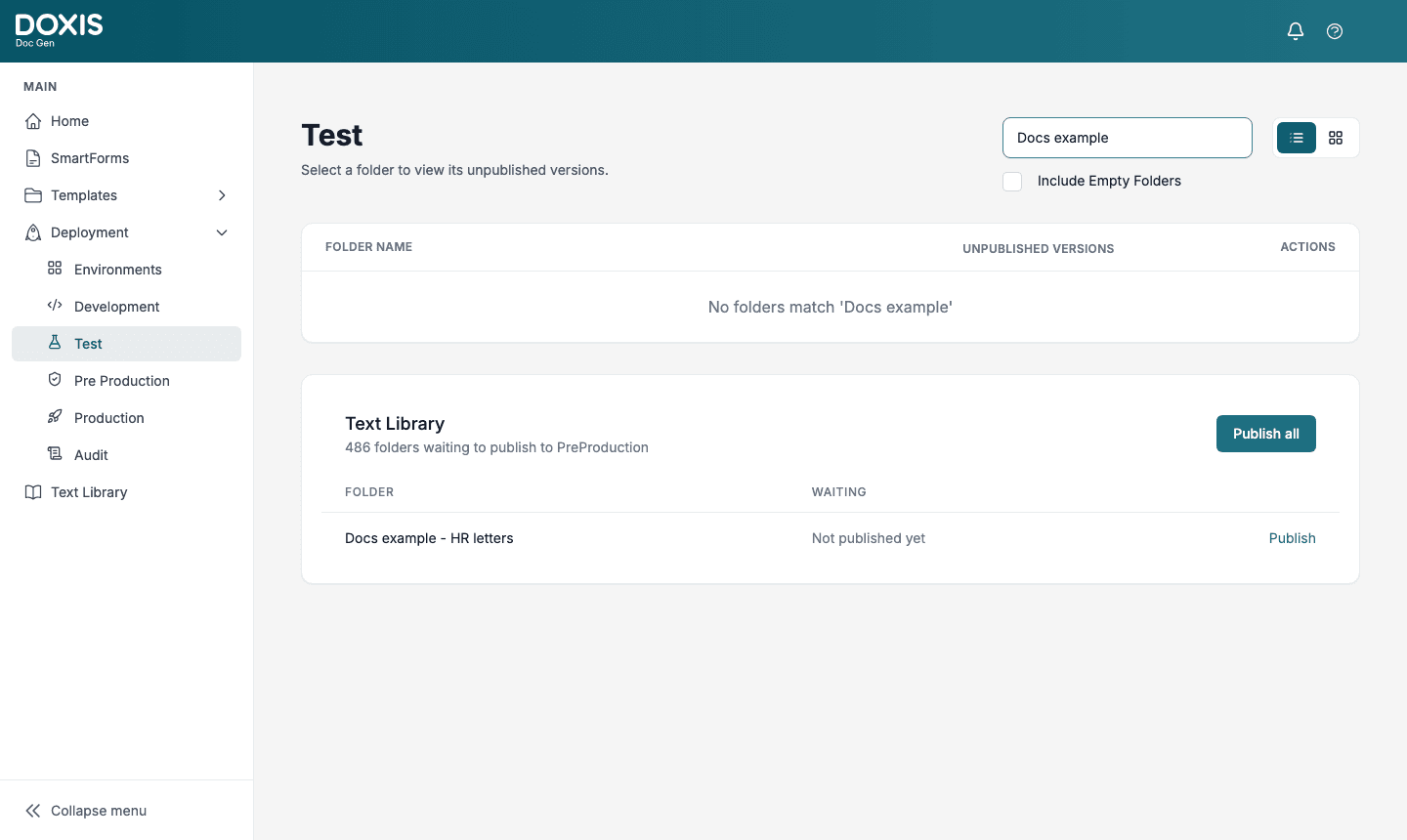
Each step moves the version that is in the current environment. Changes you have made in Development since then stay behind until you publish them from Development again.
Folders that have never been published from Development also show on the Test and Pre Production pages as Not published yet, but they can’t be published from there until you publish them from Deployment → Development.
Publish all
Publish all publishes every folder in the list, not only the ones you searched for. Use it when you want to move the whole Text Library one step, and use Publish on a single row when you only want to move one folder.
Check what an environment contains
Choose the environment in the list next to Export in the Text Library and click Export. The file contains the texts as they are in that environment. See Import and Export.