Deployment
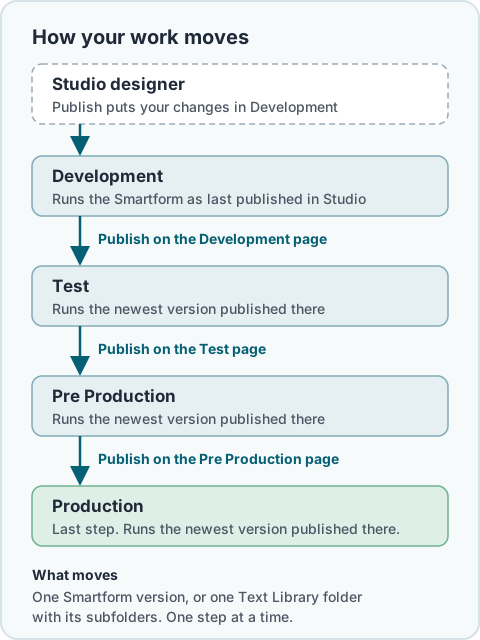
Deployment in Studio moves your Smartforms, and the texts in the Text Library, through four environments: Development, Test, Pre Production and Production. You build and change Smartforms in Development, and you move them one environment at a time until they reach Production.
How it works. When you click Publish in the Smartform designer, your changes go live in Development. From there, each environment page in Deployment has its own Publish button that moves a Smartform one step further: from Development to Test, from Test to Pre Production, and from Pre Production to Production. A form that runs in an environment uses the version that was published to that environment.
The main ideas
- One step at a time. A Smartform goes from Development to Test, then to Pre Production, then to Production. You can’t skip an environment, and nothing is published further than Production.
- The page you stand on is where you publish from. Publish on the Test page moves a Smartform from Test to Pre Production. The Production page has no Publish button.
- What moves. Deployment moves Smartforms and Text Library folders. A Smartform moves as a whole. A Text Library folder moves with all of its subfolders.
- Smartforms and texts move separately. Publishing a Smartform does not publish the Text Library folders it uses. Publish those folders to the same environment as well. See Text Library environments.
- Templates are shared. Templates, themes and toolbars that a Smartform uses are not moved between environments. All environments use the same ones.
- Only active Smartforms move. Studio refuses to publish an inactive Smartform to another environment. Activate it first.
The Environments page
Go to Deployment → Environments. The page shows one card per environment and the latest changes.
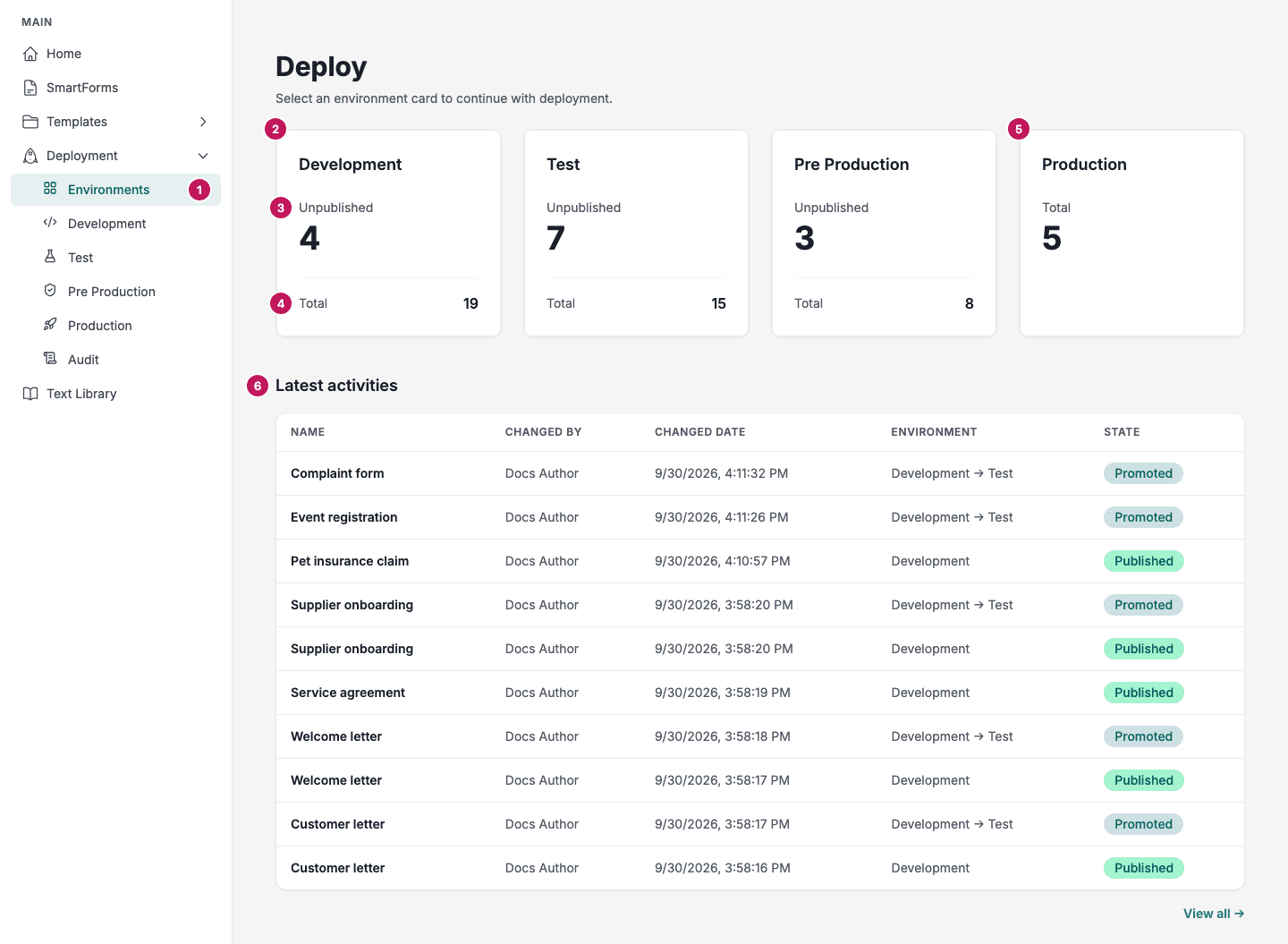
- Environments opens this page. The entries under it open the page of each environment.
- An environment card. Click a card to open that environment’s page.
- Unpublished is the number of Smartforms in this environment that have not been published to the next environment yet. When you publish a Smartform again in the designer, it counts as unpublished in Development until you publish it to Test.
- Total is the number of Smartforms that have a version in this environment.
- The Production card shows only Total, because nothing is published from Production.
- Latest activities shows the ten newest entries of the audit log: who published, promoted, rolled back or copied a version to draft, and when. View all → opens Audit, which is also in the menu.
📝 Note: The counts load a few seconds after the page opens. Until then every card shows 0.
What a form uses in each environment
A form runs in one environment, and it uses that environment’s version of the Smartform:
- In Development, the form uses the Smartform as it was when you last clicked Publish in the designer. Changes you have not published are not used.
- In Test, Pre Production and Production, the form uses the newest version that was published to that environment.
- When you start a form in the designer with Create Form, the Environment list only offers Development and the environments the Smartform has been published to. If you choose Development and have unpublished changes, Create Form publishes them first.
Before a Smartform has been published to an environment, it is not deployed there. Integrations that start a form in that environment get a not found answer. A new, empty form started in that environment falls back to the current design in Development, including changes you have not published yet. Publish a Smartform to an environment before anyone uses it there.
Texts from the Text Library follow their own rules. A folder that has never been published reads its live texts in every environment. See Text Library environments.
Who can use Deployment
The Deployment menu only shows for users who have access to the Deployment feature of SmartForms. If you don’t see it, ask the administrator of your company to give you access.
You can only publish the Smartforms and Text Library folders that your access groups let you open.
In this section
- Publish Smartforms: publish one Smartform, a selection or a whole folder to the next environment.
- Versions, Rollback and Audit: see the versions in an environment, roll back, copy a version to draft and read the audit log.
- Text Library environments: publish texts to the same environments.