Fonts
This page describes which fonts a Smartform can use and how your company adds its own. The font lists are the same everywhere in Studio, so a font you add once is available in every Smartform of the company.
Built-in fonts
Every font list in Studio offers these 18 fonts:
| Style | Fonts |
|---|---|
| Sans serif | Arimo, Inter, Lato, Manrope, Montserrat, Nunito Sans, Open Sans, Oswald, Poppins, Raleway, Roboto, Rubik, Ubuntu, Work Sans |
| Serif | Merriweather, Playfair Display, Tinos |
| Monospace | Roboto Mono |
The fonts are listed in alphabetical order, together with the fonts your company has uploaded. You find the list in:
- Font in Text Styles on the form’s Styles tab, and in Text Styles of a theme under Templates → Themes.
- Font family of the watermark.
- Font Family of the Data Table, Smart Table and Static Table elements.
Older Smartforms may still name a font such as Arial or Times New Roman. Studio shows the closest built-in font for it.
📝 Note: Configuration → PDF → Font is a separate list of standard PDF fonts. See Configuration.
Add your company’s fonts
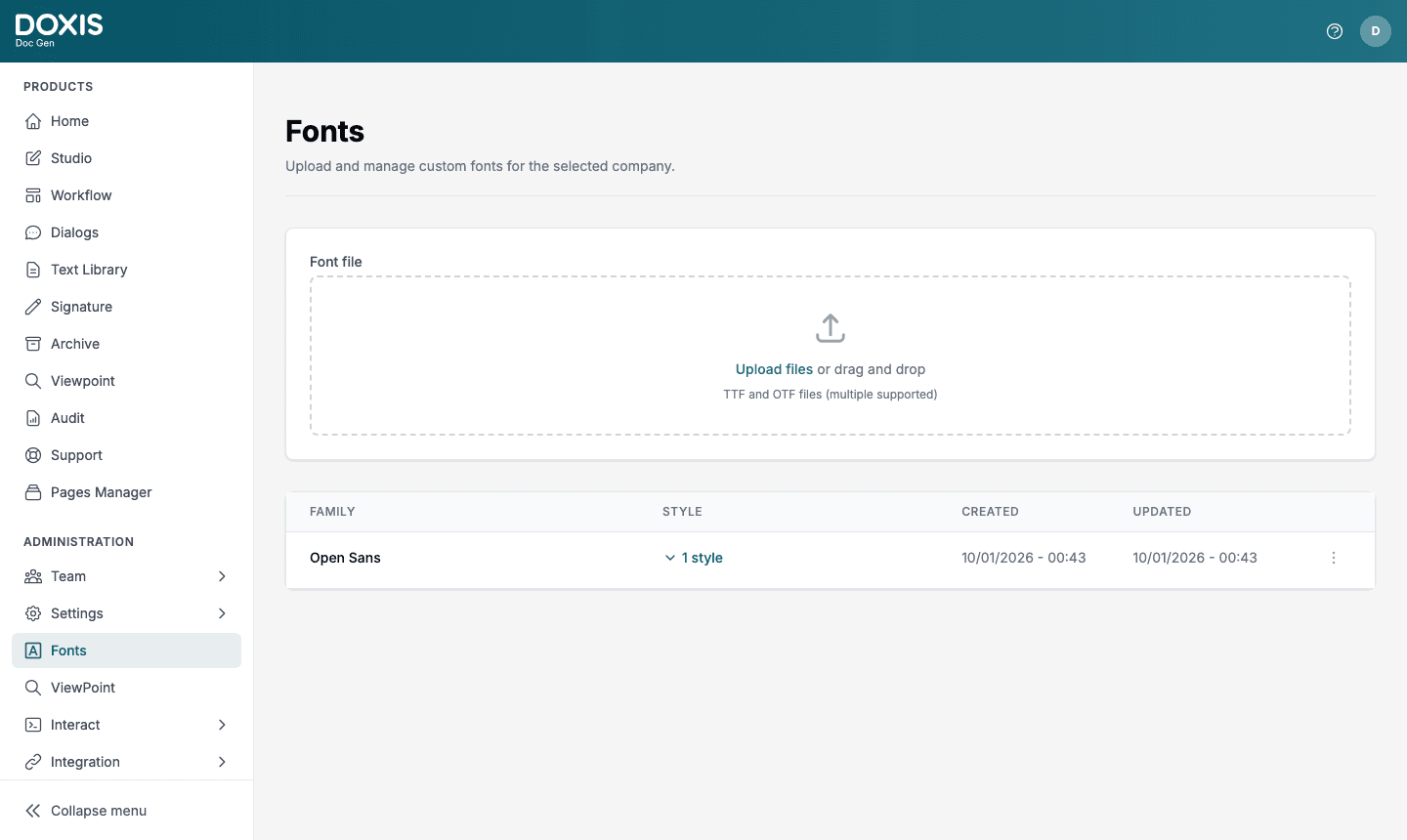
Upload fonts in CenterPoint under Administration → Fonts. You need access to Administration.
- Open Fonts. The page is called Fonts and says Upload and manage custom fonts for the selected company.
- Click Upload files or drag the files into the box. Use TTF or OTF files, up to 20 MB each. You can choose several files at once.
- For each file, check the Family name, choose the Style (normal, italic or oblique) and the Weight (100 to 900).
- Click Add.
If you upload a face with the same family, style and weight as an existing one, it replaces the old face.
The table lists each family with its Created and Updated times. Click the number of styles, for example 1 style, to see the styles of the family and to delete a single style. The ⋮ menu of a family has Rename and Delete.
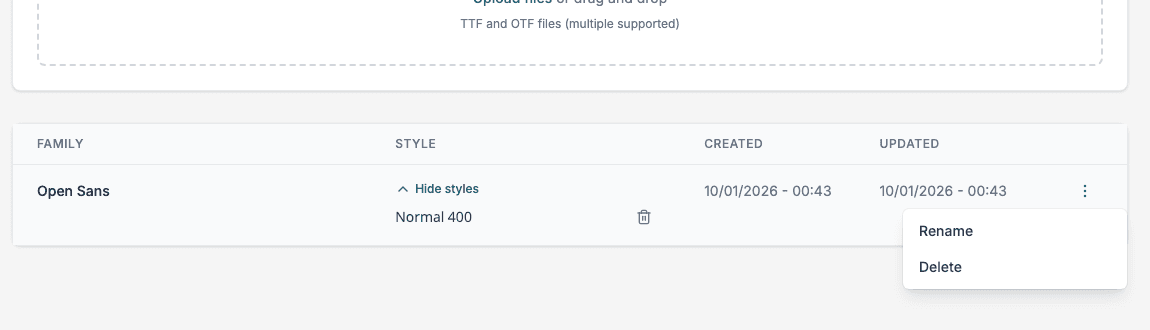
📝 Note: Renaming a family can make fonts go missing in Smartforms that still use the old name. The page warns about this when you rename.
The family then appears in the font lists of Studio. Reload the designer if it was open when you uploaded.
When a bold or italic face is missing
A company font family only has the faces you uploaded. When a text style uses Bold or Italic and the family has no matching face, Studio shows a warning triangle on that style in Text Styles:
- Bold face is missing
- Italic face is missing
- Bold Italic face is missing
- Regular face is missing
Point at the triangle to read the warning, for example Bold face is missing. Rendering may use faux styling in web browsers and may not render correctly in PDF. A browser then fakes the bold or italic by slanting or thickening the regular letters, and the PDF can look wrong.
To fix it, upload the missing face of the same family, with the same Family name and the right Style and Weight: weight 700 for bold, 400 for regular, and the style italic for italic. The warning only applies to company fonts.
Tips
- Upload all the faces you use at once: regular, bold, italic and bold italic.
- Give every face the same Family name, so they are treated as one family.
- Check the PDF view after you change a font.