Translations
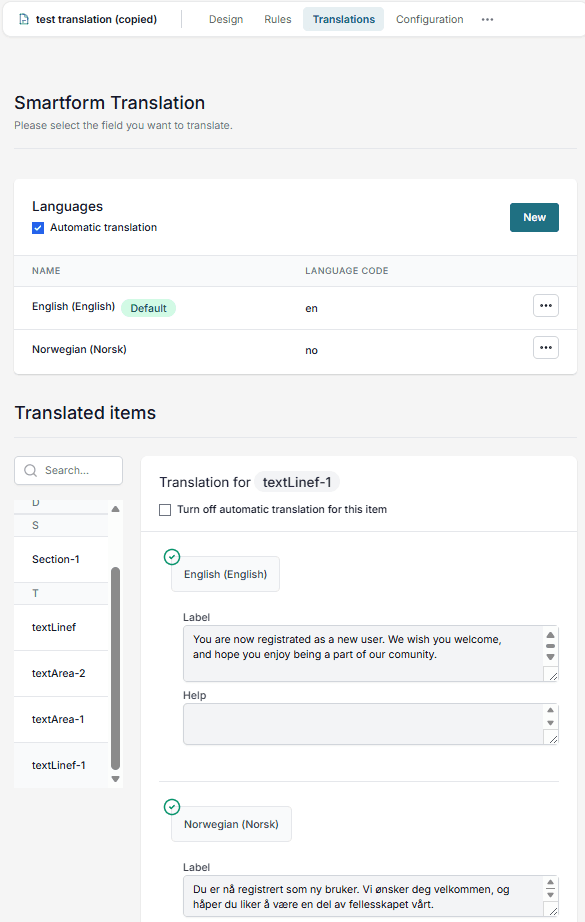
The Translations tab in Studio, with the screen Smartform Translation, allows you to make your Smartform available in multiple languages.
You can define a default language and then add additional languages, which can be translated automatically or manually.
How it Works
📝 Note: You need to define two languages before you can translate the elements of a Smartform. The Translations tab shows You need to define two languages before you can make a translation of elements in your Smartform. until you have added them.
1. Select a Default Language
- The default language should match the language the Smartform was originally created in.
- This becomes the base text that other translations are generated from.
2. Add Additional Languages
- Click New to add another language to your Smartform.
- When you add a language, Studio can automatically translate your form into the selected language.
- You can support multiple languages in the same Smartform.
3. Automatic Translation
- If Automatic translation is enabled (checkbox at the top), the system will auto-translate all form text into any added languages.
- You can still manually adjust translations after the automatic translation is applied.
Viewing Languages in the Smartform
Once you have added multiple languages, you can preview them directly in the Smartform:
- Create or open a Smartform.
- In the top right corner of the toolbar, you will see a language dropdown listing all languages you have added.
- Select another language from the dropdown.
- The Smartform will instantly update, showing all translated text for that language.
This feature makes it easy to test and verify translations before publishing your form.
Translated Items
The Translated items table lists all translatable fields from your Smartform:
- Left column – Field identifiers (e.g.,
headerLine-dd51,Section,textArea-2e93). - Right column – The translation for the selected language.
- Use the search bar to quickly find a specific field.
- Click a field to view and edit its translation.
Turn off automatic translation for an item
The Smartform Translation screen translates your Smartform automatically. For text that must stay as you wrote it, or that you want to translate yourself, you can turn the automatic translation off for one item.
- Open the Translations tab.
- In Translated items, select the item. An item is an element, or a whole section.
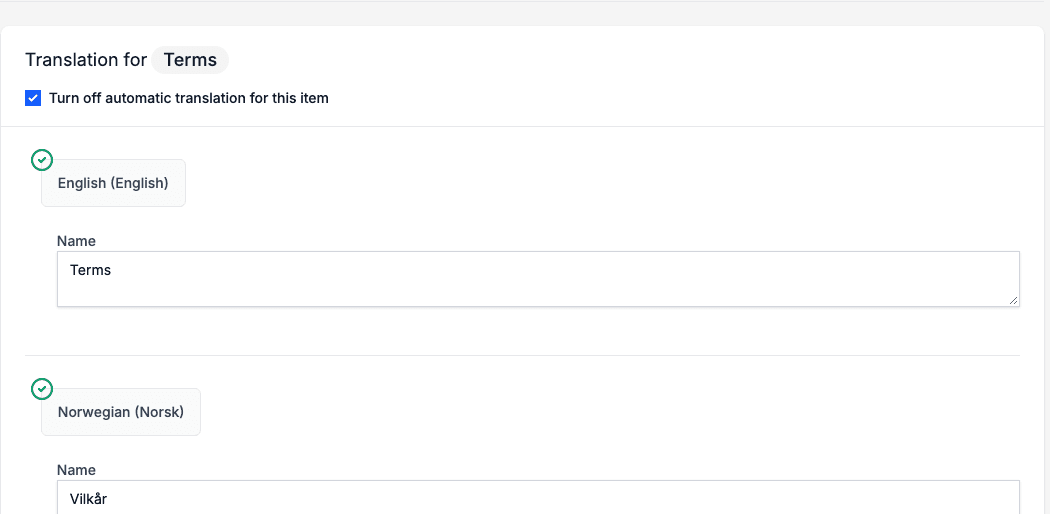
- Tick Turn off automatic translation for this item.
Studio shows the message Automatic Translation is Off for this item.
What changes for the item
- The item stays in the default language. The form and the PDF show the text as you wrote it, in the default language, in every language. This is also true when the item had been translated automatically before you ticked the box.
- Text Library references stay in the default language. A reference to a text in the Text Library, written as
[[ LIB : FOLDER : CODE ]], is read in the default language of the Smartform, even when the person has chosen another language. - A section covers all the elements in it. When you tick the box on a section, every element in the section stays in the default language, including connected elements. When you tick the box on a single element, its connected elements are not covered, because they have their own box.
📝 Note: Only the items you tick are affected. The other items of the Smartform are still translated automatically.
Type a translation yourself
When the box is ticked and the language is not the default language, the fields of the item can be edited: Label, Help, Custom required error message and so on, for each language on its own. Type the text in the language you need.
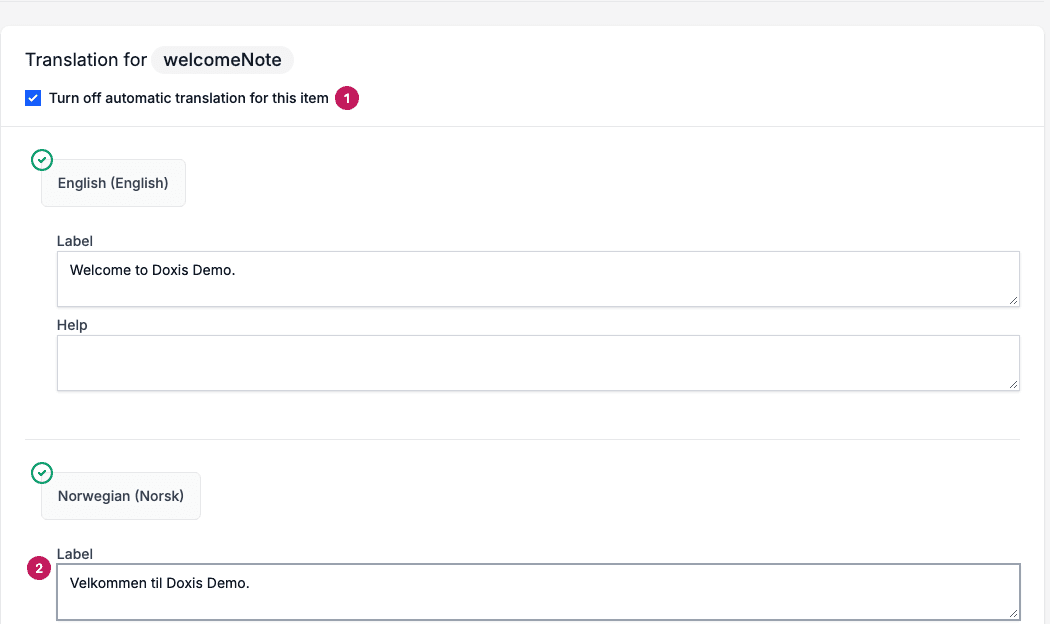
- Turn off automatic translation for this item is ticked.
- The Norwegian Label was typed by hand.
A text that you type by hand is used. The form and the PDF show it in that language, also for an item that is turned off. Languages where you have not typed anything stay in the default language.
If you tick the box again later, after you have unticked it, earlier translations by hand are not used until you type them again.
Example
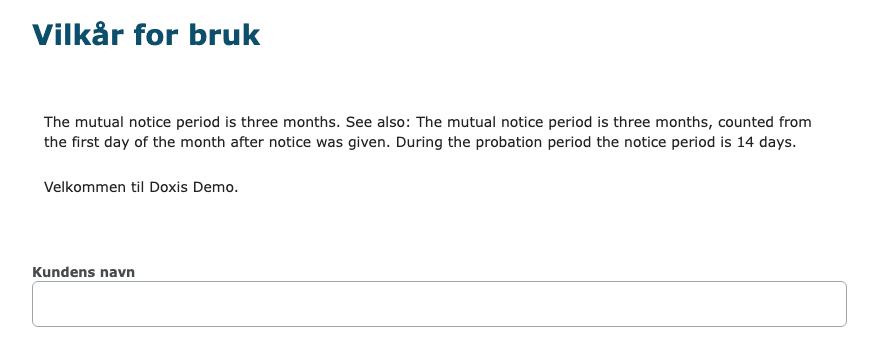
A Smartform has a section Terms with a legal text and a reference to a clause in the Text Library. You do not want the legal text to be translated by a machine. You tick Turn off automatic translation for this item on the section Terms. For the welcome text in the same section you tick the box on the element welcomeNote and type the Norwegian text yourself.
When the form is opened in Norwegian:
- The title and the field label are translated automatically.
- The legal text and the Text Library clause stay in English.
- The welcome text shows the Norwegian text you typed.
Best Practices
- Always set your default language first before adding other languages.
- Use automatic translation for speed, but review important fields manually.
- Turn off automatic translation for:
- Legal or compliance text.
- Fields with industry-specific terminology.
- Content where tone or meaning is critical.
- Keep translations concise for better readability across devices.
💡 Tip: Even with automatic translation enabled, you can keep a specific item in the default language, or replace its translation with your own, by turning off automatic translation for that item.