Follow and cancel an import
After you start an import, Studio works on each file in the background. You don’t have to keep a page open: Studio tells you when the import is done. This page is part of Import Smartforms.
The progress page
Click View progress on the confirmation, or click a line in the Recent imports bell, to open the Import files page.
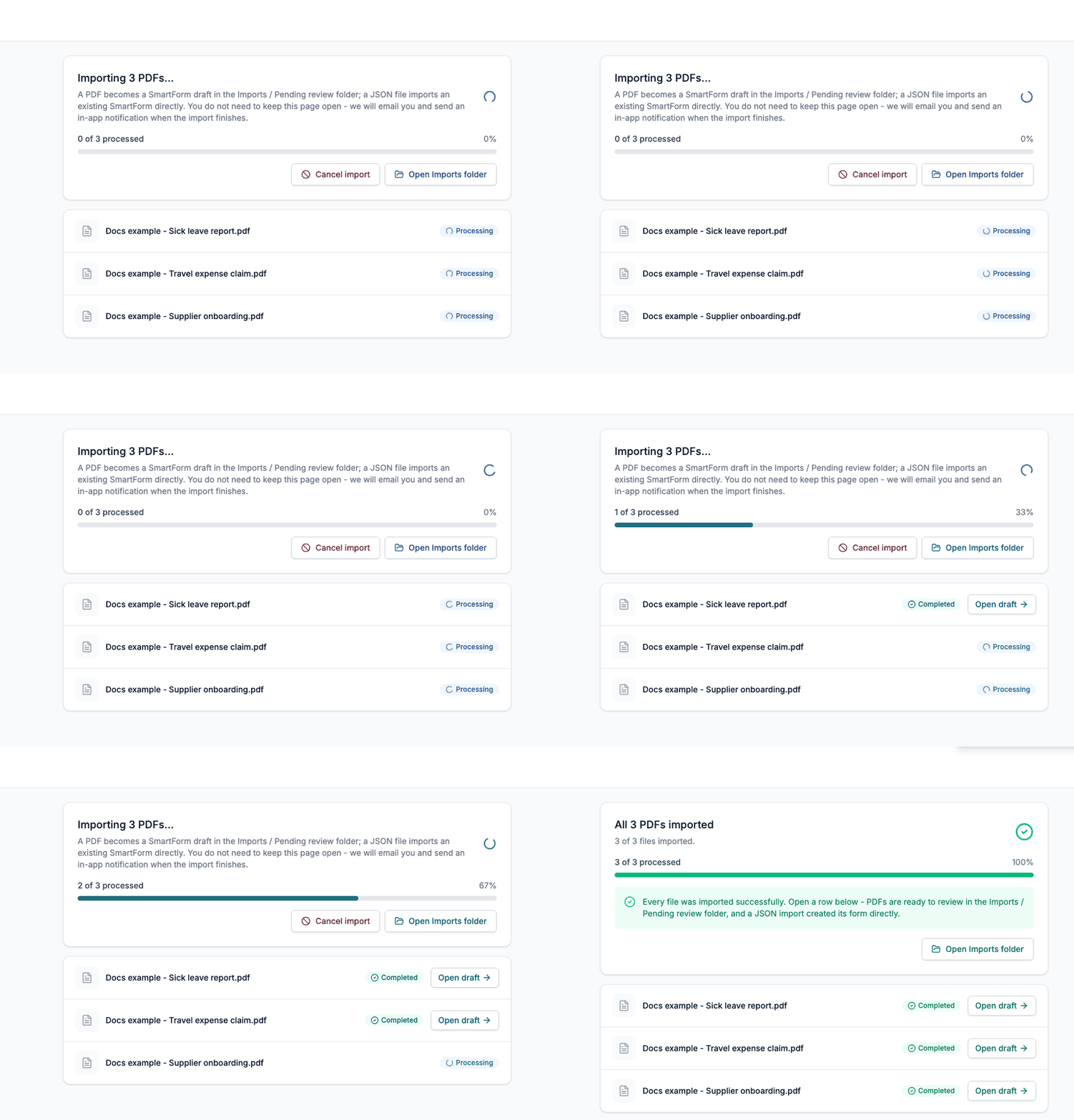
The page shows:
- A summary at the top, for example Importing 3 PDFs…, All 3 PDFs imported, Import finished with 1 failure or Import cancelled.
- A progress bar with the text 3 of 3 processed.
- One row per file with a status: Queued, Processing, Retrying, Completed, Failed or Cancelled. Retrying means Studio is trying the file again after a short problem.
- Open draft on each completed row. For a draft that waits for review it opens the review. For a JSON file, or a draft filed with Skip review, it opens the Smartform in the designer.
- Open Imports folder, which takes you to the drafts, and Back to Smartforms.
The page updates itself every few seconds. File names are shown only in the browser tab that started the import. Anywhere else the rows are called File 1, File 2 and so on.
Cancel an import
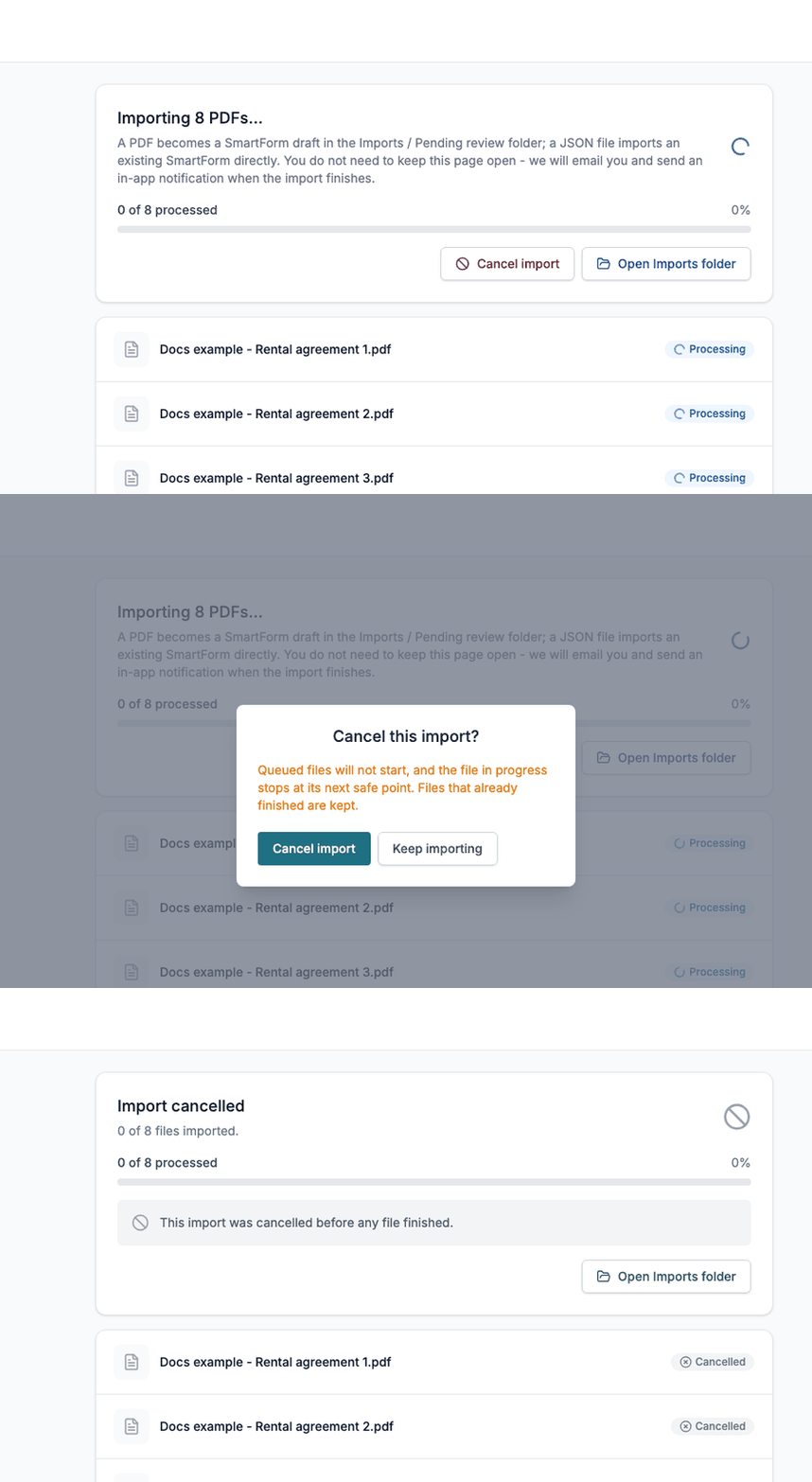
- On the progress page, click Cancel import.
- In the question Cancel this import?, click Cancel import to stop it, or Keep importing to carry on.
Queued files do not start, the file that is being processed stops at its next safe point, and files that have already finished are kept. The page then shows Import cancelled.
How you are told it is done
- A message on the screen. While Studio is open in the browser that started the import, a short message appears, for example Your import of 5 files finished. All 5 imported. Click Review in Imports in it to open the import on the Import files page. The message stays for a few seconds.
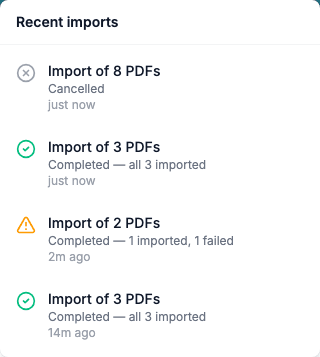
- The bell. The bell in the top bar, Recent imports, shows a number for imports that have finished since you last looked. Click it to see one line per import with its result: Completed with the number of files imported and failed, Failed when no file could be imported, or Cancelled. Click a line to open the import. The list is kept per browser: an import that someone started in another browser does not appear in yours.
- An e-mail. Studio sends an e-mail to the address of the person who started the import, with a link to Open the import in SmartForms. The subject tells you the result, for example PDF import finished: all 3 file(s) imported.

When a file fails
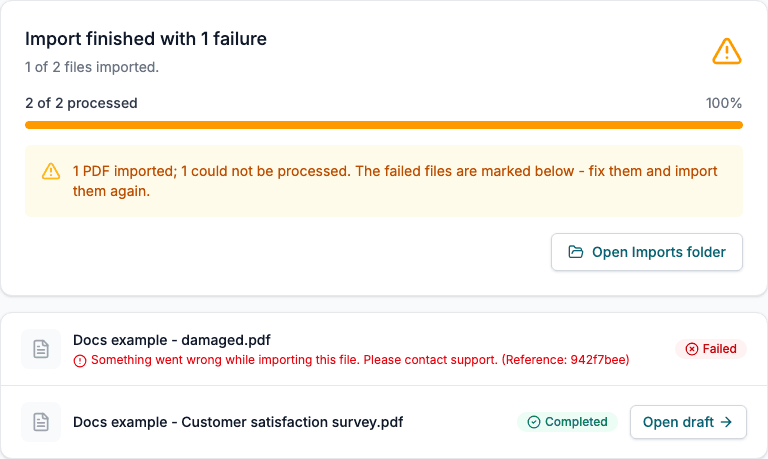
The other files in the import still finish, and the summary says Import finished with 1 failure. The failed row shows a red message and a reference.
| Message | What it means and what to do |
|---|---|
| We could not read this PDF. It may be password-protected, scanned at low quality, or damaged. | Open the PDF yourself. Remove the password, scan it again or export it again, then import it again. |
| This PDF is too large or complex to import automatically. Try splitting it into smaller files. | Split the PDF and import the parts. |
| The import service is busy right now. Please try again in a few minutes. | Import the file again later. |
| Importing is unavailable right now… Please contact support. | Contact support and give the reference. |
| Something went wrong while importing this file. Please contact support. | Contact support and give the reference. |
Every message ends with a short reference, for example (Reference: 942f7bee). Give it to support so they can find the file.
If the page cannot reach Studio
- Having trouble reaching the server - retrying. Your connection dropped for a moment. The import keeps running, and the page tries again by itself.
- Import batch not found. The import does not exist or belongs to another account. Start it again from the Smartforms page.
- Timed out in the bell means the import has not finished after six hours. Status unavailable means the bell could not reach the import for a while. Click the line to see the state of each file.