The PDF tab holds the document-level PDF settings of a Smartform: page size, orientation, margins, headers and footers, page numbering and a watermark. They apply to the whole document and are printed by the Pages 2.0 engine, which you choose under Configuration → PDF → Engine. Settings for one section, one element or one place in the document are described in Page breaks, page layouts and excluded content.
Use the PDF tab when the Smartform produces formal documents such as contracts, offers or letters.
Open the PDF tab
- Open the Smartform and go to the Design tab.
- In the left panel, select PDF.
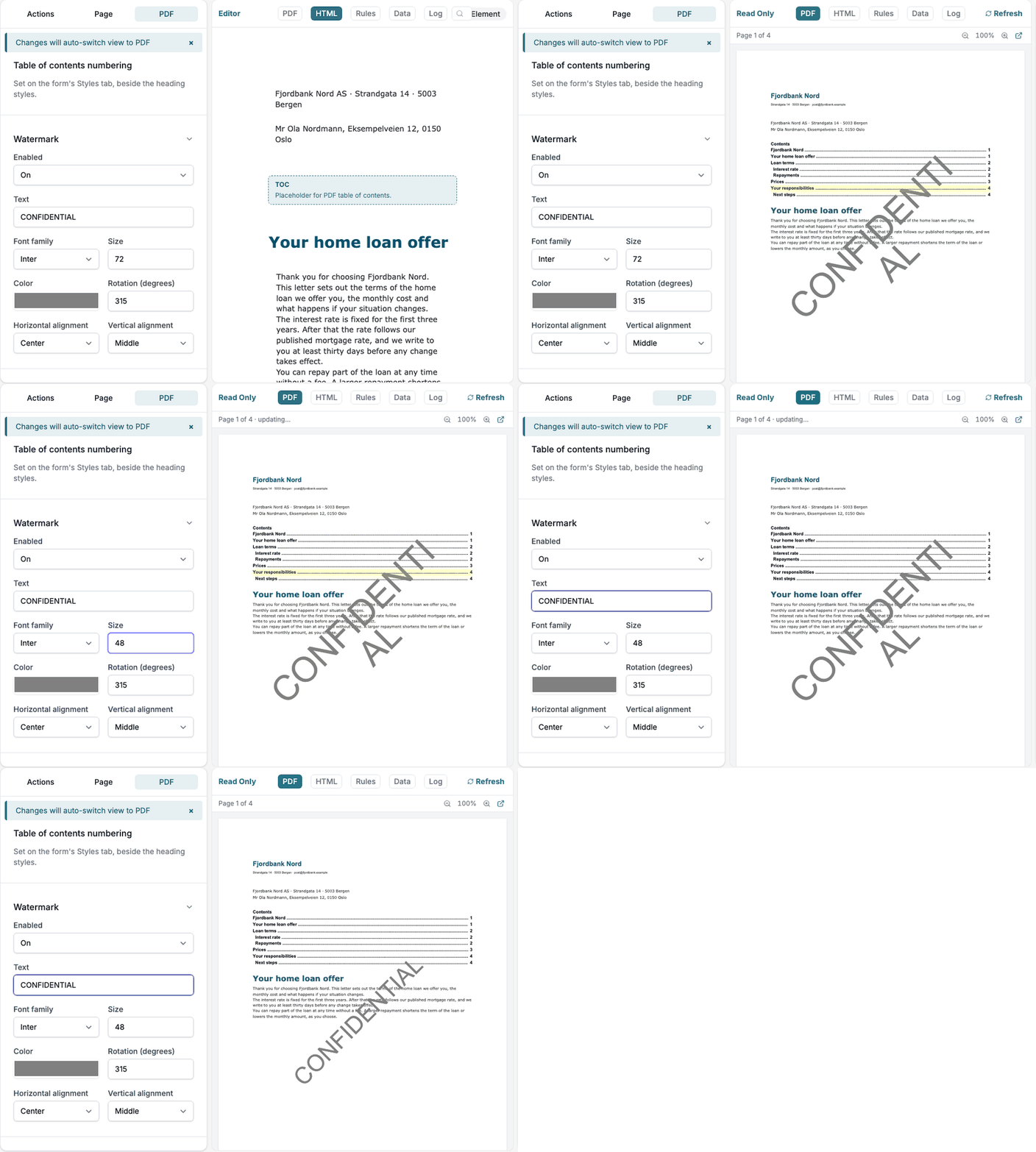
The panel shows the message Changes will auto-switch view to PDF. Click × to hide it. Each time you change a setting, the middle area switches to the PDF view, a read-only view of the document. The PDF view updates about a second after your last change. After you edit the form in the HTML view, click Refresh above the PDF view to see those edits. If the PDF cannot be made, the view shows Failed to load PDF preview and the reason, with a Retry button. To edit the form again, select HTML above the middle area.
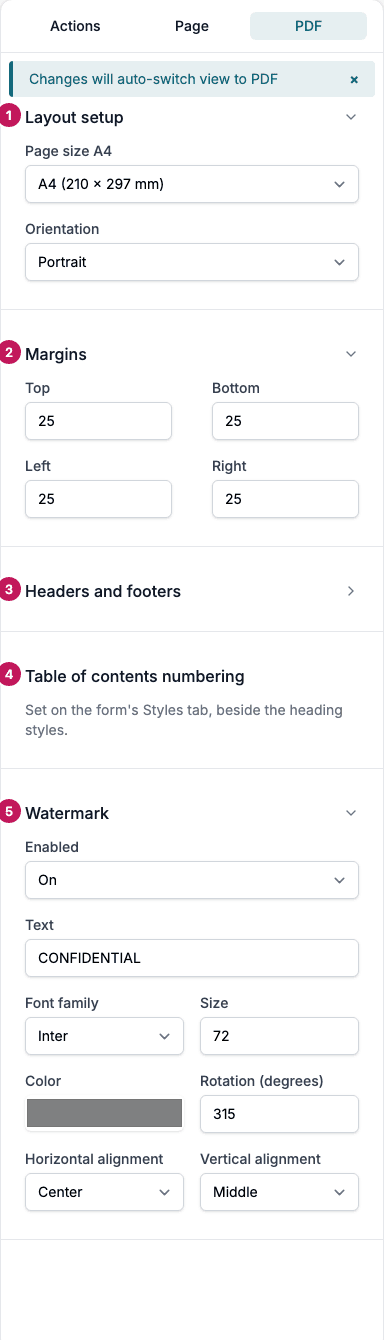
- Layout setup: page size and orientation.
- Margins: the space around the content.
- Headers and footers: the header and footer objects, and Start page numbering on page. See Headers, footers and page numbers.
- Table of contents numbering: a note that this setting is on the form’s Styles tab.
- Watermark: text printed across every page.
Layout setup, Margins, Headers and footers and Watermark are sections you can open and close. Layout setup and Margins start open.
📝 Note: The PDF view and Preview PDF show your draft, including changes you have not published. PDFs of real forms use the published version of the Smartform.
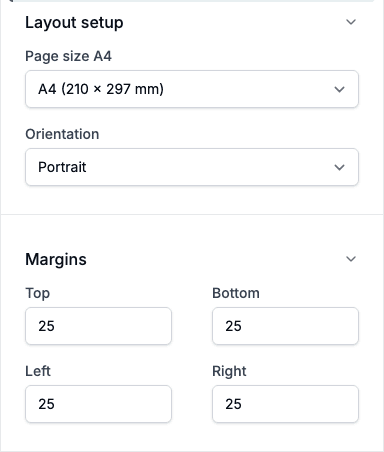
Layout setup
Page size
Page size defaults to A4 (210 × 297 mm). These sizes are available:
| Size | Width × height (mm) |
|---|---|
| A3 | 297 × 420 |
| A4 | 210 × 297 |
| A5 | 148 × 210 |
| A6 | 105 × 148 |
| B5 | 176 × 250 |
| B4 | 250 × 353 |
| B3 | 353 × 500 |
| Letter | 216 × 279 |
| Legal | 216 × 356 |
| Tabloid | 279 × 432 |
| Executive | 184 × 267 |
| C4 | 229 × 324 |
| C5 | 162 × 229 |
| C6 | 114 × 162 |
Orientation
Choose Portrait (default) or Landscape.
Margins
Top, Bottom, Left and Right are set in millimetres, from 0 to 70 in steps of 0.1. The default is 10 on every side.
Headers and footers
Under Headers and footers you pick the objects that print at the top and bottom of the pages, and set Start page numbering on page. This is covered on its own page: Headers, footers and page numbers.
Table of contents numbering
Numbering of the headings in the table of contents is no longer on the PDF tab. It is set on the form’s Styles tab, next to the heading styles. See Styles tab.
Watermark
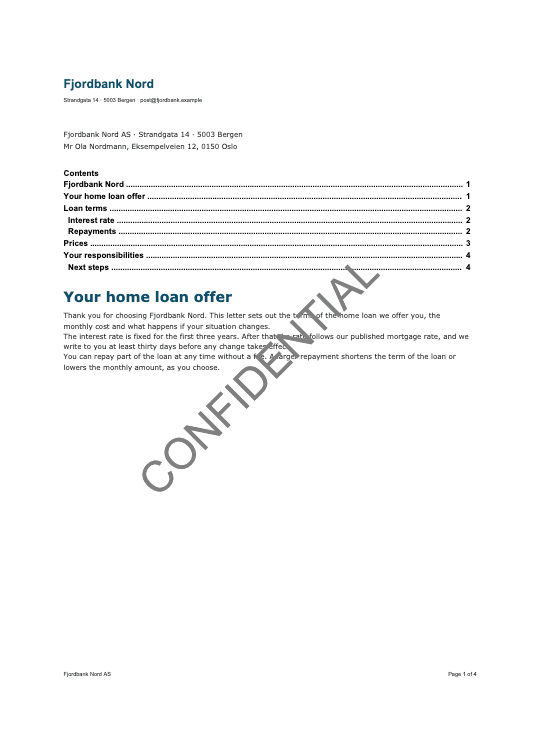
A watermark is one line of text printed across every page of the PDF, for example DRAFT or CONFIDENTIAL. A Smartform has one watermark for the whole document.
- On the PDF tab, open Watermark.
- Set Enabled to On. The other fields are grey while Enabled is Off.
- Type the Text.
- Choose a Font family. The list holds the built-in fonts and your company fonts. See Fonts.
- Set Size, Color and Rotation (degrees).
- Choose the Horizontal alignment (Left, Center or Right) and the Vertical alignment (Top, Middle or Bottom).
| Field | Values | Default |
|---|---|---|
| Enabled | Off, On | Off |
| Text | Any text | DRAFT |
| Font family | Built-in and company fonts | Inter |
| Size | 1 to 300 | 72 |
| Color | Any colour | #808080 (grey) |
| Rotation (degrees) | -360 to 360 | 315 |
| Horizontal alignment | Left, Center, Right | Center |
| Vertical alignment | Top, Middle, Bottom | Middle |
The watermark is only added to the PDF while Enabled is On. The text is printed on one line when it fits. Long text at a large Size wraps onto a second line, so lower the Size when the text is long.
Tips
- Use headers and footers for branding and page numbers, and keep margins the same on all sides unless the design needs otherwise.
- Check the result in the PDF view after each change, not only in the HTML view.