Search and shortcuts
A large Smartform can have many sections, rows and elements. The property search takes you to the one you are looking for, and a few keyboard shortcuts make common jobs faster.
Search for a property name
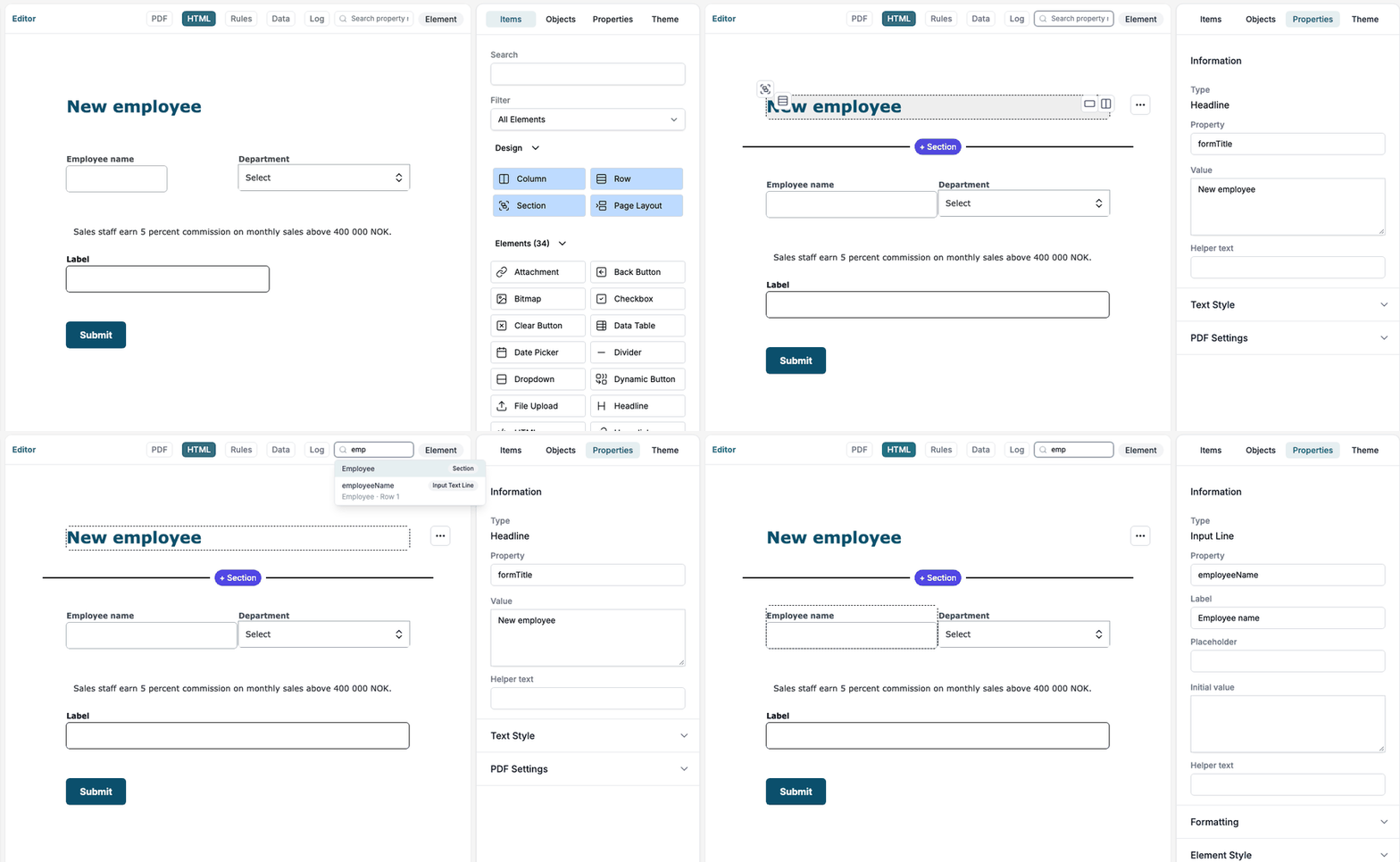
The search box sits in the header of the HTML view, to the right of the view tabs. It says Search property names….
- Press Ctrl+F, or click the box.
- Type a part of the name you look for, for example
emp. - Click a result, or use the arrow keys and press Enter.
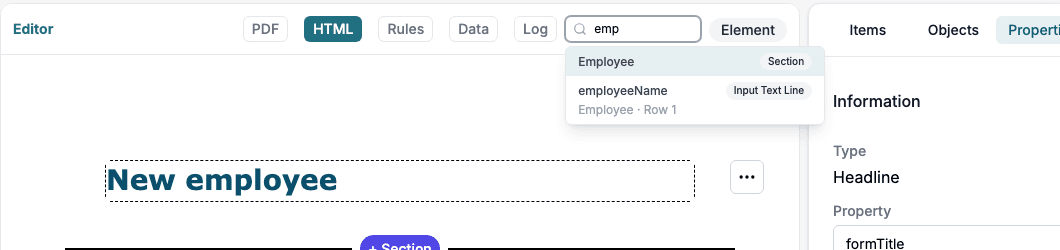
Studio selects the item and scrolls to it in the editor. For an element, the Properties tab opens with its settings, so you can change it straight away.
What you find
The search looks at the names and labels of sections, rows and elements, and at the Property names of elements. It does not matter whether you type upper or lower case letters, and the text can be any part of the name.
The results follow the order of the Smartform: a section, then its rows, and under each row its elements. Each result shows:
- The Property name of an element, or the name of a section or row.
- A badge with the kind of item: Section, Row or the type of the element, for example Input Text Line or Signature.
- Below the name, the section the item is in, and for an element also its row.
The list shows the first 30 results. Type more of the name to narrow it down. If nothing matches, the list says No matches.
An item that is hidden on the canvas, for example an element in a section that you have hidden, is greyed out and marked (hidden). You cannot jump to it. Show its section or row first.
Keys in the search box
| Key | What it does |
|---|---|
| Arrow down and Arrow up | Move through the results |
| Enter | Go to the selected result |
| Esc | Clear the search text and close the list |
Ctrl+F and your browser
Ctrl+F normally opens the search of your browser. In the designer, Ctrl+F goes to the property search instead, also when another field has the cursor. Studio leaves the shortcut to your browser in two cases:
- No pane shows the HTML view, for example when you look at PDF or Data. The search box is not there then.
- A window or the formula editor is open on top of the designer. You are typing in that window, and Ctrl+F is left alone.
With Split Screen, the search box is in the pane that shows the HTML view.
Other shortcuts
| Shortcut | What it does |
|---|---|
| Ctrl+Z | Undoes the last change |
| Ctrl+D or Shift+Delete | Removes the selected section, row, column or element |
| Ctrl+F | Goes to the property search |
Ctrl+Z, Ctrl+D and Shift+Delete do not act while the cursor is in a text field. Click the editor first.
On a Mac, these shortcuts also use the Control key, not Command. Command+F still opens the search of your browser.
💡 Tip: If you remove something by mistake, press Ctrl+Z. The Log shows what was removed and by whom.