Webhook Integration
A webhook sends the data of a submitted Smartform to an address of your own, so your system can react at once. You set webhooks up on the Smartform’s Integration tab, in the Webhooks section. Open the Smartform, click More options (the three dots after the tabs) and choose Integration.
Every host on this page follows the environment you pick here.
Add a webhook
- In the Webhooks section, click New.
- Fill in the fields below.
- Click Save.
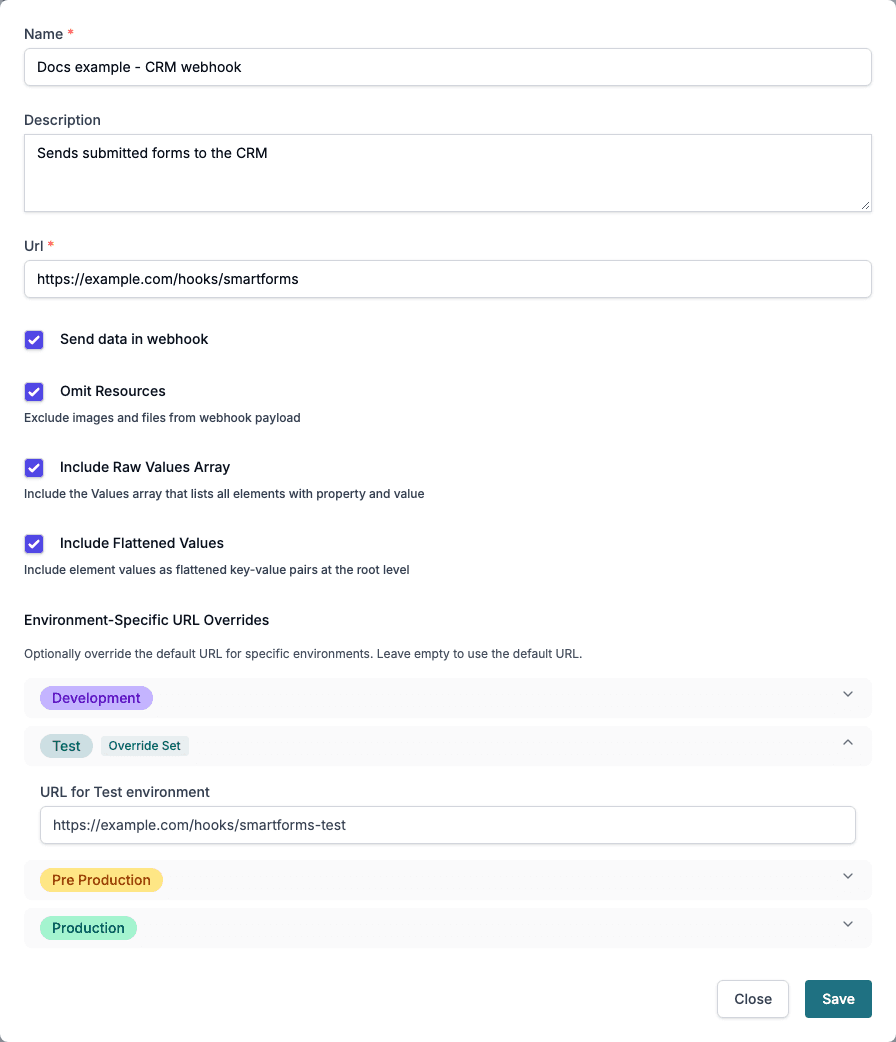
- Name: Enter a name for your webhook configuration.
- Description: An optional note about what the webhook is for.
- Url: The address that receives the data. It must be a full
httporhttpsaddress. - Send data in webhook: Enable to send form data to the webhook when submitted.
- Omit Resources: Exclude images and files from the webhook payload.
- Include Raw Values Array: Include a
Valuesarray listing the form’s elements with their property and value. TheintegrationValueslist, property name to value, is built from this array, so keep it on if you readintegrationValues. - Include Flattened Values: This switch has no effect at the moment. Read element values from the
Valuesarray orintegrationValuesinstead. - Environment-Specific URL Overrides: One address for each of Development, Test, Pre Production and Production. Click an environment to enter its address. A form that belongs to that environment is sent to its address. An environment without an override uses Url.
Use the overrides to send test forms to a test system and production forms to your live system with one webhook. A form belongs to the environment it was created in, see Environments and languages in the API and Embedded.
The list

| Column | Shows |
|---|---|
| Status | Active, or Deactive when the webhook is turned off. |
| Name | The name of the webhook. |
| WebHook | The address. |
| Data | Yes when Send data in webhook is on. |
| Omit Resources | Yes when images and files are left out. |
| Raw Values | Yes when the Values array is included. |
| Flattened Values | The setting of Include Flattened Values. |
| Created | When the webhook was created. |
Click the ⋯ (three dots) menu on a row for View Events, Activate or Deactivate, Edit and Delete.
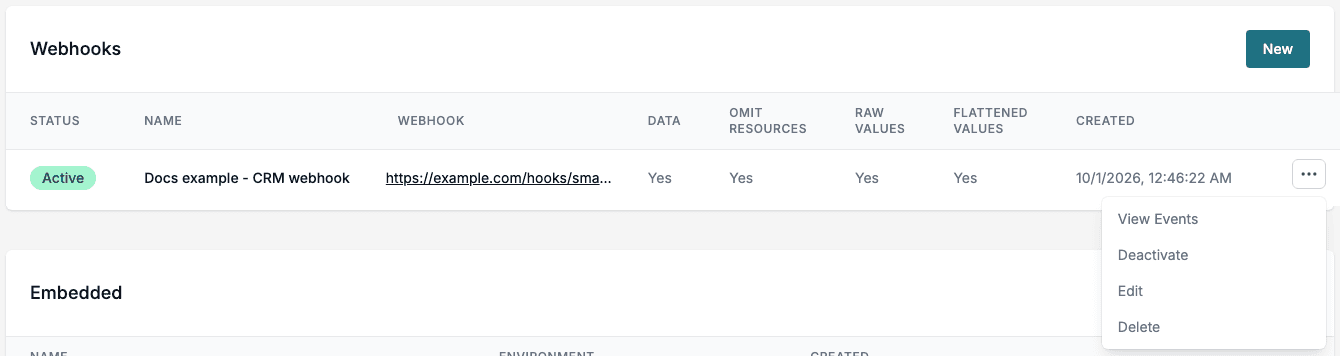
View Events
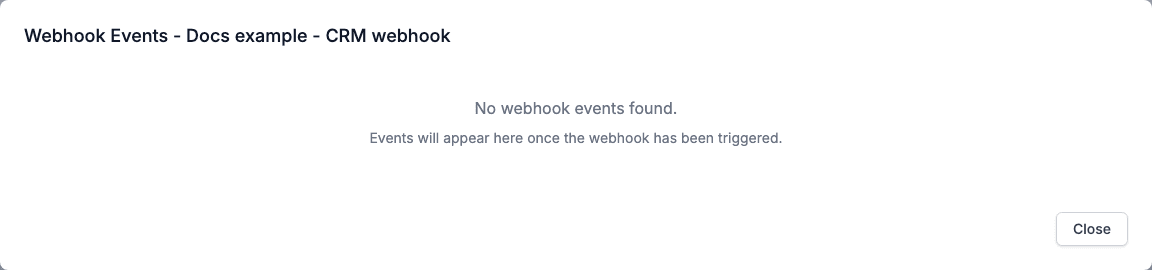
View Events lists what was sent. Each row has a Timestamp, a Status (Success or Failed), the number of Attempts and the Event ID. Click a row to see the response history, with the status code and body that your address answered. A webhook that has not been triggered shows No webhook events found.
What is sent
The webhook sends one JSON document when a form is submitted:
| Field | Meaning |
|---|---|
EventType | The kind of event. DialogValuesComplete when a form is submitted. |
CompanyId, CompanyName | Your company. |
SentBy, SentByName | The user id and the name of the person who sent the form. |
DialogDefinitionId | The id of the Smartform. |
DialogFormId | The id of the form that was submitted. |
EventId | The id of this event. It is the Event ID in View Events. |
DataUrl | The address that returns the form’s data, see Reading a form back. |
ExternalMetaData | The external metadata sent when the form was created. |
Environment | The environment the form belongs to: Development, Test, PreProduction or Production. |
IsComplete | true when the form is complete. See below. |
DataTableValues | The data table values of the form, when it has any. |
ReceiverName, ReceiverEmail, ReceiverPhoneNumber | The recipient, for a form sent to one person. |
ParticipatingParties | For a form with several steps: one entry for each party, with StepId, StepName, StepOrder, Name, Email, Phone, Nationality, SSN and BirthDate. |
Values | With Send data in webhook and Include Raw Values Array on: one entry for each element, with property, value, valueParsed and valueType. The names in an entry start with a lower-case letter. |
integrationValues | The same values as a list from property name to value. |
{
"EventType": "DialogValuesComplete",
"CompanyId": "1042",
"CompanyName": "Nordmann Example AS",
"SentBy": "6512a0c4e1b2f3a4d5c6b7a8",
"SentByName": "Ola Nordmann",
"DialogDefinitionId": "653689ddc3332022ee018626",
"DialogFormId": "6697afe9b039be06934828bc",
"EventId": "0d7c2f9e-6b1a-4c8f-9a52-3e1f7b5d2a44",
"DataUrl": "https://api.smartforms.metaforce.net/integrations/dialogvalues/6697afe9b039be06934828bc",
"ExternalMetaData": { "Case_Key": "0209384028340" },
"Environment": "Test",
"IsComplete": true,
"ReceiverName": "Kari Nordmann",
"ReceiverEmail": "kari.nordmann@example.com",
"ReceiverPhoneNumber": "+4670000000",
"Values": [
  { "property": "employeeName", "value": "Kari Nordmann", "valueParsed": "Kari Nordmann", "valueType": "string" },
  { "property": "department", "value": "Sales", "valueParsed": "Sales", "valueType": "string" }
],
"integrationValues": {
  "employeeName": "Kari Nordmann",
  "department": "Sales"
}
}
IsComplete
IsComplete is true when the record was submitted. A Smartform with no submit button has nothing to submit, so IsComplete is always true for it. Use it to tell a finished form from one that is still in progress. The field is part of the event that is sent when a form is submitted.
Values hidden by rules
A value that a show or hide rule hides for that form is not in Values or integrationValues. The payload holds what the person saw. An element that is only excluded from the PDF is still sent.
Answers typed into editable text are not part of the webhook payload. To read them, fetch the form through the REST API with readableValues=true; see Reading a form back.
💡 Use webhooks to automate integrations and trigger workflows in external systems when your Smartforms are submitted.