Split Screen
The Split Screen feature in Smartform Design lets you work with your form layout and supporting tools side-by-side, streamlining both design and testing.
Layout and Views
-
Open Split Screen:
Click Split Screen in the View group of the Actions tab. Click Single Screen to go back to one pane. You can also press and hold the active view tab above the canvas to open Split Screen. -
Two panes, any view:
Each pane has its own row of tabs, such as HTML, PDF, Rules and Data. Choose any of them in either pane. -
Default layout:
When you open Split Screen, the left pane keeps the view you had open, usually HTML, and the right pane shows Rules. If the left pane already shows Rules, the right pane shows HTML. -
Swap the panes:
The tab of the view that is open in the other pane is greyed out. Click it to swap the two panes. -
Resize the panes:
Drag the divider between the panes to make one wider.
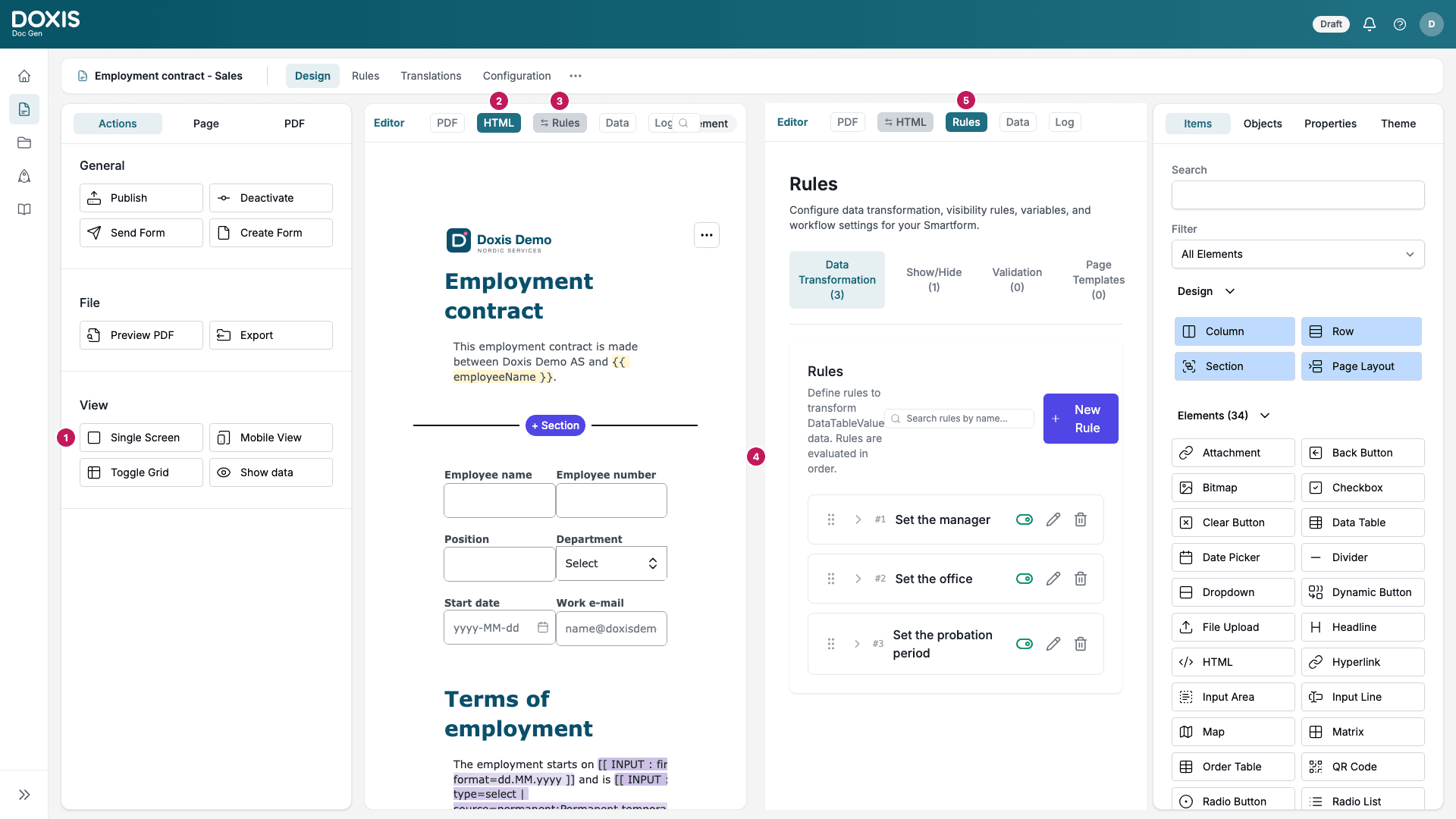
- Single Screen goes back to one pane. With one pane, the same button reads Split Screen.
- The tabs of the left pane. HTML is open here.
- Rules is greyed out in the left pane because the right pane shows it. Click it to swap the panes.
- The divider. Drag it to resize the panes.
- The tabs of the right pane. Rules is open here.
1. Data View
- Create Dataset: Define and manage the structure and sample data for your form.
- JSON Body Preview: View and edit the raw JSON representation of your dataset.
- Add Test Data: Enter demo values to simulate user input.
- cURL Generation: Generate a cURL command for API integration and testing.
2. PDF View
- PDF Preview: See how the PDF generated from your Smartform will look. The PDF view is read-only.
- Refresh: After you make changes in the HTML view, click Refresh at the top of the PDF pane to update the PDF preview.
- Zoom and open: Use Zoom in, Zoom out and Fit width to change the size, or Open in new tab to see the PDF in its own browser tab.
3. HTML View
- Form Designer: This is your main workspace for building and editing the Smartform. It can be in either pane.
4. Rules View
- Rules next to the form: The Rules view shows the same rules as the Rules tab, so you can work on rules while the form stays in view.
- Edit a rule: Opening a rule to edit it shows the rule editor on top of the Rules pane. Click Cancel, or save the rule, to close it. While the editor is open, you cannot switch the Rules pane to another view or swap the panes.
- See what a rule uses: With a Show/Hide or Data Transformation rule open and the HTML view in the other pane, the sections, rows and elements the rule reads or changes are marked on the canvas. Each part of the rule has its own color: the IF conditions, the THEN actions and the ELSE actions.
- Navigate: Click the navigate icon next to a condition, target or action to scroll the HTML view to that item. The icon is only shown in Split Screen.
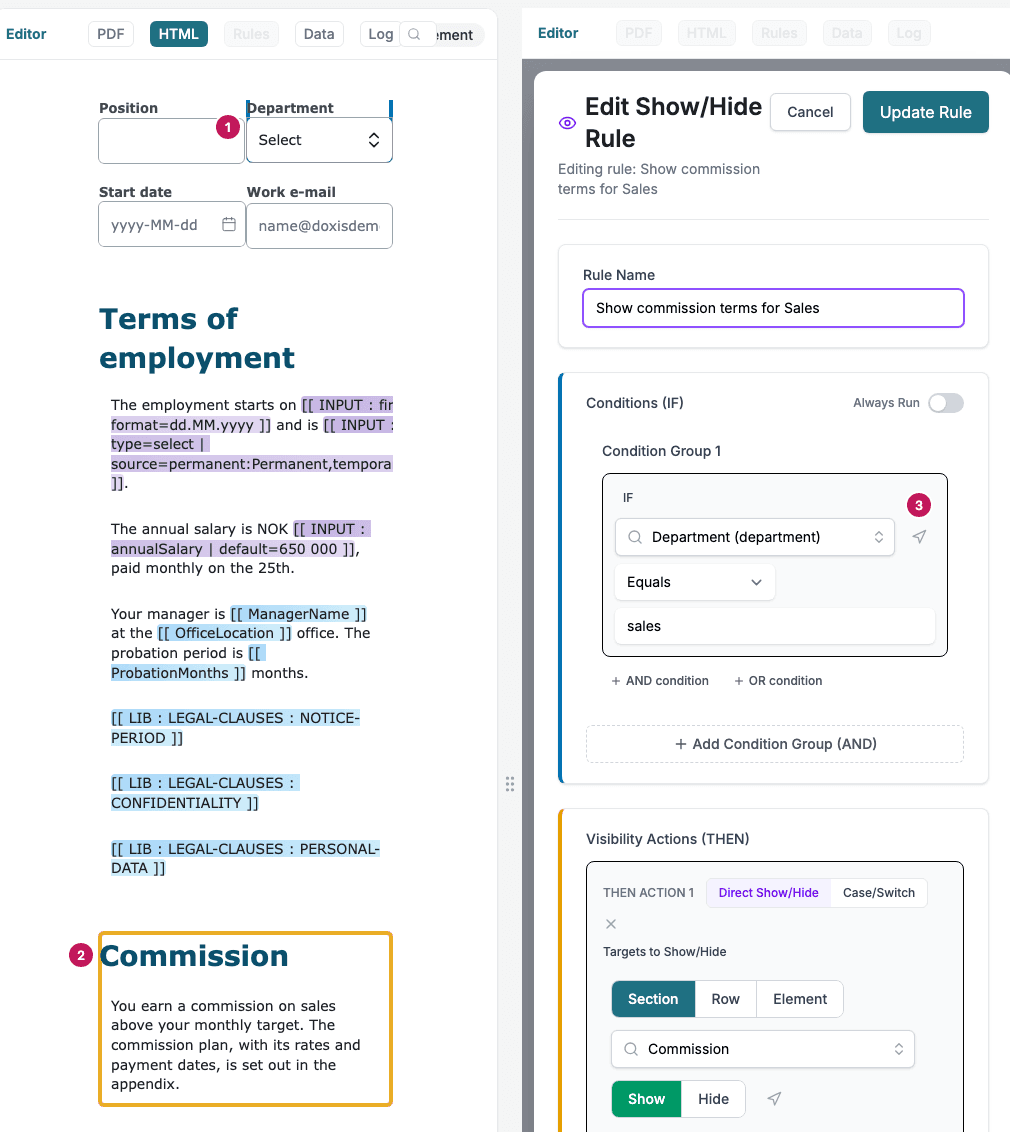
- Department, the field the rule’s IF condition reads, is marked in the condition color.
- The Commission section, which the rule shows, is marked in the THEN color.
- The navigate icon next to the condition scrolls the HTML view to Department.
💡 Tip: Use Split Screen to quickly switch between designing your form, testing data flows, and previewing the final PDF output.