Import a JSON Smartform
A JSON file can hold a whole Smartform. Import one to copy a Smartform to another company or environment, or to restore one. This page is part of Import Smartforms.
Get the file
- In the Smartforms list, open the row menu of a Smartform and click Export.
- In the version list of a Smartform, click Download on a version. See Smartform versions.
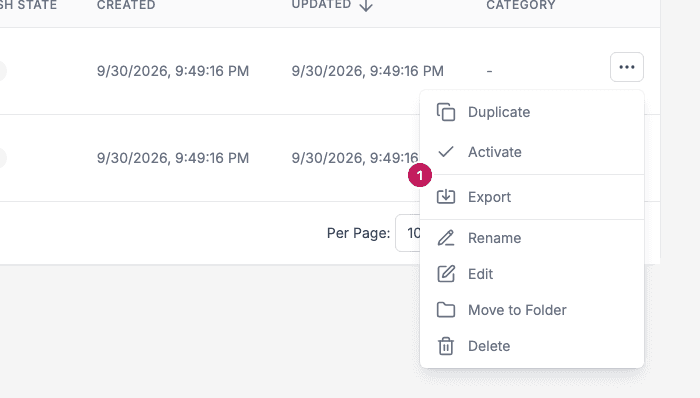
Import one file
- Go to SmartForms and click Import.
- Click Upload PDFs or JSON (or Upload a file in the single-file import) and choose one JSON file. The Import JSON SmartForm screen opens.
- Check the file and change the SmartForm Name if you want another name.
- Click Import. The new Smartform opens in the designer.
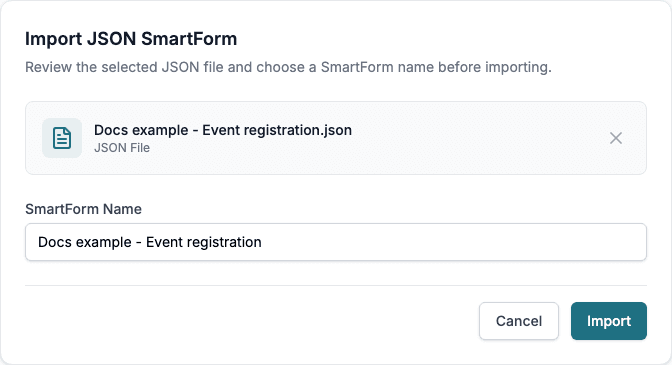
If the screen says Invalid JSON file, the file is not a Smartform that Studio can read.
Import several files, or together with PDFs
Choose more than one file, or add a JSON file after a PDF, and the files go in a batch. See Upload PDFs and JSON files.
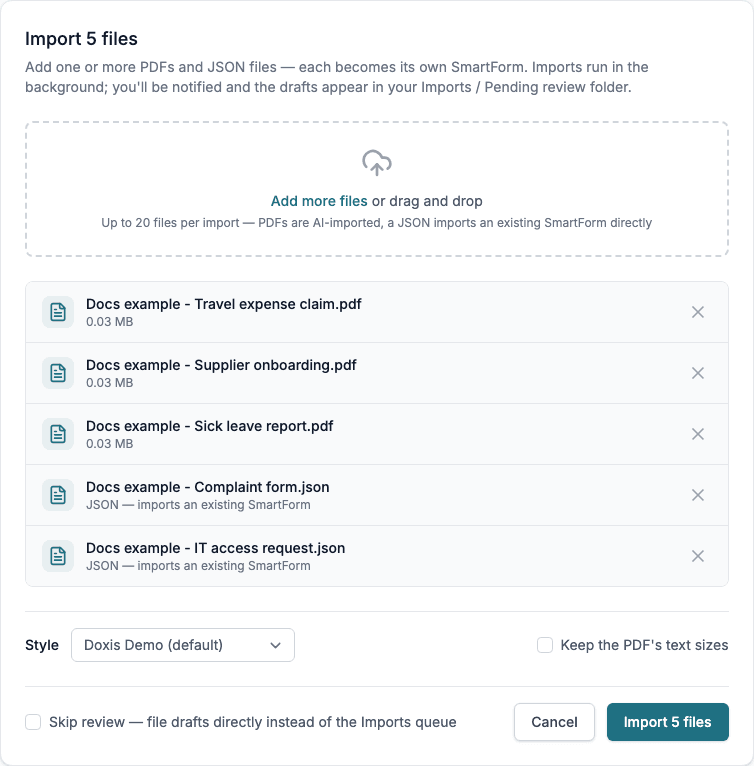
A JSON file in a batch is imported at once, with nothing to review:
- The Smartform is created in the folder you started the import from, or in Home. It is never put in Imports / Pending review.
- It starts as a Draft and Inactive. Click Activate in its row menu when you want to publish it. Open draft on the progress page opens it in the designer.
- The name in the file is used. If the file has no name, the name of the file is used.
What is kept
Studio gives the new Smartform new internal ids, sets it to Draft, and clears the dates, the folder and the record links of the original. Design, rules and settings stay as they were.
When you import into another company, open the Smartform in the designer and check items that point to something stored in your company, such as texts from the Text Library, Smartform objects or images from Resources.
Smartform templates
Import Smartform under Templates → Smartforms also imports a file, but it creates a template that you use when you create new forms. See Smartform Templates. The Import button on the Smartforms page creates a Smartform.