Generate PDFs in the background
Use Generate pdf on the Records tab to start a PDF from a record without waiting for it. Studio renders the document in the background and shows its progress on the Generate PDF screen, where you download it when it is ready. This page is for Studio users. Developers who render many records from their own system use the render batch API.
📝 Note: If the Records tab shows Download pdf instead of Generate pdf, background generation is not turned on for your environment. Download pdf makes Studio build the PDF while you wait and saves it straight away. The rest of this page then does not apply, and Records describes the button.
Generate a PDF
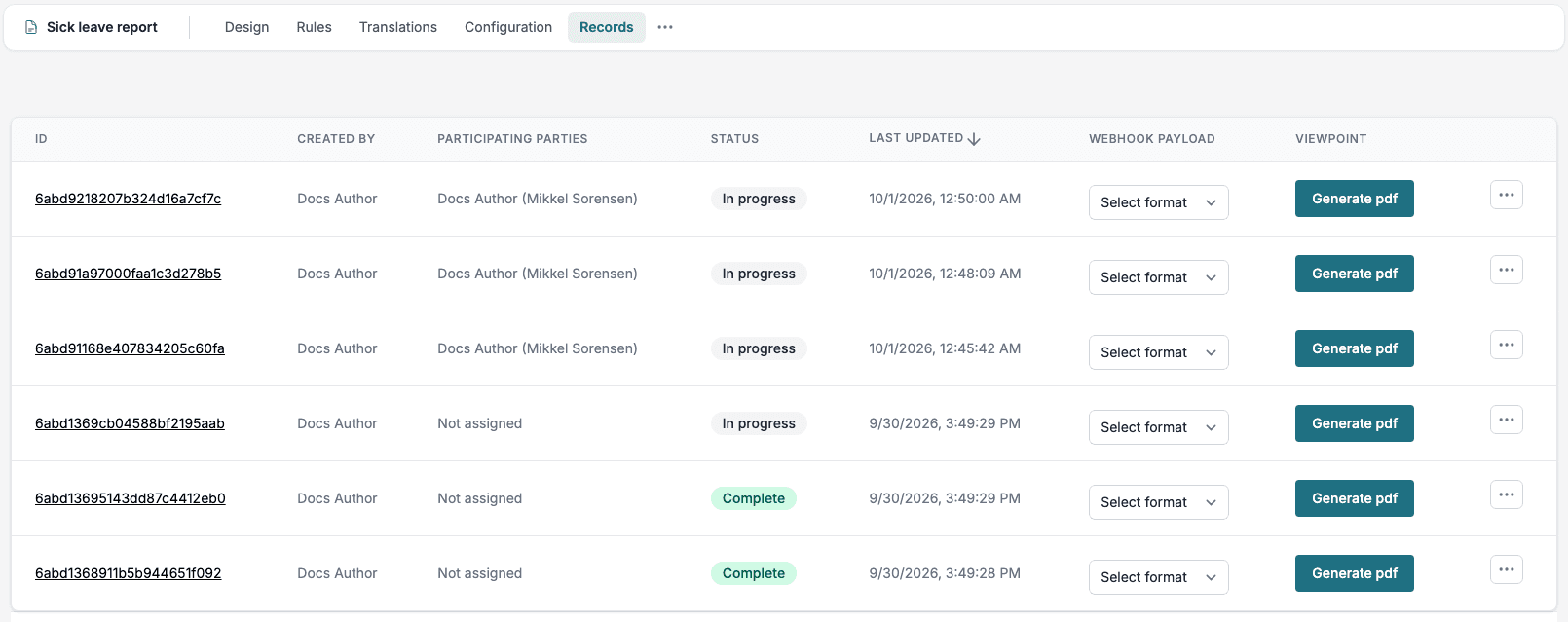
- Open the Smartform in Studio. Click More options (the three dots after the tabs) and choose Records.
- Find the record. Click Generate pdf in the ViewPoint column.
- Studio shows 1 document queued and the text Your PDF is being generated in the background. above the table.
- Click View progress. Click Close if you want to stay on Records.
- On the Generate PDF screen, the summary says Generating 1 document… and the bar shows 0 of 1 processed.
- When the summary says All 1 document generated, click Download on the document’s row, or Download result.
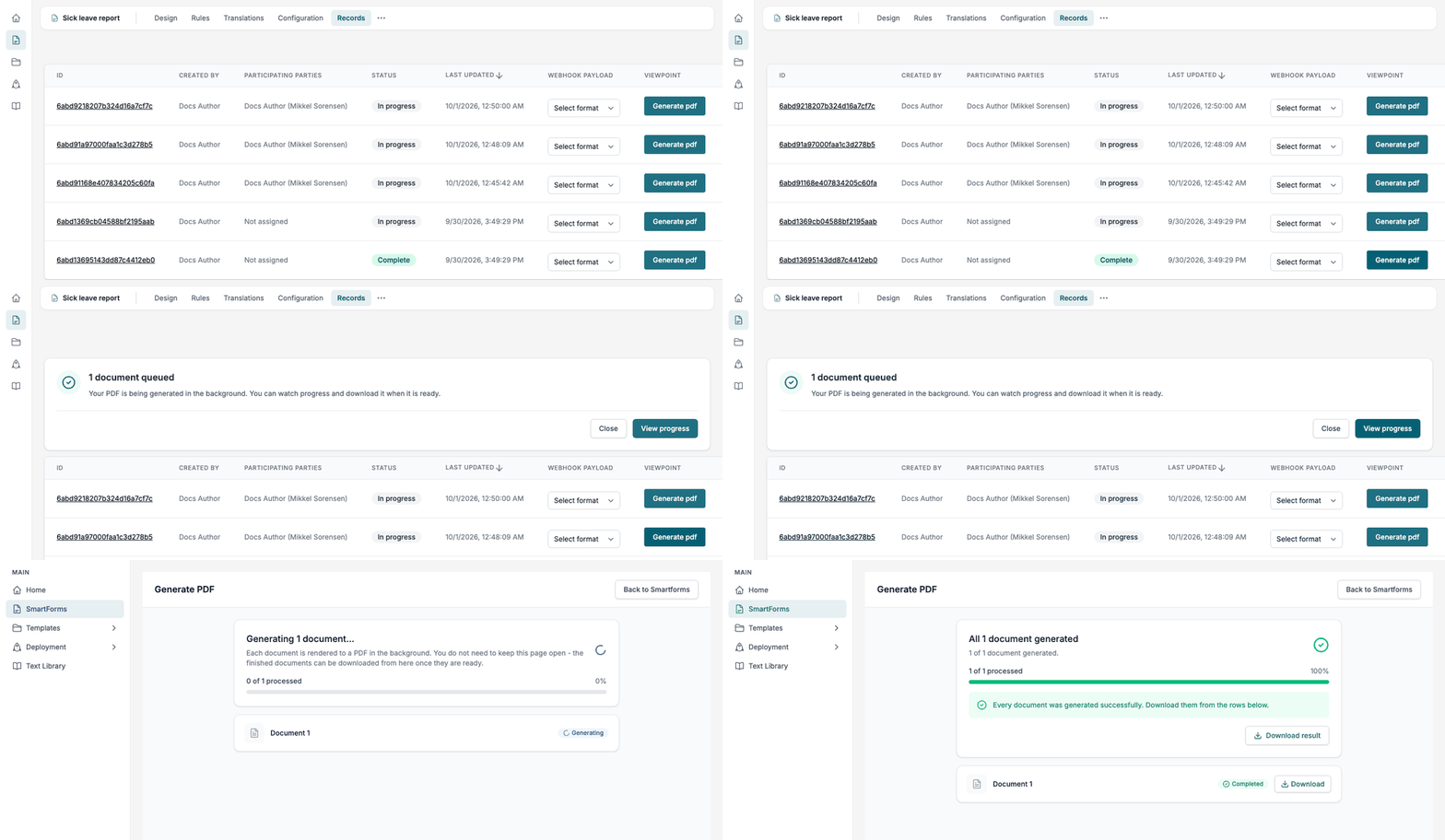

You do not need to keep the Generate PDF screen open. Its address contains the number of the generation. Open the same address later, or from the browser history, to see the result again.
The Generate PDF screen
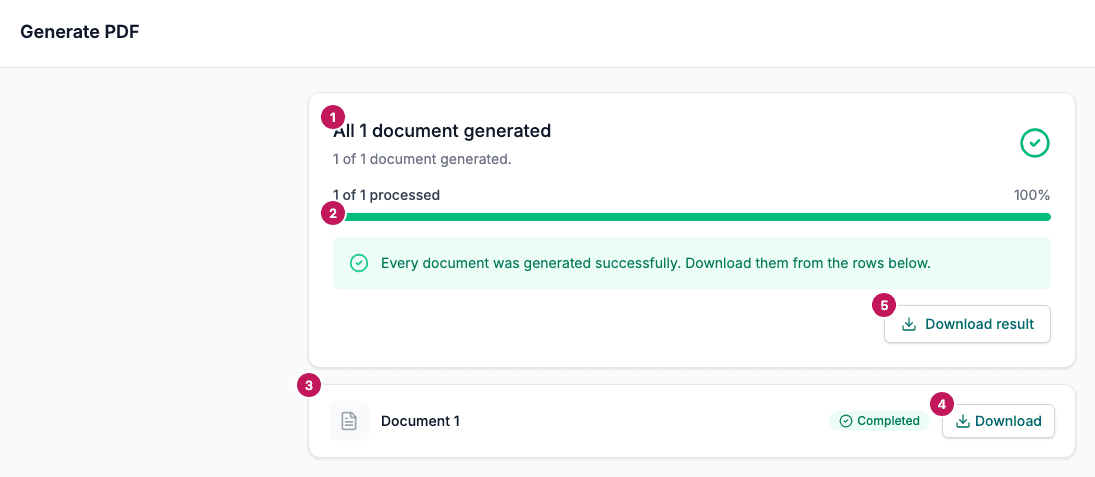
- Summary. The heading tells how it went, for example Generating 1 document… or All 1 document generated. While the documents are made, the line under it says that you do not need to keep the page open. When the generation is over, it counts the documents that were generated.
- Progress bar. N of M processed and a percentage. The bar is green when every document went well and amber when some failed.
- Document row. One row for each document, with its name and its status.
- Download. Saves that one document as a PDF. It shows on a row only when that document is finished.
- Download result. Saves the whole generation. It shows only when every document was generated.
Back to Smartforms at the top of the screen leaves the screen. It does not stop the generation.
Document statuses
| Status | Meaning |
|---|---|
| Queued | The document is waiting for its turn. |
| Generating | The document is being rendered. |
| Retrying | The first attempt did not work and Studio is trying again. |
| Completed | The PDF is ready. Download is available. |
| Failed | The document could not be generated. The row says This document could not be generated. and may add a short technical reason. |
| Cancelled | The generation was stopped before this document was made. |
Summary headings
| Heading | When |
|---|---|
| Generating N documents… | Some documents are still waiting or being rendered. |
| All N documents generated | Every document is ready. |
| Generation finished with N failure(s) | The generation is over and some documents could not be generated. The message says how many were generated and that the others should be fixed and generated again. |
| Generation cancelled | The generation was stopped. The documents that finished can still be downloaded. |
Good to know
- Download result appears only when every document succeeded. With failures, or after a cancel, download the finished documents one by one from their rows.
- Studio generates one document for each click on Generate pdf. Click it on another record to start another generation.
- A row is named after the record’s participating parties. If the record has none, it is named after the receiver, and otherwise Document 1. The downloaded file is called after the same name, for example
Kari Nordmann.pdf. If you open the screen in a new browser tab, or after the browser has been closed, the rows show Document 1, Document 2 and so on. - The screen checks for updates every two seconds. If it cannot reach the server it says Having trouble reaching the server and keeps trying. After repeated failures it stops and says Stopped checking for updates after repeated connection failures. The generation keeps running. Reload the page to see it again.
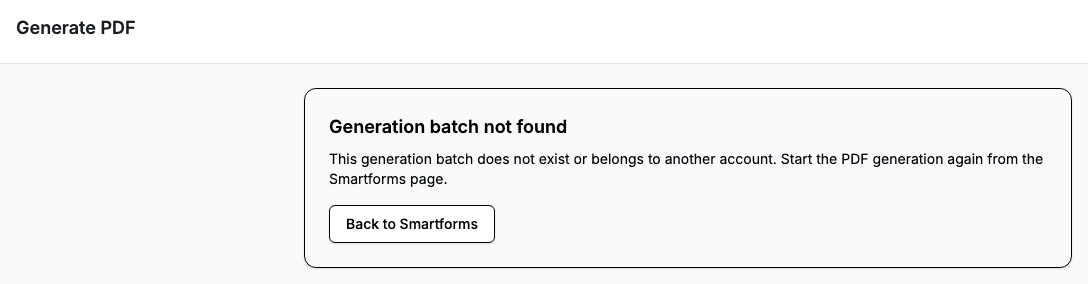
- Generation batch not found means the address is wrong or belongs to another company. Go back to Records and click Generate pdf again.
Related pages
- Records lists the records and their other actions.
- Render PDFs with the API is the same function for developers.