Show/Hide
Show/Hide rules show or hide sections, rows and single elements in a Smartform, based on what people enter or on the data passed into the form. Variables are optional: a rule can read form elements directly.
Example: when Customer type is Company, show the section Company details.
The rule list
Open the Smartform in Studio, click Rules and then Show/Hide. The list works like the one on Data Transformation: rules run in order, you can drag them to reorder, turn them on and off, edit and delete them. Click the arrow on a rule to see its conditions and actions. A rule without conditions shows Always runs.
Create a rule
- On the Show/Hide tab, click New Rule.
- Enter a Rule Name.
- Under Conditions (IF), leave Always Run on for a rule that always applies. Turn it off to add conditions.
- Search for a variable or a form element in Search variables or elements…, choose an operator and enter a value. AND condition, OR condition and Add Condition Group (AND) add more conditions.
- Under Visibility Actions (THEN), choose Direct Show/Hide or Case/Switch.
- Under Targets to Show/Hide, choose Section, Row or Element, search for the target, and choose Show or Hide. + Add Target adds another target.
- Optional: use Visibility Actions (ELSE) - Optional for what should happen when the conditions are not met.
- Click Create Rule. When you edit a rule the button is Update Rule. Cancel leaves without saving.
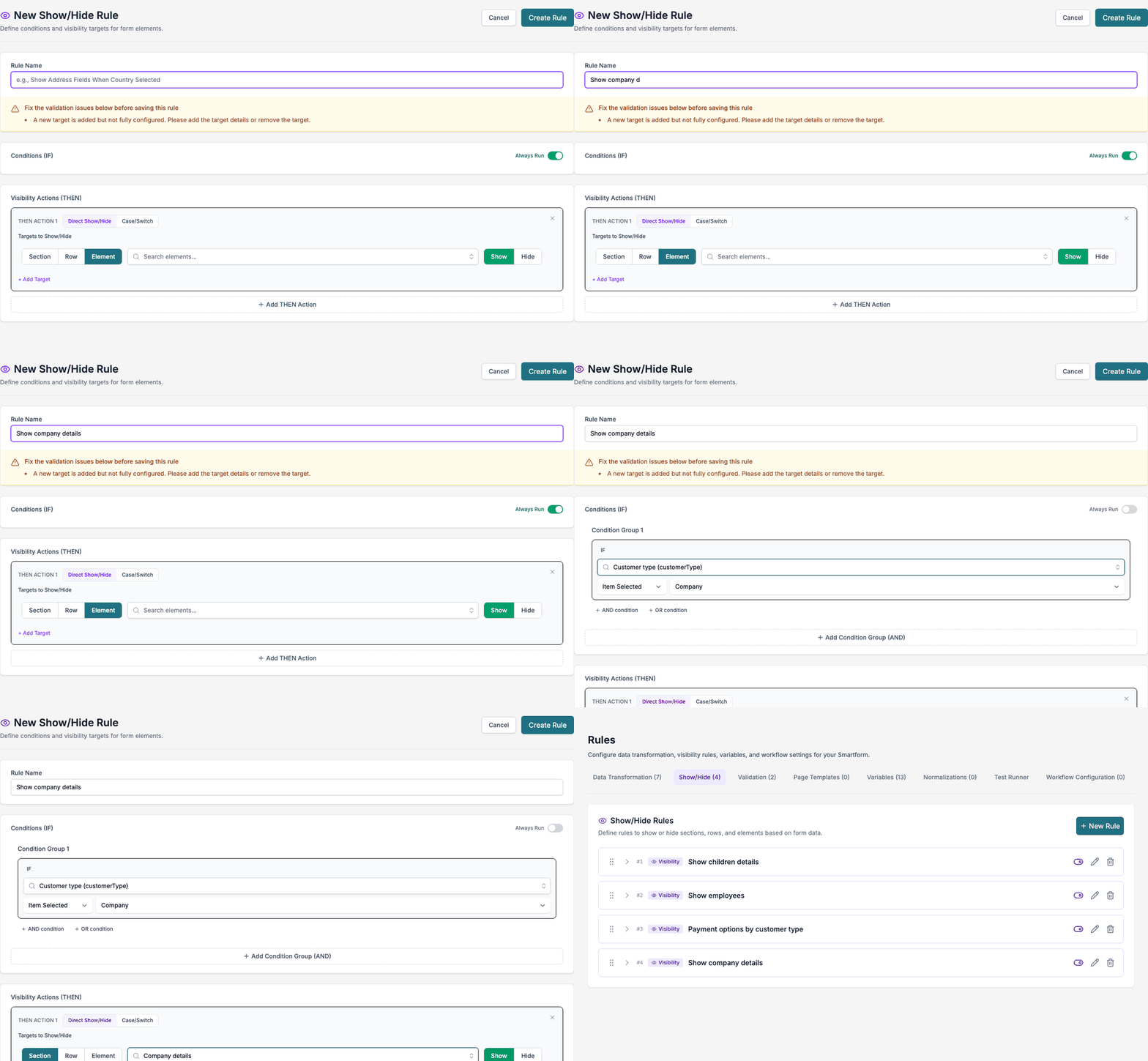
The operators depend on what you choose in the condition:
| Condition on | Operators |
|---|---|
| A dropdown, a radio list or a group of radio buttons | Item Selected, Equals, Not Equals, Contains, Is Empty, Is Not Empty |
| Text, number and other fields | Equals, Not Equals, Greater Than, Less Than, Contains, Is Empty, Is Not Empty |
| A checkbox, a switch or a boolean variable | Is True, Is False |
| A table variable or a table in the form | Count Equals, Count Not Equals, Count Greater Than, Count Less Than, Count >=, Count <=, Is Empty (Count = 0), Is Not Empty (Count > 0) |
When the conditions are not met
- If the rule has an ELSE action, the ELSE action runs.
- If the rule has no ELSE action, every target of the THEN action gets the opposite effect: a target that the rule would Show is Hidden, and a target it would Hide is Shown.
So the rule above needs no ELSE. The section Company details is hidden when Customer type is anything else. The same applies when the form is turned into a PDF.
Case/Switch
Use Case/Switch when one value decides between several outcomes.
- Choose the value in Switch on Variable.
- Under Cases, enter the operator and the value after WHEN, and add the targets to show or hide. Add Case adds a case.
- Under Default (when no case matches), add the targets for all other values.
Radio buttons
The radio buttons in a row are one target, listed as Radio Button Group with the name of the group, for example Radio Button Group – Payment method. Hide hides the whole group.

Checks before a rule is saved
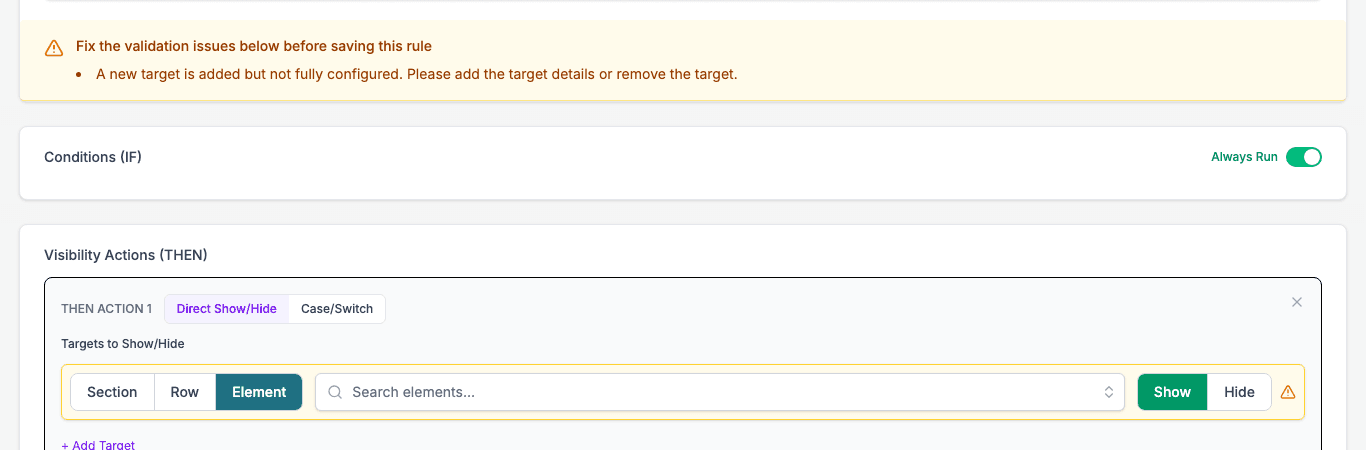
Studio shows the problems above the rule and does not save until they are fixed:
- Enter a rule name.
- A new target is added but not fully configured. Please add the target details or remove the target. Choose a target or remove the empty one.
If a target or a condition points to an element that has been removed from the form, Studio shows a warning next to it.
Delete a rule
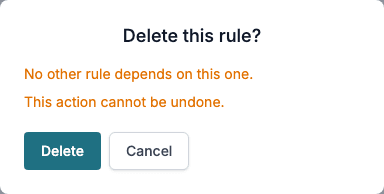
Click the bin on a rule. Studio asks Delete this rule? and says No other rule depends on this one. Click Delete or Cancel. A deleted rule cannot be restored.
In a PDF
With the Pages 2.0 engine, Show/Hide rules are applied when the PDF is generated. A section that the rules hide is left out. Validation rules are not applied to PDFs.
Dependencies and notes
- Variables are optional for Show/Hide.
- Data Transformation rules run before Show/Hide, so a rule can use the variables they set.
- Several rules can affect the same target.
- Check Show/Hide rules with the Test Runner.
- In Split Screen you can see the elements a rule uses on the form.