Using the Doc Composer
A Doc Composer form opens with a toolbar above the form. You write the document in the form, insert standard texts from the Text Library, check the PDF, and then submit or distribute it. How the form is set up in Studio is described in Set Up the Doc Composer.
The editing screen
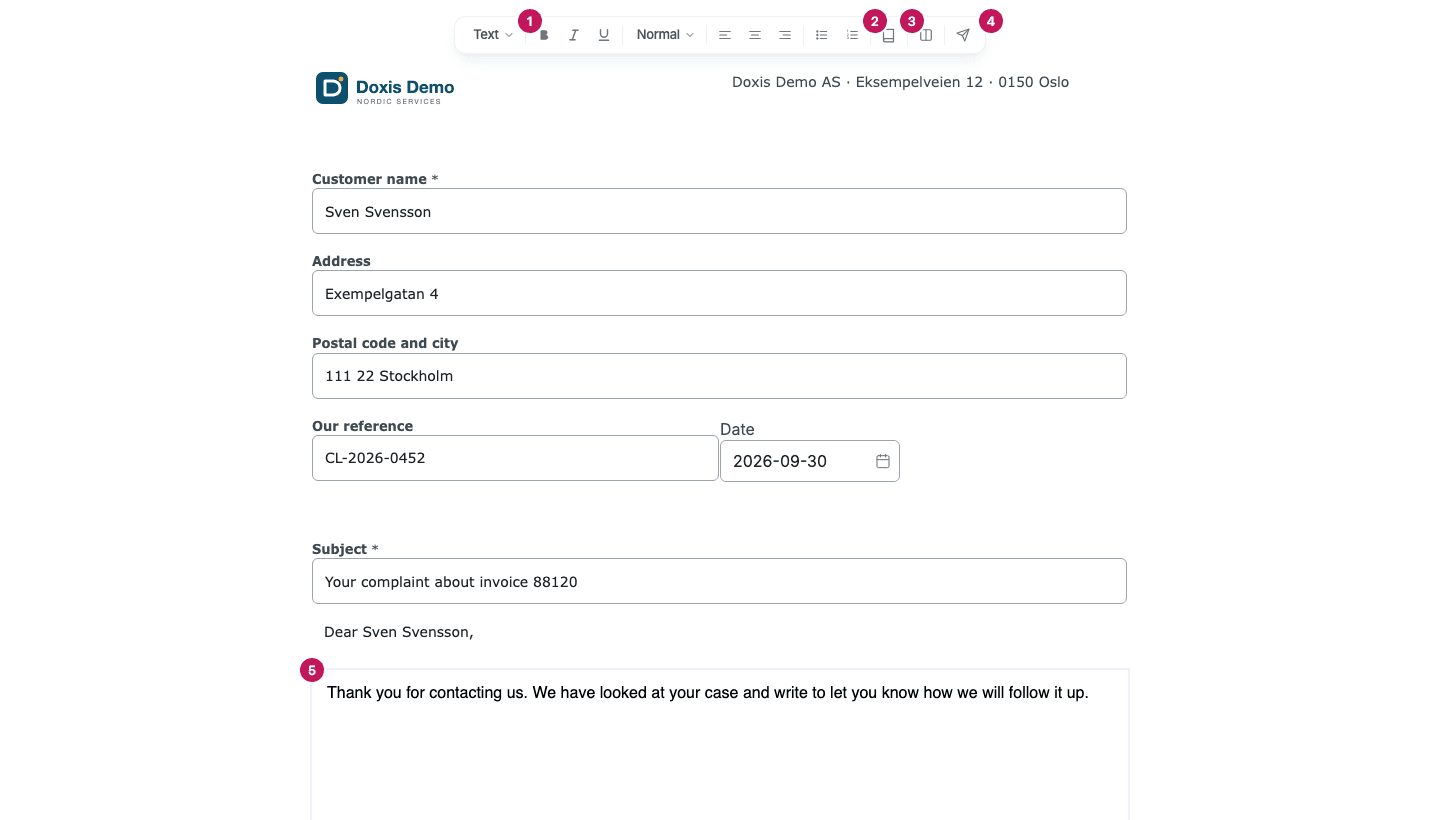
- Formatting: the Text style menu and the formatting buttons of the toolbar, for example Bold (Ctrl+B), Italic (Ctrl+I), Underline (Ctrl+U), Font Size, alignment and lists. They work on the text field you are in.
- Text Library: search for a standard text and insert it.
- Split Screen: show the PDF beside the form.
- Submit, or Distribute document when the Smartform has a Distribution List.
- The text field you write in.
Which buttons you see depends on the toolbar chosen for the Smartform. The document icon at the top right (Generate preview) downloads the PDF.
📝 Note: The formatting buttons stay grey until you click in a text field.
Write and format
Click in the text field and type. Select text and use the formatting buttons to change it.
Your changes are saved automatically about two seconds after you stop typing, and the label at the top left then shows Saved. Right after you open a form, the label can show …Saving before you have changed anything. Check for Saved after your last change.
Insert a text from the Text Library
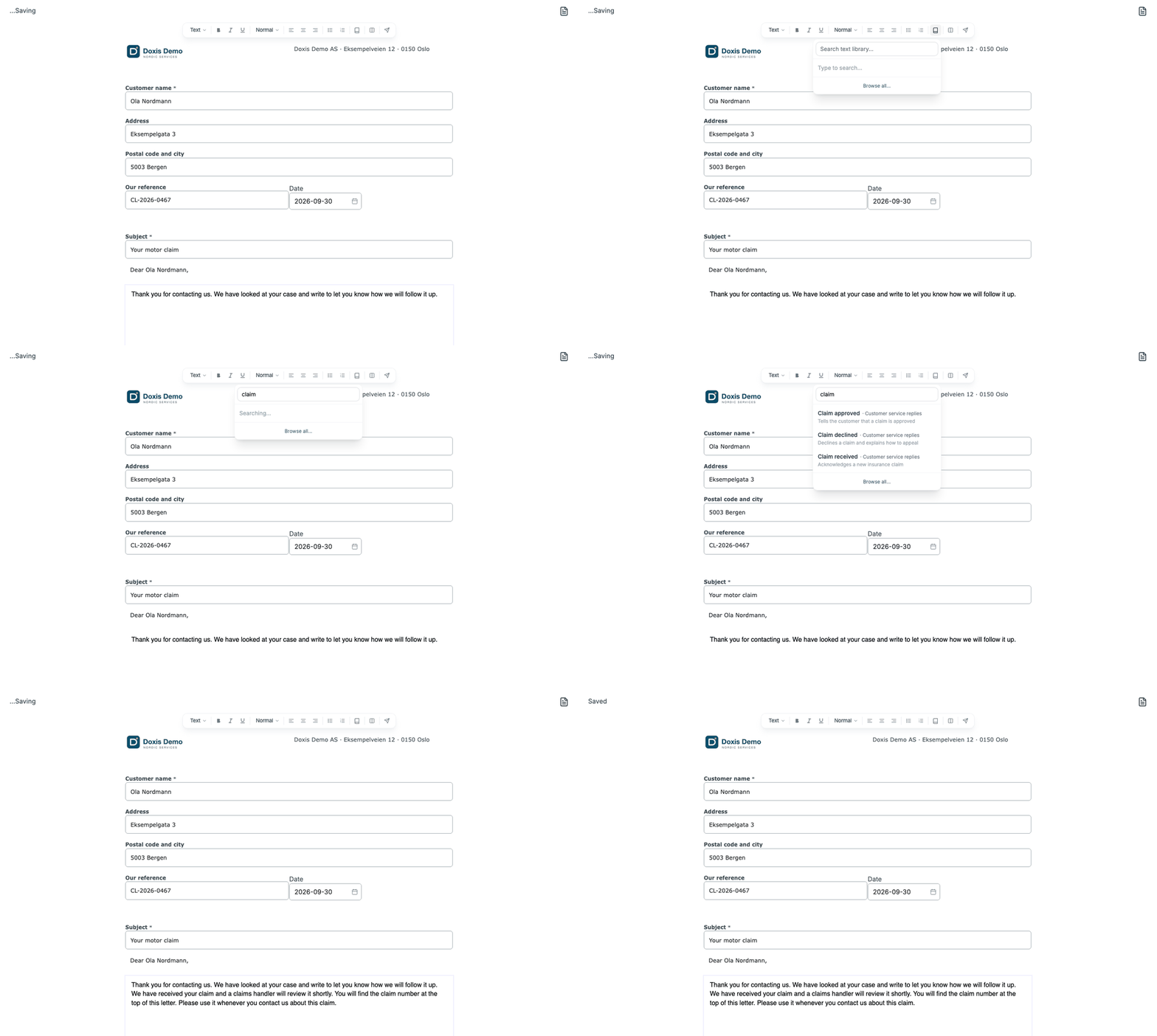
- Click in the text where the new text should go.
- Click Text Library in the toolbar.
- Type part of the text’s name, code or description.
- Click the text in the list. It is inserted where your cursor is.
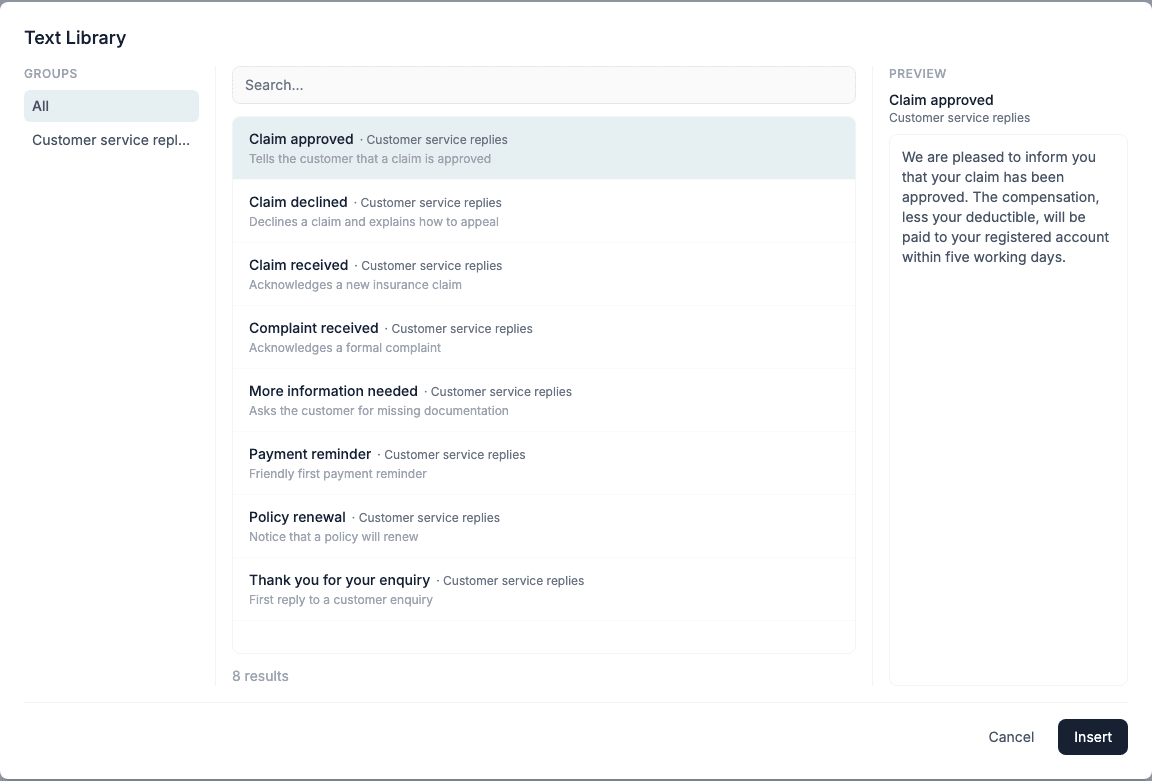
To see all texts, click Browse all… at the bottom of the list. The Text Library window shows the folders under Groups, a Search… box, and a Preview of the text you select. Click Insert to add the selected text, or Cancel to close the window.
- The search looks in the names, codes and descriptions of the texts, not in their content.
- Each result shows the folder it comes from, so texts with the same name in different folders can be told apart.
- In a Rich Text field you get formatted texts. In an ordinary text field you get plain texts, and the text is inserted without formatting.
- Always click in the text first. Insert adds the text at the cursor, so without a selected field nothing is added.
Which texts are offered is decided in Studio. See Offer Text Library texts.
Check the PDF beside the form
- Click Split Screen in the toolbar. The PDF of the form opens on the left half of the screen.
- After you make changes, click Refresh PDF to update it.
- Click Single Screen to close the PDF.
The form saves your current text before it makes the PDF, so the PDF shows what you have written.
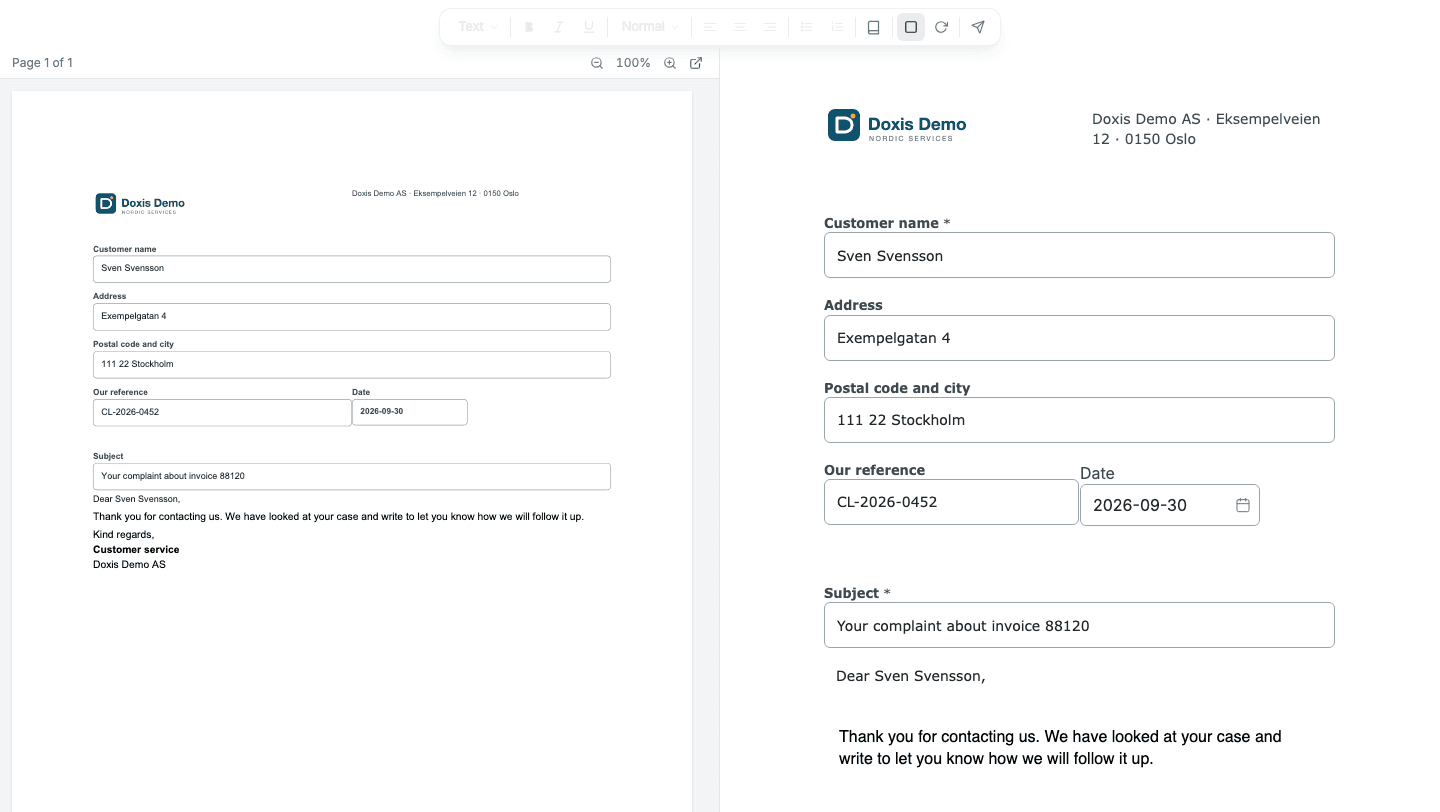
To open a form with the PDF already showing, add split=true to the form’s link. You can still close the PDF with Single Screen.
Submit or distribute
The send button at the end of the toolbar finishes the document.
- Submit: the Smartform has no Distribution List. The form checks the required fields and is then completed. After that it can no longer be changed.
- Distribute document: the Smartform has a Distribution List. The form checks the fields, then the Distribute Document window shows the Distribution alternatives. Choose how the document is distributed and click OK. Distribution Lists describes the window, its checks and what the workflow receives.
Distributing needs a workflow connected to the Smartform. Without one, the form shows No workflow is associated with this smartform.
The PDF
The finished document is the Smartform’s PDF. Generate preview at the top right downloads it.