Variables and placeholders
A Smartform can show values that you do not type in yourself: what the person has entered in another field, data your system sends when it creates the form, a text from the Studio Text Library, or a word the person types straight into one of your sentences. You add these values with placeholders in the text of the Smartform. Doc Gen replaces each placeholder with its value on the form and in the PDF.
How it works. Values reach a Smartform from four places: your system or Workflow when the form is created, the Rules of the Smartform, the Studio Text Library, and the person filling in the form. The placeholders in your text decide where each value is shown.
Placeholders at a glance
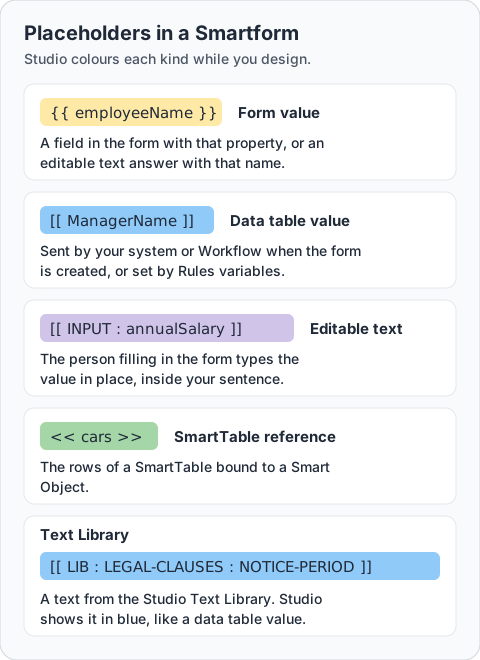
| Placeholder | Example | The value comes from | Colour in Studio |
|---|---|---|---|
| Form value | {{ employeeName }} | A field in the form with that property, or an editable text answer with that name | Yellow |
| Data table value | [[ ManagerName ]] | The data table values your system or Workflow sends when it creates the form, or a variable in Rules → Variables | Blue |
| Editable text | [[ INPUT : annualSalary ]] | The person filling in the form types it in place | Purple |
| SmartTable reference | << cars >> | The rows of a SmartTable element | Green |
| Text Library text | [[ LIB : LEGAL-CLAUSES : NOTICE-PERIOD ]] | The Studio Text Library | Blue |
Always put a space on both sides of the name inside the brackets, for example [[ ManagerName ]], not [[ManagerName]]. The form only fills in a data table placeholder that has these spaces, and Studio only colours placeholders that have them.
See it in Studio
This is an employment contract Smartform in the Studio designer:
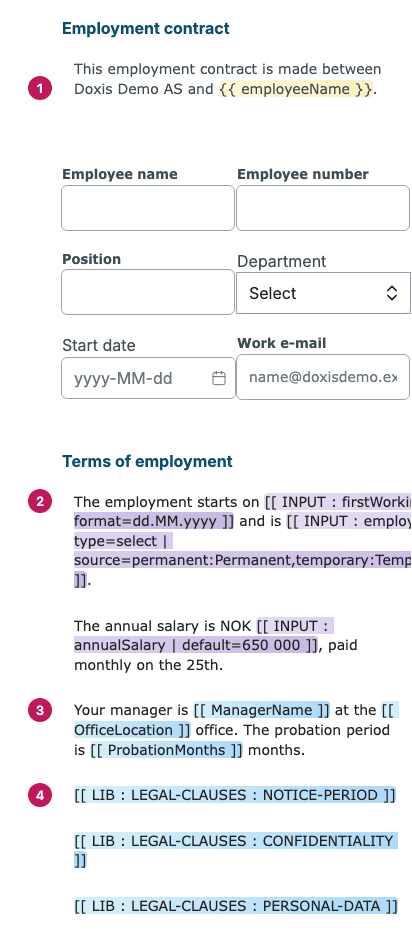
{{ employeeName }}in yellow shows what the person types in the Employee name field below it.[[ INPUT : firstWorkingDay | … ]]in purple is editable text: the person picks the first working day and the type of employment, and can change the salary, all inside the sentences.[[ ManagerName ]]in blue is a data table value. Here a Data Transformation rule sets it, together with[[ OfficeLocation ]]and[[ ProbationMonths ]].[[ LIB : LEGAL-CLAUSES : NOTICE-PERIOD ]], also in blue, is a Text Library reference: the form shows the notice period clause from the Text Library.
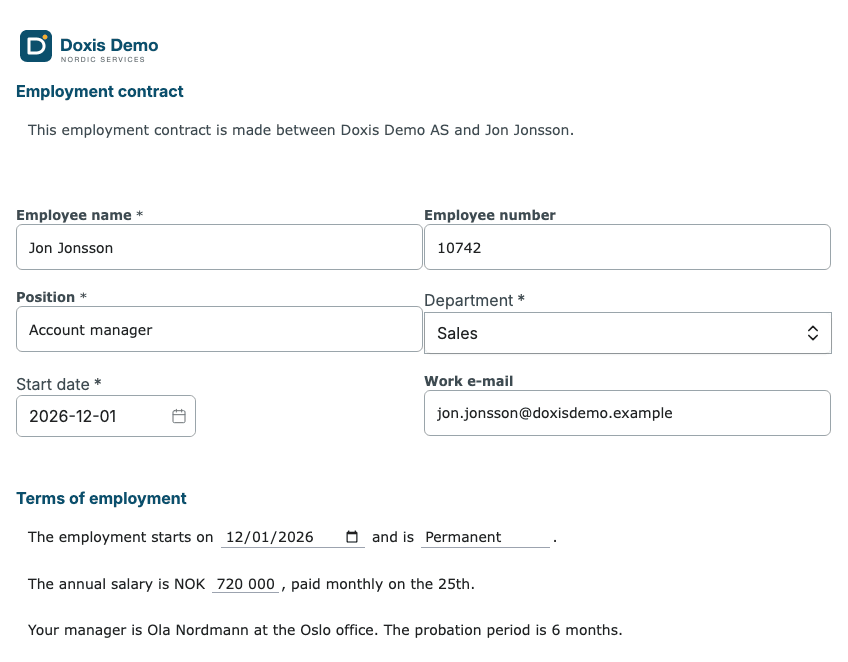
On the form, the person sees the values instead of the placeholders:
Form values {{ }}
Write the Property of a field between double curly brackets, for example {{ employeeName }}. You find the property on the field’s Properties tab in the designer.
- The value updates while the person types in the field.
- For a dropdown or radio list, the placeholder shows the display text of the chosen option.
- An editable text answer can be shown the same way, with the name of the editable text:
{{ annualSalary }}. - When the field is empty, the placeholder shows nothing on the form.
On the form you can also add a part after a dot:
| Placeholder | Shows |
|---|---|
{{ employeeName.label }} | The label of the field, when the placeholder starts a line |
{{ department.value }} | The stored value of the field, for example sales |
{{ department.display }} | The display text of the chosen option in a dropdown or radio list, for example Sales |
{{ attachments.count }} | The number of uploaded files in a File Upload field |
{{ attachments.filenames }} | The names of the uploaded files in a File Upload field |
Data table values [[ ]]
Data table values are data that comes with the form but is not typed into a field, for example a manager’s name, an address you want to show before the person changes it, or a text chosen by a rule. Write the name of the value between double square brackets, with a space on both sides:
Your manager is [[ ManagerName ]] at the [[ OfficeLocation ]] office.The values can come from:
- The REST API. Send them in
dataTableValuewhen you create the form. See REST API. - Workflow. A workflow can pass data table values when it creates the form.
- Rules. Every variable in Rules → Variables becomes a data table value with the same name, holding what a rule set it to or its default value. This happens when the Smartform has at least one Data Transformation rule. See Rules variables.
For example, this request body makes [[ Street ]] and [[ Country ]] show the address:
"dataTableValue": {
    "Street": "Harbour street 23",
    "Postalcode": "0234",
    "Postalcity": "Oslo",
    "Country": "Norway"
}- Nested values. When a value is an object, reach inside it with a dot:
[[ address.street ]]. - Lists. A list of plain values is shown on the form separated by commas.
- Where they work. In the text of text elements, in the labels of Input Line, Input Area and Signature fields, and in the initial value of a field, so a field can start with a value from the data.
📝 Note: Give every data table placeholder a value. When a value is missing, the form shows nothing in its place, but the PDF can print the placeholder itself, for example
[[ ManagerName ]]. Send the value from your system or Workflow, or give it a default in Rules → Variables.
Editable text [[ INPUT : ]]
Editable text lets the person filling in the form type a word or a date straight into one of your sentences:
The annual salary is NOK [[ INPUT : annualSalary | default=650 000 ]], paid monthly on the 25th.The answer is saved with the form under its name, {{ annualSalary }} shows it elsewhere, and the PDF prints it inside the sentence. See Editable text for all options.
SmartTable reference << >>
This is a reference to a Smart Object’s table data. It appears automatically once a SmartTable element on the canvas is bound to a Smart Object, showing the reference in double angle brackets, coloured green to show it is linked:
<< smartCarTable >>
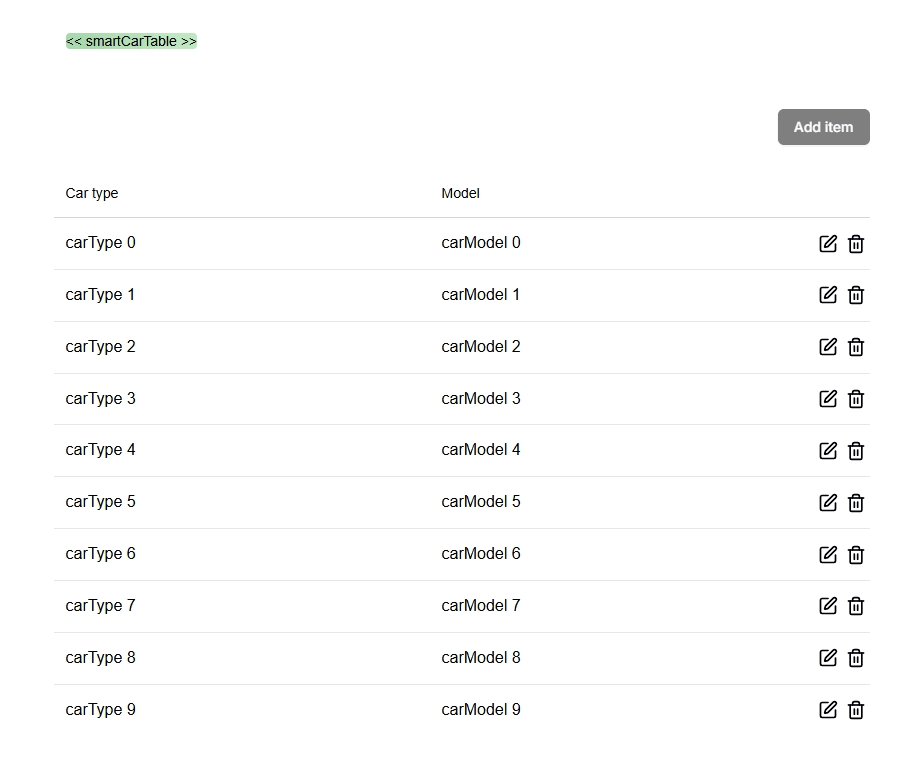
When the Smartform is opened, the SmartTable renders as an interactive table with the Smart Object’s properties as columns. Users can add, edit and delete rows directly in the form:
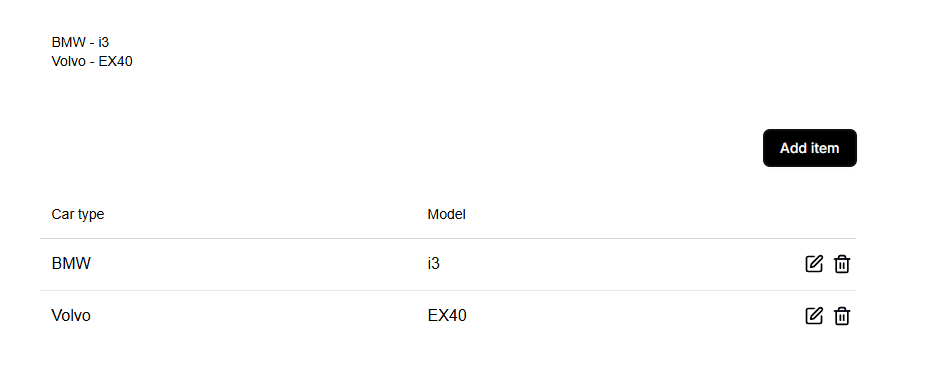
If you write the reference of a SmartTable in a text element, the form prints the table’s rows there, one row per line with the values separated by -.
Row data can come from either source, depending on your setup:
- Predefined rows configured in the Smart Object template itself in Studio, or
- Rows supplied via the REST API when creating the Smartform, the same way as for any other element: nested under
valuesand keyed by the SmartTable element’s property name (shown in Studio’s Properties panel), not the Smart Object’s name. Include an array of objects whose keys match the Smart Object’s properties:
    "values": {
        "smartTable-e3f0": [
            { "carType": "BMW", "carModel": "i3" },
            { "carType": "Volvo", "carModel": "EX40" }
        ]
    }
Text Library texts [[ LIB : ]]
A reference such as [[ LIB : HRDOCS : sick-leave ]] shows a text from the Studio Text Library. It uses the same double square brackets as a data table value, and Studio colours it blue too, but the LIB : keyword makes it a Text Library reference, never a data table value. A {{ }} placeholder inside the library text is filled in on the form. See Using Texts.
External MetaData
External MetaData is not a placeholder: it is not shown on the form. It is a set of keys your system sends when it creates the form, for example the id of a case in your CRM. Doc Gen stores it with the form and returns it as ExternalMetaData in the webhook and when you fetch the form through the REST API, so your system can connect the result to its own record.
"externalMetaData": {
    "CRMTaskid": "12345678"
}
See REST API for a full request.