Publish Smartforms
On each environment page in Deployment, Publish moves Smartforms from that environment to the next one. This page shows how to publish one Smartform, a selection or a whole folder, and how to move them on until they reach Production. See the Deployment overview for how the environments fit together.
Before you start
- Publish in the designer. Click Publish in the Smartform designer. This makes your changes live in Development as a new version. Only published changes can move on. See Versions.
- Activate the Smartform. An inactive Smartform can’t be published to another environment.
- Publish the texts too. If the Smartform uses texts from the Text Library, publish their folders to the same environment. See Text Library environments.
Open a folder
- Go to Deployment → Development.
- Find the folder in the list. To find it quickly, type part of its name in Search folders.
- Click View all on the folder’s row.
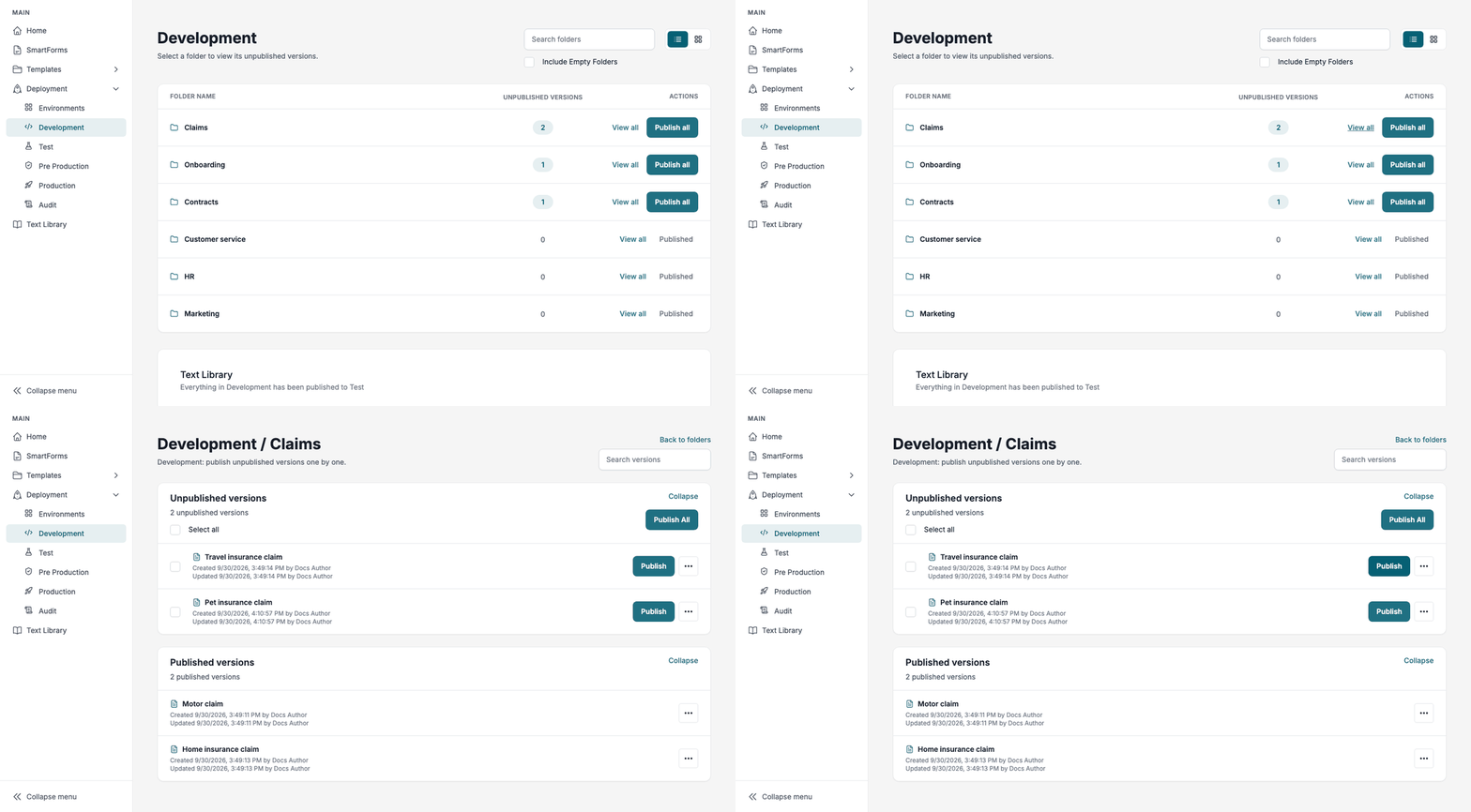
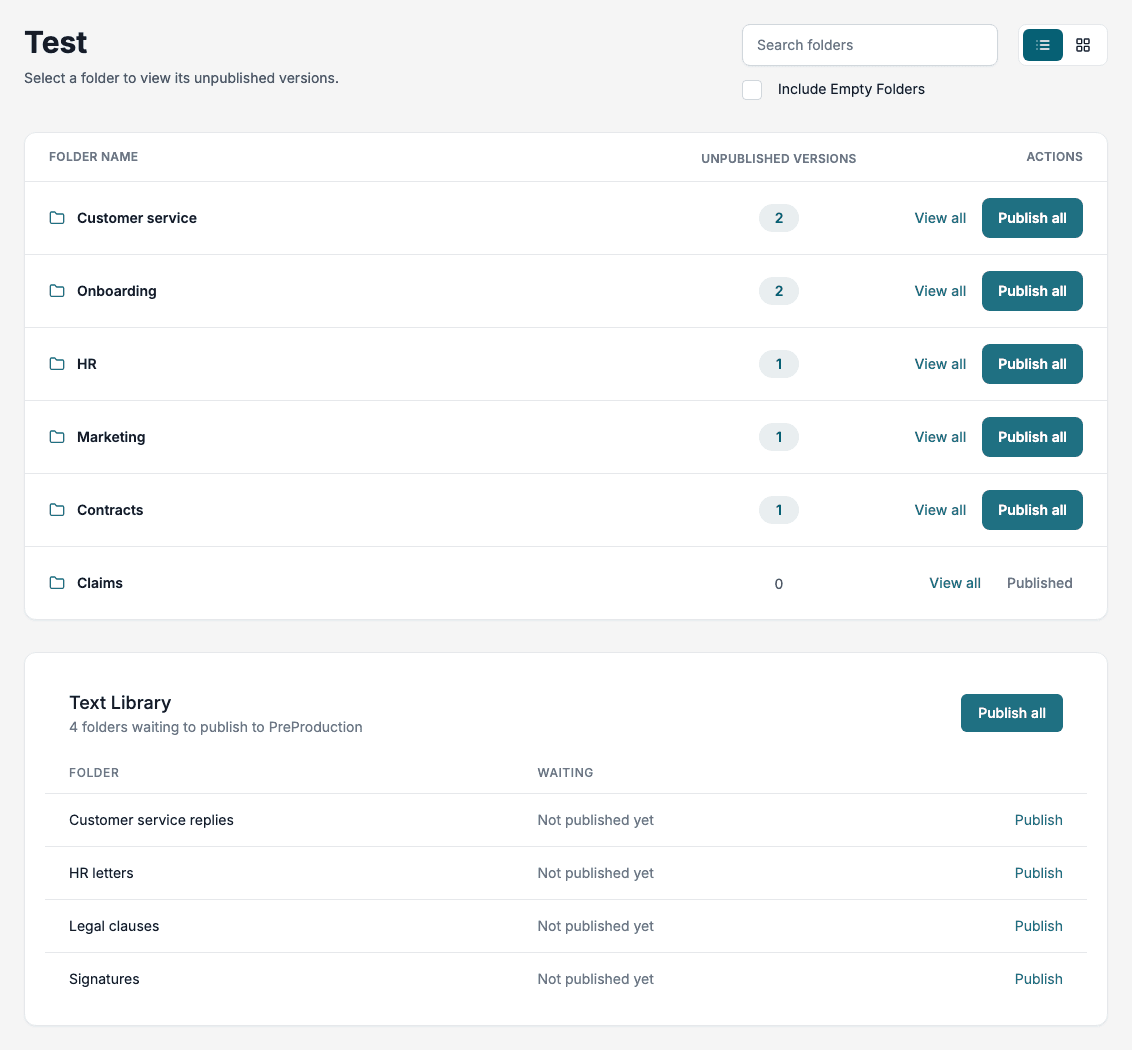
The environment page lists your Smartform folders, with the folders that have the most unpublished Smartforms first.
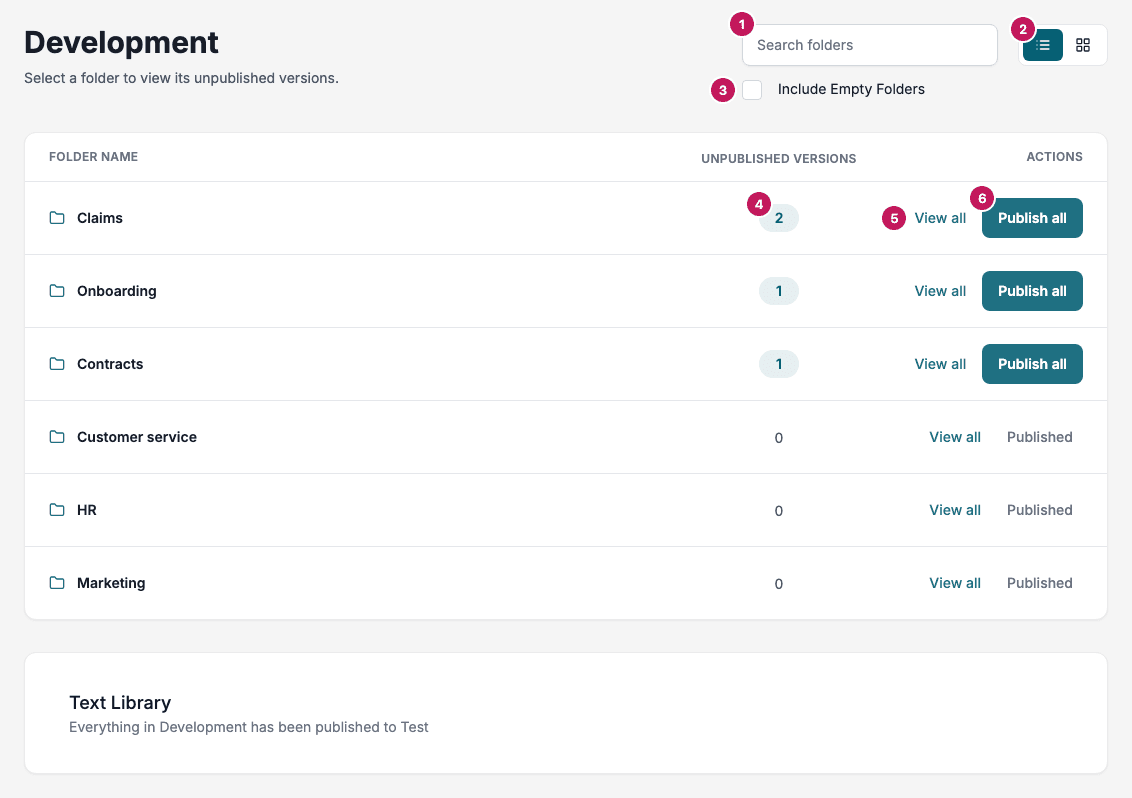
- Search folders filters the folders by name. It also filters the Text Library card further down the page.
- List and Cards switch between a list and a card view.
- Include Empty Folders also shows folders that have no Smartforms in this environment.
- The number of Smartforms in the folder that are not in the next environment yet. On the Production page this column shows the published versions instead.
- View all opens the folder.
- Publish all publishes every unpublished Smartform in the folder. When nothing in the folder is waiting, the row shows Published instead.
The Text Library card at the bottom lists the Text Library folders that wait for the next environment. When there are none, it says Everything in Development has been published to Test.
📝 Note: The folder list takes a few seconds to load. While it loads, the page says
No folders match ''. Wait for the folders to appear.
The folder page
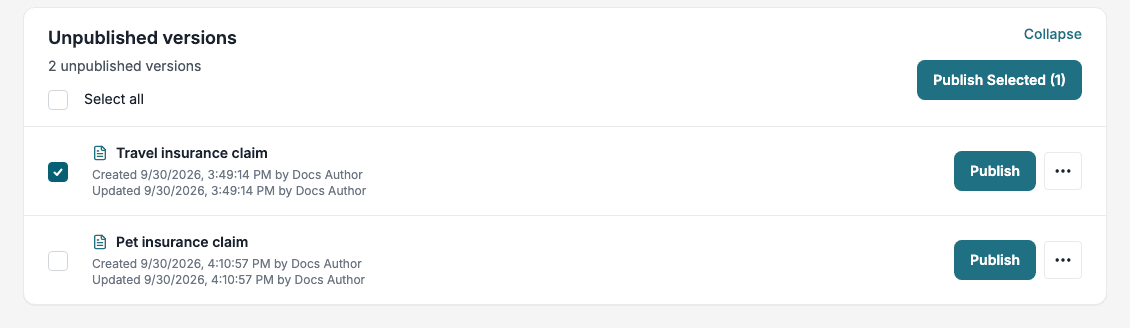
The folder page lists the Smartforms in the folder for this environment.
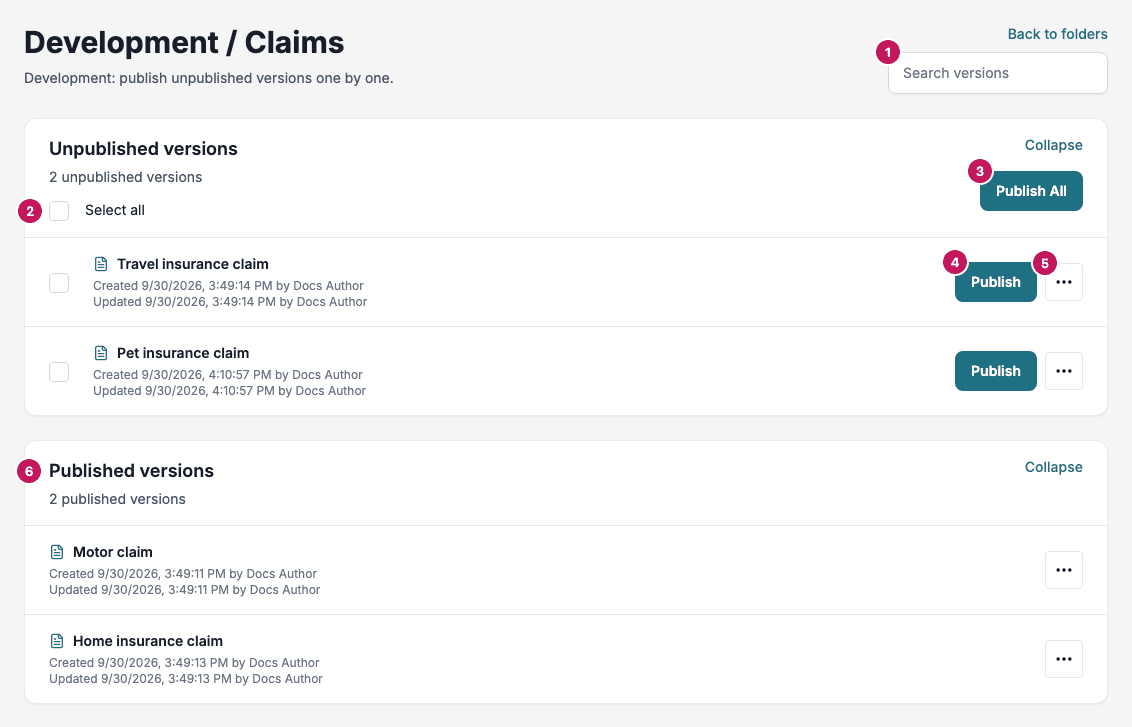
- Search versions filters the rows by Smartform name.
- Select all ticks all the rows you can see. You can also tick single rows.
- Publish All publishes every unpublished Smartform in the folder. When you tick rows, it changes to Publish Selected with the number of ticked rows.
- Publish publishes one Smartform.
- The actions button opens Preview, Download, List Versions, Rollback and Copy to draft. See Versions, Rollback and Audit.
- Published versions lists the Smartforms whose version in this environment is already in the next environment.
Each row shows when the version was created and last updated. Back to folders returns to the environment page.
Publish one Smartform
- Open the folder on the environment page you want to publish from.
- Click Publish on the Smartform’s row.
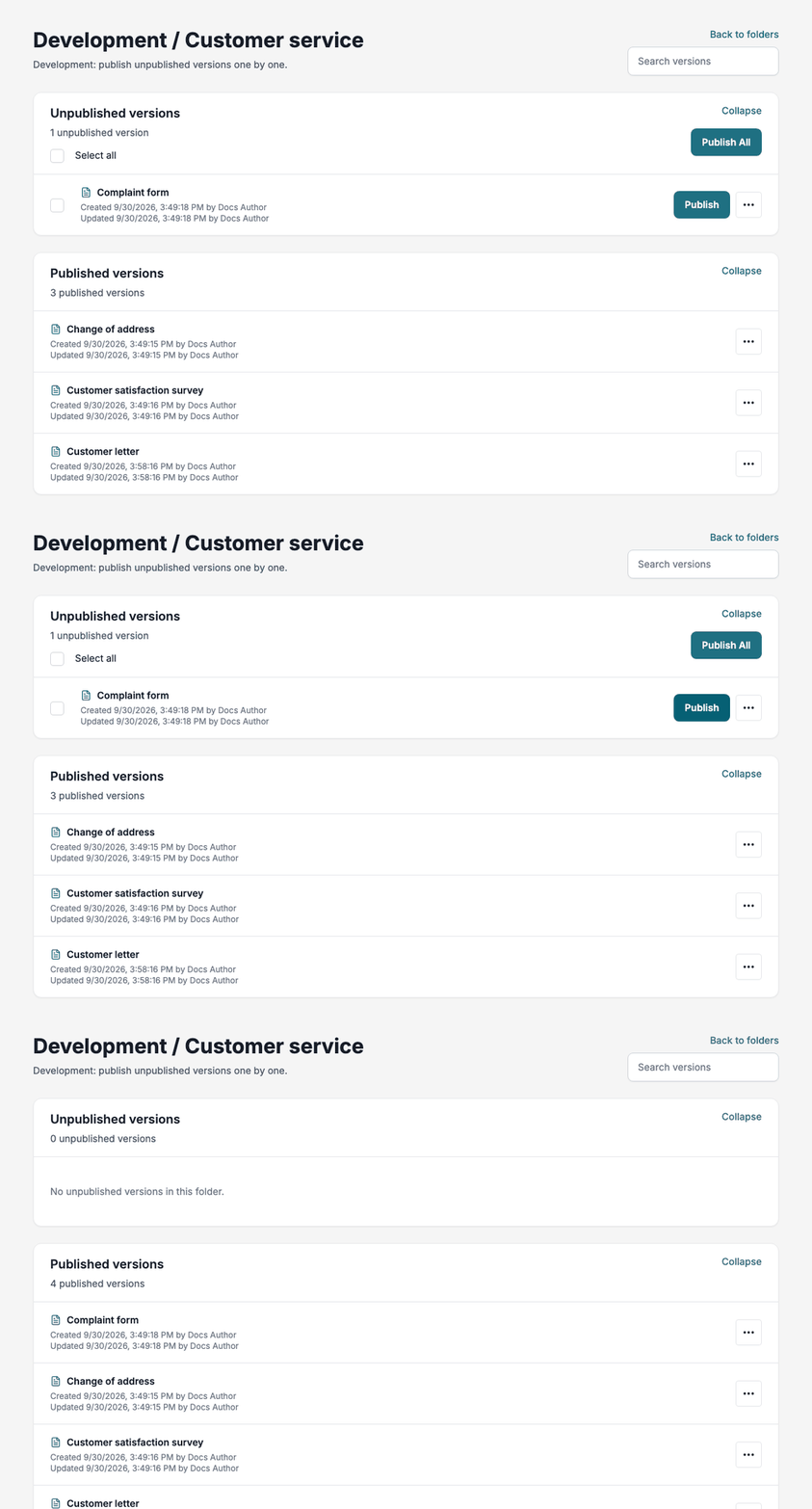
The row moves to Published versions. The Smartform is now in the next environment, where it waits to be published further.
Publish several Smartforms
Selected Smartforms: tick the rows on the folder page and click Publish Selected.
A whole folder: click Publish All on the folder page, or Publish all on the folder’s row on the environment page.
- Publish All publishes every unpublished Smartform in the folder, also the ones that Search versions hides.
- Ticked rows stay ticked when you change the search. Publish Selected also publishes ticked rows that the search hides.
- Several Smartforms are published in the background. On the folder page, Studio then shows the result, for example Batch publish completed: 2 promoted, 1 skipped. A skipped Smartform was already in the next environment, or has no version in this one.
- If it takes more than three minutes, Studio says Publish is taking longer than expected. The batch is still running in the background. When you open the page again in the same browser tab, Studio shows the result.
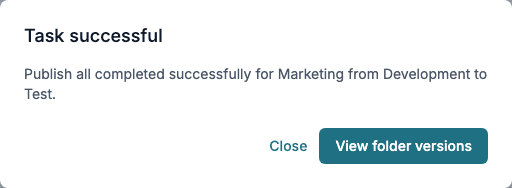
When Publish all on the environment page has published everything in the folder, Studio shows Task successful. View folder versions opens the folder in the next environment.
When a Smartform is not active
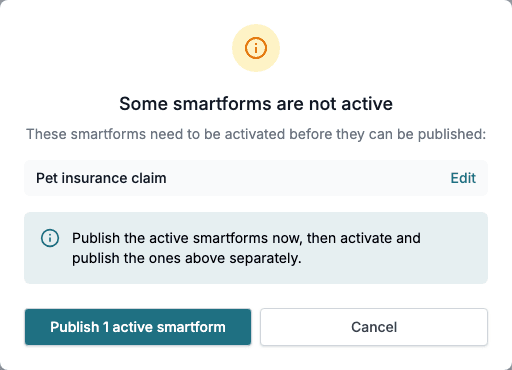
On the Development page, Studio checks each Smartform before it publishes. If some of them are inactive, it shows Some smartforms are not active and lists them.
- Publish n active smartforms publishes the others and leaves the inactive ones where they are. When none of them is active, the button is Close.
- Edit next to a Smartform opens it in the designer.
- Cancel closes the dialog without publishing.
To publish an inactive Smartform, click Activate and then Publish in the designer, and publish it again from the Development page.
Publish further
- Go to Deployment → Test. The Smartforms you published from Development wait here.
- Publish them the same way. They move to Pre Production.
- Go to Deployment → Pre Production and publish them to Production.
Each step moves the version that is in the current environment. Changes you have published in the designer since then stay in Development until you publish them from the Development page again.
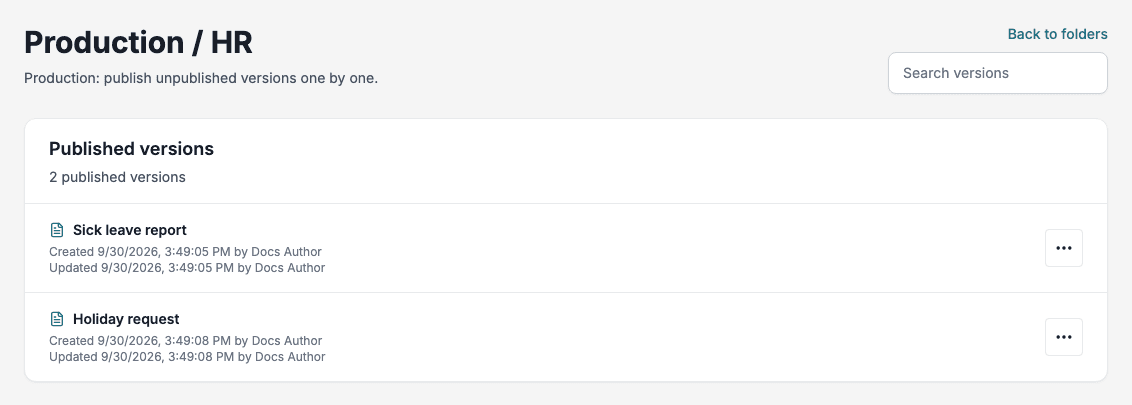
The Production page lists what is in Production. It has no Publish buttons.
Promote from the Versions tab
You can also move a Smartform from inside the Smartform. Open it, go to the Versions tab and click Promote to and the next environment on the newest version of an environment. Studio asks Promote this version from Development to Test?. Click Confirm.

This does the same as Publish on the Deployment pages. See Versions.
Text Library folders
The Development, Test and Pre Production pages end with a Text Library card. It lists the Text Library folders that are waiting to be published to the next environment. See Text Library environments.