Doxis Packages
A Doxis Package is ready-made content from Doxis: Smartforms and the Objects, Toolbars, Distribution Lists and Resources they use. An administrator installs a Doxis Package from Administration, and the content is copied into your company’s Studio. This page covers the administrator’s part. What your Studio users do with the content afterwards is on Doxis Packages in Studio.
Overview
A Doxis Package saves you from building common Smartforms from scratch. Doxis builds the content once and offers it to your company. You install it, and from then on it is your own copy: you change it, deploy it and use it like anything you built yourself.
- 1BuildReady-made content, made in StudioDoxis
- 2ReleaseA version whose content never changesDoxis
- 3OfferOffered to the companies it is forDoxis
- 4InstallAn administrator installs it from SettingsYour company
- 5UseYour own copy in Studio to adapt and deployYour company
- 6UpdateA newer version shows Updated; you chooseYour company
What’s inside a Doxis Package
A Doxis Package can carry five kinds of content. Each kind goes to its own list under Templates in Studio.
| Content | What it is for | What to check or set after installing |
|---|---|---|
| Smartforms | Smartform templates. You create your Smartforms from them. They arrive Active, without any records or history | The Smartform’s theme, archive folder and retention policy, and any settings that point to your own setup |
| Objects | Reusable parts of a Smartform, such as headers and footers. The Smartforms in the Doxis Package use your copies | Nothing, as long as the Doxis Package brought every Object its Smartforms use |
| Toolbars | The buttons people get in a Doc Composer. They arrive Active | Nothing. A Doc Composer Smartform from the Doxis Package uses your copy |
| Distribution Lists | How a Doc Composer document is sent. They arrive Active | The list keeps only the choices whose Objects came in the Doxis Package. Add any others you need |
| Resources | Images, such as logos. They are copied into your company, and the Smartforms and Objects in the Doxis Package use your copies | Nothing, as long as the Doxis Package brought every image its Smartforms use |
A Doxis Package carries nothing else. Themes, Text Library texts, contact lists, archive folders and retention policies stay your company’s own. Doxis Packages in Studio has the full checklist.
See the Doxis Packages offered to your company
Installing a Doxis Package needs access to Settings in Administration.
- In CenterPoint, under Administration, open Settings → Packages.
- Each Doxis Package offered to your company has a card with its name, its Version and a description. A Doxis Package that has no released version yet shows No released version instead of Import.
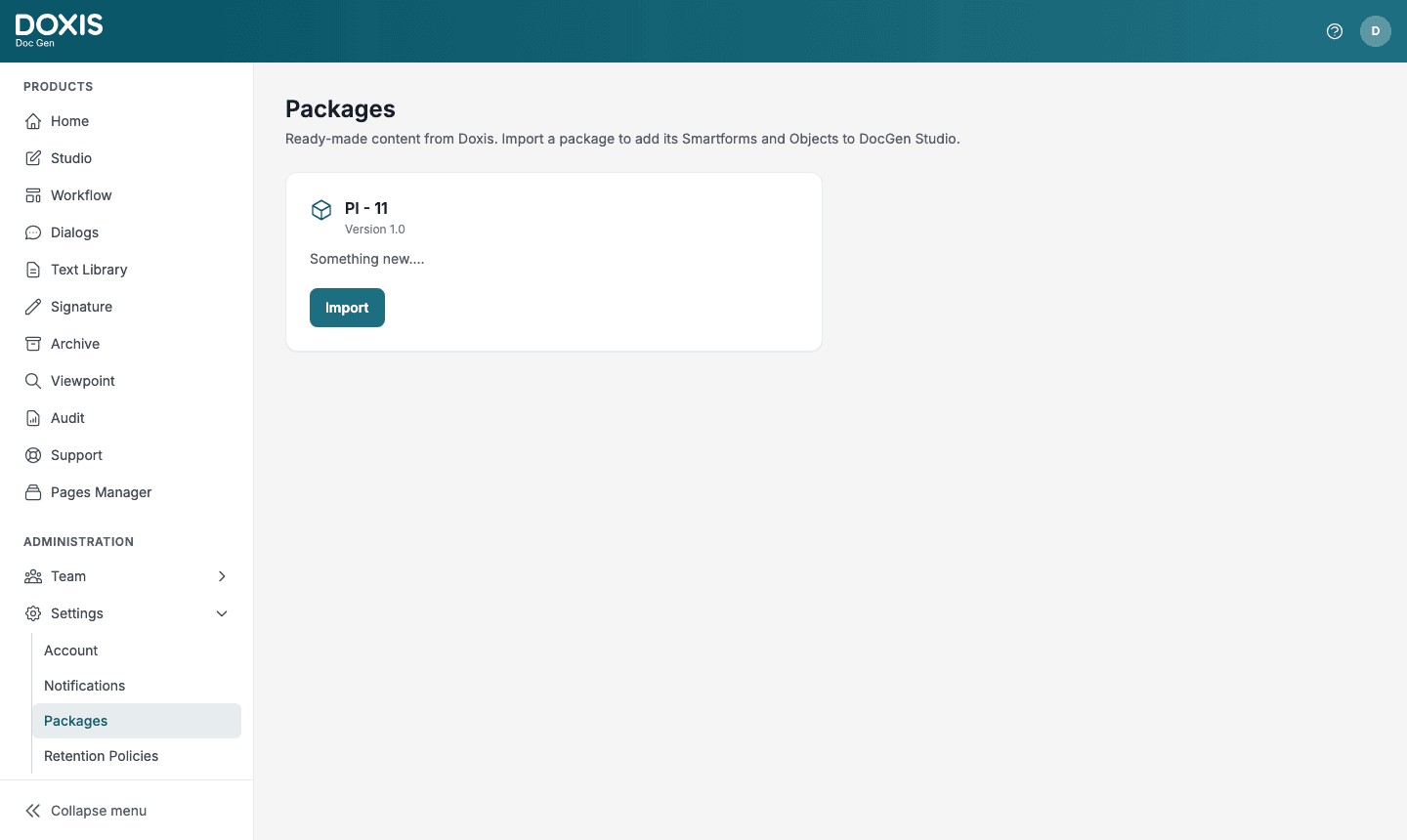
A card can carry a badge:
- Imported: you have installed the current version.
- Updated: you installed an earlier version, and Doxis has released a newer one since. See When Doxis releases a new version.
When no Doxis Package is offered to your company yet, the page says No packages yet.
Install a Doxis Package
- On Packages, click Import on the Doxis Package’s card.
- In Folder, keep the suggested name, which is the Doxis Package’s name, or type another. To add the content to a folder you already have, type that folder’s name.
- Click Import.
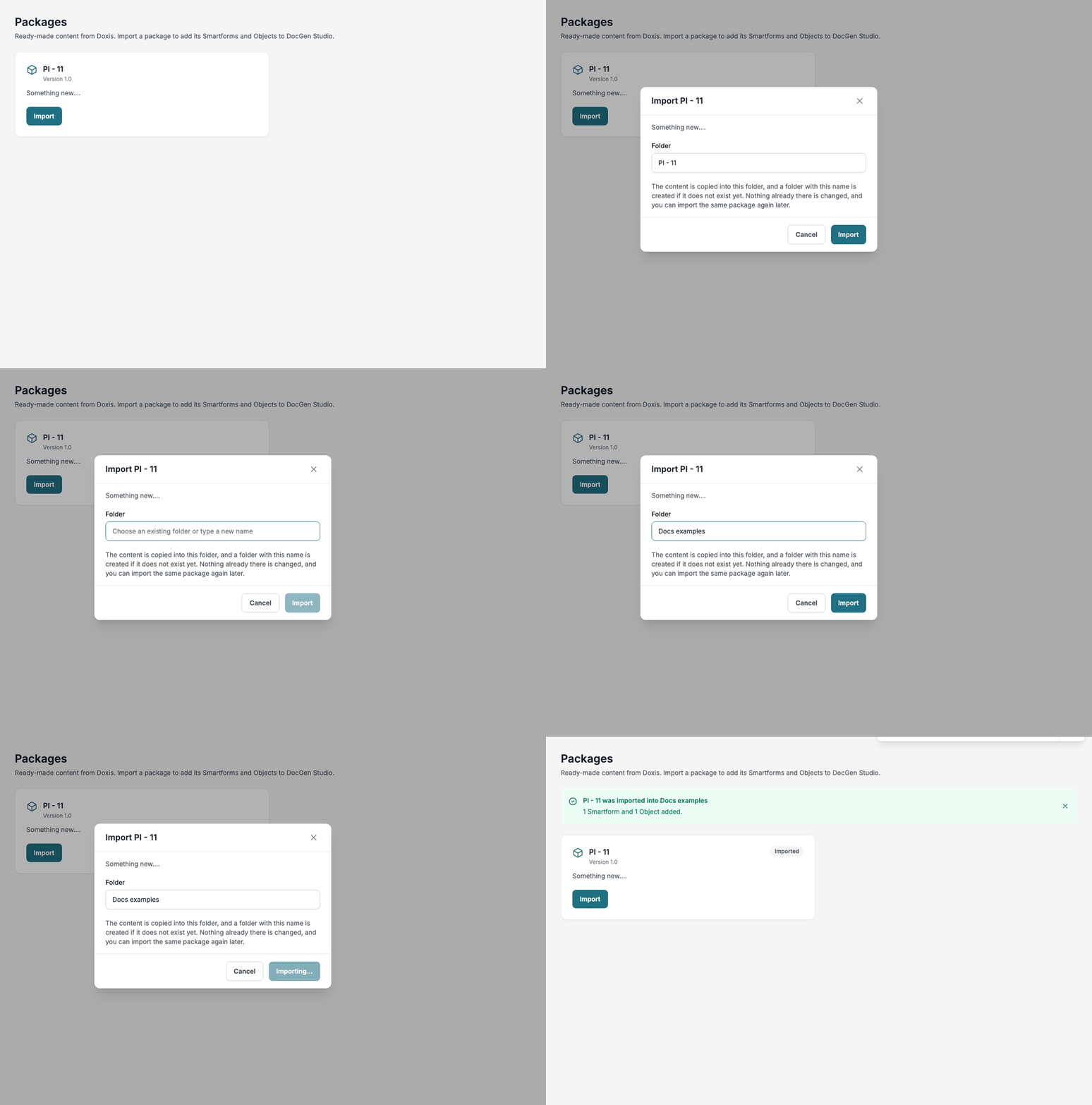
The page then says [name] was imported into [folder] and lists what was added, for example 1 Smartform and 1 Object added. The card now shows Imported.
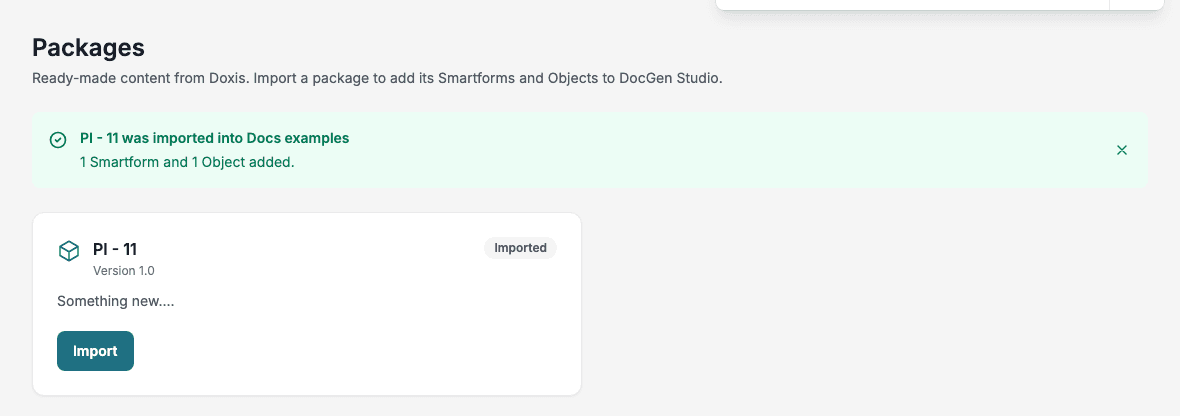
Import always installs the Doxis Package’s current version.
Where the content goes
Studio gets a folder with the name you chose in each list the Doxis Package has content for:
| Content | In Studio |
|---|---|
| Smartforms | Templates → Smartforms |
| Objects | Templates → Objects |
| Resources | Templates → Resources |
| Toolbars | Templates → Toolbars |
| Distribution Lists | Templates → Distribution Lists |
- The folder is under Shared Folders, so everyone in your company who works with templates in Studio can see it.
- If a shared folder with that name already exists and nobody has limited who may open it, the content goes into that folder. Otherwise Studio gets a new shared folder with that name.
- An item whose name is already in the folder is left as it is. The message lists these items under Already in that folder, so left as they were.
- An item that can’t be read is not added. The message lists it under Could not be read, so nothing was created for them. Ask Doxis about it.
After installing
- Tell your Studio users the folder name. The Smartforms are waiting under Templates → Smartforms in that folder, and in the Create Form dialog under a heading with the folder’s name.
- If only some people should use the content, limit the folder in Studio: open the folder’s menu and choose Manage Access.
- Go through the checklist on Doxis Packages in Studio for each Smartform your users create from the Doxis Package.
When Doxis releases a new version
- The card shows the new Version. If you installed an earlier version, the card shows Updated.
- Nothing changes in your Studio by itself. Your copy stays as it is.
- To get the new version, click Import again:
- Into a new folder: you get the whole new version, next to your copy. Compare the two and keep what you want.
- Into the folder that holds your copy: only items with new names are added. Items whose names are already in the folder are left as they are, including your changes. If nothing new was added, the page says Nothing was added to [folder], and the card keeps showing Updated.
- The Updated badge goes away when an install of the current version has added something.
If Doxis stops offering a Doxis Package, it disappears from Packages. What you installed stays in Studio.