Integration
The Integration pages connect Doc Gen to signing providers, SMS services, Bank ID providers, the digital archive and other systems. Open Administration and choose Integration in the side menu.
| Page | What it is for |
|---|---|
| Digital Signing | Choose the provider that signs your documents. See below. |
| SMS | Choose the provider that sends text messages. See below. |
| Bank ID | Choose the provider that verifies Bank ID sign-ins. See below. |
| Digital Archive | Webhooks, folders and metadata columns. See Archive integration. |
| API Clients | Credentials for systems that call the Doc Gen API. See API clients. |
| Auditlog Forwarding | Send audit events to another system. See Audit log forwarding. |
Digital Signing
Choose the Provider that signs documents for Doc Gen applications.
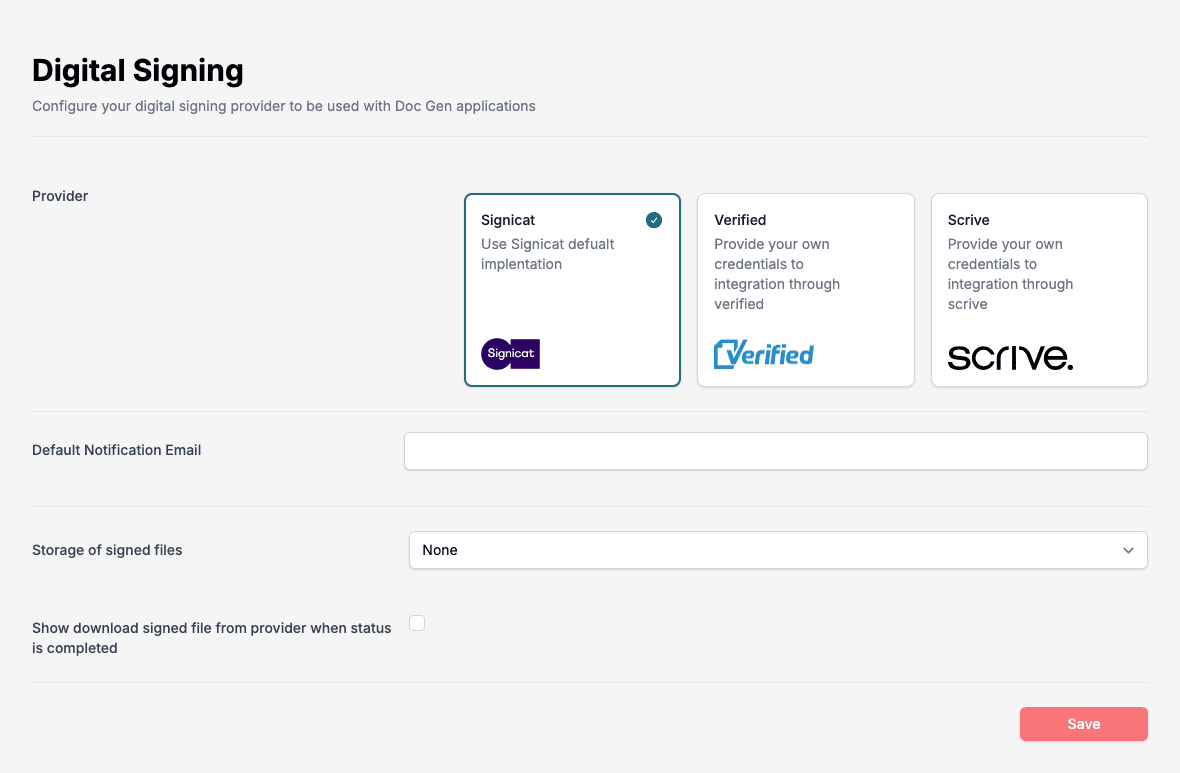
| Provider | Notes |
|---|---|
| Signicat | Uses the Signicat implementation provided through Doc Gen. You need no credentials of your own, and it is billed based on usage. |
| Verified | You provide your own credentials. Verified bills you directly. |
| Scrive | You provide your own credentials and generate access keys with them. |
Then fill in the rest of the page:
- Default Notification Email: shown and required for Signicat.
- For Verified: UserId, Password and CompanyId. Click Test Credentials. Save only works after a successful test.
- For Scrive: Email and Password. Click Generate access keys. Then choose the signing methods your users can use: E-mail, BankID (Norwegian), BankID (Swedish) and SMS.
- Storage of signed files: None does not store signed files, Optional lets the sender decide, and Mandatory always stores them. For Optional and Mandatory, click Add folder under Selected folders in Archive to choose the archive folders where signed files can be stored.
- Show download signed file from provider when status is completed: tick it to offer the download of the provider’s own signed file once signing is complete.
Click Save when you are done.
SMS
Doc Gen sends text messages through a provider you choose.
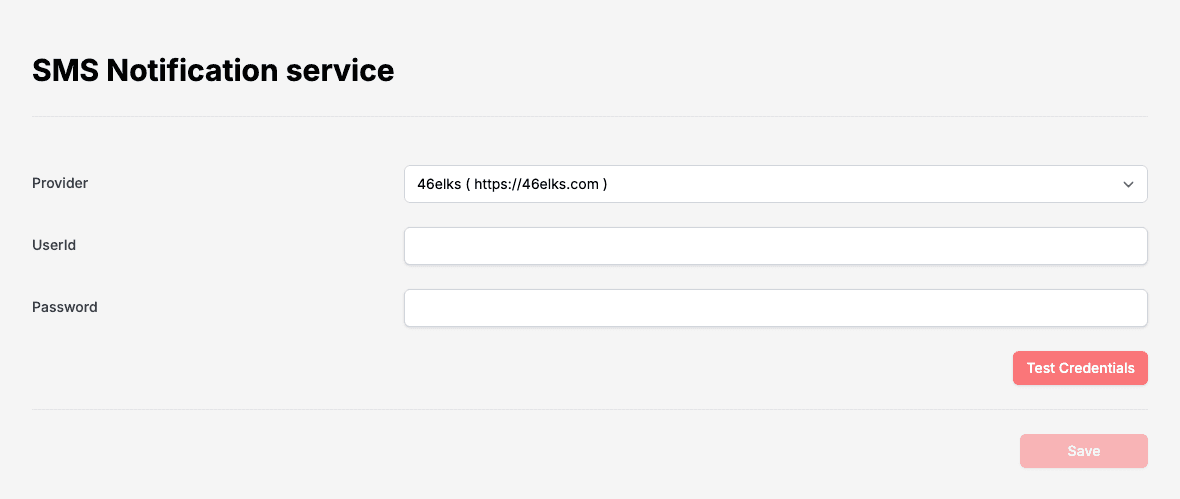
- Choose a Provider: ClickSend, 46elks or Textmagic.
- Type the UserId and Password of your account with the provider.
- Click Test Credentials. The button changes to Test Successful when the provider accepts them.
- Click Save. Save stays off until the test has succeeded.
Bank ID
Bank ID Authentication sets the provider that verifies users who sign in with a Bank ID.
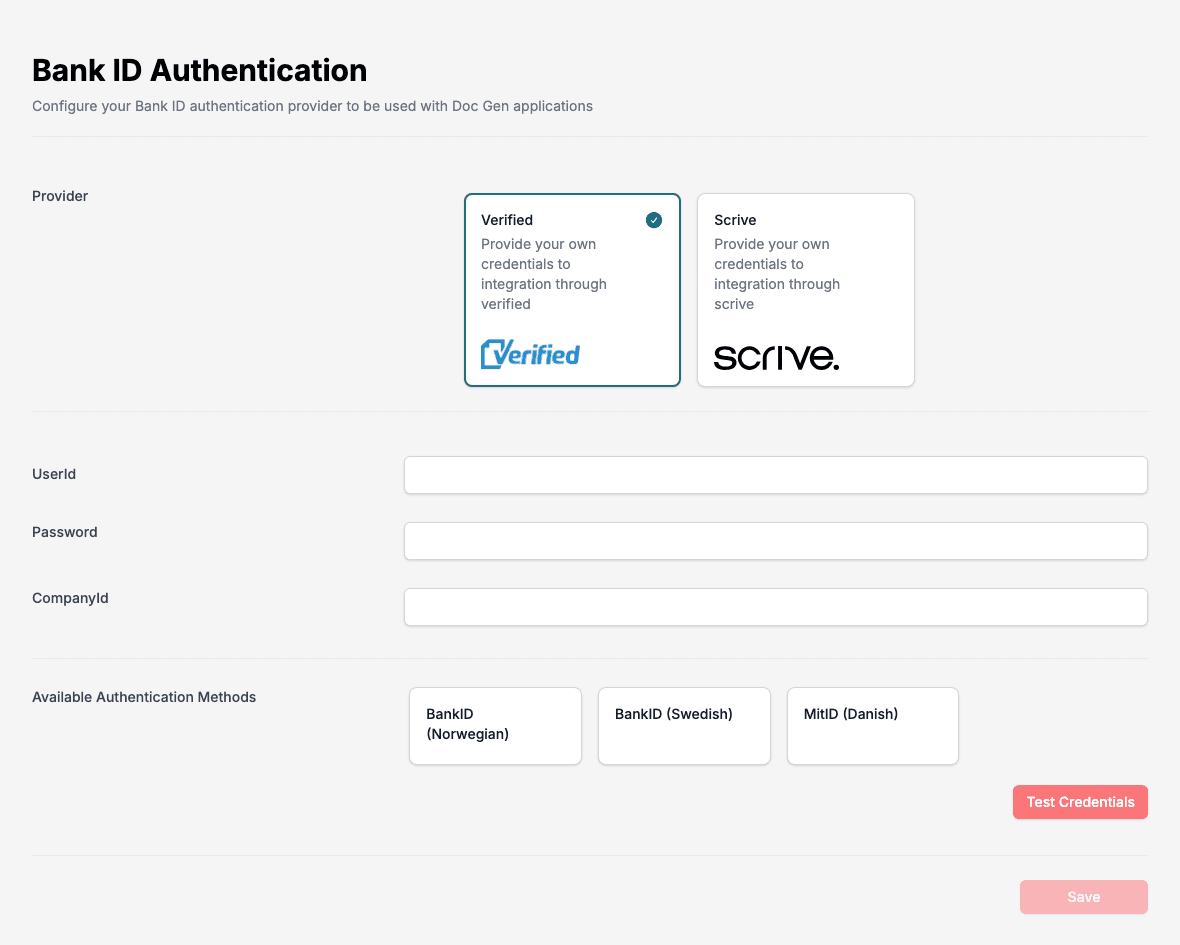
- Choose a provider, Verified or Scrive.
- Enter your credentials. Verified asks for UserId, Password and CompanyId. Scrive asks for a Bearer token instead.
- Under Available Authentication Methods, select the methods users can sign in with: BankID (Norwegian), BankID (Swedish) and MitID (Danish).
- Click Test Credentials (Test Token for Scrive). Save only works after a successful test.