Archive integration
The built-in digital archive can be set up to match your organisation. Open Administration, then Integration, then Digital Archive. The page has three tabs: Webhooks, Folders and Metadata columns.
Webhooks
A webhook is an address in another system that Doc Gen calls when something happens in the archive. The Webhooks tab lists yours with Status, Name, Url and Created.
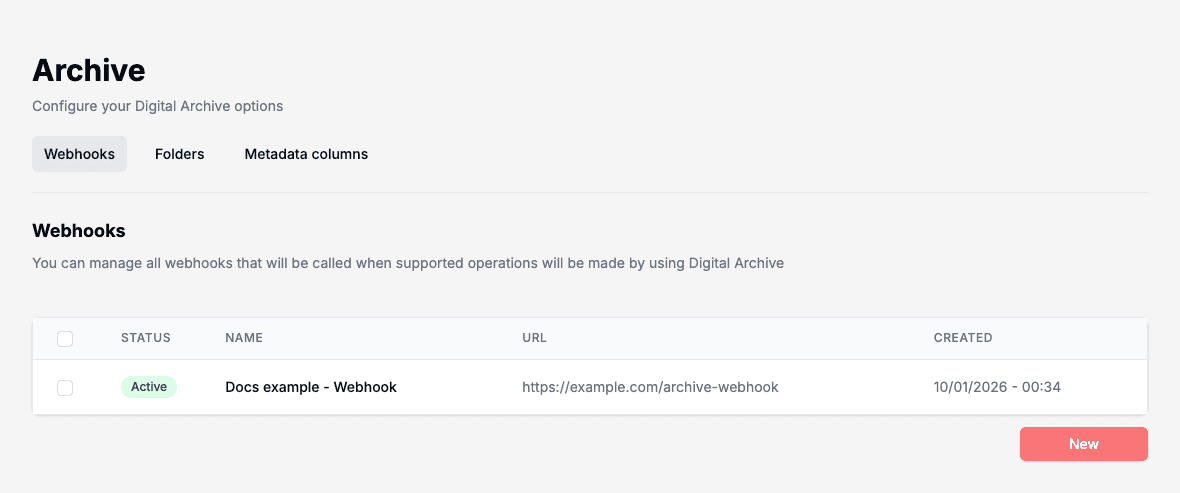
Doc Gen calls an active webhook when a document is stored in the archive through the API with a callback payload. It sends that payload to the address.
Add a webhook
- Click New.
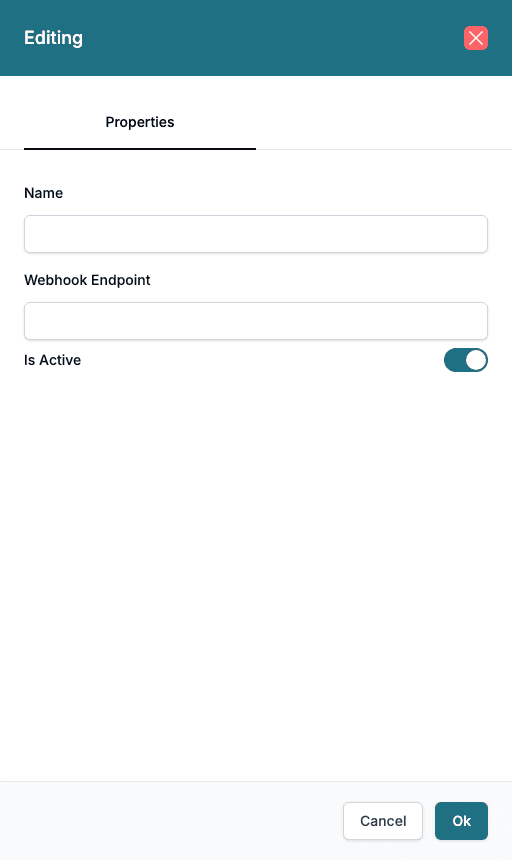
- Type a Name and the Webhook Endpoint, the address that should be called.
- Leave Is Active on, or switch it off to keep the webhook without using it.
- Click Ok.
To remove webhooks, tick them and click Delete.
Folders
The Folders tab manages the folders your company has in the archive, and who can use them.
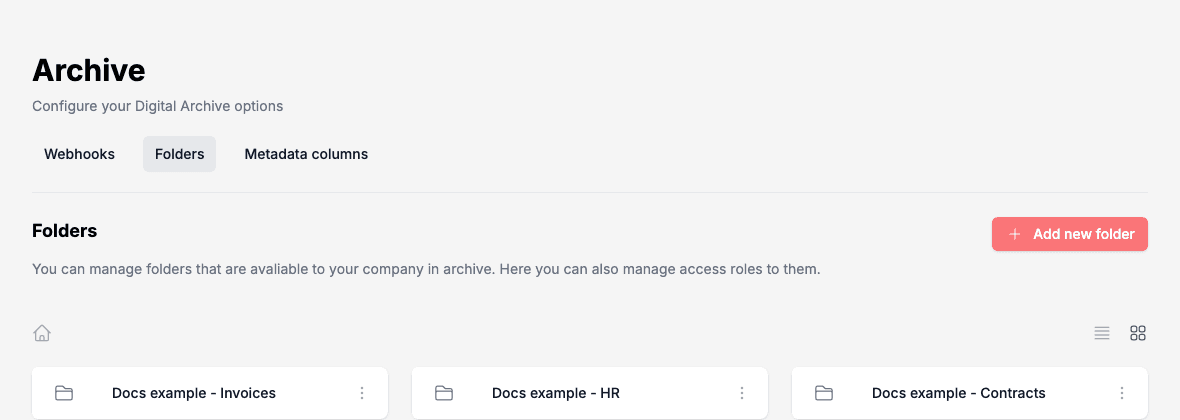
Click Add new folder to create one. Click a folder to open it. The path above the folders shows where you are. Use Open options on a folder to Edit or Delete it. Deleting a folder also deletes everything inside it, and Doc Gen asks you to confirm.
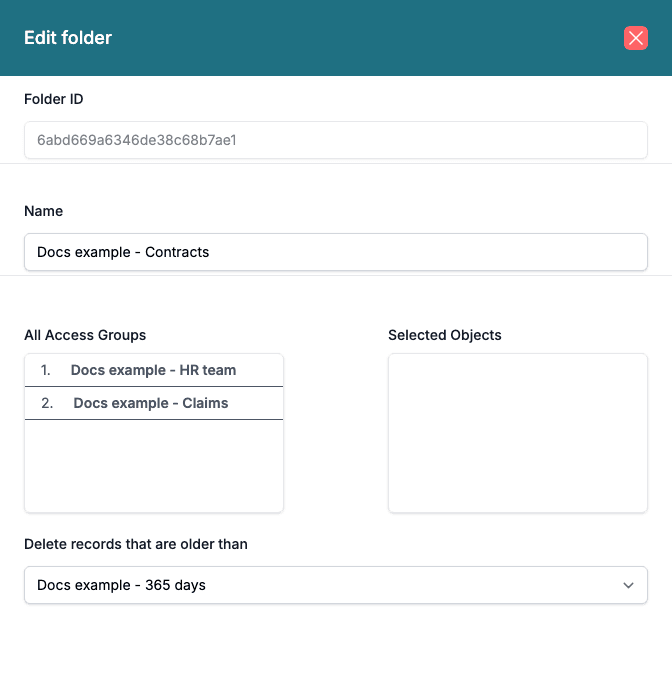
The folder panel has:
- Folder ID: set by the system, read-only.
- Name.
- All Access Groups and Selected Objects: the access groups that can use the folder. Drag a group into Selected Objects to give it access.
- Delete records that are older than: choose a retention policy, or None.
Click Submit to save the folder.
Metadata columns
The Metadata columns tab controls the columns people see when they browse the archive.
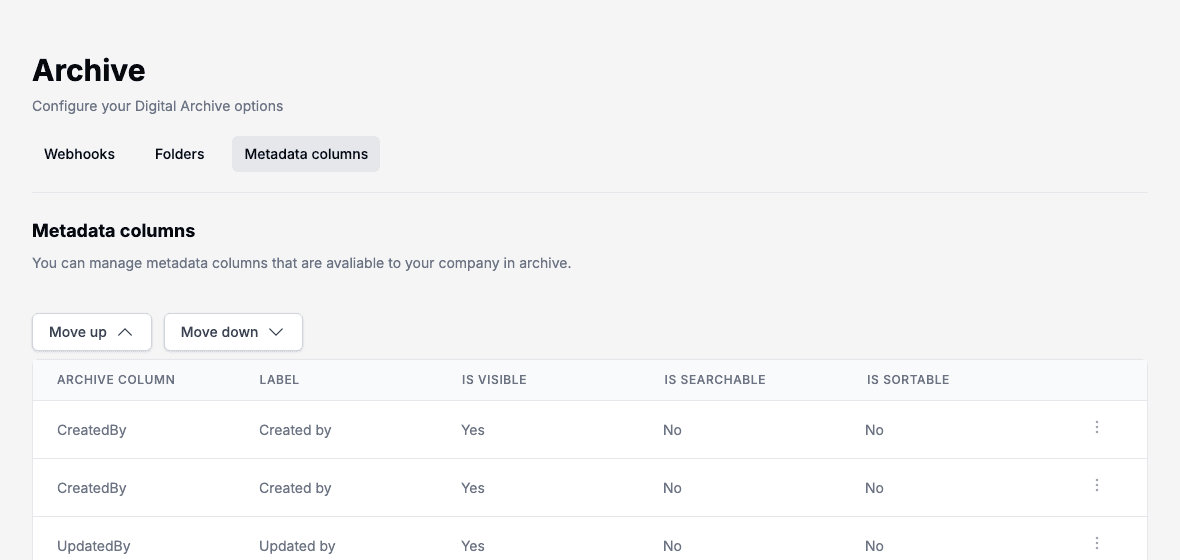
Use Open options on a column and choose Edit to change it. The system names in Archive column stay the same.
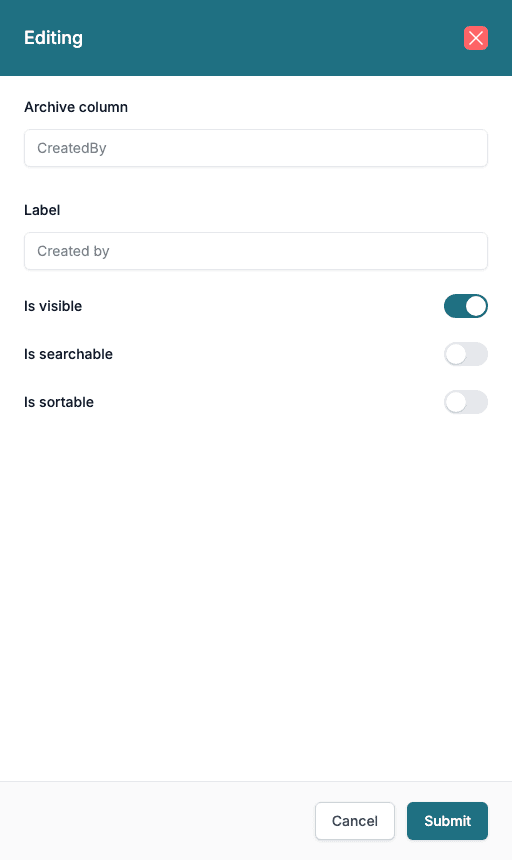
- Label: the name shown to users.
- Is visible: whether the column is shown.
- Is searchable and Is sortable: whether users can search and sort on it.
Click Submit to save the column.
Select a column and use Move up and Move down to change the order.