Signature
Signature is the Doxis Doc Gen application for sending PDF files to one or more people to sign electronically, and for following the result. The signing itself is done by your company’s electronic signature provider. Signature prepares the order, tells each signer, and collects the outcome.
Open it from the Doxis Doc Gen homepage. The application has two parts:
- A three-step creator for new signing orders. See Create a signing order.
- A list of all orders, where you follow each one and act on it. See Follow and manage orders.
Your own system can do the same through the Signature API.
How it works
An order holds one or more PDF files and one or more signers. Every signer signs every file. When everyone has signed, the order is Completed. Where the signed PDF goes depends on your company’s settings: see Actions on an order.
Open the app
The left menu has two entries:
| Menu entry | What it opens |
|---|---|
| Home | The start page with the two tiles and your latest activity |
| Orders | The List of signing orders with filters, status and actions |
The question mark icon in the top bar opens this documentation.
Home
Home is the first page you see. The top of the page has three parts.
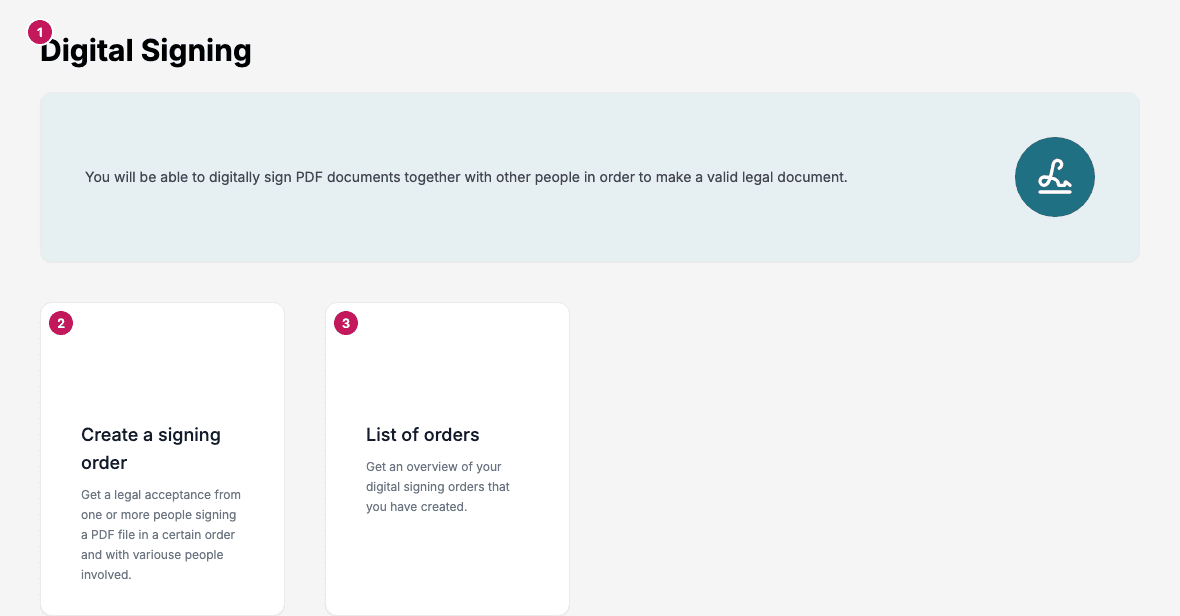
- The page title Digital Signing and the banner. The banner says what the application is for.
- The Create a signing order tile. It opens the creator.
- The List of orders tile. It opens the same list as Orders in the left menu.
Under the tiles, Your latest activity lists the five orders that were changed most recently. The list appears as soon as your company has at least one order. It covers the orders of the whole company, not only your own.
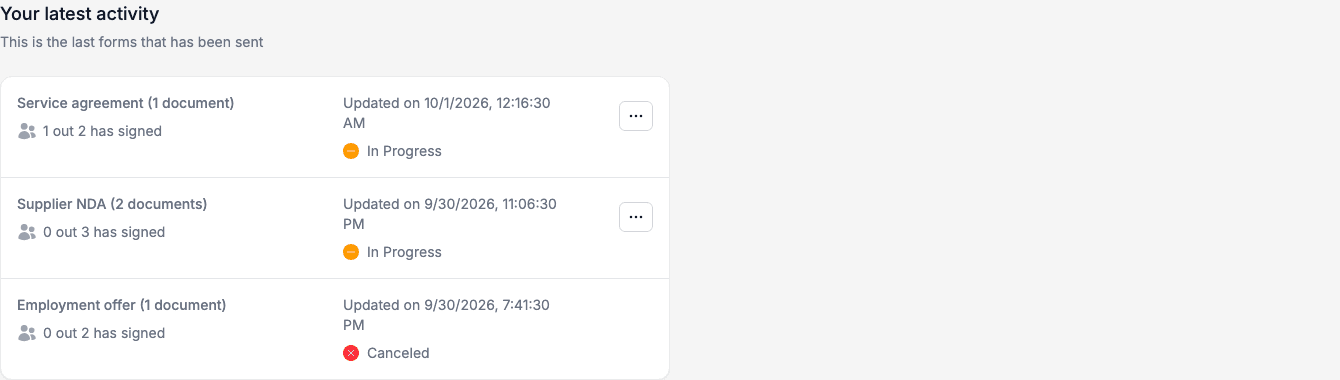
Each row shows:
- The document name and how many documents the order holds.
- How many signers have signed, for example 1 out 3 has signed.
- When the order was last updated and its status.
- A menu with Stop signing order, for orders that can still be stopped.
The status is one of Created, In Progress, Completed, Canceled, Error or Not completed. The list of orders under Orders shows a newly created order as In Progress, so the two lists can use different words for the same order. See Statuses.
What the signer sees
Each signer gets an e-mail with a personal link. The link opens the signing page of your company’s provider. With Signicat and Scrive, the signing page uses the language you chose for the order.
- With Signicat, the signer signs with BankID: Swedish BankID, Norwegian BankID or Norwegian BankID on mobile. The signature is added to the PDF file itself (PAdES).
- With Scrive, the creator can offer Sign via E-mail, Sign via BankId (NO) and Sign via BankId (SE), depending on what your provider has enabled.
See What signers receive for every e-mail that Signature and the provider send.
Who can use it
To create and follow orders, your company needs a Signature licence and your user needs access to Signature. The signing provider your company uses, and the archive folders that signed files can be stored in, are set up by an administrator in Administration. See Integration.
The provider changes which fields and actions you see. Create a signing order lists the differences.
Signature records when an order is created, when it is stopped, and when someone opens Home for the first time in a browser session, so these events can be followed in Audit.
If you cannot open Signature
| What you see | What it means and what to do |
|---|---|
| Missing license to access DigitalSigning - Admin | Your company’s plan does not include Signature. Ask your administrator. |
| Session timed out | Your sign-in has expired. Click Sign in again. |
| Not Authorized | Your user has no access to Signature. Ask your administrator to give you access. |