Follow and manage signing orders
Orders shows every signing order of your company and where each one stands. From here you find an order, see who has signed, remind the people who have not, stop an order, and download the result.
Open it with Orders in the left menu, or with the List of orders tile on Home. The page is called List of signing orders.
Find orders
The filter sits above the list.
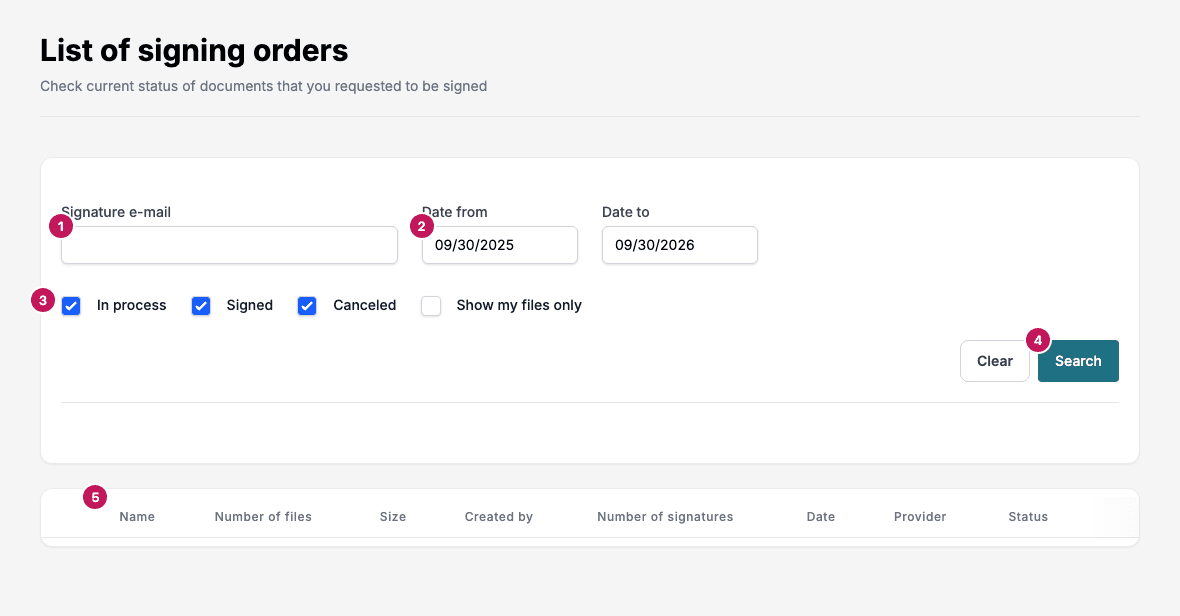
- Signature e-mail finds orders by an e-mail address. It matches the person who created the order and any of its signers, and a part of an address is enough. Upper and lower case must match.
- Date from and Date to limit the list to orders created in that period. The page opens with the last 12 months. Dates use the month/day/year format, for example 10/01/2026.
- In process, Signed and Canceled choose which statuses to show. All three are ticked at first. Show my files only shows only orders you created.
- Search applies the filter. Clear puts the filter back to its start values. Click Search afterwards to reload the list.
- The column headings. Click a heading to sort.

The status boxes cover these order statuses:
| Box | Shows orders with the status |
|---|---|
| In process | In Progress |
| Signed | Completed |
| Canceled | Canceled and Error |
If you untick all three boxes, Signature does not filter by status.
The list holds at most the 200 orders that were changed most recently within the period. Narrow the dates to reach older orders.
Columns
| Column | Shows |
|---|---|
| Name | The document name from step 1 of the creator |
| Number of files | How many PDF files the order holds |
| Size | The total size of the files |
| Created by | Who created the order |
| Number of signatures | How many people have to sign |
| Date | When the order was last changed |
| Provider | The signing provider that carries the order: Signicat, Verified or Scrive |
| Status | The status of the order |
The newest change comes first. Click Name, Date, Provider or Status to sort by that column, and click again to reverse the order. Created by groups the orders of each person together, but not in alphabetical order. Number of files, Size and Number of signatures do not sort: clicking them puts the newest change first again.
Statuses
Order status
| Status | Meaning |
|---|---|
| In Progress | The order is with the signers. A newly created order also shows as In Progress. |
| Completed | Everyone has signed. |
| Canceled | The order was stopped, or a signer declined to sign. |
| Error | Something went wrong with the order at the provider. |
Signer status
Open an order to see the status of each signer. Signer status is shown for orders that run on Signicat. Orders on Verified and Scrive list only the addresses.
| Status | Meaning |
|---|---|
| In Progress | The signer has the request and has not opened it |
| Started | The signer has opened the signing page |
| Completed | The signer has signed |
| Canceled | The signer declined, or the order was stopped before they signed |
| Expired | The signing request ran out of time |
| Forwarded | The signer passed the request on to someone else |
| Not Set | The provider has not reported a status yet |
Open an order
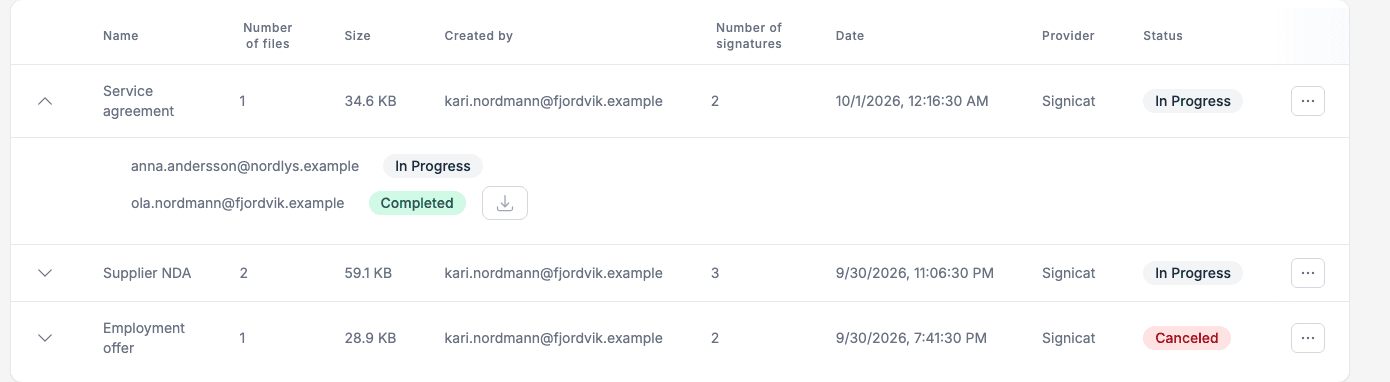
Click the arrow at the start of a row to open it. The signers appear under the row, in signing order. Each signer has an address and, for Signicat, a status. For Signicat, a download icon also appears next to a signer who has signed. It downloads that signer’s signature files as a ZIP file with one XML file per signed document. Click the arrow again to close it.
Actions on an order
Every row has a menu at the far right. It lists only the actions that fit the status of the order.
| Action | Offered when | What it does |
|---|---|---|
| Stop signing order | The order is not Completed and has not been stopped | Stops the order at the provider at once, without asking first. Signers who have not signed get the status Canceled, and the order becomes Canceled. A stopped order cannot be started again. |
| Remind | The order is In Progress | Sends a reminder e-mail to each signer who has not signed. The e-mail is your company’s standard reminder text in the language of the order, not the text you wrote for the order. |
| View Signed PDF | The signed PDF is stored in the archive | Downloads the signed PDF. |
| Download All files | The signed PDF is stored in the archive | Downloads a ZIP file with the signature XML files of all signers. The ZIP does not hold the PDF. |
| Download from provider | The order is Completed, the signed PDF is not stored in the archive, and your administrator has turned this on in Administration, under Integration (see Integration) | Downloads the signed PDF directly from the provider. |
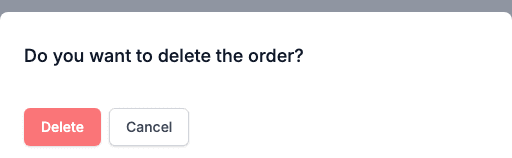
| Delete Order | The order is Completed, or it was stopped | Asks Do you want to delete the order? Click Delete to remove the order from the list for good, or Cancel to keep it. |
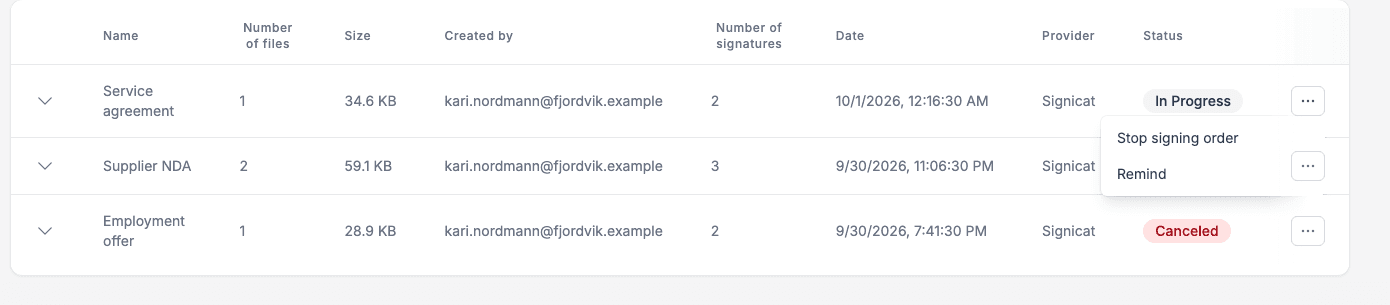
Stop signing order is also in the menu of each order under Your latest activity on Home. The steps below stop an order and then delete it.
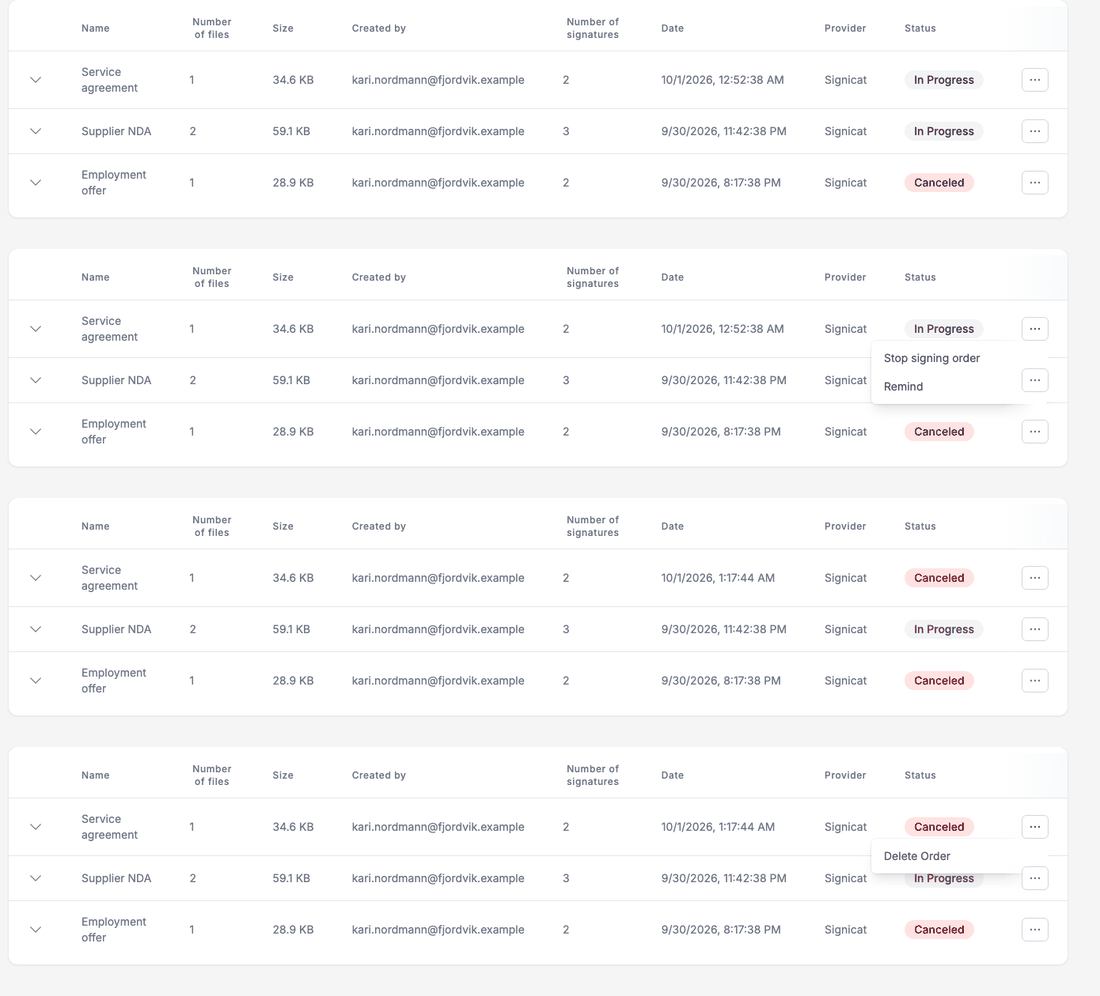
- Click the menu at the far right of the row.
- Click Stop signing order.
- The list reloads and the status turns Canceled. In the starting sort order, newest change first, the stopped order moves to the top.
- Open the menu again. It now offers Delete Order.
- Click Delete Order, then Delete.
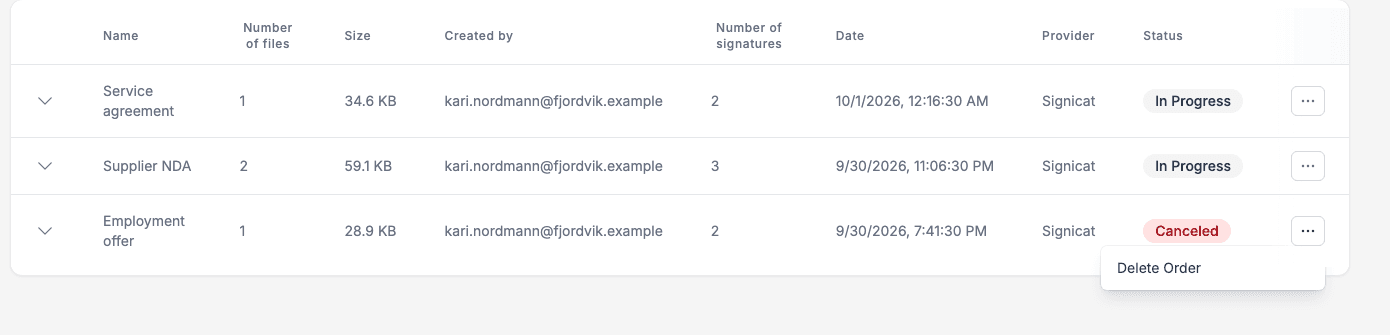
Delete Order asks for confirmation first.
An order that a signer declined shows Canceled, but it has not been stopped. It still offers Stop signing order and not Delete Order, and so does an order with the status Error. Stop the order first if you want to delete it.
The signed PDF is stored in the archive when the order was sent with an archive folder chosen. See Archive folder. Otherwise the signed PDF stays with the provider. With Scrive the signed PDF is never stored in the archive, so View Signed PDF and Download All files are not offered for Scrive orders.
Note: Delete Order cannot be undone. Stopping an order does not delete it, so the record stays in the list as Canceled until you delete it.
What signers receive
- When you send the order. With Signicat, signers without a place in the sequence, and those marked Initial, get the e-mail from Email notification messages at once. Signers marked Depends on initial get it when all Initial signers have signed.
- When you click Remind. Each signer who has not signed gets a reminder e-mail.
- When the order is completed. With Signicat, and only when Send signed document to all when completed was ticked, every signer gets the signed PDF by e-mail.
- When you stop the order. With Signicat, every signer gets an e-mail that the order was stopped.
With Verified and Scrive, Signature does not send completion or cancellation e-mails.
With Signicat, the person who created the order also gets two e-mails: Order complete when the order is completed, and Packaging complete when the signed PDF is ready.